
Hands-On: iOS 27 Finally Lets You Build Custom Wallet Passes
Toggle Dark Mode
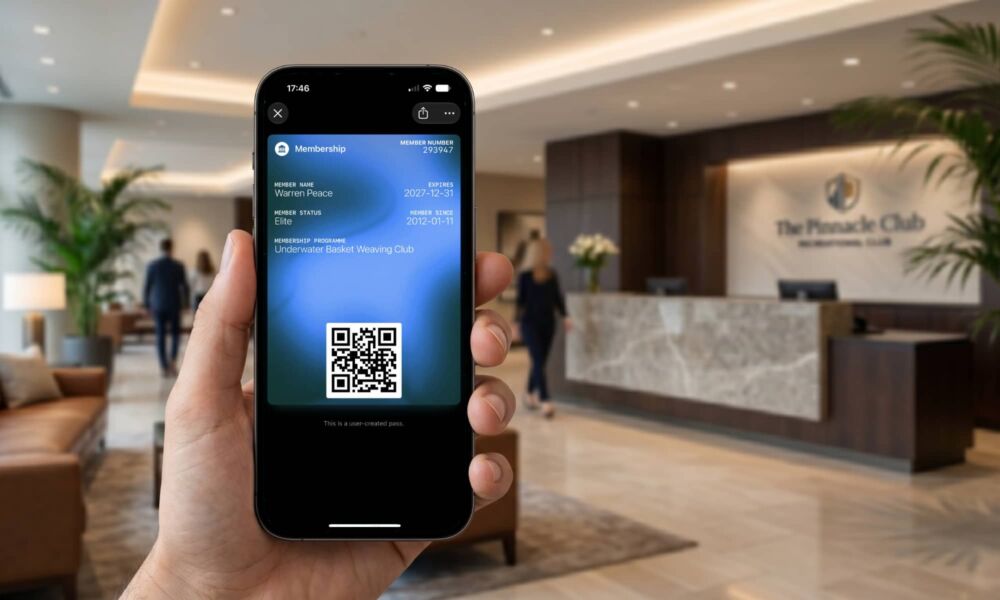
Although most of the pre-WWDC rumors on what was coming in iOS 27 centered on the Siri AI and related Apple Intelligence features, there was one other tidbit that was also remarkably prescient: custom passes in Apple Wallet.
It’s yet another one of those features that leaves us wondering what took Apple so long, but perhaps part of the reason is because the company has baked a bit of Siri into the new feature.
Apple didn’t say anything about this during the WWDC keynote on Monday, but it was one of the first things I went looking for in the developer beta once I had it installed on my iPhone. It’s in there pretty much as Bloomberg’s Mark Gurman described in his “pre-game” rumor roundups, although it leans a bit more heavily into Visual Intelligence — at least by default.

That means New Siri, which I’m still sitting on the waiting list for. Fortunately, Visual Intelligence isn’t required to create a custom pass — it’s just that you’ll have to do it manually rather than building it by scanning an existing one with your camera.
Fortunately, that’s not too cumbersome, and it’s also good news for folks with older iPhones where Siri AI and Apple Intelligence aren’t on the menu.
The process of creating a new pass is initiated by tapping the plus sign in the Wallet app — the same place you go to add things like payment cards, digital driver’s licenses, or transit passes. A new Create a Pass option defaults to using Visual Intelligence, but you can tap “Create Pass Manually” to bypass that.
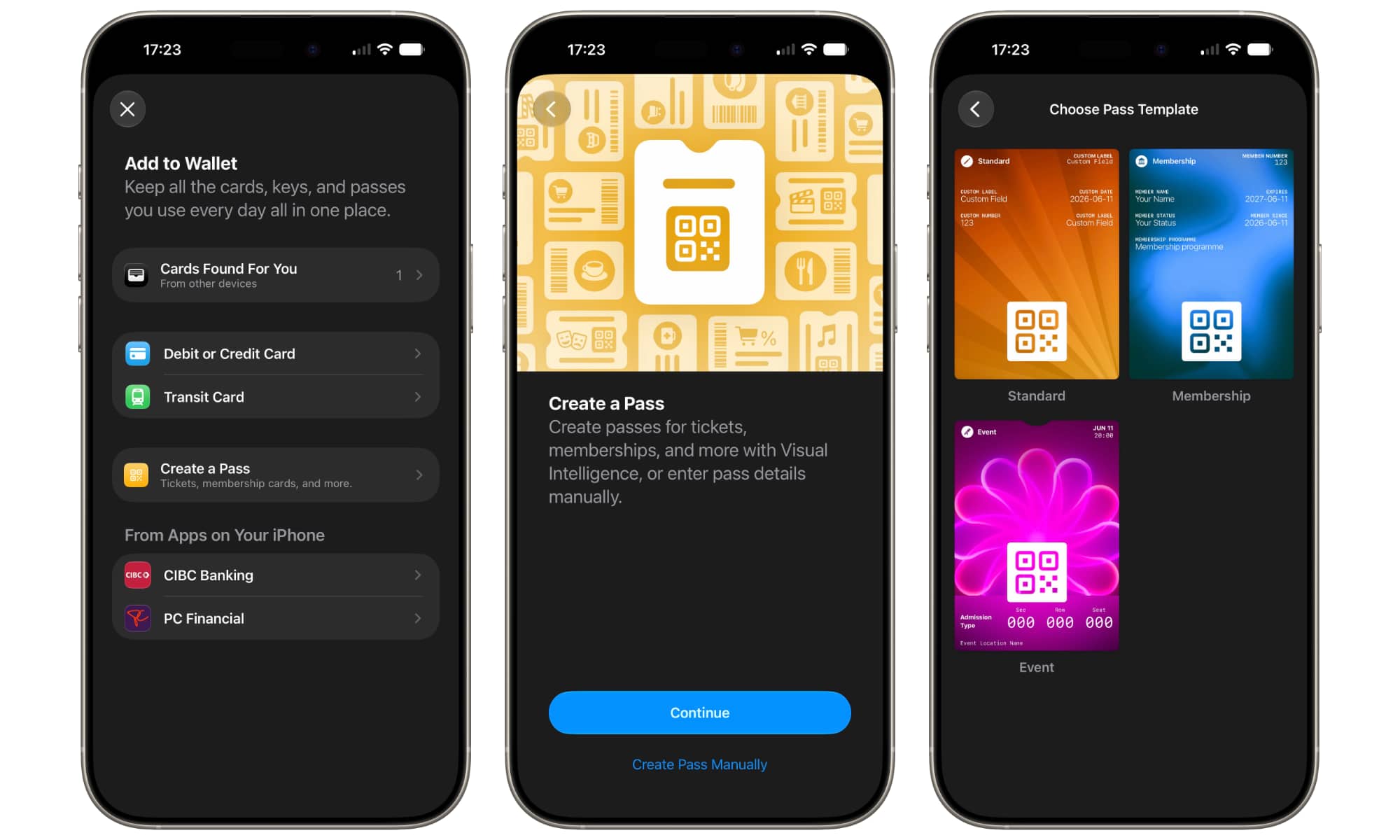
Apple provides three different templates to choose from:
- Standard is a generic template that defaults to three custom text fields, a custom number field, and a custom date field.
- Membership has a similar layout to Standard, but adds a second custom date field and labels the text field for things like membership status and a membership number.
- Event is a bit different, with fields to enter your admission type and seating location, plus a location name and date.
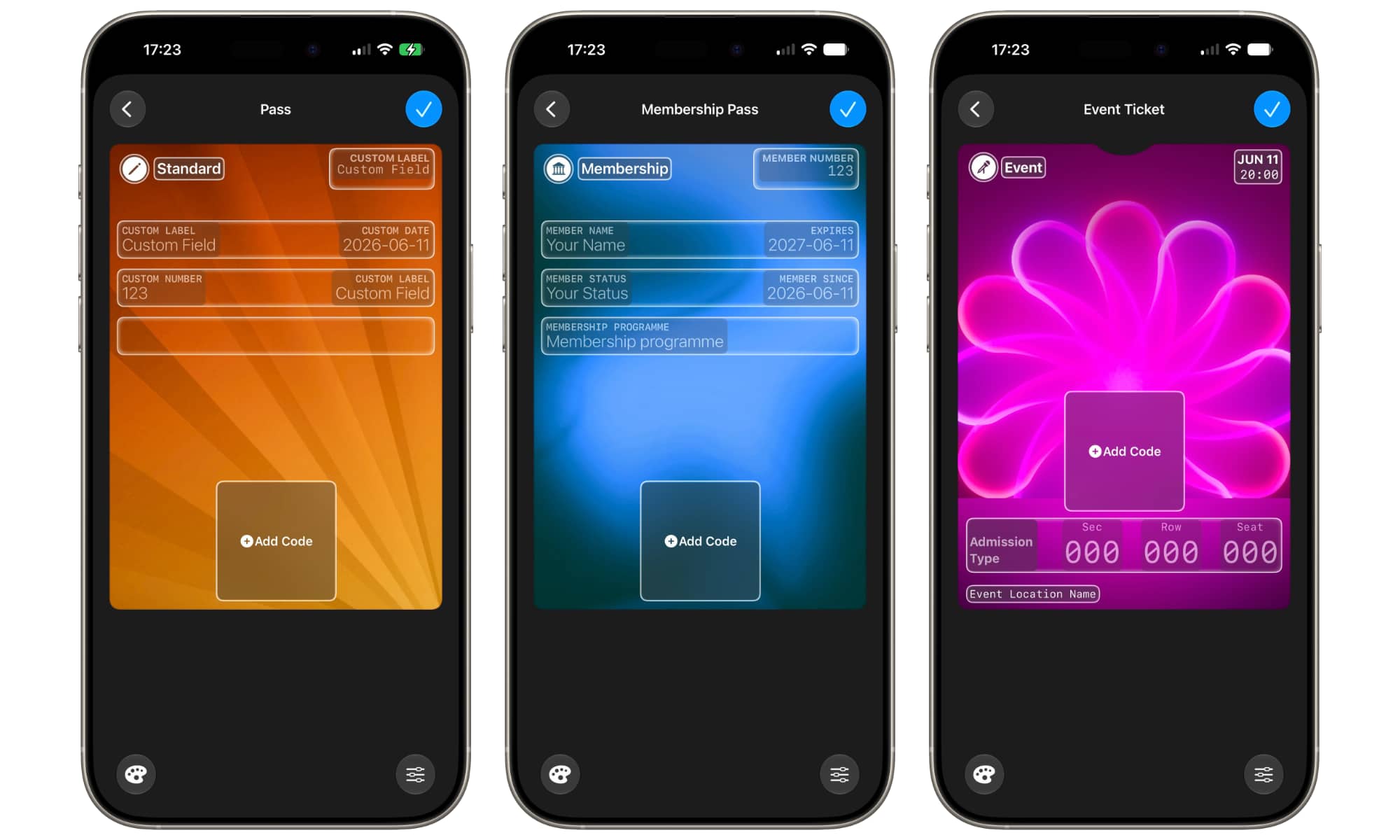
All three templates provide a space for a QR code, which has to be added by scanning a real QR code with your iPhone camera — there’s no way to just punch information in and have it turned into a QR code. However, Wallet doesn’t just store the photo; it turns this into a clean, digital version. It also isn’t too particular about what goes into this field — it will take any QR code you point your camera at.
There’s also a customizable icon in the top-left corner that opens to a built-in icon gallery. Swiping up on this screen reveals more icons arranged into categories like Arts & Culture, Commerce, Medical, and more.
However, the three templates are also just that: templates. They provide a starting point for quickly creating a new pass, but they’re all highly customizable. You can add and remove nearly every field except the icon, title, and QR code, change the background color or choose from a selection of seven premade background themes.
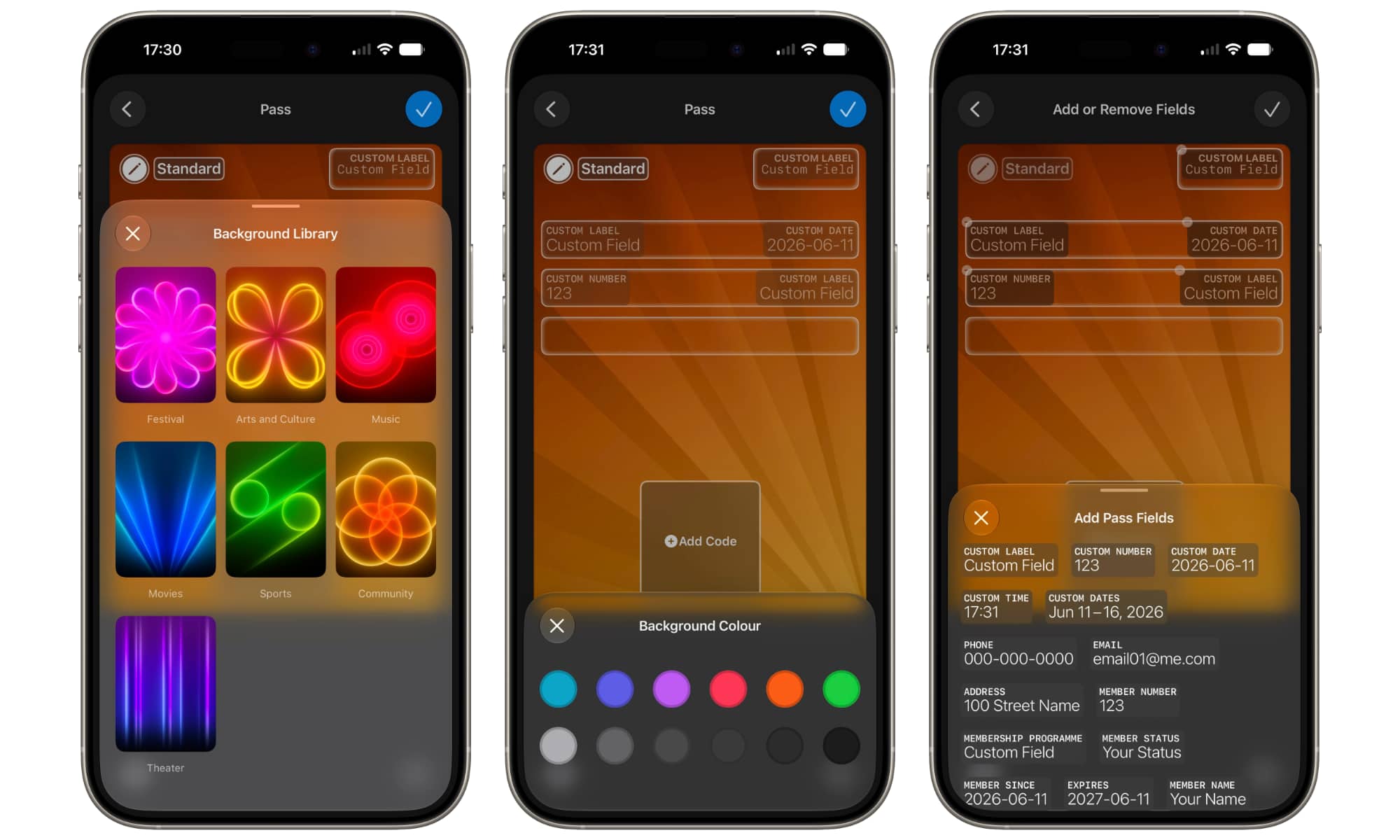
This includes adding additional fields that go beyond what the templates provide. Scrolling down in the “Add Pass Fields” window reveals categories such as coupons, discount codes, and vehicle and medical information for adding insurance cards.
While Standard and Membership are variations on a standard format, the Event template is a special case. It only offers the admission type and seating fields, letting you swap out things like section and row for level and aisle, depending on the type of venue you’re creating a pass for.
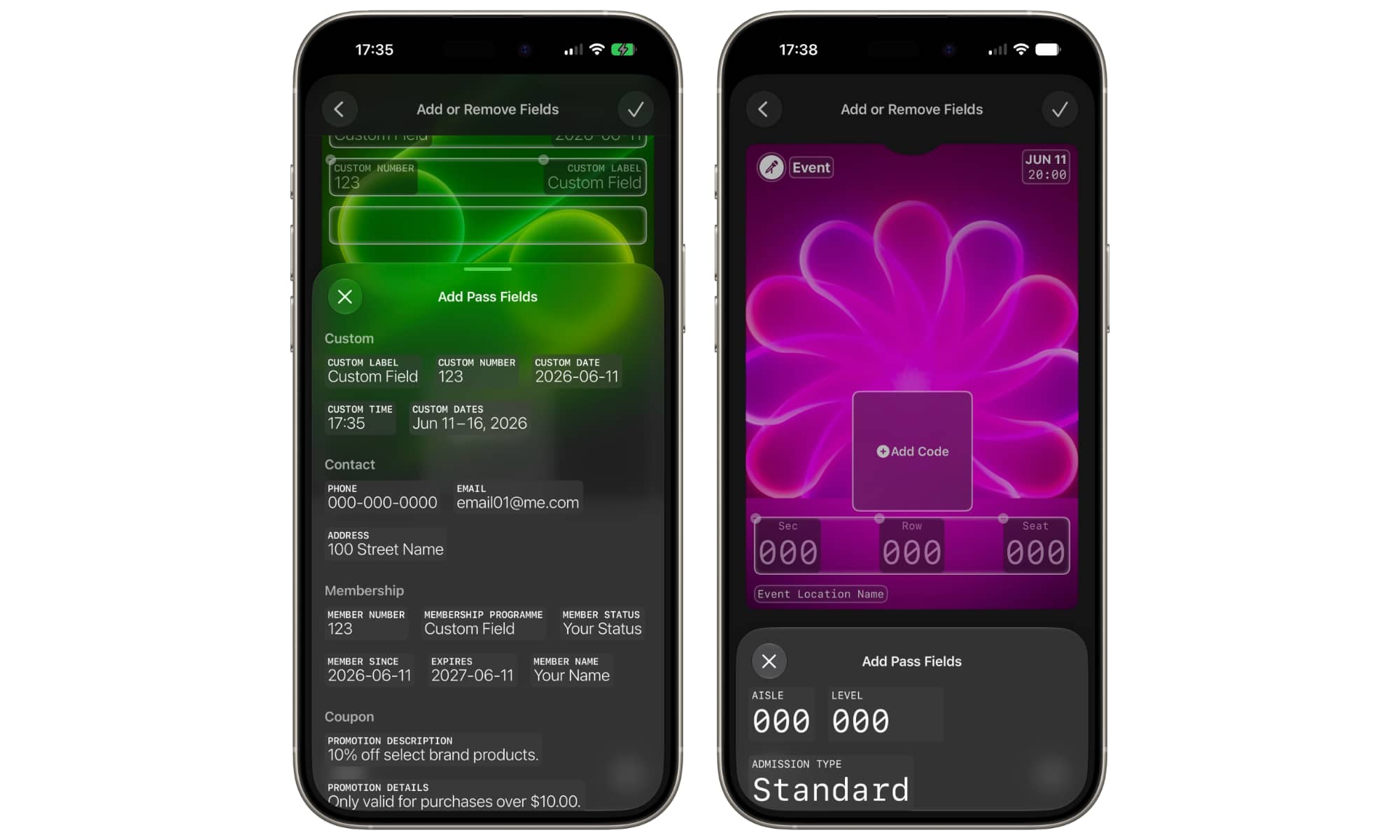
The QR code field can’t be removed from a template, but it’s not necessary to complete it in order to create a custom pass. Any fields that are left blank won’t be shown on the final pass. Custom passes also remain fully editable even after they’re created, so you can always go back and make changes later, including adding a QR code or even updating the expiry date on a membership card at renewal time.
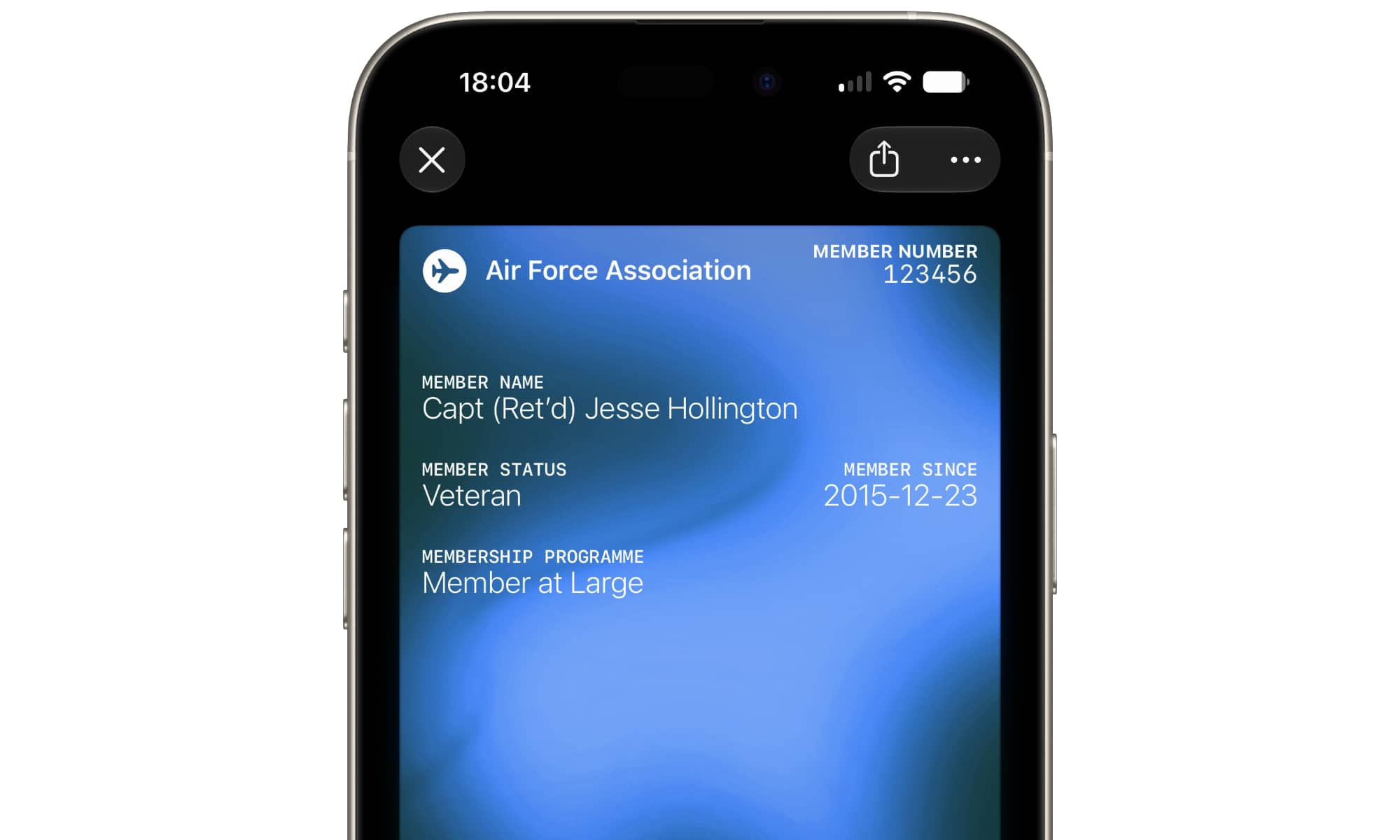
We’re still at the first developer beta, so plenty could change here by the time this feature rolls out to the public in iOS 27.0, but for now it’s functional if a bit bland. The selection of background images is also limited, with no ability to even change their colors, much less use a custom image or generate something unique with Image Playground. It’s not clear whether this will work differently when scanning a pass with Visual Intelligence, but we’ll keep you posted once we get past New Siri’s velvet rope.






