
9 Tiny iPhone Secrets That’ll Make You Feel Like a Pro

If you’ve used an iPhone for years, it’s easy to assume you already know everything it can do. But Apple keeps adding smaller, less obvious features that can quietly make your phone faster, smarter, and easier to use. These usually aren’t the headline features Apple shows off during its annual Worldwide Developers Conferences (WWDC); they’re the little things that save you time and make the iPhone feel more personal.
That's what these tips are. They aren’t some top-of-the-line tips you’ve never heard of; they’re small tips that you probably haven’t tried, but need to because they can make your life a little easier.
Whether you want to ask your iPhone about a screenshot you took or keep your email private, read on for 9 tips that will help you in ways you probably haven’t even thought of.
Customize Your Action Button For Something You Actually Use
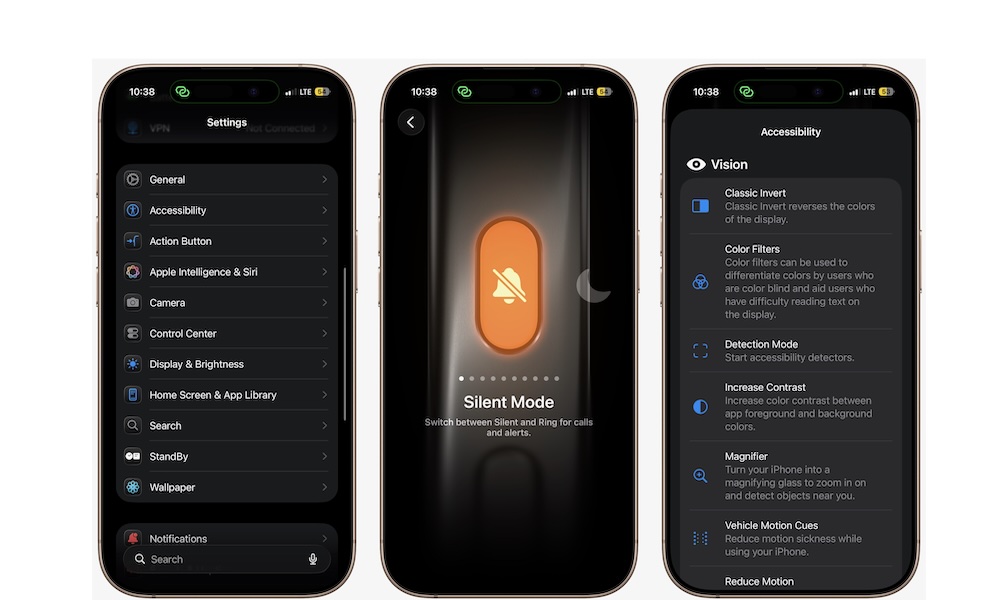
If your iPhone has an Action button (15 Pro Series, 16 and 17 Series), don’t waste it on something you barely care about. Apple gives you several built-in options, including Camera, Flashlight, Focus, Voice Memo, Accessibility, and Shortcuts, which means the button can be much more useful than a simple mute-switch replacement.
The best part is that thanks to the Shortcuts app, you can even have multiple uses for the same Action button. As long as you can get creative, you can create a setup that actually feels useful and personal.
Here's how to customize your Action button:
- Open the Settings app.
- Scroll down and tap Action Button.
- Swipe through the options available and choose the action you want.
You can then exit the Settings app. Press and hold the Action button and see what it can now do. You can always customize it again by following the same steps.
Lock Apps if You're Using Them Too Much
A lot of people think Screen Time is just a report card that shows you how long you’ve been staring at your iPhone during the week, but it can do a lot more than that.
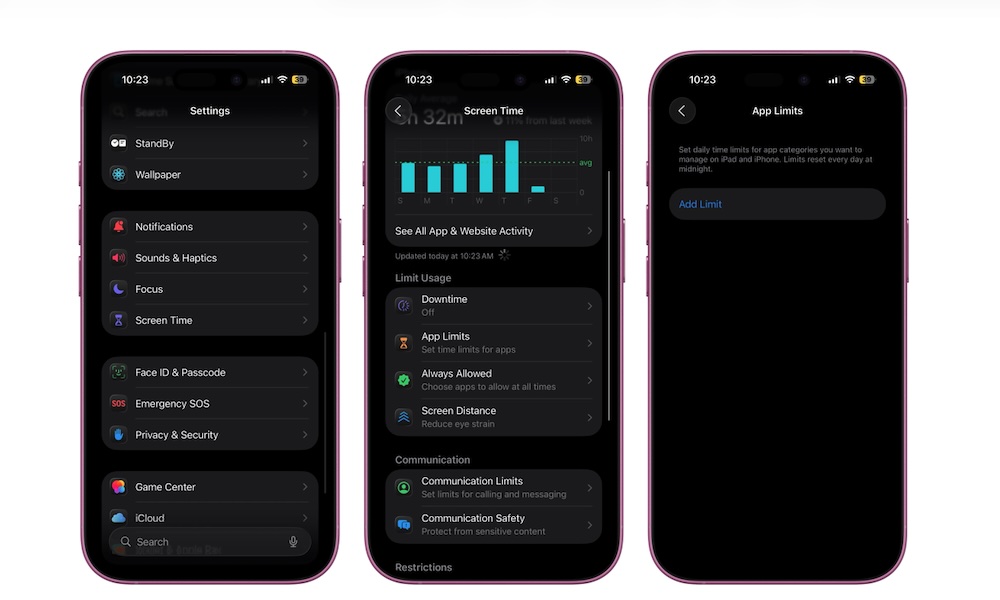
One of the most useful features is called App Limits, which lets you set a daily time limit for specific apps or app categories. Once you hit that limit, the app locks, and you can’t use it anymore. Of course, you can always bypass this lock, but it will be a nice constant reminder that you probably need to be doing something more productive.
That makes it one of the easiest ways to cut down on distractions without deleting apps entirely. Social media, games, or anything else that quietly eats your time can be kept in check with a boundary that feels firm without being extreme. This is how you can set up your own app limits:
- Open the Settings app.
- Scroll down and tap on Screen Time.
- Go to App Limits.
- Tap on Add Limit.
- Choose one app or a whole category and then tap on Next.
- Set a daily time limit.
Drag and Drop Items Between Apps
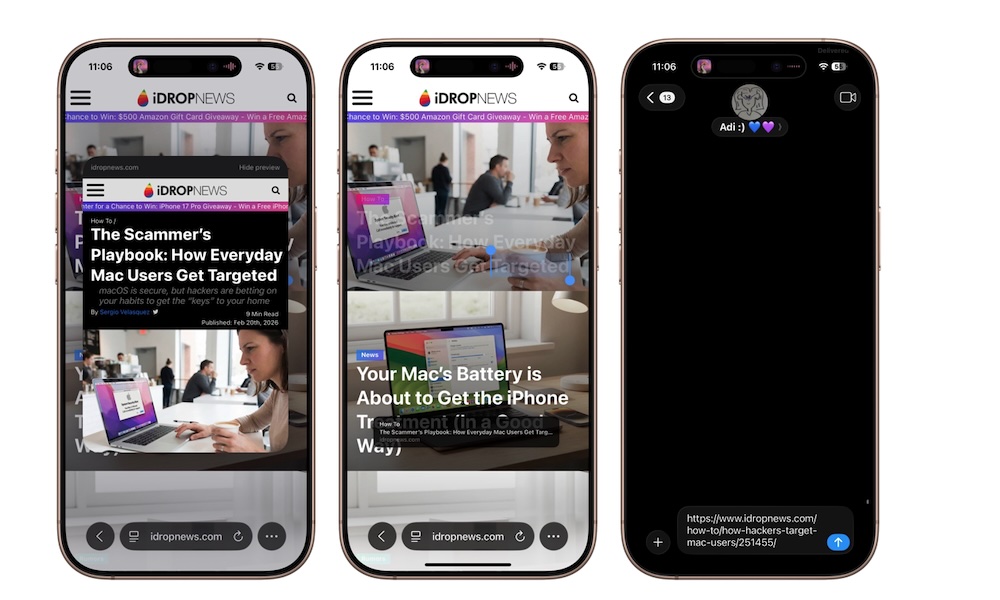
This is one of the most underused iPhone tricks because it feels more like something you’d expect from an iPad or Mac. But on iPhone, you can still drag photos, files, and even email messages from one app to another without relying on sharing items the old-fashioned way. It takes a little practice, but once it clicks, it’s much faster than people expect.
This is especially helpful when you’re multitasking. Moving an image from Photos into Messages or shifting a file into another app feels faster and more direct than sharing and then switching to the app where you want to share the file or photo. It’s one of those little features that make the iPhone feel more powerful.
- Tap and hold a photo or file.
- While holding it, drag it slightly to the left or right until you feel a haptic response and see the item move around with your finger.
- Keep holding it.
- Use another finger to switch apps.
- Drop it where you want.
Again, it might take a while, but it’ll be quicker than sharing files the way you do now.
Use Spotlight as Your Main Search Tool
More than a tip, this is a bit of advice. A lot of people still treat Spotlight as a backup feature when they can’t find an app. Some of us tend to use the App Library to find everything manually.
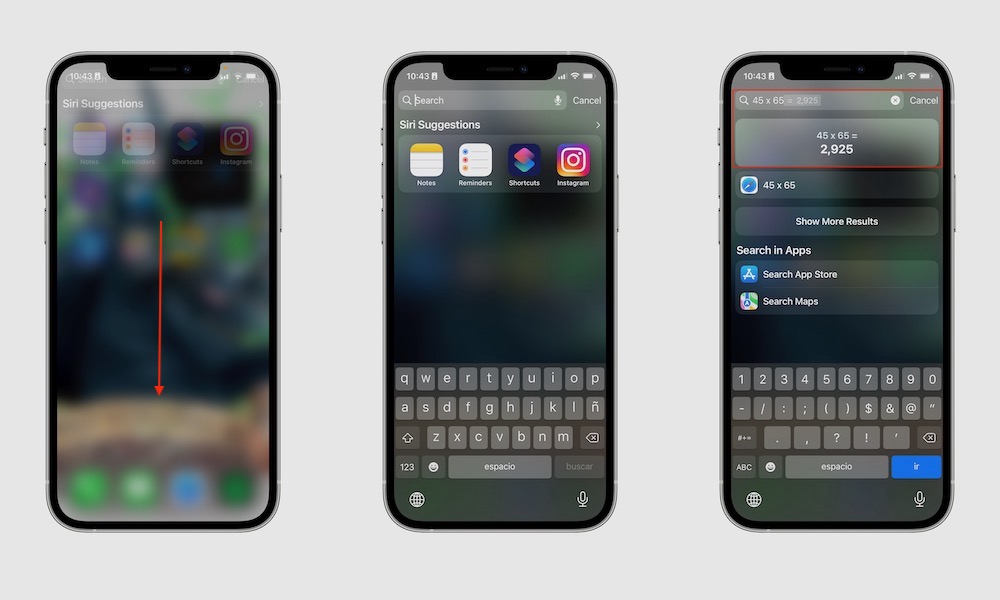
But besides finding your apps, there’s much more you can do. Spotlight can find apps, contacts, messages, files, settings, and even content inside apps. You can even write the name of a place or person, and your iPhone will show you the pictures you have of them.
If you’re used to swiping through multiple Home Screen pages looking for something, Spotlight is almost always quicker. Once you build the habit of pulling down and typing instead of hunting visually, you’ll find what you’re looking for more easily.
To use Spotlight, simply swipe down on your Home Screen, type what you’re looking for, and see the results you get.
Scan Documents Using the Notes App
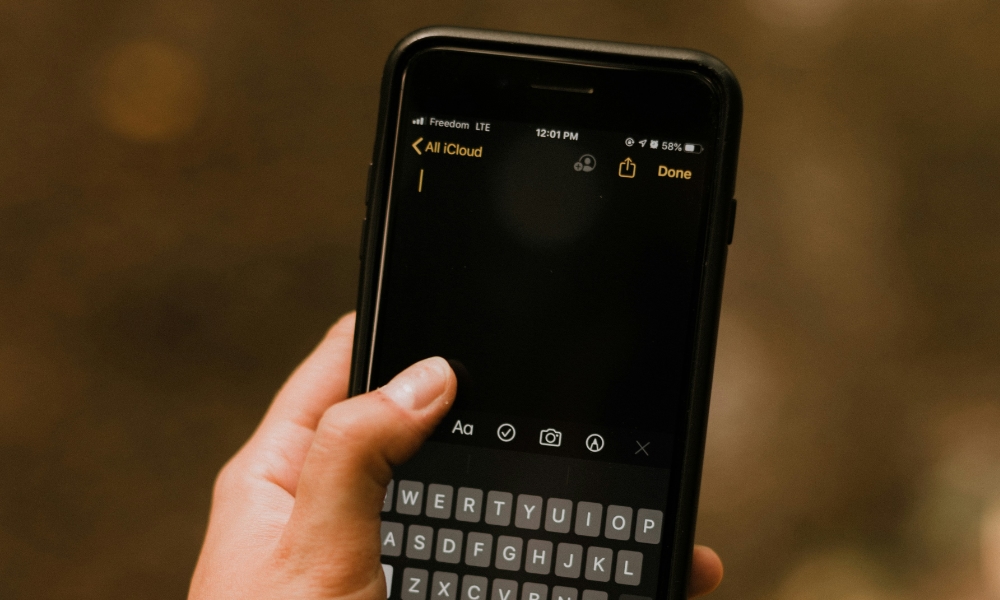
A lot of people download a document scanner app without realizing that the Notes app already has a built-in scanner. And the best part is that it works surprisingly well. It detects pages, crops them automatically, and gives you a clean result without asking you to install something extra or deal with a subscription.
So next time you need to scan paperwork, forms, receipts, or class notes quickly, be sure to try your Notes apps first. Here's how you can use it:
- Open the Notes app.
- Create a new note or open any one you want.
- Tap the clip icon near the bottom.
- Tap Scan Documents.
- Capture and save the document.
Copy Text Directly From Photos
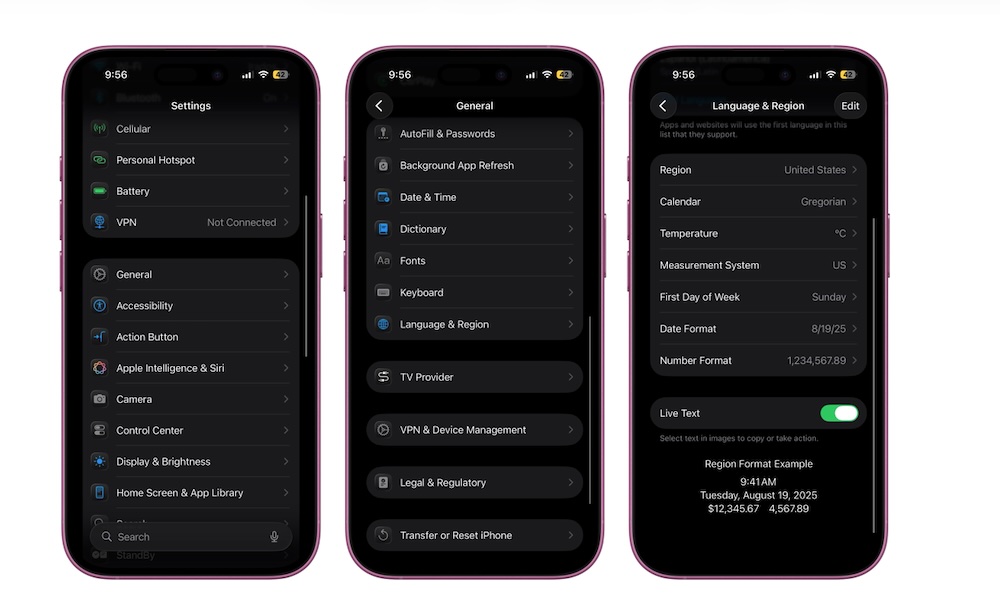
Live Text is one of those features that you never knew how much you wanted until you start using it. It lets you copy text from photos, screenshots, and anything else your iPhone can recognize inside an image. That means you can even Google an image and copy the text directly from it.
This is especially handy for things like phone numbers, addresses, passwords from setup cards, notes from whiteboards, and random text from screenshots. Live Text should be turned on by default. If not, you can go to Settings > General > Language & Region and turn it on manually.
Afterwards, simply open an image anywhere you want. Tap and hold the text from the image, as if it were regular text (you can adjust it to grab as much or as little text as you need), and then tap on Copy, Look Up, Share, or any of the other options.
Quickly Undo Typing Mistakes With a Gesture
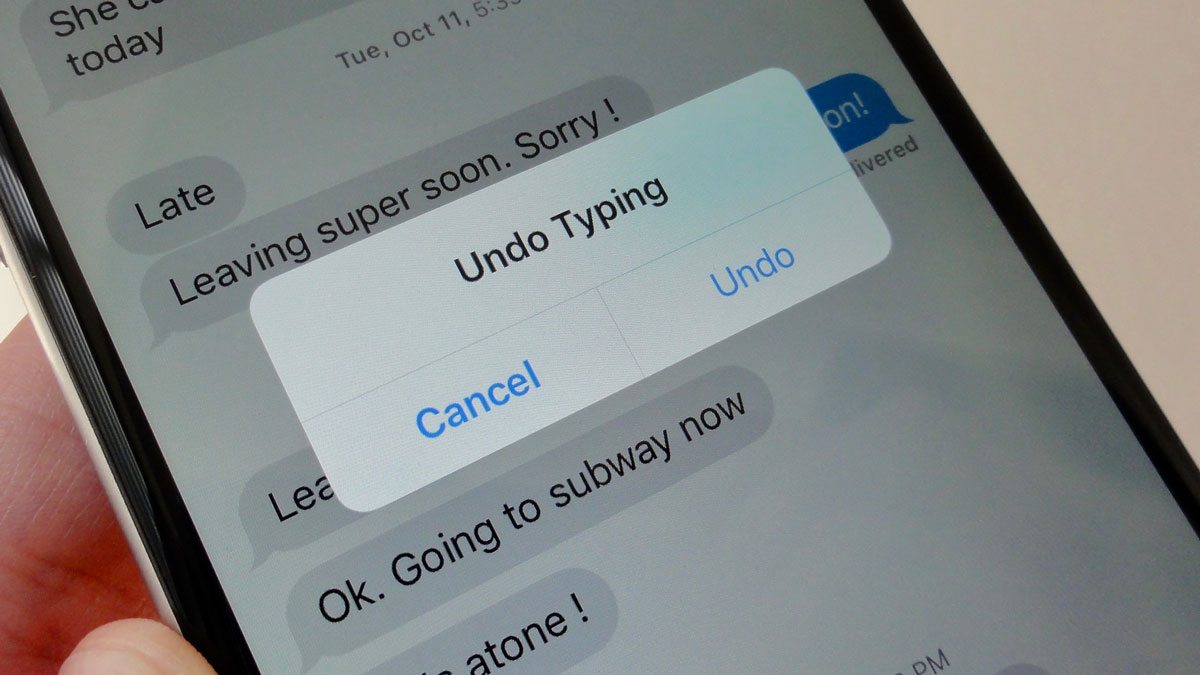
The ability to undo something you type has been on iPhone for years, but a lot of people still only think of the old shake-to-undo method. It’s useful, but there may be an easier thing you can try.
The three-finger swipe gesture is much better. Swiping left with three fingers undoes recent typing, while swiping right redoes it. It might be awkward at first, but it’ll definitely be less awkward than constantly shaking your iPhone around.
On instant messaging apps like WhatsApp or iMessage, this trick might be hard to pull off, as the app might think you’re doing a different gesture. But if you write a lot in Notes, Apple Journal, Gmail, or any other app with text input, this gesture becomes a bit more convenient. Plus, this is basically the only way to redo anything.
Share Wi-Fi Passwords Instantly
This is one of those iPhone features that feels almost magical the first few times you use it. Instead of spelling out a long Wi-Fi password or letting someone squint at the sticker on your router, your iPhone can automatically offer to share the password with another Apple device nearby.
It’s one of the simplest examples of Apple’s ecosystem working in a way that feels extremely helpful. Guests, family members, or friends with Apple devices can get connected without all the hassle we’ve all already experienced.
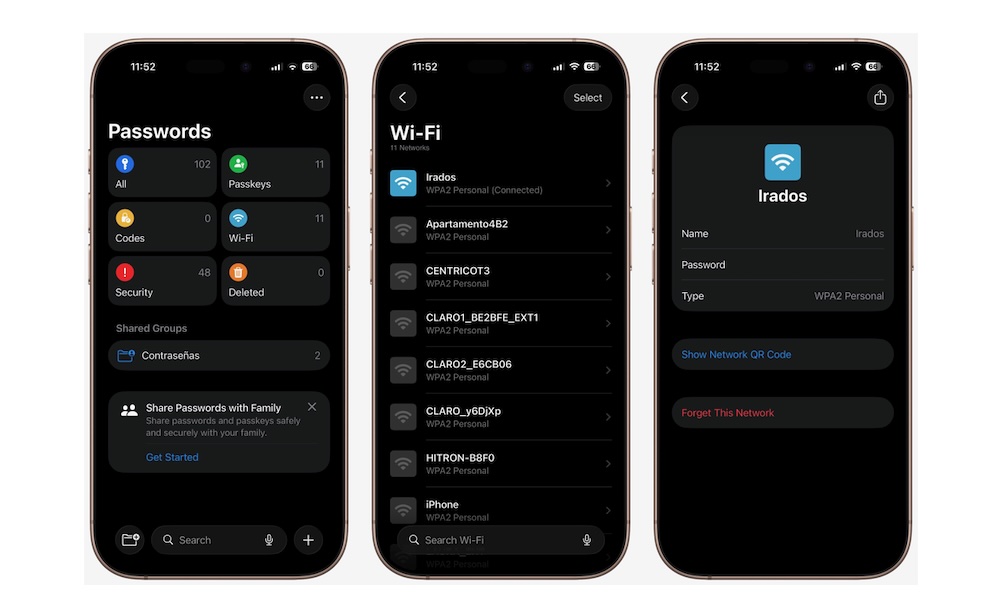
There are a couple of ways to do this. First, you can share it from your Passwords app. Don’t worry; you won’t have to give them access to all your passwords; you can share them with a QR code instead. Simply open the Passwords app, tap on Wi-Fi, find your network on the list, and then tap on Show QR Code. The other person can scan the code and join immediately.
The other method is also fairly quick. The only real requirement is that both iPhones have their Wi-Fi and Bluetooth turned on. Also, make sure that Hotspot is turned off. Also, both iPhones will need each other’s Apple account saved in your contacts.
Once that’s done, the iPhone that wants to connect needs to go to the Settings app and then go to Wi-Fi. From there, have them tap your Wi-Fi network. Your iPhone will get a pop-up screen asking if you want to share your Wi-Fi. If you agree, they’ll be connected in no time. Definitely has a few more requirements, but it’ll be way faster.
Let Your iPhone Create a Fake Email Account for You
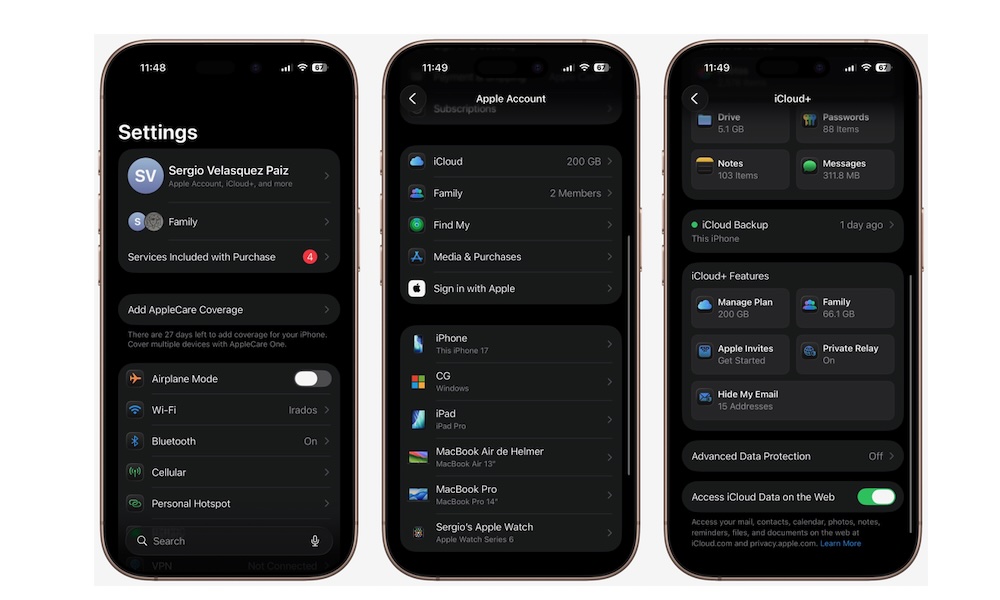
If you have iCloud+, Hide My Email is one of the best privacy tools Apple offers. As you can probably guess from the name, it creates random email addresses that forward to your real inbox without having to actually share your real address every time.
A lot of apps and websites abuse your email address and turn their messages into spam later, and some services don’t really need direct access to your real email in the first place. Hide My Email gives you a cleaner way to protect your inbox and makes it much easier to cut off a service later if it gets too noisy.
Unfortunately, this doesn’t work on every website or app. The platform will need to support Sign In With Apple. But if it does support it, your iPhone will immediately ask you if you want to hide your email when you’re creating an account.
All the email addresses your iPhone creates are unique to you, and they will automatically forward all your mail to your actual address, so you won’t miss a thing.
What’s best, you can manage your fake addresses if you want, too. Simply go to Settings > Apple Account > iCloud > Hide My Email. In there, you’ll find all the addresses you’ve created, and you’ll also be able to change the address where you’d like the messages to be forwarded to.
Master Your iPhone, One Tip at a Time
The best iPhone tips are usually the ones that make your phone feel easier to use, not the ones that sound most impressive in a demo. A better Action button setup, a smarter way to use Spotlight, or a quick Notes trick can save you more time over a week than some big feature you only touch once in a while.
Of course, we don’t expect you to try all of these tips at once. Start with a couple of them, and then work your way through the rest of the list. You’ll master all of these tips in no time, which is great because with Apple’s WWDC just around the corner, you’ll be ready to learn the new tricks the company will showcase.