
Disable Significant Locations
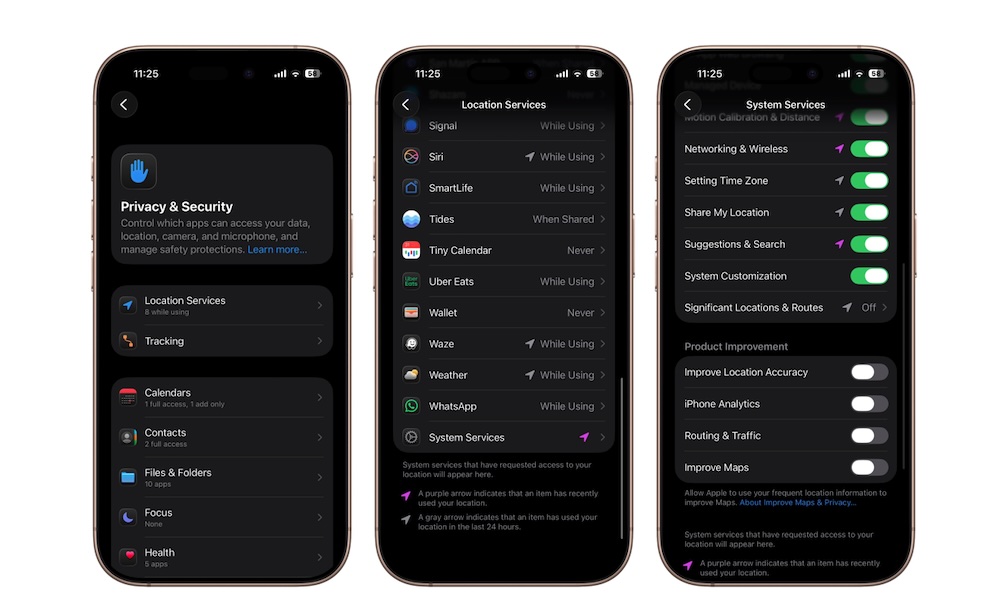
Significant Locations is one of the more surprising iPhone settings once you know about it. Your device can keep track of places you frequently visit, such as your home, workplace, favorite stores, restaurants, or other recurring destinations.
Apple says the data is encrypted and stored locally on the device, but plenty of users still find the idea uncomfortable. Even though the feature might power some smart suggestions and automation features, many of us would rather not keep a location history at all.
But just like many other privacy features, you can disable Significant Locations by following these steps:
- Open the Settings app.
- Scroll down and tap on Privacy & Security.
- Select Location Services.
- Scroll down and tap System Services.
- Go down one more time, and go to Significant Locations & Routes.
- Authenticate with Face ID or Touch ID, and then turn off Significant Locations & Routes.
You can also clear previously stored location history while you’re there. Simply tap on Clear History and then confirm your decision.