
Make Your iPhone Feel Like New by Flipping These 9 Switches
Apple does a great job of making the iPhone easy to use right out of the box, because many of its default settings try to prioritize convenience, personalization, battery life, and simplicity. Unfortunately, not every feature is perfect. Some of them constantly run in the background, while others quietly track your activity, surface unnecessary suggestions, or send usage data back to Apple.
Needless to say, it’s important to take a moment with your iPhone to make sure you’re not being tracked as much by Apple. Luckily, a few small changes can help your device feel more private and sometimes even a little faster. If you don’t know where to start, we’ve got you covered.
Not everyone needs to switch off every setting on this list. Some people might not mind sharing data with Apple, while others don’t need to turn off anything because their iPhones are still buttery smooth. Still, read on for 9 of the most important settings you should at least review.
Turn Off App Tracking Requests
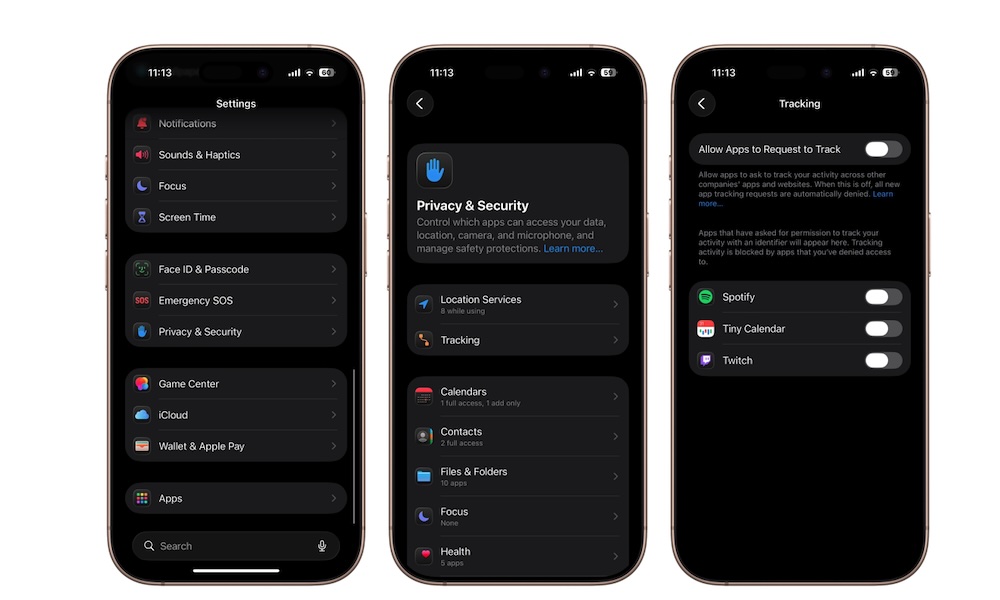
App Tracking Transparency was introduced a few years ago as a way to give you more control over how apps track your activity across other apps and websites. When this feature is enabled, apps can ask permission to track your behavior for advertising purposes.
While Apple deserves credit for making tracking opt-in instead of automatic, those permission pop-ups can get annoying pretty quickly. Not only that, but many of us also prefer to stop tracking requests entirely instead of denying them one app at a time. Fortunately, you can do exactly that.
Disabling this feature prevents new tracking requests from appearing and automatically denies future requests behind the scenes. You stay private, and you don’t have to worry about annoying pop-ups every time you open a new app.
Here’s how to turn it off:
- Open the Settings app.
- Scroll down and tap on Privacy & Security.
- Select Tracking.
- Turn off Allow Apps to Request to Track.
Below this option, you can also see all the apps that have asked for permission; you can disable them, too, if you accidentally allowed one to track you. After disabling it, apps can no longer ask for permission to track your activity across other apps and websites.
Disable Share iPhone Analytics
Third-party apps aren’t the only ones tracking you; your iPhone also collects diagnostic data, crash reports, and usage information that can be shared with Apple. The Cupertino company says this information helps improve iOS, but not everyone feels comfortable sending device analytics to a company — even if that data is anonymized.
Besides privacy, this setting also enables minor background activity that many users would rather avoid altogether. While you probably won’t notice a massive battery difference, if your iPhone is old enough, turning off every unnecessary activity is useful. Plus, turning off unnecessary tracking is still a reasonable privacy move.
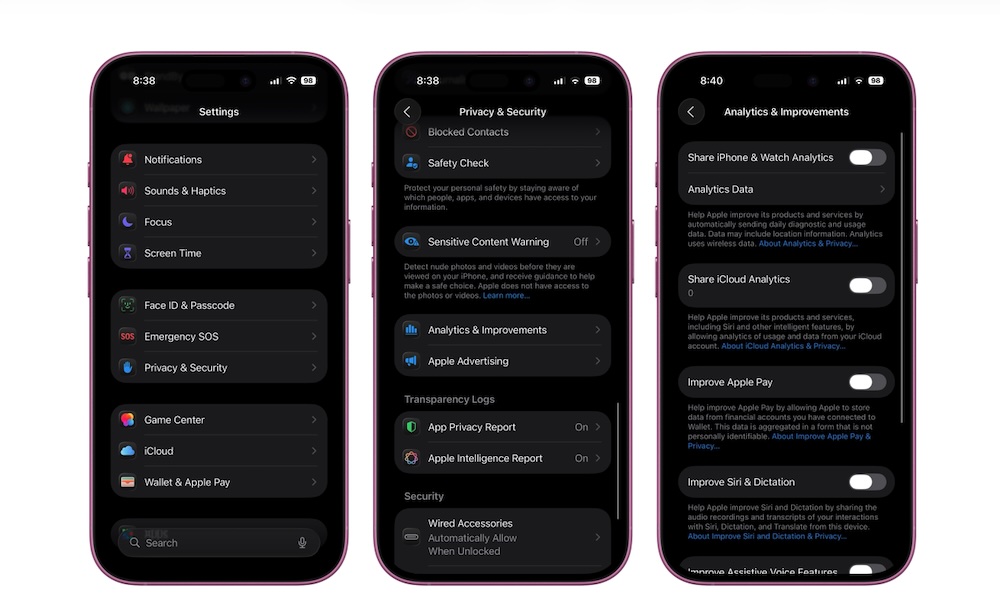
Here's how to stop sharing analytics with Apple:
- Open the Settings app.
- Scroll down and tap on Privacy & Security.
- Scroll down to the bottom and go to Analytics & Improvements.
- You can choose what to keep turned on, but we recommend that you disable everything.
Turn Off Personalized Ads
Apple uses some of your activity inside Apple services to personalize ads shown in places like the App Store, Apple News, and Stocks (and likely Apple Maps very soon). The company doesn’t track users the same way many third-party advertisers do, but some people still prefer not to have their activity used for ads.
Disabling Personalized Ads limits how Apple personalizes advertising based on your behavior. Of course, you’ll still see ads in Apple services, but they won’t be customized using your data.
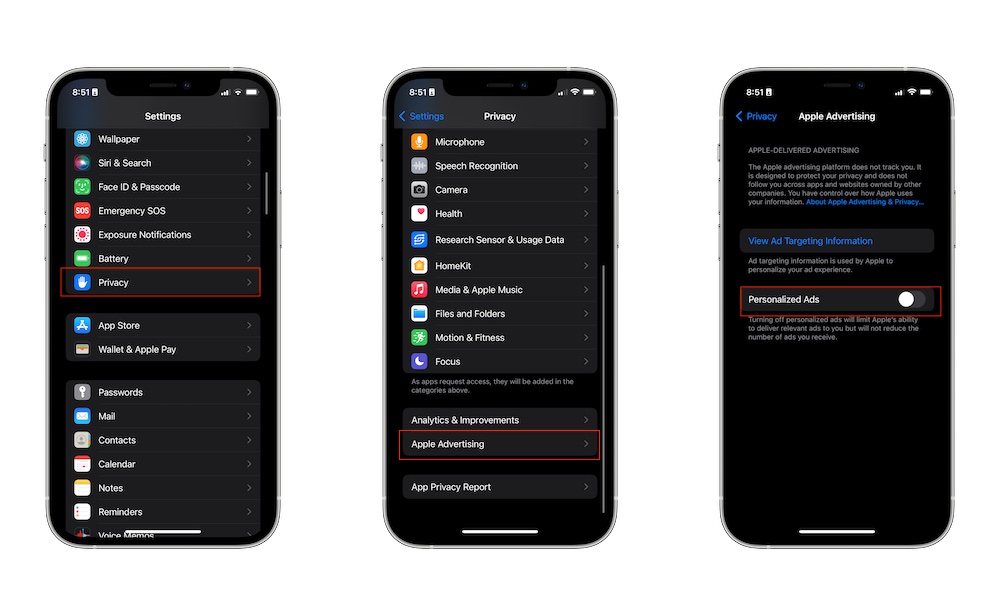
This only takes a few seconds to switch off. Here's how:
- Open the Settings app.
- Scroll down and tap on Privacy & Security.
- Scroll down again and go to Apple Advertising.
- Turn off Personalized Ads.
You can also tap on Ad Targeting Information to see the information that Apple may use to show you personalized ads.
Disable Significant Locations
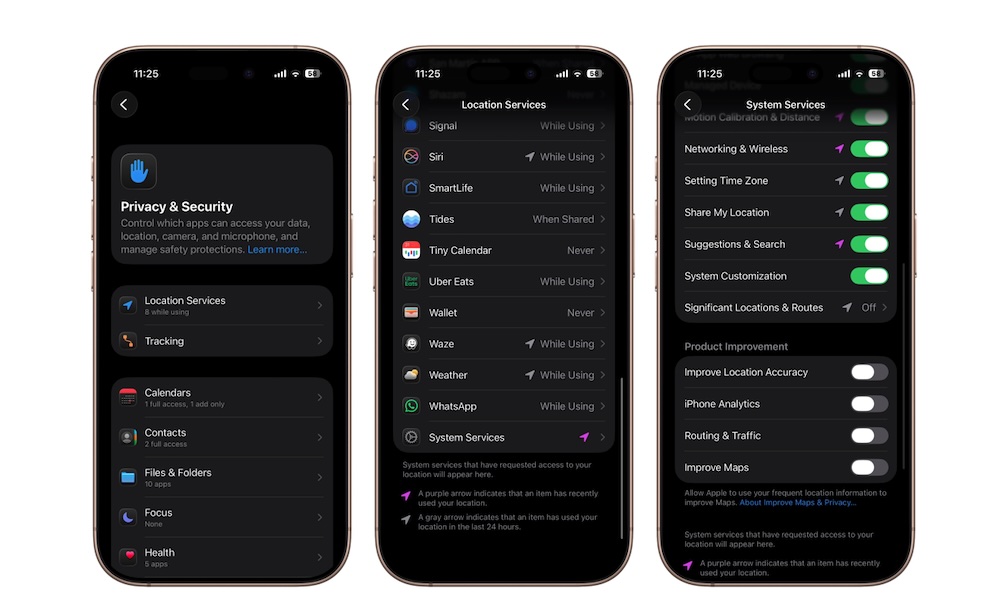
Significant Locations is one of the more surprising iPhone settings once you know about it. Your device can keep track of places you frequently visit, such as your home, workplace, favorite stores, restaurants, or other recurring destinations.
Apple says the data is encrypted and stored locally on the device, but plenty of users still find the idea uncomfortable. Even though the feature might power some smart suggestions and automation features, many of us would rather not keep a location history at all.
But just like many other privacy features, you can disable Significant Locations by following these steps:
- Open the Settings app.
- Scroll down and tap on Privacy & Security.
- Select Location Services.
- Scroll down and tap System Services.
- Go down one more time, and go to Significant Locations & Routes.
- Authenticate with Face ID or Touch ID, and then turn off Significant Locations & Routes.
You can also clear previously stored location history while you’re there. Simply tap on Clear History and then confirm your decision.
Turn Off Precise Location For Most Apps
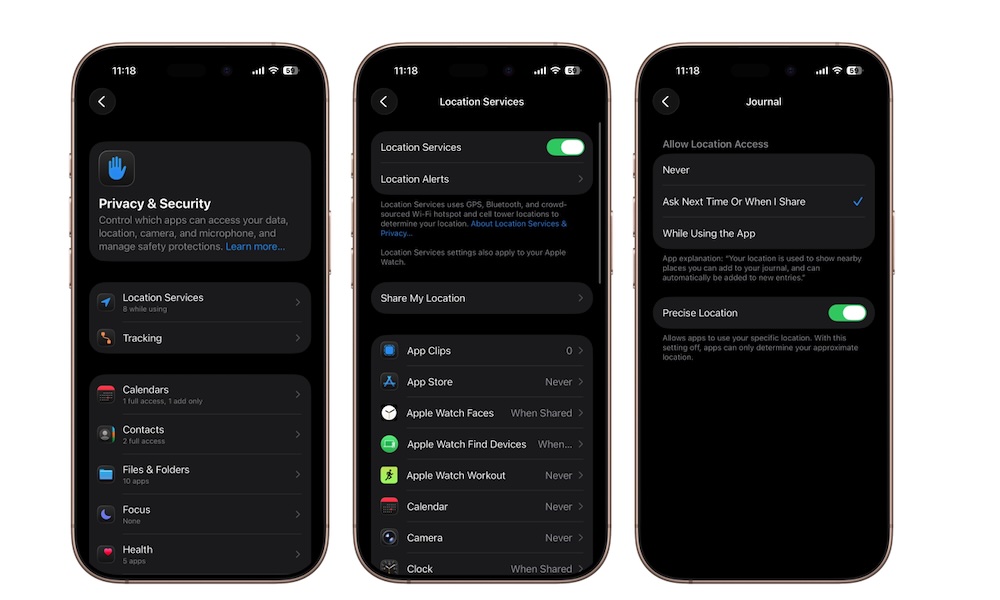
Many apps request access to your exact location even when they don’t truly need it. Weather apps, shopping apps, restaurant apps, and social media apps often work just fine with a general location rather than precise GPS-level accuracy. Some of them don’t even need your location at all, and you’d be better off without sharing that information.
Allowing exact location access for every app creates unnecessary privacy concerns and can even slightly increase battery drain over time due to extra GPS usage. Thankfully, Apple lets you control this individually for each app.
To disable Precise Location:
- Open the Settings app.
- Scroll down and tap on Privacy & Security.
- Tap on Location Services.
- Scroll down and choose any app.
- Turn off Precise Location.
Navigation apps like Google Maps or Apple Maps will usually still benefit from precise location access, but most other apps don’t need it enabled all the time.
Disable Background App Refresh
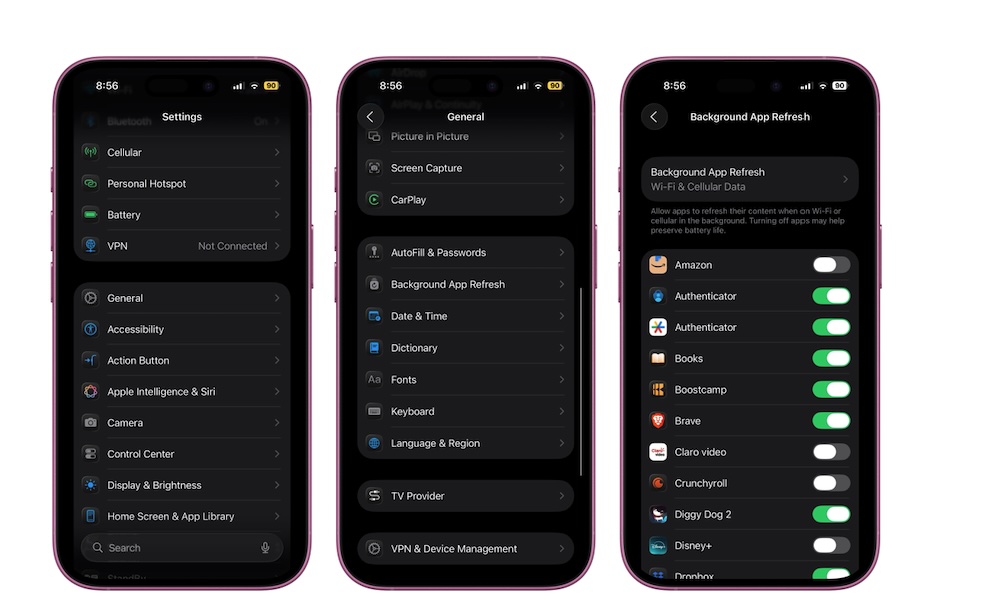
Background App Refresh allows apps to update content even when you aren’t actively using them. Social media apps refresh feeds, shopping apps update information, and news apps pull new stories in the background.
The problem is that many apps abuse this feature. Some constantly refresh data you may never even look at, which can slowly drain battery life, consume mobile data throughout the day, and might even slow down your iPhone over time.
Disabling Background App Refresh won't break most apps. In fact, your iPhone does it automatically if you turn on Low Power Mode. Messages still arrive, notifications still appear, and apps still update once you open them manually. Most apps don't actually need this to function, so you can probably live without it. Here’s how to turn it off:
- Open the Settings app.
- Scroll down and tap on General.
- Tap on Background App Refresh.
From there, you have two options. You can turn off Background App Refresh completely, or just turn this feature off for any app that doesn’t need it. If you feel like it’s important, you can just let a handful of your most important apps use Background App Refresh and get rid of the rest.
Disable Auto-Playing Video Previews in the App Store
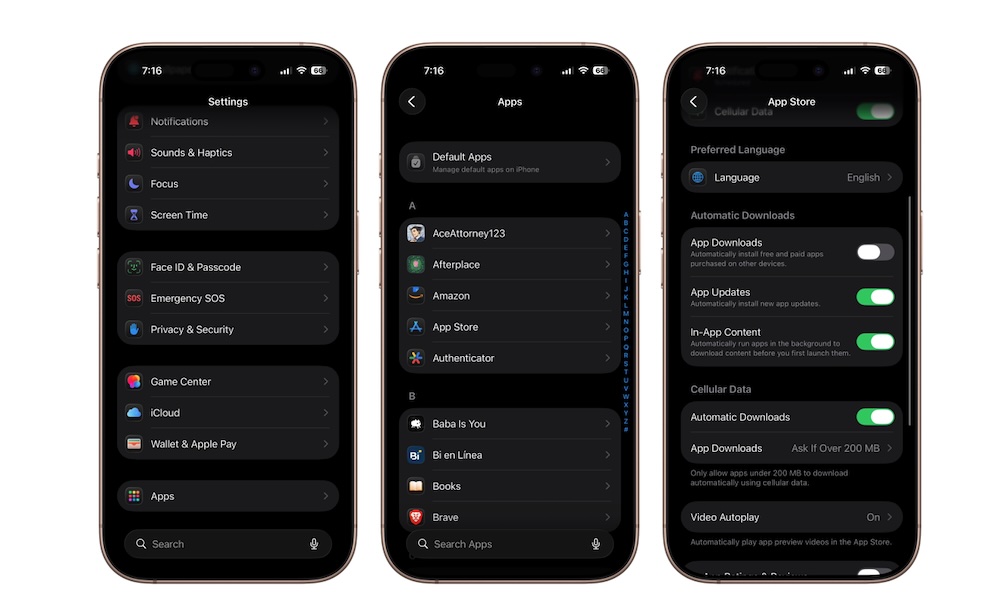
The App Store automatically plays preview videos while browsing apps and games. While some people like seeing previews instantly, others find the autoplay behavior distracting and unnecessary.
Video previews can also use additional battery life and mobile data, which sucks if you have a limited data plan. Fortunately, Apple lets you completely disable autoplay or limit it to Wi-Fi only. This is how:
- Open the Settings app.
- Scroll down to the bottom and tap on Apps.
- Go to the App Store.
- Scroll down and tap Video Autoplay.
- Choose Wi-Fi Only or Off.
Turn Off Automatic Downloads
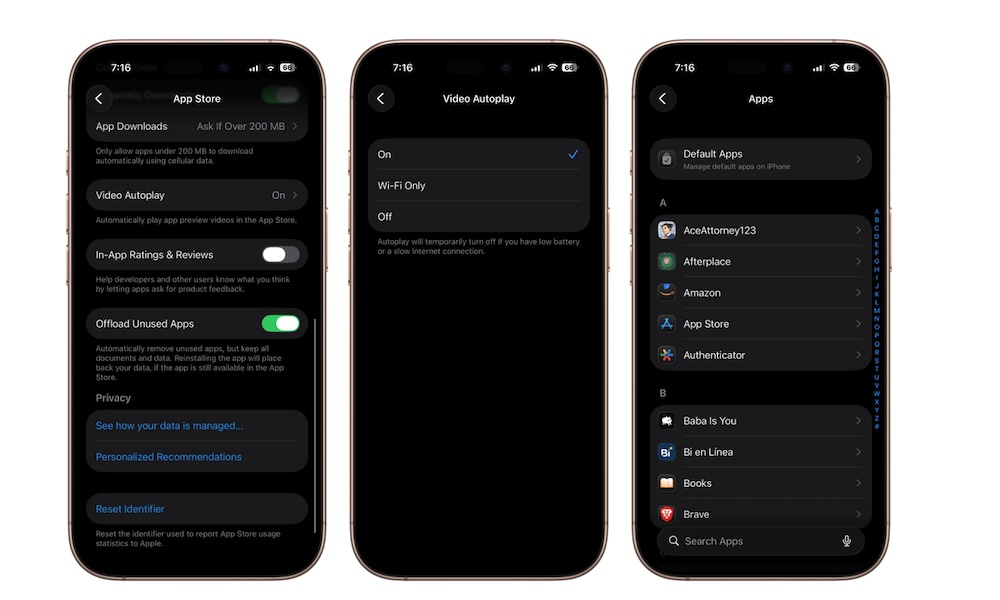
Automatic Downloads allow apps, app updates, and purchases to download across all your Apple devices automatically. While this can be convenient, it also means apps may install or update without you noticing.
Over time, automatic downloads can quietly consume storage space, mobile data, and even battery life, especially if your iPhone is a bit older. Some users also prefer manually deciding when apps update instead of having everything happen in the background.
Here's how to disable Automatic Downloads:
- Open the Settings app.
- Scroll down to the bottom and tap on Apps.
- Go to the App Store.
- Under Automatic Downloads, turn off App Downloads, App Updates, and In-App Content. You can do the same thing under the Cellular Data section, so you don’t burn through your data plan accidentally.
Just remember to manually update apps occasionally so you still receive important bug fixes and security patches.
Turn Off Scheduled Notification Summaries if You Don’t Use Them
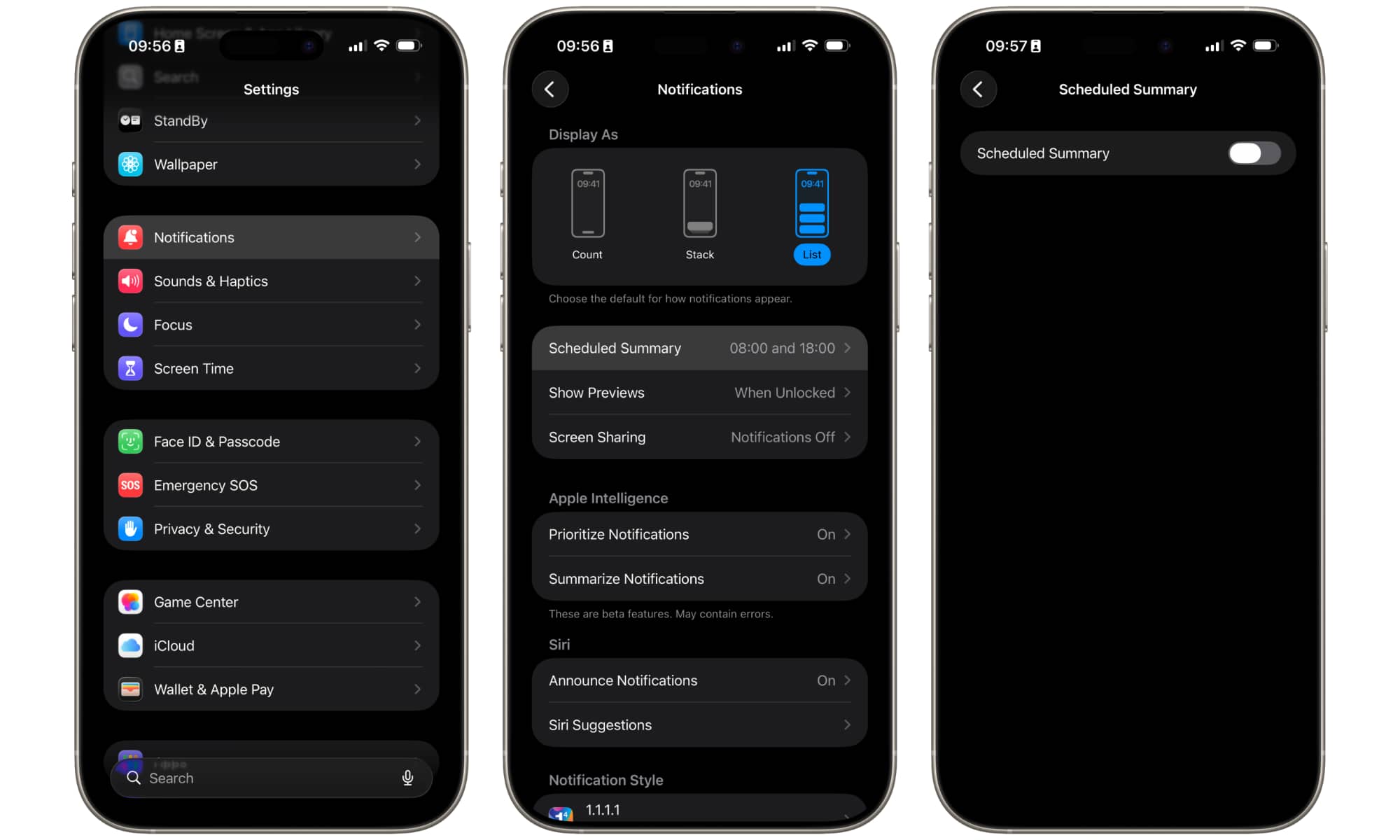
Scheduled Summaries can group your notifications together and deliver them at scheduled times. The idea is to reduce interruptions by bundling less important alerts into organized summaries, so you can check them when you’re not working or doing something important.
In reality, many users find summaries unreliable or confusing. Important alerts sometimes appear too late, while less important notifications occasionally get prioritized instead. Some people simply prefer seeing notifications normally instead of trusting summaries to organize them correctly.
This feature hasn’t really improved that much since its inception, so it might be a good idea to disable it and avoid awkward messages from your iPhone. Here’s how:
- Open the Settings app.
- Scroll down and tap on Notifications.
- Select Scheduled Summary.
- Turn the feature off.
You can also select individual apps to get summaries for certain notifications if you still want to use them for some apps, but not all.
A Few Small Changes Can Make Your iPhone Feel Much Better
Your iPhone includes a huge number of features designed to personalize your daily experience, but that doesn’t mean every setting deserves to stay turned on. Some options prioritize advertising, background syncing, analytics, or convenience in ways that many users simply don’t need.
Disabling the features you really don’t need can change your overall experience for the better. You can be less worried about Apple or other apps tracking you, and your iPhone might even be faster, or its battery might last longer.
The best part is that most of these changes take less than a minute. Even if you only disable a couple of these settings, your iPhone will probably feel more controlled and better suited to the way you actually use it.