iOS 27 Finally Gives the iPhone a Real Recovery Menu
Toggle Dark Mode
Troubleshooting an iPhone that was failing to start up properly has often been an arcane process, requiring that you know just which buttons to press and hold or release at exactly the right times to restart or restore your device. Thankfully, Apple improved that in iOS 26 last year with a new Recovery Assistant, and now it’s taking that a big step further to provide a more Mac-like recovery experience.
Starting in iOS 26, an iPhone that failed to start up properly would automatically fall back into a new Recovery Assistant that would walk you through the process of diagnosing the problem and restoring your iPhone to working order — even if the only option was to erase it and start over.

This was a big improvement over the status quo. For years, an iPhone that failed to boot would either leave owners scratching their heads at a stuck Apple logo, or it would boot into a basic recovery screen visually prompting the user to plug into a Mac or PC and restore it that way, using iTunes, Finder, or the Apple Devices app for Windows.
The process was opaque at best. While veteran iPhone owners knew how to deal with this, it still wasn’t obvious. Plus, if the iPhone was simply hung at the Apple logo, you had to know the magic sequence of button presses to get it into the recovery screen so you could subsequently restore it.
Compared to that, the new Recovery Assistant was a breath of fresh air. You could connect to Wi-Fi, run automatic diagnostics, and even send diagnostic data to Apple for support. The new Recovery Assistant would come up automatically if there was a problem, but you could also trigger it manually if you really needed to. There wasn’t usually much point if your iPhone could otherwise start up normally, but the option was there — even if it was still a little bit convoluted.
A Full Recovery
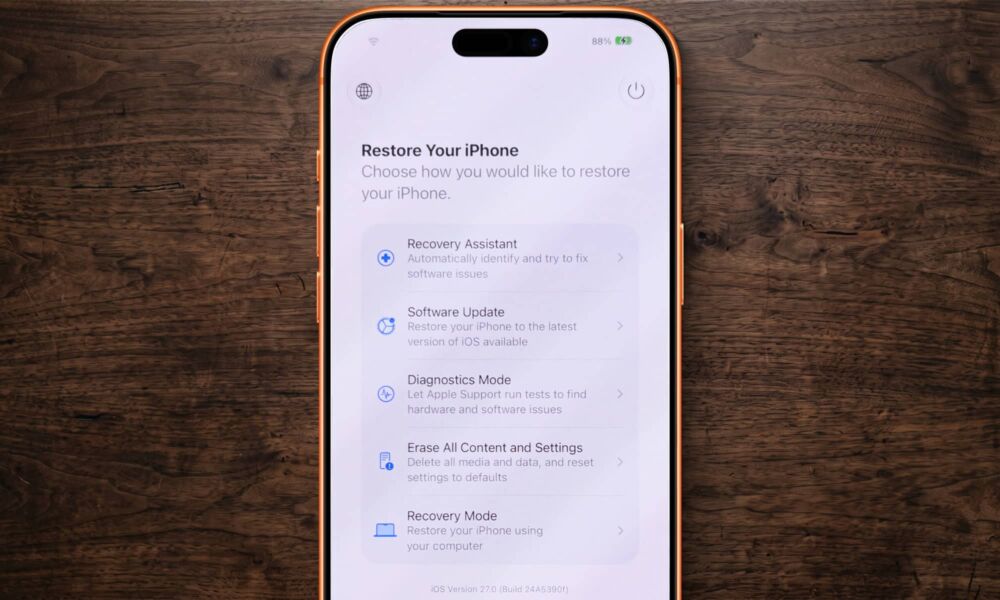
Now, in iOS 27, Apple is taking that up a big notch by adding the same sort of full recovery screen that’s been the norm on Macs for years — and making it much easier to get into.
Firstly, accessing the new recovery screen is as simple as holding down the side button when starting up your iPhone. There are no other special button combos to remember — just power your iPhone like you normally would, but don’t let go of the button until the recovery screen comes up.
Once it does, you’ll have five options:
- Recovery Assistant: This mirrors the tool added in iOS 26, letting you try to automatically fix whatever is wrong with your iPhone.
- Software Update: Checks for a new iOS release and apply it to your iPhone. This does pretty much the same thing as Settings > General > Software Update in normal mode, except that it works through another nearby iPhone or iPad. You’ll need to restart your iPhone to put it into a mode where it can link up with the remote device, and you can choose whether you want to allow the other iPhone or iPad to erase everything on your iPhone in the process.
- Diagnostics Mode: This restarts your iPhone and launches the diagnostics & repair tool from iOS 17.
- Erase All Content and Settings: This is the most self-explanatory of the bunch, letting you factory-reset your iPhone to default, just like you would through Settings > General > Transfer or Reset in normal mode.
- Recovery Mode: This kicks in the traditional recovery mode where you can connect your iPhone to a Mac or PC using a USB-C cable and restore it from Finder (Mac) or Apple Devices (Windows) — but without the finger gymnastics that are usually required to get here.
Pressing and holding the side button while already on the recovery screen will provide options to shut down or restart back into normal mode, as well as a Nearby Device Recovery option that will allow another iPhone to perform a recovery.
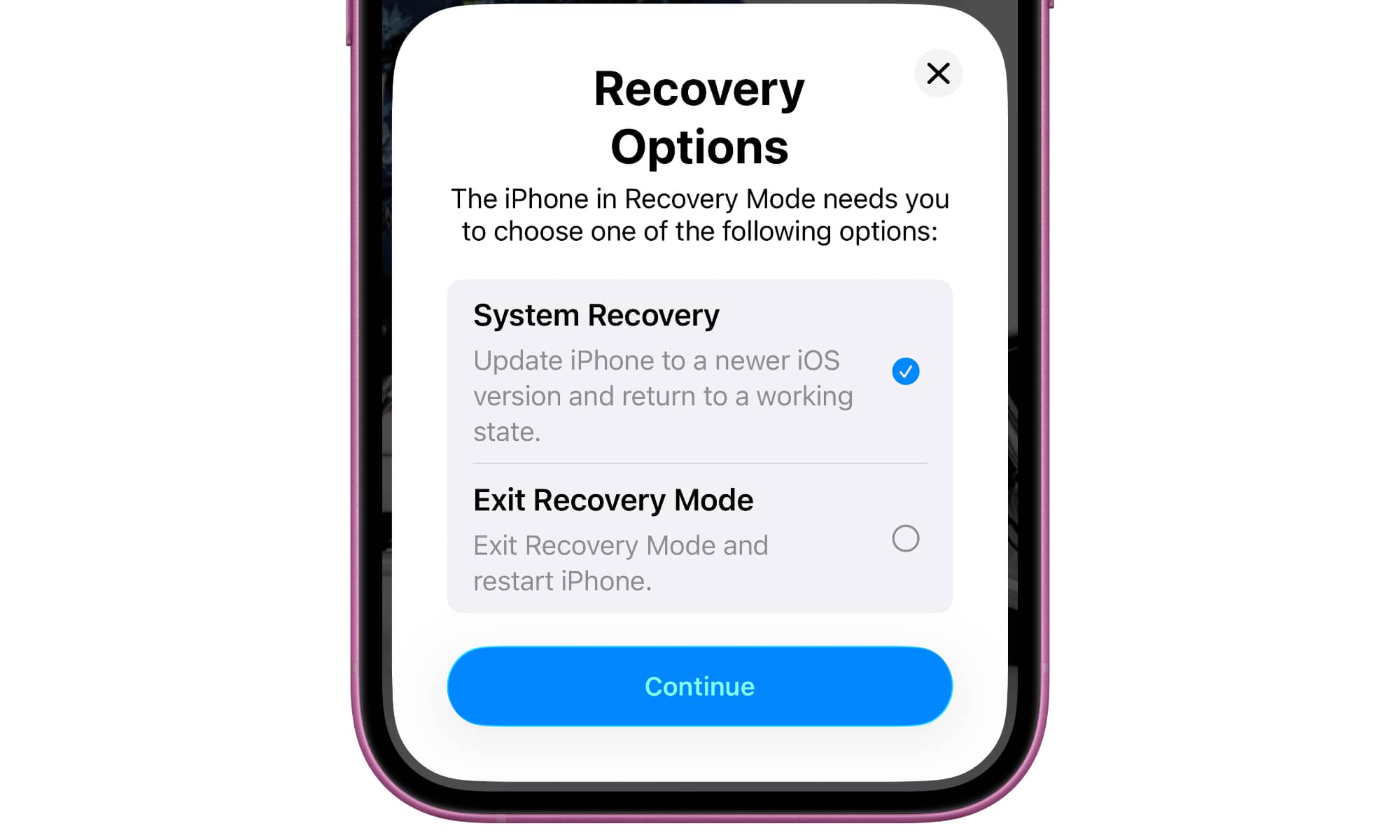
While you can easily exit most of the recovery and diagnostic modes, Nearby Device Recovery provides no easy way out without connecting to another iPhone first. The remote iPhone can be used to exit recovery mode once it’s linked up, but the only other way to restore normal operation is to do the button shuffle to force restart your iPhone.