
7 Ways to Tune-Up Your Slow iPhone
 chainarong06 / Shutterstock
A slow iPhone doesn’t always mean it’s in the final stages of its life. In many cases, the problem is much less dramatic than many of us assume.
Performance dips can happen for a few pretty common reasons, including low storage, software problems, and other issues. So before you jump straight to replacing your phone, it’s worth checking a few fixes that can actually make a difference.
There are several things you can do to try to boost your iPhone’s performance. These are small things that will only take you a few minutes, but can really make an impact. So if your iPhone feels slower than it should, read on for 7 of the first places to look.
First, Restart Your iPhone
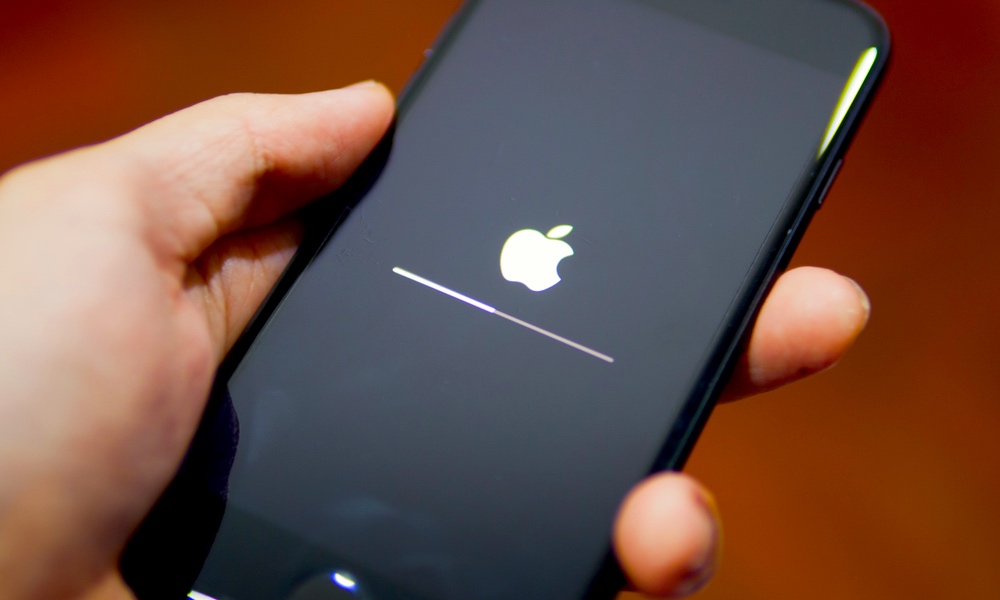
A quick restart is still one of the fastest ways to clear out temporary glitches, random lag, and background weirdness that builds up over time. If your iPhone suddenly feels sluggish, this is the easiest first step you can take. It doesn’t change your settings, it doesn’t delete anything, but it can fix more than people expect.
This is especially useful when your iPhone is fairly new, but you’re noticing a few things slowing it down. Maybe the keyboard is lagging, apps are taking longer to open than usual, or the whole phone feels a little off. In cases like that, a restart can sometimes solve the problem in under a minute.
To restart your iPhone:
- Press and hold the side button and one of the volume buttons until you feel a haptic response.
- Drag the Power Off Slider to turn your iPhone off.
- Wait around 30 seconds.
- Press and hold the side button until the Apple logo appears.
On the other hand, if your iPhone is completely frozen, you can force restart it with the following steps:
- Quickly press and release the Volume Up button.
- Quickly press and release the Volume Down button.
- Then press and hold the Side button until the Apple logo appears.
Stop Force-Closing Apps All the Time
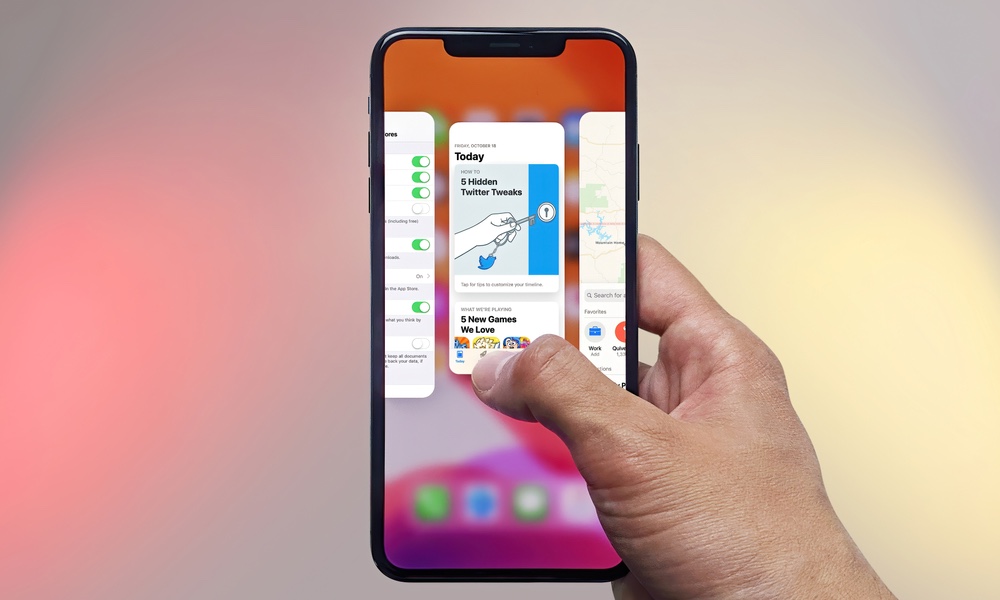
Many people mistakenly believe that swiping away every app in the App Switcher will make their iPhone run faster, but nothing could be further from the truth.
Unlike a Mac or a PC, iOS is very strict about managing what your apps can do when they're not running, typically suspending them completely not long after you've return to the Home Screen or switched to a new app. When you force-close apps all the time, your iPhone has to fully reload them from scratch the next time you open them, which can actually make the device feel slower.
Yes, it’s a bad tech habit, but it’s an easy one to break, and you might even see an improvement right away. App switching feels more natural, and you stop making the system do extra work for no reason. Plus, it can also help battery life instead of hurting it.
So the rule here is simple: don’t manually close apps just because you’re done using them. Just use your iPhone naturally. The only time you ever need to force-close an app is when it’s clearly not responding or functioning properly. If that happens, open the App Switcher and swipe up only on the app that’s misbehaving.
It’s Time to Free Up Some Storage
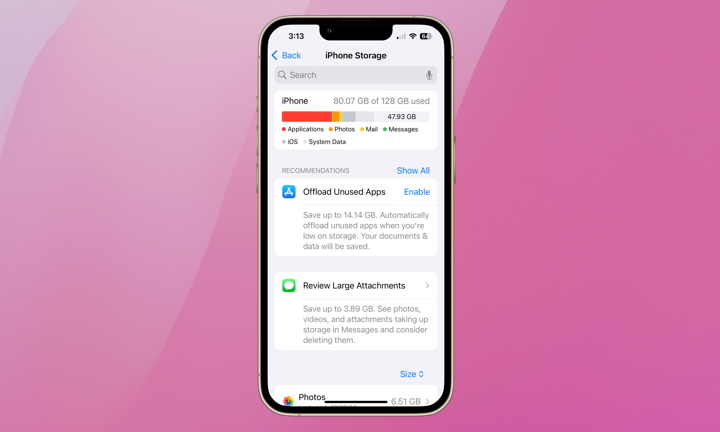
Low storage is one of the most common reasons an iPhone starts feeling cramped and slow. When your iPhone is nearly full, iOS doesn't have enough room to handle updates, temporary files, caches, and all the little things the system needs to do in the background. That can make the whole device feel more jammed than it should.
So, if your iPhone has been warning you about space, or if you know you’re holding onto years of photos, videos, downloads, and giant message attachments, it’s time to clear out some storage for your iPhone’s sake.
To check and manage your storage:
- Open the Settings app.
- Tap General.
- Go to iPhone Storage.
From there, start by reviewing the recommendations your iPhone provides. You can also check which things are consuming the most space and start cleaning them out. Old videos, giant attachments and files, any type of media, and apps you never touch are usually the first things you need to take care of.
If there are heavy apps you’re not ready to delete from your iPhone, you can always tap on them and select the Offload option. This will basically erase them from your iPhone while still keeping all your information stored in case you need it later.
Freeing up space won’t magically turn an ancient iPhone into a new one, but it can definitely make a difference in the long run.
Update Your iPhone
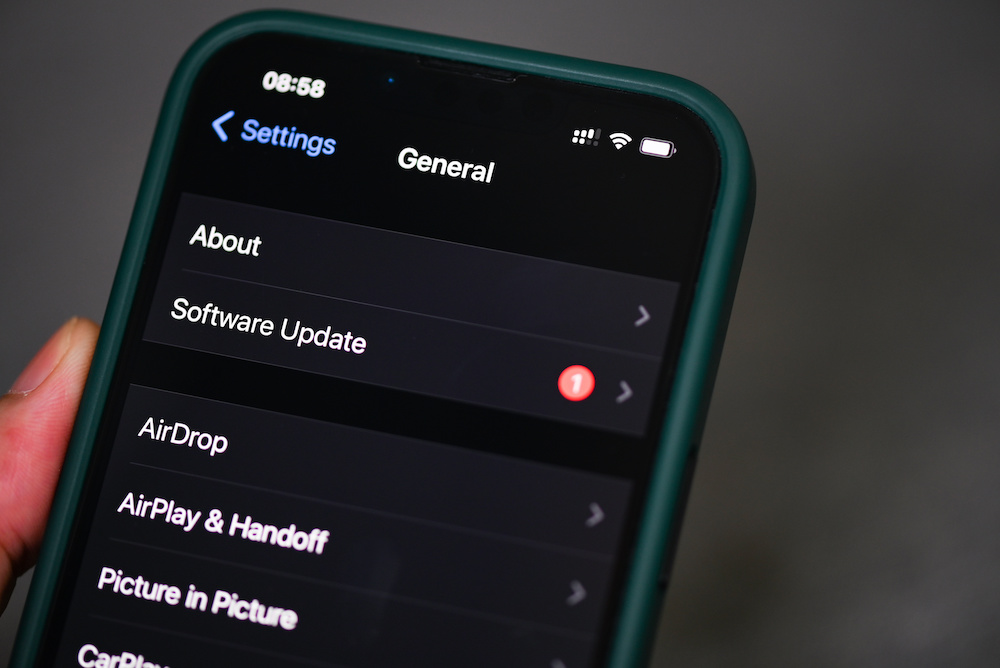
Software updates aren’t just about cool new features; they also include bug fixes, security patches, and system-level improvements that can affect how smoothly your iPhone runs. A reason why your iPhone is slowing down might be tied to a software issue, instead of a hardware one. If that’s the case, updating to the latest iOS version may fix your problem.
Sometimes, there are issues like a bug, a memory issue, or an update-related glitch that won’t be fixed by deleting a few photos or closing your apps. If that’s the problem, chances are Apple already knows about it, and it will fix the problem in an upcoming software update.
Here's how to check for and install a new software update:
- Open the Settings app.
- Scroll down and tap on General.
- Tap on Software Update.
- Install the latest version if one is available.
You can also turn on Automatic Updates so future updates happen while you sleep, as long as your iPhone is charging and connected to Wi-Fi. However, just be aware that automatic updates may take a few days or even weeks, so it's still better to check manually if you're having problems.
Turn Off Background App Refresh For Apps That Don’t Need It
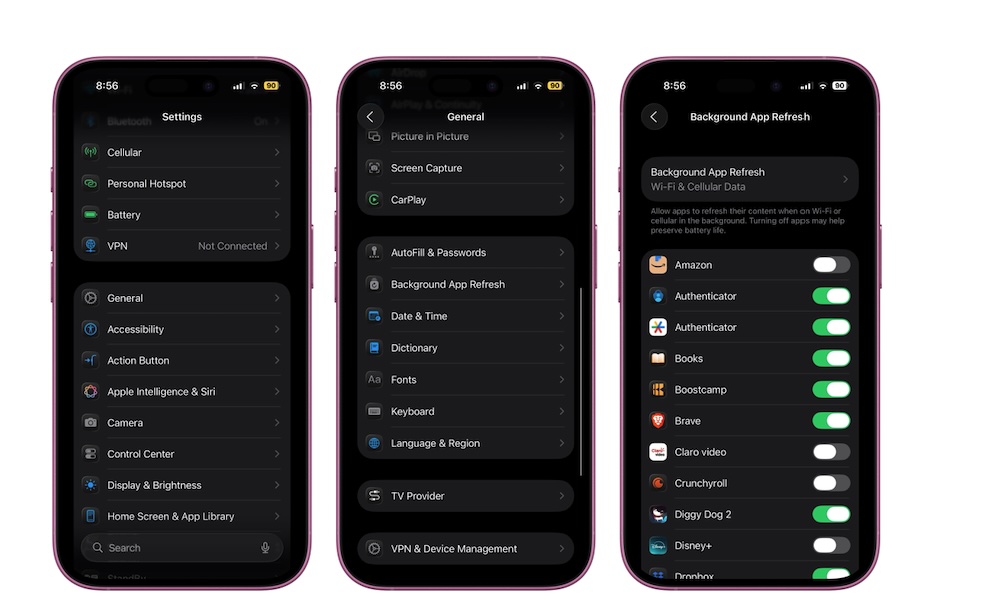
Background App Refresh lets apps update content while you’re not actively using them. That can be helpful for some apps, but if you have a lot of social apps, shopping apps, and delivery apps all doing background work, your iPhone is probably working harder than it needs to.
Not every app that is allowed to update in the background by default really needs it, and cutting down on that background activity can make your iPhone feel a little less overloaded.
Here's how to manage your iPhone’s Background App Refresh:
- Open the Settings app.
- Scroll down and tap on General.
- Go to Background App Refresh.
From there, you can turn it off entirely or leave it on and disable it only for nonessential apps. If you’re trying to lighten the load while still letting your iPhone work in the background, the second option is better for you.
Consider Using Low Power Mode
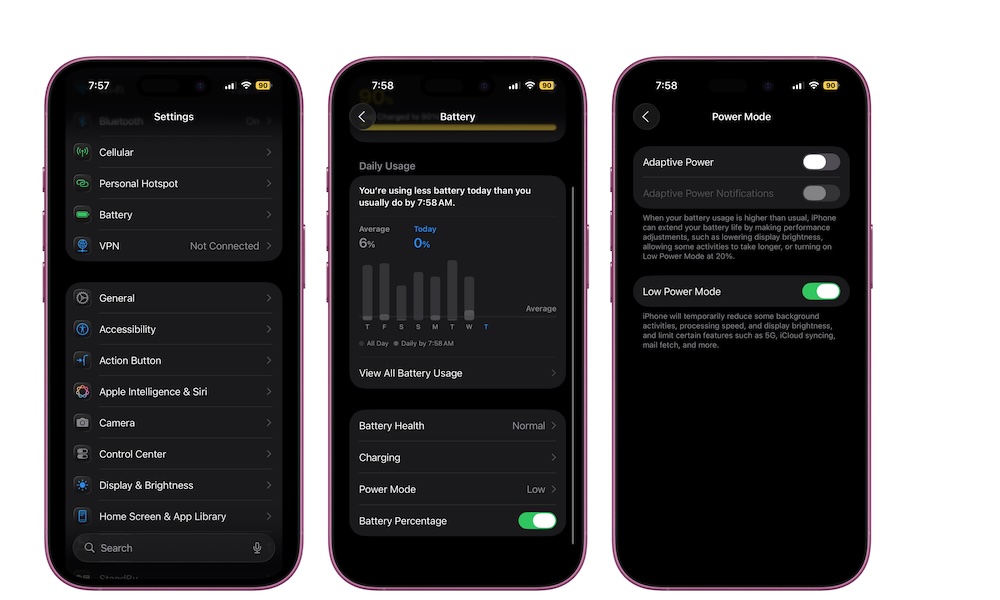
Low Power Mode is usually seen as a battery-saving feature, but it can also help with your iPhone’s performance if it’s feeling a little too slow.
That’s because, among other things, Low Power Mode reduces certain background tasks and system activity so your phone can focus on the more essential tasks.
This won’t permanently fix a slow iPhone, and it’s not something you need to have turned on all the time. But if your phone is running hot, your battery is dropping fast, or you just need it to stay functional through the rest of the day, Low Power Mode can help calm things down a bit. Here's how to turn it on:
- Open the Settings app.
- Tap on Battery.
- Select Power Mode (on iPhone 15 or later)
- Switch on Low Power Mode.
You can also add a Low Power Mode control to Control Center if you want to turn it on faster.
Reduce Motion to Get Rid of Certain Animations
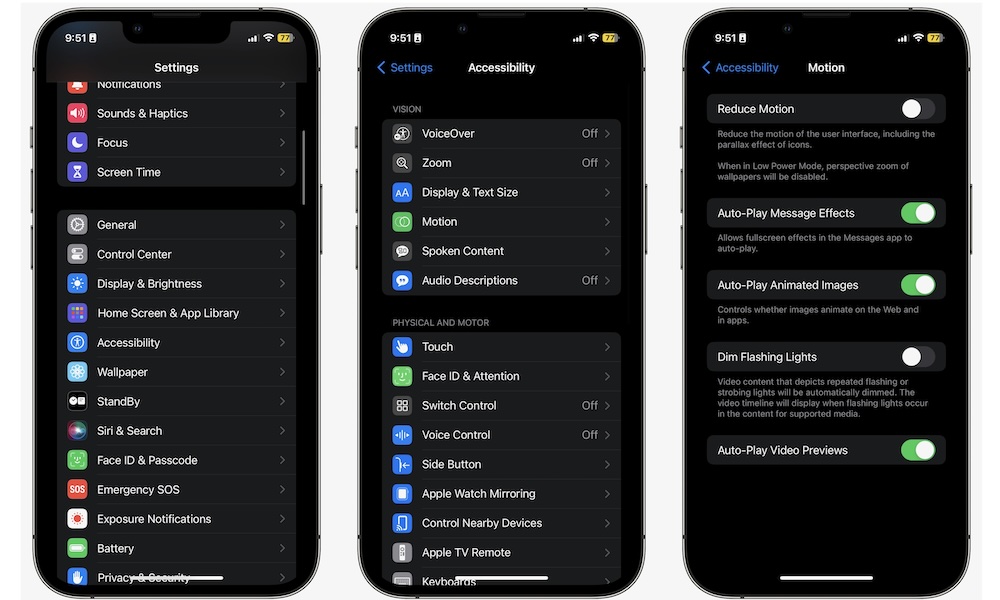
This tip won’t fix deep performance problems, but it can make your iPhone feel quicker overall. iOS uses motion and animation effects throughout the system, which are tiny details that make it stand out.
And while these animations look and feel good, they can also make transitions feel heavier than they need to.
If you prefer a snappier visual experience, reducing those effects can help your phone work more quickly. Again, it won’t be a big difference, but if your device is starting to slow down for real, this might be a quick fix.
To turn it on:
- Open the Settings app.
- Scroll down and tap on Accessibility.
- Tap Motion.
- Turn on Reduce Motion.
Make Your iPhone Feel Fast Again
A slow iPhone doesn’t automatically mean you need to upgrade. In a lot of cases, there are many fixes you can try.
At the same time, though, it helps to stay realistic. If, on top of feeling slow, your battery is badly worn, your storage is always jammed, and the phone is constantly hot, then the issue may no longer be temporary. It might instead be time to consider getting a new iPhone.
The good thing is that, unless you have a really outdated device, all of these tips can help your iPhone feel snappier over time.