
Update Your iPhone
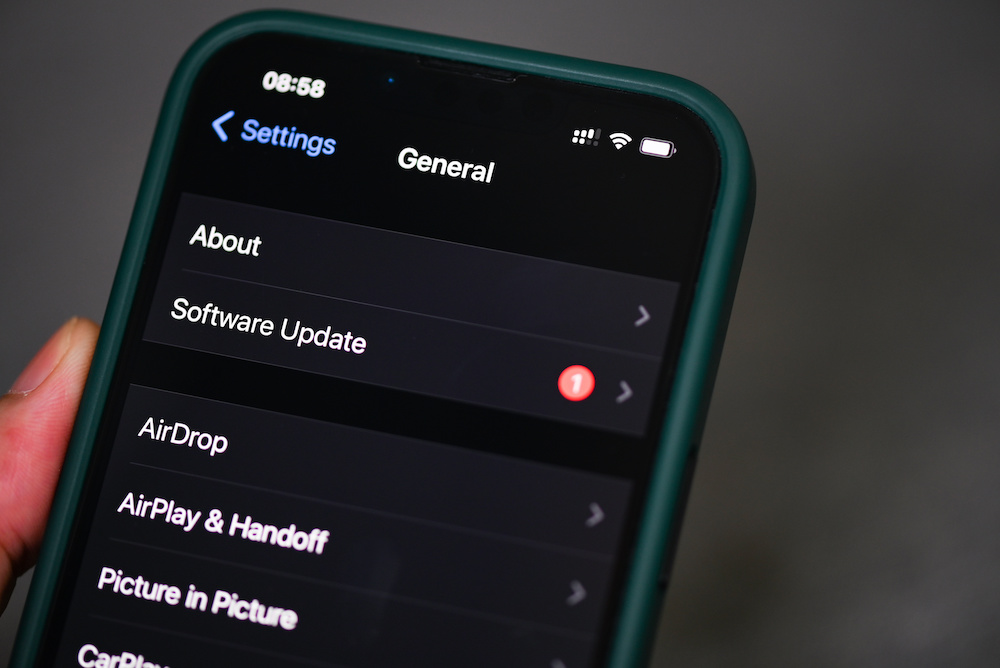
Software updates aren’t just about cool new features; they also include bug fixes, security patches, and system-level improvements that can affect how smoothly your iPhone runs. A reason why your iPhone is slowing down might be tied to a software issue, instead of a hardware one. If that’s the case, updating to the latest iOS version may fix your problem.
Sometimes, there are issues like a bug, a memory issue, or an update-related glitch that won’t be fixed by deleting a few photos or closing your apps. If that’s the problem, chances are Apple already knows about it, and it will fix the problem in an upcoming software update.
Here’s how to check for and install a new software update:
- Open the Settings app.
- Scroll down and tap on General.
- Tap on Software Update.
- Install the latest version if one is available.
You can also turn on Automatic Updates so future updates happen while you sleep, as long as your iPhone is charging and connected to Wi-Fi. However, just be aware that automatic updates may take a few days or even weeks, so it’s still better to check manually if you’re having problems.