
7 Hidden iPhone Features That Will Rescue Your Productivity

Your iPhone can either be one of your biggest distractions or one of the most useful productivity tools you own; it all depends on how you use it. If you leave every notification on, keep all your apps scattered everywhere, and rely on memory to track your day, your iPhone will probably make things harder.
But with the right features, your iPhone can help you focus, remember tasks, scan documents, and organize important files. You don’t need to download a dozen productivity apps to make that happen, either, as a lot of the best tools are already built into iOS.
The key is knowing which features are actually worth using. Read on for 7 iPhone tips and tricks that can help you save time, stay organized, and make your device feel more intentional throughout the day.
Set Up Focus Modes
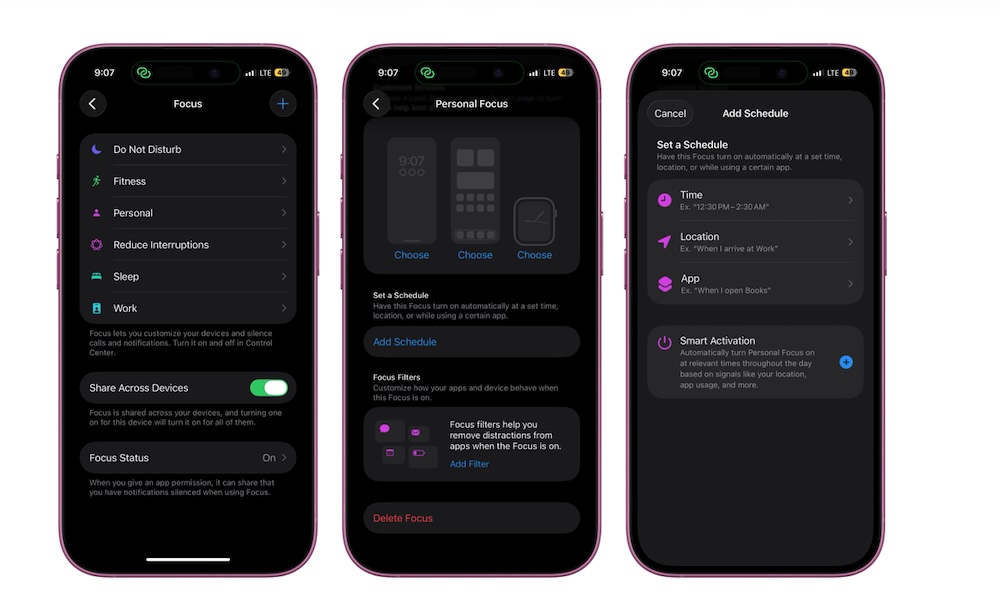
Focus modes are one of the best places to start if your iPhone constantly distracts you. They let you decide which people and apps can notify you depending on what you’re doing, whether you’re working, sleeping, driving, exercising, or just spending time away from work.
As we know, most notifications don’t need your attention right away. A random app alert, group chat, sale notification, or social media ping aren’t really important, but they can distract you for more than just one second. Focus lets you create boundaries without turning your iPhone off completely.
You can also connect a Focus mode to a specific Lock Screen or Home Screen. For example, your Work Focus can show a clean Home Screen with Calendar, Reminders, Notes, and Mail while hiding entertainment apps.
To create a new Focus mode:
- Open the Settings app.
- Scroll down and tap Focus.
- Choose an existing Focus mode or tap the + button and follow the instructions on your screen.
- Pick which people can notify you and which apps can send alerts.
- Customize your Lock Screen or Home Screen if you want.
Now you have a new Focus mode. You can create a schedule so it turns on automatically, or turn it on manually from your Control Center. Once it’s set, your iPhone becomes much easier to manage during the parts of the day when you need fewer interruptions.
Use Shortcuts For Repetitive Tasks
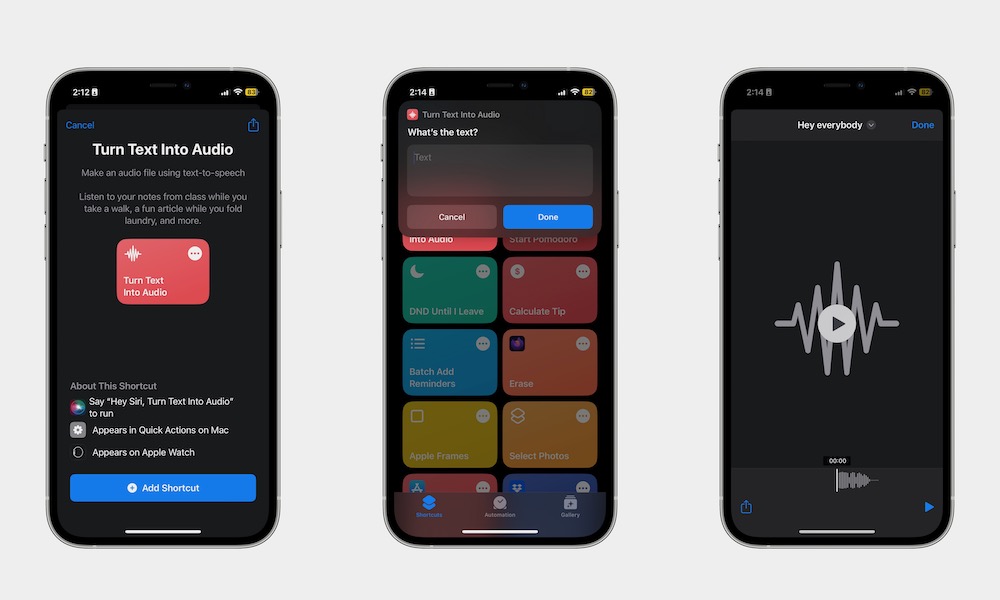
The Shortcuts app can save a lot of time once you start using it for small things you repeat often. A shortcut can run several actions with one tap or a Siri command, which makes it useful for routines and everyday tasks.
You don’t need to build something complicated right away. You can start with simple shortcuts like texting a friend, opening your favorite app, or starting a playlist. Once you get comfortable, you can create more complicated and personal shortcuts.
Getting started with Apple Shortcuts can feel intimidating, but if you want something a bit easier, the Gallery inside the app is a good place to begin because Apple includes shortcuts that are ready for you to try with one tap. You can add one, test it, and customize it later if needed. Here's how:
- Open the Shortcuts app.
- Tap Gallery.
- Browse the categories or search for something specific.
- Tap a shortcut you want to try.
- Tap Add Shortcut.
Now that you added a shortcut, you can start using it however you want. You can even add it to your Home Screen, or ask Siri to boot it up when you need it.
Scan Documents in Notes
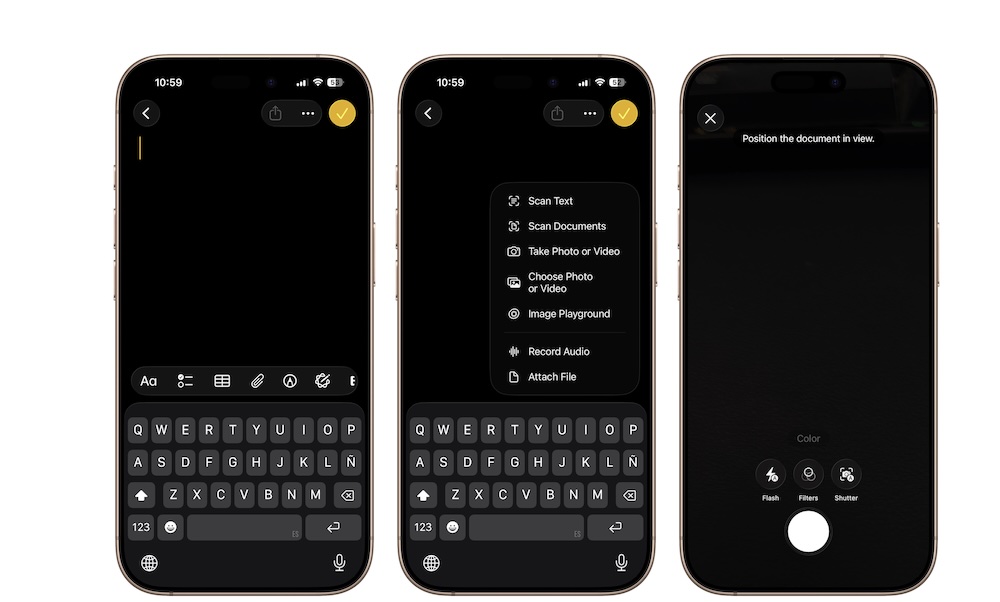
The Notes app hides one of the most useful built-in productivity tools on your iPhone, letting you can scan any document for work or school in seconds — without the need to search the App Store for a third-party app.
You can use this for receipts, contracts, handwritten notes, bills, or anything else you want to save digitally. The scan looks cleaner than a regular photo, and it’s saved right inside a note where you can share it or store it for later.
Here’s how to scan a document:
- Open the Notes app.
- Create a new note or open an existing one.
- Tap the Attachment button (the one that looks like a paper clip).
- Choose Scan Documents.
- Point your iPhone camera at the document, and your iPhone will automatically scan it.
- If needed, tap the preview in the bottom left and adjust the scanned document however you want.
- If you like the scan, tap the check mark in the top right corner. Or, you can keep scanning.
Use Quick Notes for Fast Ideas
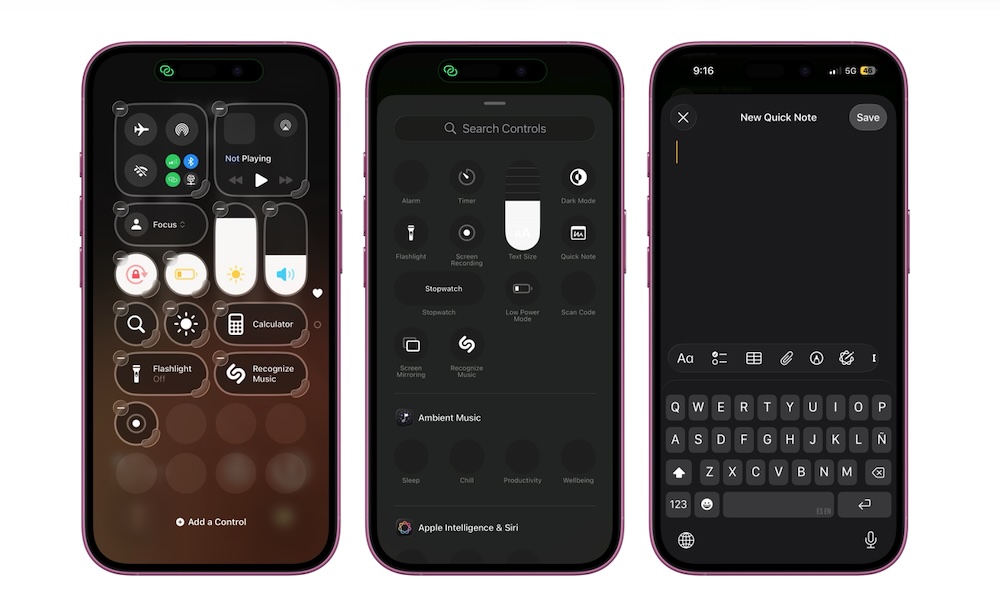
Quick Notes are perfect for capturing ideas or thoughts before they disappear. Instead of unlocking your iPhone, finding Notes, opening the right folder, and creating a new note, you can add Quick Note control to Control Center and start writing faster.
This is useful for the things you need to do but know you’ll forget, or for an important idea you want to explore a bit more later. You can organize the note later, but the important thing is to capture your idea before it’s too late.
So first, start by adding the Quick Note control to your Control Center. To do that, simply open the Control Center and tap the + button in the top left corner of your screen. Next, tap Add a Control and search for Quick Note.
After you add it to your Control Center, you can pop up a note whenever you want, save it, and know that your iPhone will keep it in its own special folder for when you need it.
Use Dictation Instead of Typing Everything
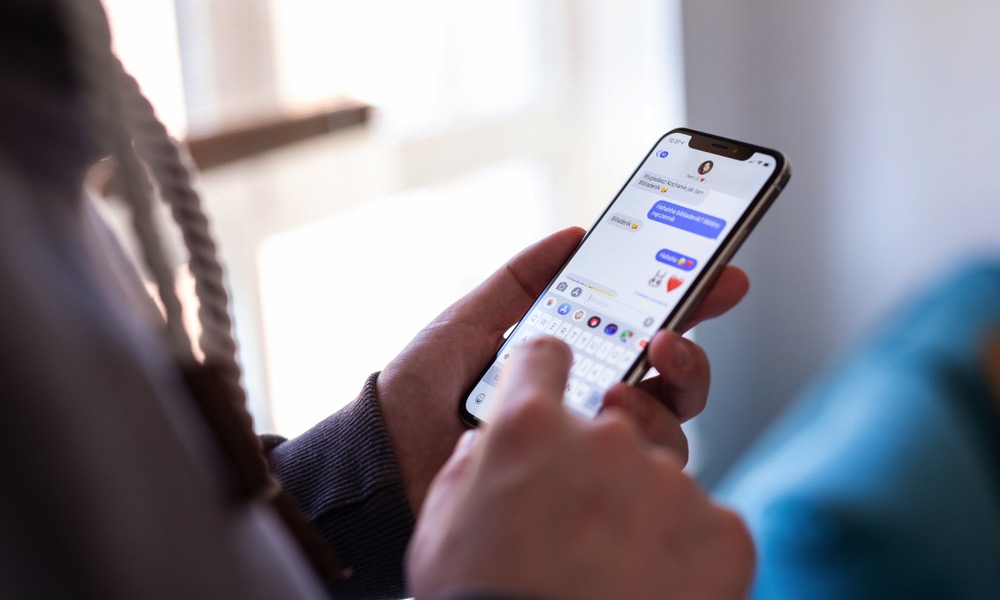
The dictation feature lets you speak into your iPhone and turn your voice into text. It’s much faster than typing when you want to send a quick message or write down something important, especially when your hands are full or you're simply tired of typing.
You can dictate into Notes, Messages, Reminders, Mail, Safari, or pretty much any other app with a text field.
Of course, this feature isn’t perfect, so you should always review the text before sending or saving anything important. Also, make sure to speak clearly into your iPhone, or you might end up with some pretty bizarre transcriptions. Still, it’s great for getting words down quickly. Editing a rough dictated note is often faster than typing the whole thing from scratch.
To use it, simply open up any app where you can type and tap the text field. Tap the Microphone button that appears on your keyboard and start speaking to your heart's content. You can tap the same button again once you’re done, and your iPhone will type everything it heard.
Schedule Notification Summaries
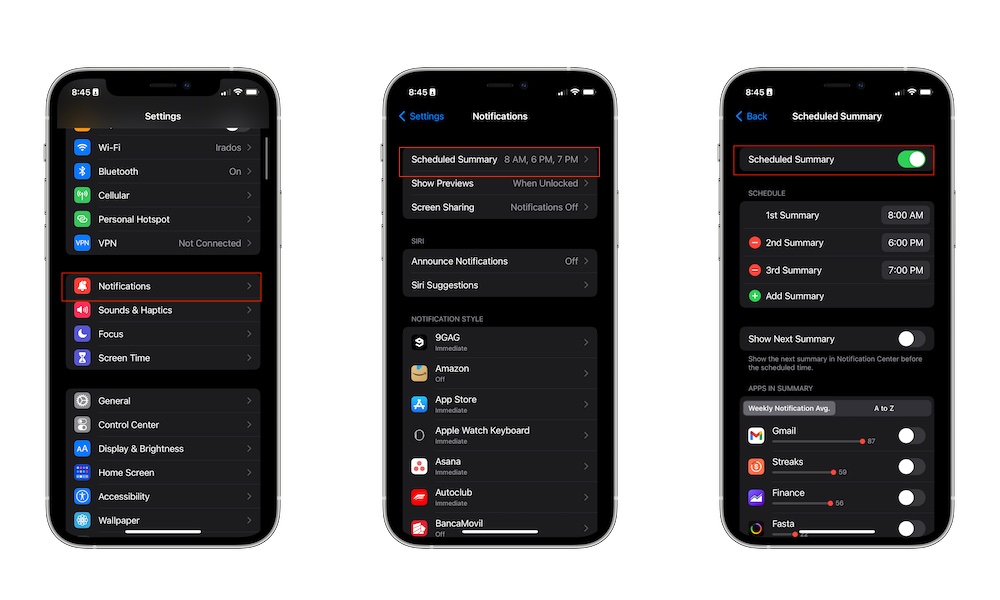
Scheduled Summary groups less important notifications and delivers them at specific times during the day. Instead of getting alerts constantly from apps that don’t need immediate attention, you can receive them in a summary later.
With this feature, you’ll reduce interruptions without having to turn off every notification completely. You can still get important calls, messages, and time-sensitive notifications right away while saving the less urgent notifications, like news and social media, for later.
You can add any app you want, and even choose how many notification summaries you get during the day, which is perfect if you still don’t want to feel like you’re missing out on your friends and family’s updates. To set up notification summaries, you need to do the following:
- Open the Settings app.
- Scroll down and tap Notifications.
- Tap Scheduled Summary.
- Turn this feature on.
- Tap Add Summary to choose your own schedules.
- Scroll down and choose which apps to include.
If you still want to be in the know, you can turn on Show Next Summary, so you can still see the upcoming notifications whenever you want.
Use Notes to Transcribe Audio Automatically
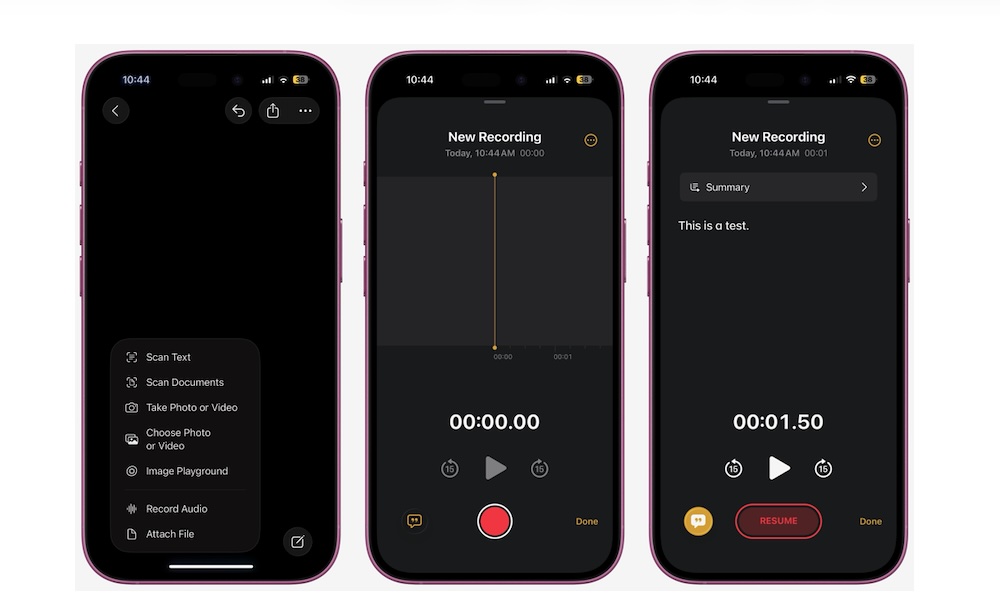
The Notes app can now transcribe audio recordings directly on your iPhone, which makes it surprisingly useful for meetings, brainstorming, lectures, interviews, and quick idea dumps. Instead of typing everything manually, you can record a conversation or thought and let your iPhone generate text automatically.
This feature is useful for so many reasons. First, you can save every important conversation or class in writing. Plus, it lets you actually focus on the conversation or meeting you're having and worry about the text later.
Another nice detail is that transcripts inside Notes become searchable. That means you can search for a keyword later and jump directly to the part of the recording where it appeared instead of replaying the entire audio file. Here's how to get started:
- Open the Notes app.
- Create a new note or open an existing one.
- Tap the Attachment button (the one that looks like a paper clip).
- Choose Record Audio.
- Tap the red record button to start recording.
While recording, your iPhone will generate a live transcript automatically. Once you’re done, you can tap the checkmark in the top right corner. You can then check the transcription by tapping the button in the bottom left corner of your screen.
Your iPhone Can Help You Get More Done
Your iPhone doesn’t have to be a distraction machine. With the right features, it can help you become a more productive person without many distractions during your day.
All of these tips will make your iPhone a bit easier, so you can focus on work or school when it really matters. Which features you start trying will depend on what kind of things slow you down the most. Pick a couple of features that solve your real problems and move on from there.