
Use Shortcuts For Repetitive Tasks
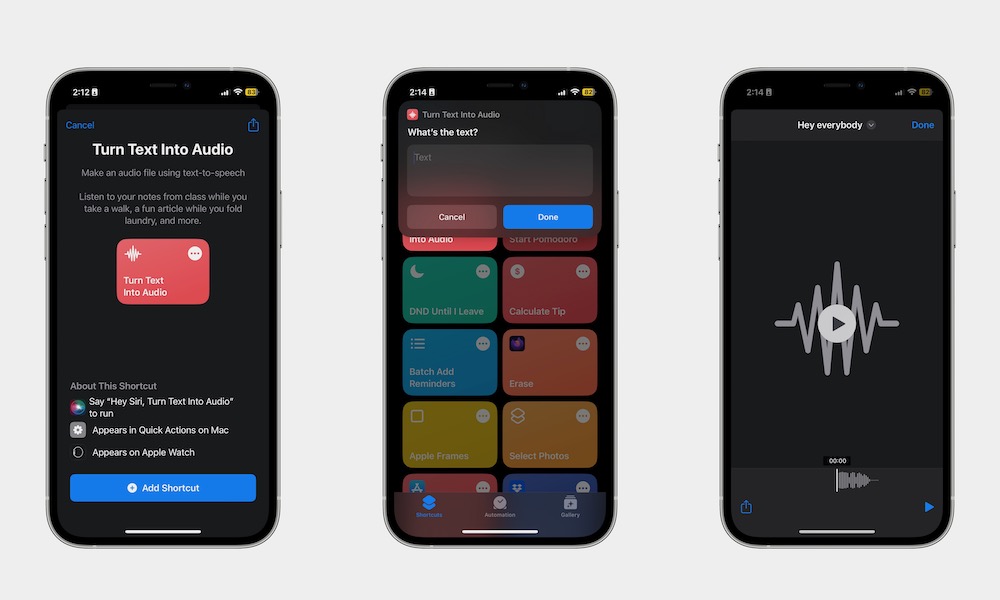
The Shortcuts app can save a lot of time once you start using it for small things you repeat often. A shortcut can run several actions with one tap or a Siri command, which makes it useful for routines and everyday tasks.
You don’t need to build something complicated right away. You can start with simple shortcuts like texting a friend, opening your favorite app, or starting a playlist. Once you get comfortable, you can create more complicated and personal shortcuts.
Getting started with Apple Shortcuts can feel intimidating, but if you want something a bit easier, the Gallery inside the app is a good place to begin because Apple includes shortcuts that are ready for you to try with one tap. You can add one, test it, and customize it later if needed. Here’s how:
- Open the Shortcuts app.
- Tap Gallery.
- Browse the categories or search for something specific.
- Tap a shortcut you want to try.
- Tap Add Shortcut.
Now that you added a shortcut, you can start using it however you want. You can even add it to your Home Screen, or ask Siri to boot it up when you need it.