
Scan Documents in Notes
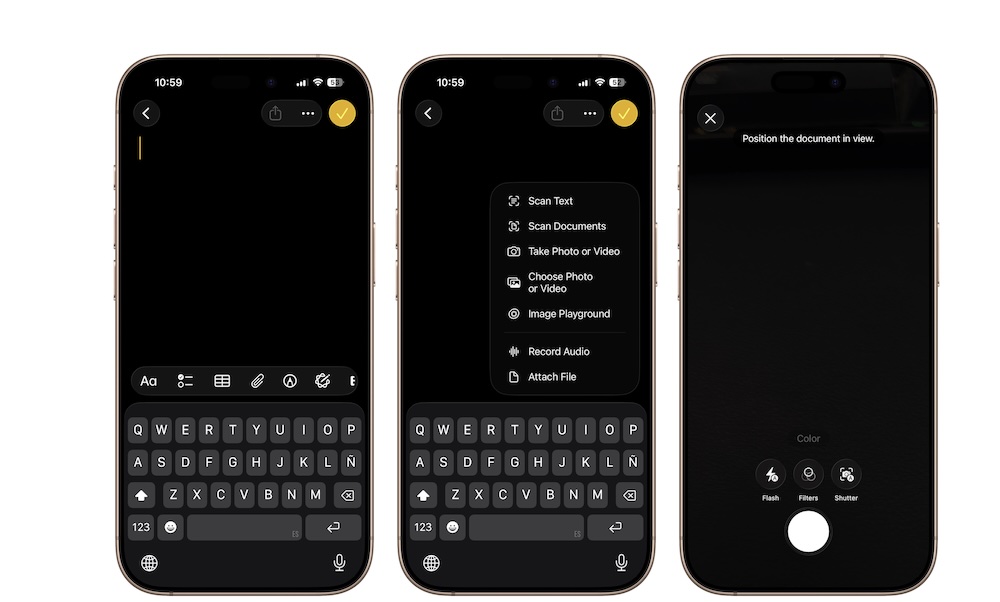
The Notes app hides one of the most useful built-in productivity tools on your iPhone, letting you can scan any document for work or school in seconds — without the need to search the App Store for a third-party app.
You can use this for receipts, contracts, handwritten notes, bills, or anything else you want to save digitally. The scan looks cleaner than a regular photo, and it’s saved right inside a note where you can share it or store it for later.
Here’s how to scan a document:
- Open the Notes app.
- Create a new note or open an existing one.
- Tap the Attachment button (the one that looks like a paper clip).
- Choose Scan Documents.
- Point your iPhone camera at the document, and your iPhone will automatically scan it.
- If needed, tap the preview in the bottom left and adjust the scanned document however you want.
- If you like the scan, tap the check mark in the top right corner. Or, you can keep scanning.