
Use Notes to Transcribe Audio Automatically
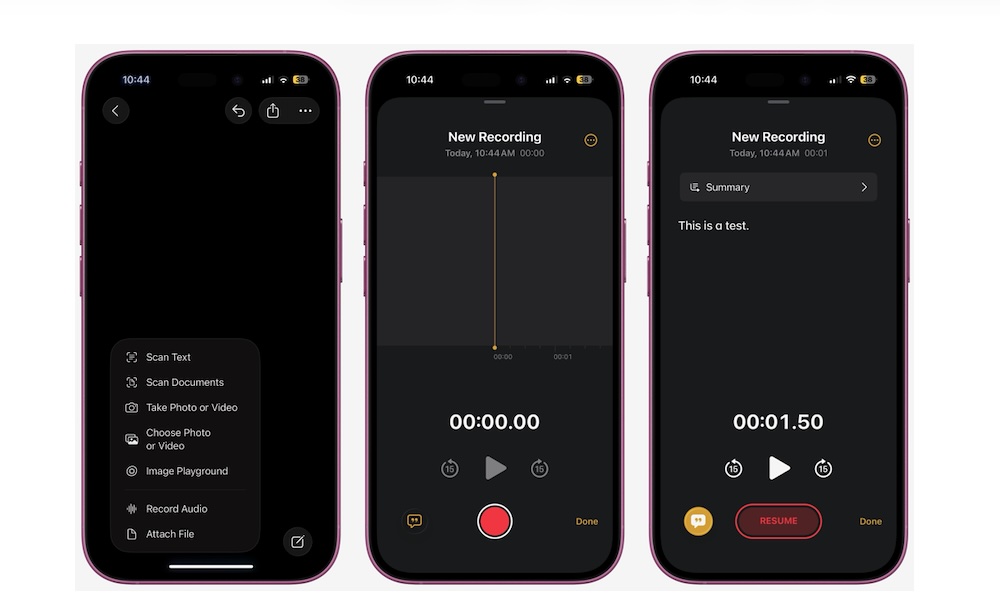
The Notes app can now transcribe audio recordings directly on your iPhone, which makes it surprisingly useful for meetings, brainstorming, lectures, interviews, and quick idea dumps. Instead of typing everything manually, you can record a conversation or thought and let your iPhone generate text automatically.
This feature is useful for so many reasons. First, you can save every important conversation or class in writing. Plus, it lets you actually focus on the conversation or meeting you’re having and worry about the text later.
Another nice detail is that transcripts inside Notes become searchable. That means you can search for a keyword later and jump directly to the part of the recording where it appeared instead of replaying the entire audio file. Here’s how to get started:
- Open the Notes app.
- Create a new note or open an existing one.
- Tap the Attachment button (the one that looks like a paper clip).
- Choose Record Audio.
- Tap the red record button to start recording.
While recording, your iPhone will generate a live transcript automatically. Once you’re done, you can tap the checkmark in the top right corner. You can then check the transcription by tapping the button in the bottom left corner of your screen.