
7 Ways Apple Intelligence Can Make Everyday Tasks Easier
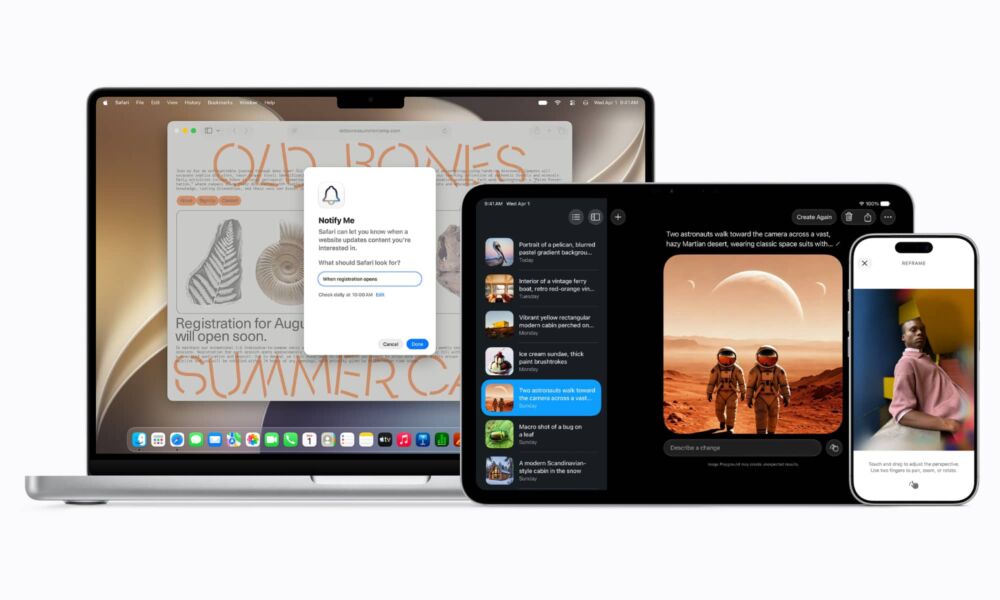
Apple Intelligence has come a long way since Apple first introduced it. What was initially a silly new thing that didn’t do as much as promised is now a solid tool that can help you — if you give it a chance.
Now that Apple Intelligence is coming to more apps, and Siri is getting smarter, Apple’s AI can actually help you with a lot of small tasks during the day. Whether it’s for texting or just understanding something, your iPhone is there to help you.
Whether you like AI or not, it’s clearly here to stay. Read on for 7 ways you can take advantage of Apple Intelligence in your everyday life.
Proofread Your Messages With Writing Tools
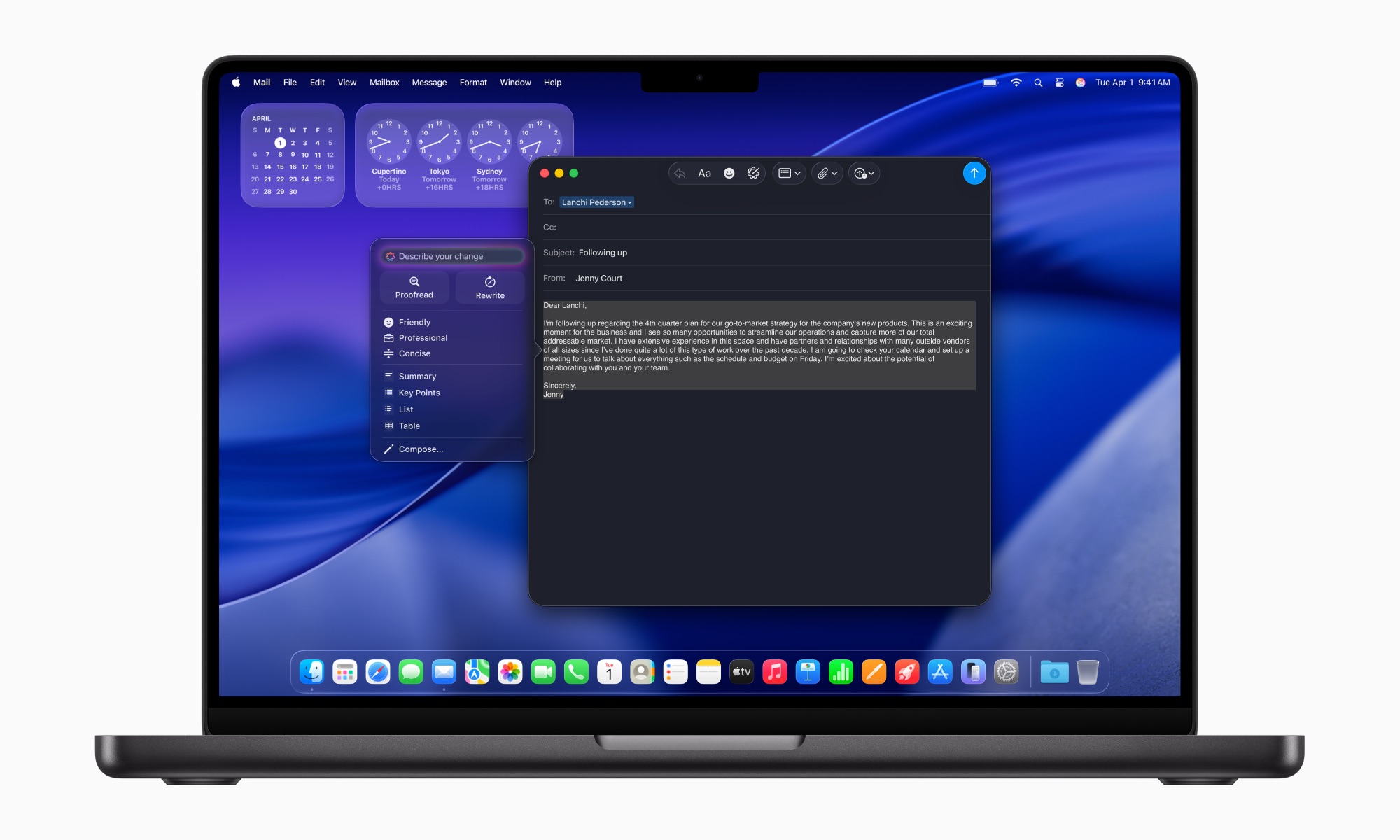
You’ve probably written an email on your iPhone and noticed a typo just two seconds after pressing Send.
Writing Tools can help you catch those mistakes. Apple Intelligence can proofread a message and look for problems with spelling, grammar, and even the tone. It can also suggest wording changes when something you’ve written doesn’t sound quite right.
Writing Tools are available in many places where you can enter text, including supported third-party apps and websites. That means you don’t have to copy an important email into a separate AI app just to check it.
To use this feature, simply write your message normally and select it. If you’re on iPhone, tap the Writing Tools icon that appears in the pop-up message. On Mac, control-click (right-click) the selected text and choose Show Writing Tools or Proofread.
Be sure to always read through the result before sending the message. Apple Intelligence can help clean up your writing, but you should still make sure the final version says exactly what you intended.
Summarize Long Emails

Opening your inbox and discovering another enormous email thread isn’t exactly exciting. However, Apple Intelligence can help you with that.
Apple’s AI can summarize emails directly inside the Mail app. A brief summary outlining the contents will appear near the top of the screen.
To use this feature, simply open the message in the Mail app and then click or tap on Summarize. The summary will appear after a few seconds, highlighting the key takeaways from the email.
Granted, the message might be a bit too concise or inaccurate at times. So test it before relying on it completely. Generative AI can misunderstand details, so read the original email when exact wording or specific instructions matter.
Find Photos By Describing Them
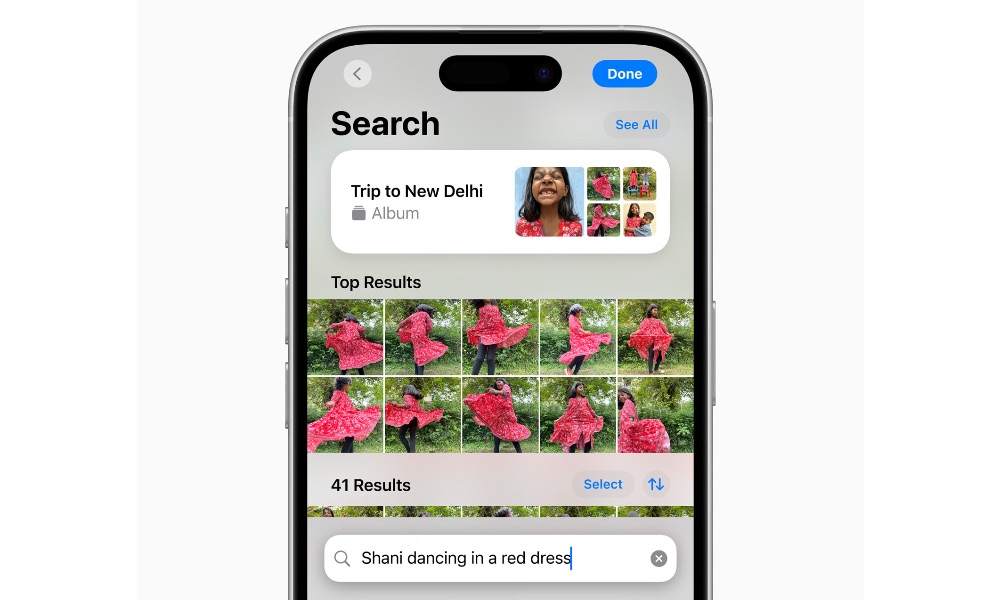
This is a really useful feature that will save you a ton of time. Finding a picture you took three years ago can be frustrating when you don’t remember the date.
You probably remember something about the photo, though. Maybe your dog was running on the beach, or your friend was wearing a particular jacket. Well, now that’s enough, as Apple Intelligence lets you search Photos using those kinds of descriptions.
All you need to do is open the Photos app, tap Search, and describe what you remember. You can make your search more specific if you receive too many results. This feature works on both photos and videos, so you can find any exact moment that you’re looking for without having to go through each video.
Fix Distracting Things in Your Photos
Now, you don’t even need to open an advanced photo editor every time someone accidentally walks into the background of your picture.
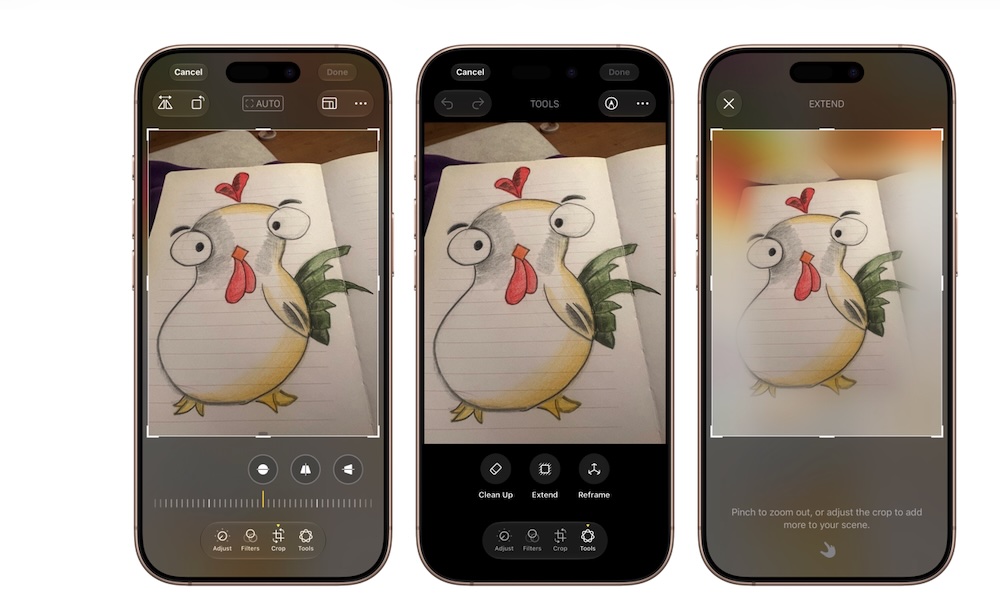
Apple Intelligence introduced a useful feature called Clean Up, which can identify and remove distracting objects in your photos. You can select them, and your iPhone will make sure to delete them and create a background that blends in with the rest of the photo.
iOS 27 expands Apple’s intelligent photo-editing tools further with the Extend tool, which can generate parts of the image in case you want to make it larger. There’s also Reframe, which can help you change the angle and composition of a picture with a swipe. Apple Intelligence will make sure to adjust the subjects so it looks like they’re still looking at the camera.
To use all of these features, open Photos and choose the picture you want to change. Tap Edit and select the editing tool you want to use.
Be sure to check the results beforehand, though, as this technology is still far from perfect.
Use Visual Intelligence to Learn More About Your Screenshots
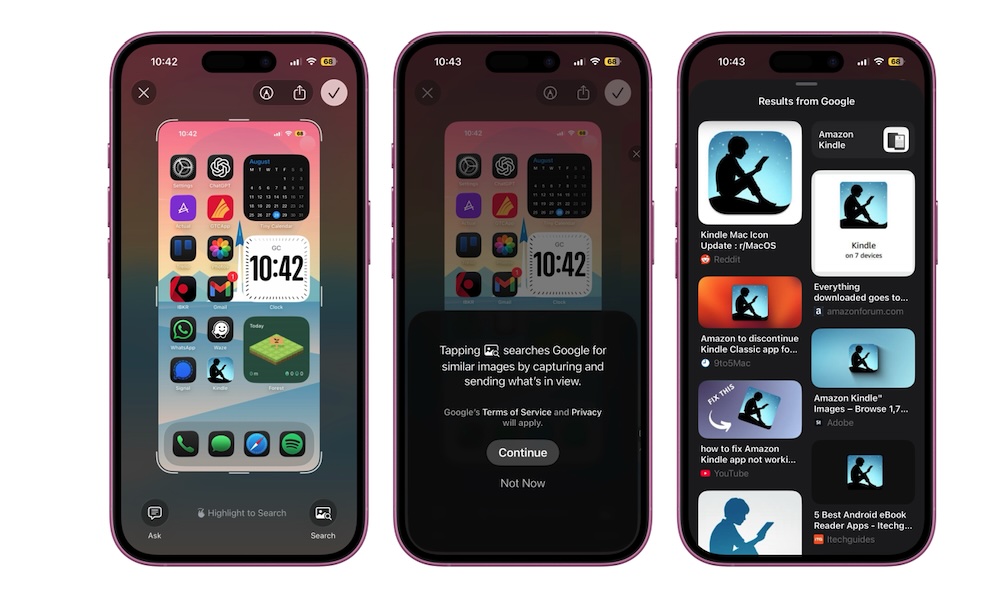
Visual Intelligence is a pretty useful tool that can show you more about any screenshot you take. It can show you data from Google, or show you the price of a product on Amazon or eBay.
Take a screenshot by pressing the Side button and Volume Up button together. Tap the preview image in the bottom left corner, and then you should see Visual Intelligence options appear at the bottom of the screen.
If you don’t want information about the whole screenshot, you can drag your finger on what you want to search to highlight it, and Visual Intelligence will show the results it can find.
Weirdly enough, this doesn’t work after you save the image in the Photos app. So if you accidentally didn’t open the preview, you’ll have to take another screenshot.
Record Anything and Get a Transcription Automatically
Taking notes throughout an entire meeting or a class can make it harder to concentrate on the actual conversation. Not only will you feel lost afterward, but chances are your notes aren’t that good either.
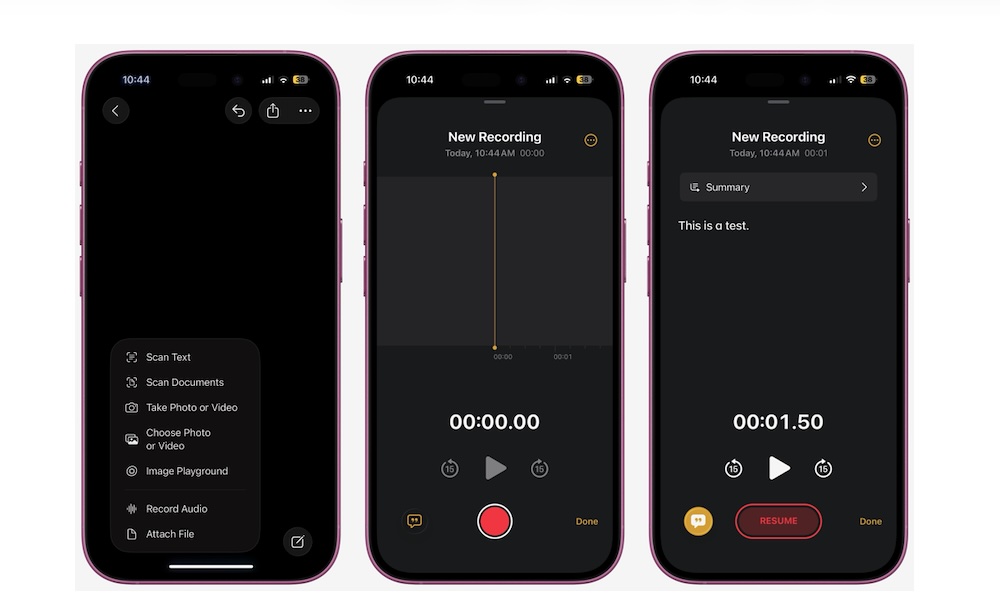
The good news is that the Notes app can record audio and generate a transcript automatically. And with the help of Apple Intelligence, you can also generate a summary of that transcript.
Open the Notes app, open a new note, and tap the Attachment button (the one that looks like a paper clip). Select Record Audio and start recording your meeting or conversation. When you’re done, you can tap the Transcription button in the bottom left corner to read the whole conversation. You can also tap Summarize at the top to get a brief explanation of whatever you recorded.
Make Shortcuts With Apple Intelligence
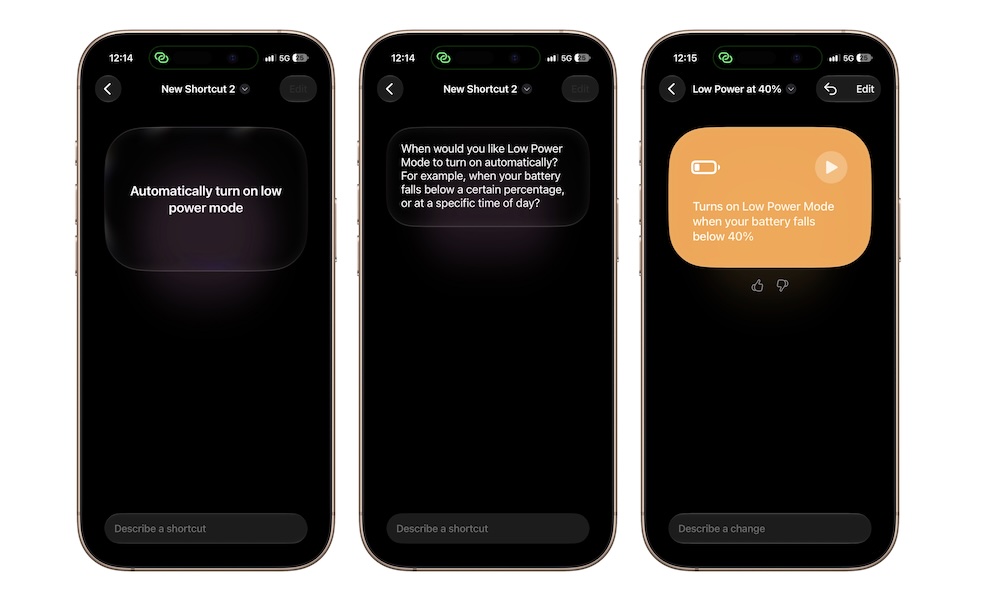
Shortcuts has always been one of the most powerful apps on the iPhone, because it basically lets you create anything. Of course, you need to know how to make them. Or at least you did before iOS 27.
Now, Apple Intelligence will create shortcuts for you. The only thing you need to do is describe them. Apple currently lets Shortcuts use different models for different tasks. Simple requests can run through an on-device model, while more complicated requests can use Apple’s Private Cloud Compute.
The result will be the same: you’ll get a brand-new shortcut you didn’t have to work at all to get.
To try it out, open the Shortcuts app and create a new shortcut by tapping the plus icon. Then you can start describing your shortcut. Granted, the more complicated it is, the harder it’ll be for Apple Intelligence to pull it off, but it’s a great starting point for most people.
Let Apple Intelligence Handle the Small Stuff
You don’t have to completely change the way you use your iPhone to get something useful out of Apple Intelligence.
Instead, you can simply use it for tasks that take more time than they should — whether that’s drafting work texts or recalling details from a meeting a few weeks ago.
Of course, Apple Intelligence is still far from perfect, so don’t just blindly trust it every time. But for small stuff, this tool can be really helpful and a time-saver.