
5 Brilliant iOS 27 Features You Need to Try First
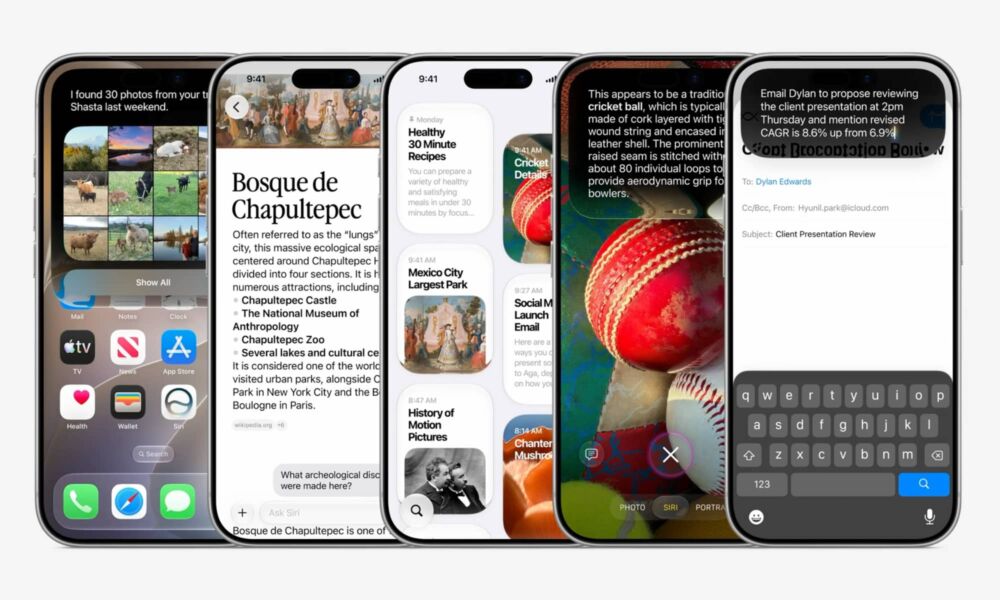
While iOS 26 introduced one of the biggest visual changes the iPhone had received in years with Liquid Glass, Apple is taking a more focused approach in iOS 27, refining the design while improving the way your iPhone performs.
Apple is also giving Apple Intelligence a much larger role throughout the whole operating system. As always, Siri is getting a major boost (for real this time), and some of Apple’s most popular apps are also getting some new or improved AI tools.
iOS 27 itself isn't fully available yet, but you can download the public beta if you want to give it a try. It works surprisingly well, but you should always be cautious about installing any beta on your main iPhone. If you do install it, be sure to create a backup beforehand just in case. That's a good idea for any iOS update, but it goes doubly for a beta.
With that said, if you’ve already installed iOS 27 on your iPhone — or you're thinking about it — there are a of of fun new things you can now do. To help you get started, read on for 5 of the best iOS 27 features you need to try first.
Edit Photos With Better AI Tools
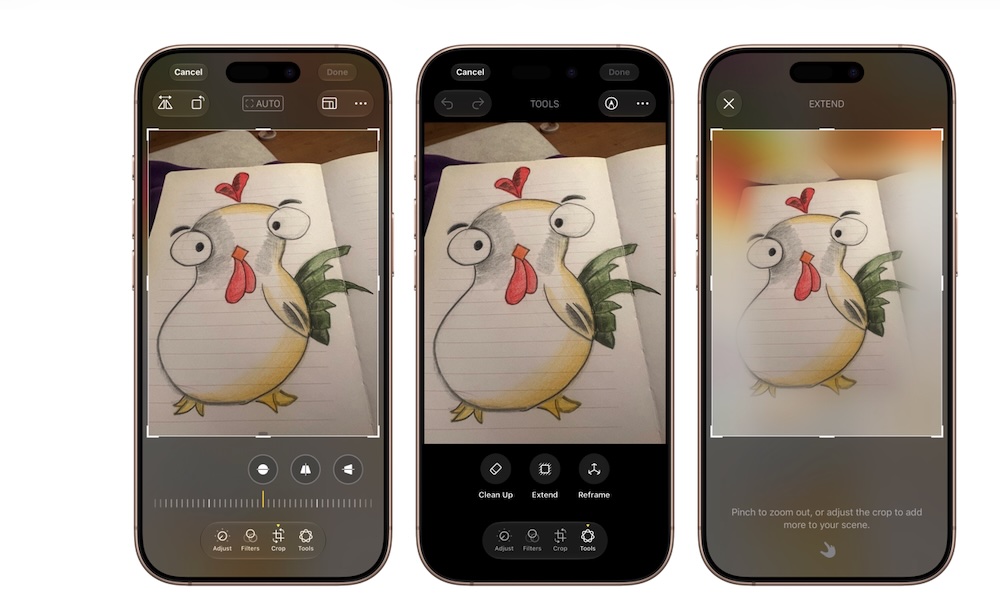
Two years ago, Apple introduced a Clean Up tool as part of its first Apple Intelligence rollout in iOS 18, letting you remove distracting objects from a photograph. Now, iOS 27 expands AI photo editing by improving how well Clean Up works and adding more powerful tools for changing an image after you capture it.
The Extend tool can generate additional space around the edges of a photograph. This could help if the original shot was cropped too tightly or if you need a different size for your next post. For the most part, the generated area is filled pretty well by Apple Intelligence, so you shouldn’t have any issues with weird stuff in your background.
There’s also the Reframe tool that gives you another way to change your photos in a cool and interesting way. This tool lets you move the perspective after taking the picture, which could improve a group shot or place the subject in a better position. So if you take a picture looking straight at the camera, you can reframe it so it seems like the picture was taken from your left or right. This tool still works pretty well, but you can clearly tell that Apple still has some work to do.
Of course, Clean Up also got an improvement. It’s now better at handling any object you want to remove from a photo. Here's how to use these tools:
- Open the Photos app.
- Choose a photo.
- Tap on the Edit button at the bottom of your screen.
- Select Tools at the bottom of your screen.
- Choose Extend, Reframe, or Clean Up.
- Adjust the image however you want by following the instructions at the bottom.
- Wait for Apple Intelligence to create the result.
- Review the image.
- Tap on the checkmark in the top right corner to apply the new changes to the picture.
Generated edits won’t always look perfect. Be sure to check faces and detailed areas closely before replacing the original version, but don't worry as these work like any other edits, so you can always revert to the original photo if you change your mind later.
Monitor Webpages With Safari’s Notify Me
How many times have you been endlessly refreshing a web page to get something you want? Maybe it’s tickets to a concert, or a limited item you just need to have. Well, constantly monitoring a website can be tiring, but iOS 27 can now help you with that.
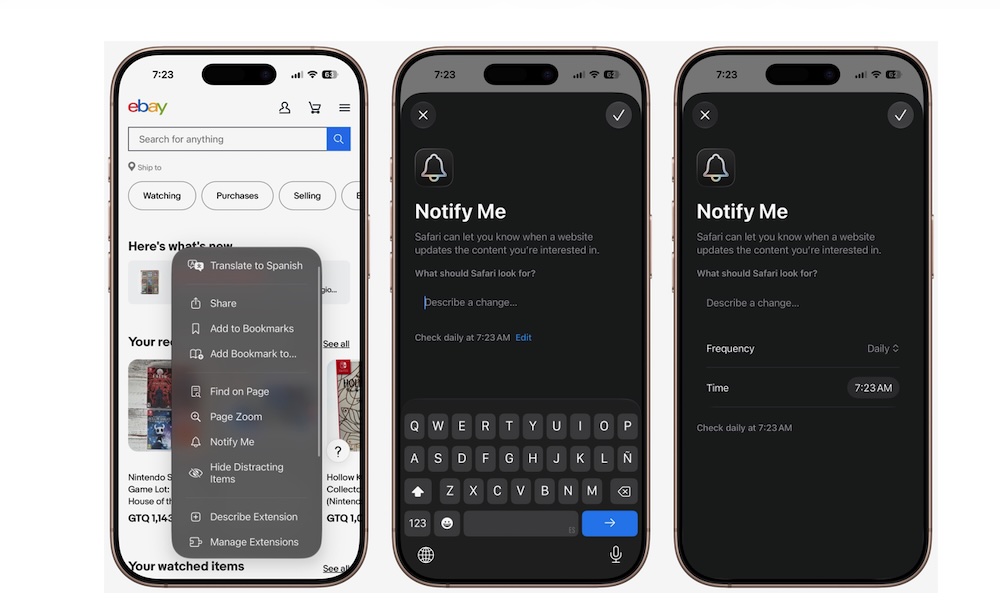
Safari's Notify Me feature can monitor supported pages and alert you when a relevant change occurs. This saves you from reopening the page several times each day.
Keep in mind that Notify Me is still in beta, so it might not work perfectly. Additionally, the feature won’t necessarily work with every website. When Safari recognizes a supported page, you should see an option to receive a notification in Safari’s menu. Here’s how you can create an alert.
- Open a web page in the Safari app.
- Open the Page Menu button on the left side of the address bar.
- Tap on Notify Me.
- Select the change you want Safari to watch for.
- If needed, you can tap on Edit to change the Frequency and Time so Safari checks the web page more often.
- Allow notifications if needed.
And that’s it; now you just need to wait for when Safari detects the update you want.
Let the Passwords App Fix Unsafe Passwords Automatically
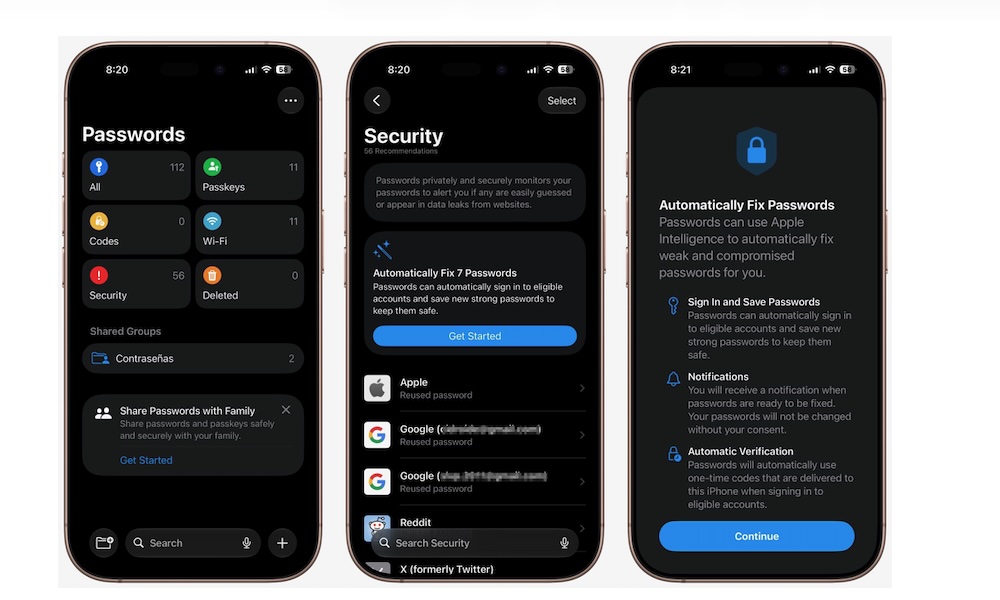
The Passwords app already warns you about weak or compromised credentials. The problem is that acting on those warnings is very time-consuming, as it usually requires visiting each website and going through its password-change process. As a result, many of us simply say that we’ll do it later (even though we already know that’s not true).
Luckily, in iOS 27, Passwords can update supported credentials for you. You can choose an unsafe password and allow the app to handle the change. The new password should then be stored automatically for you to use whenever you need.
This could make security recommendations much easier to address. Instead of ignoring a long list of warnings, you may be able to repair several accounts with literally just one tap.
The downside, of course, is that you’ll give even more control to Apple. Now you won’t even know your own password; you’ll depend on Apple to keep track of everything. If you’re planning on leaving the whole Apple ecosystem, or using Android devices or Windows computers, this is a feature you probably don’t want to start using.
Still, if you want Apple to handle all the heavy lifting for you, here’s how you can automatically change your weak passwords.
- Open the Passwords app.
- Authenticate with Face ID, Touch ID, or your passcode.
- Tap on Security.
- You’ll see a security recommendation to automatically fix your passwords. Tap on Get Started.
- Tap on Fix Passwords.
Keep in mind that automatic changes will only work with supported websites. For the non-supported accounts, you will still get an alert, but you’ll have to change it manually.
Create Shortcuts By Describing What You Want
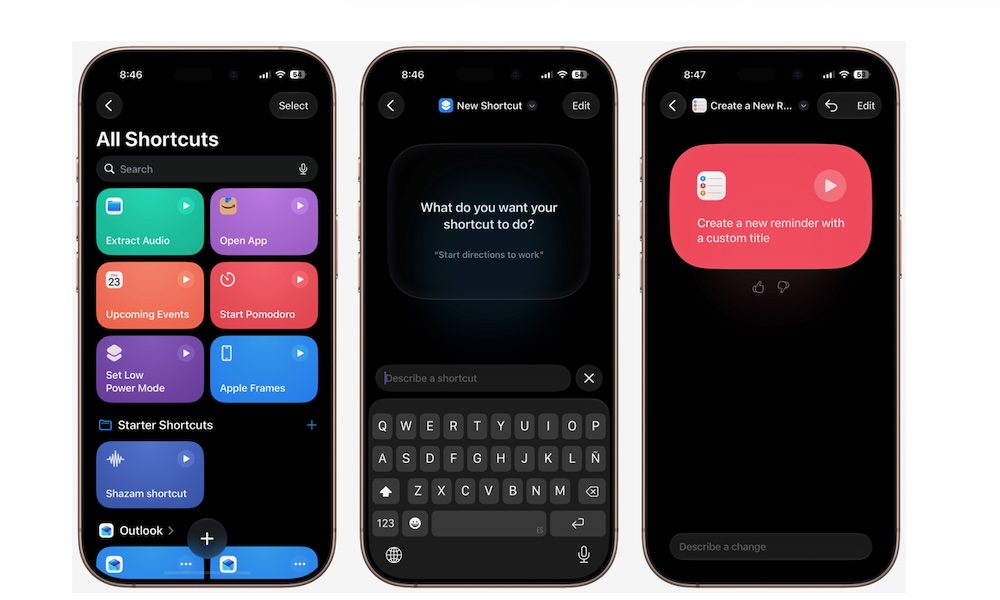
This is one of the coolest changes in iOS 27. Granted, it’s not perfect, but it’s got a ton of potential.
Shortcuts is one of the most powerful apps Apple includes on the iPhone. You can literally create any type of tool you want. Unfortunately, creating a complicated workflow can be intimidating if you don’t understand how its actions fit together.
The good news is that iOS 27 now lets you describe the shortcut you want in normal language. Apple Intelligence can then assemble the necessary actions from supported apps. You can review the proposed workflow and make changes before saving it.
You might ask for a shortcut that starts a timer and opens your writing app. Another request could save selected photographs to a folder. Or, ask your iPhone to send a message when you arrive at home or work.
To create a shortcut with a description:
- Open the Shortcuts app.
- Tap the option to create a new shortcut at the bottom.
- At the top, you can tap New Shortcut to rename your shortcut or choose a specific icon.
- You can also tap Edit to create the shortcut yourself.
- Explain what you want your shortcut to do.
- Give it a few moments, and the shortcut will be generated.
- Save and test it.
As we mentioned, this is far from perfect yet, but Apple will surely improve it over time to make it more powerful.
Customize Liquid Glass
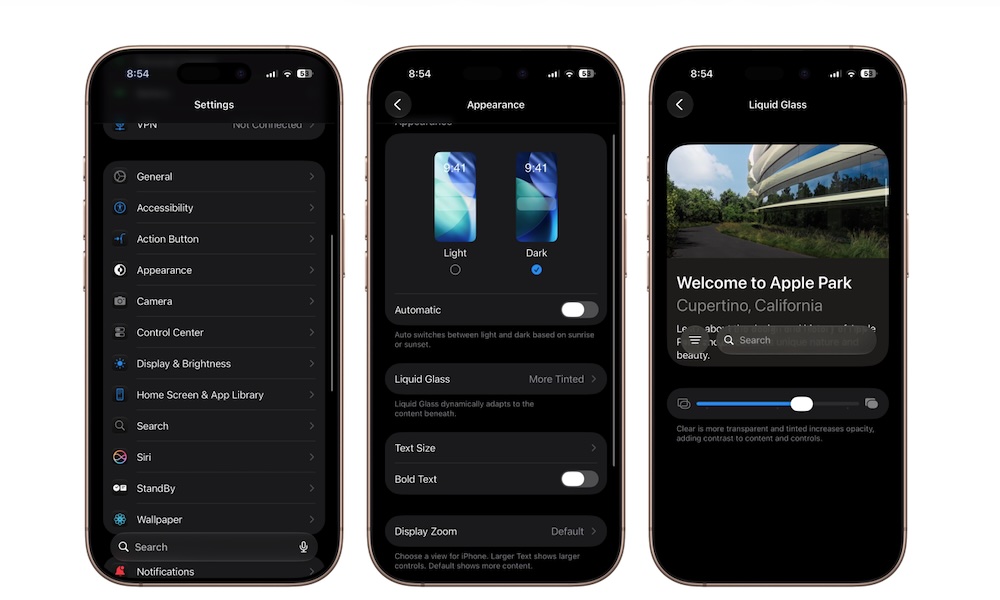
Liquid Glass gave iOS 26 a much more transparent appearance. Some people enjoy the redesign — the first we’d seen in years — while others found it annoying or even hard to look at.
iOS 27 refines the design with improved contrast and clearer icons. Apple is also adding an appearance slider that lets you choose how transparent or tinted the interface should look.
Moving the control toward Clear should preserve more of the glasslike appearance, while sliding it toward Tinted adds opacity and contrast. This lets you adjust the design according to your eyesight or personal preference.
To change the appearance, you need to do the following:
- Open the Settings app.
- Tap Appearance.
- Go to Liquid Glass.
- Adjust the slider to the left or right until you get the look you want.
Apple gives you a small preview of what Liquid Glass would look like, but that probably isn’t enough. Liquid Glass can look different depending on the wallpaper and the content behind each control, so test it throughout your whole iPhone and your most used apps to see if it looks the way you want.
Take Advantage of All That iOS 27 Has to Offer
iOS 27 is focused on making everything that you loved (or hated) from iOS 26 more useful. Of course, the biggest changes come in the AI department, but there are still more than a few other fun features everyone can try.
As we mentioned, iOS 27 is still in beta, so it might have some bugs. So far, this beta has been running like butter for most people, but it’s best to be patient, and if you do jump on the beta train, install new beta updates as soon as possible to fix any issues you may have. Also keep in mind that some features, like Siri AI, still require newer iPhone models.
The full version of iOS 27 is expected to launch in September alongside the new iPhone 18 Pro models.