
Customize Liquid Glass
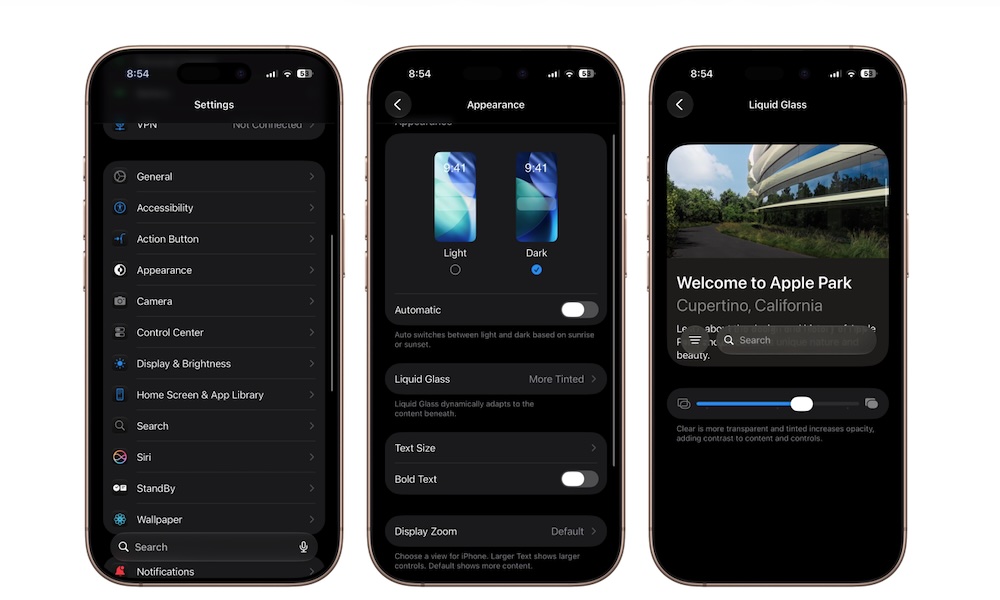
Liquid Glass gave iOS 26 a much more transparent appearance. Some people enjoy the redesign — the first we’d seen in years — while others found it annoying or even hard to look at.
iOS 27 refines the design with improved contrast and clearer icons. Apple is also adding an appearance slider that lets you choose how transparent or tinted the interface should look.
Moving the control toward Clear should preserve more of the glasslike appearance, while sliding it toward Tinted adds opacity and contrast. This lets you adjust the design according to your eyesight or personal preference.
To change the appearance, you need to do the following:
- Open the Settings app.
- Tap Appearance.
- Go to Liquid Glass.
- Adjust the slider to the left or right until you get the look you want.
Apple gives you a small preview of what Liquid Glass would look like, but that probably isn’t enough. Liquid Glass can look different depending on the wallpaper and the content behind each control, so test it throughout your whole iPhone and your most used apps to see if it looks the way you want.