
Edit Photos With Better AI Tools
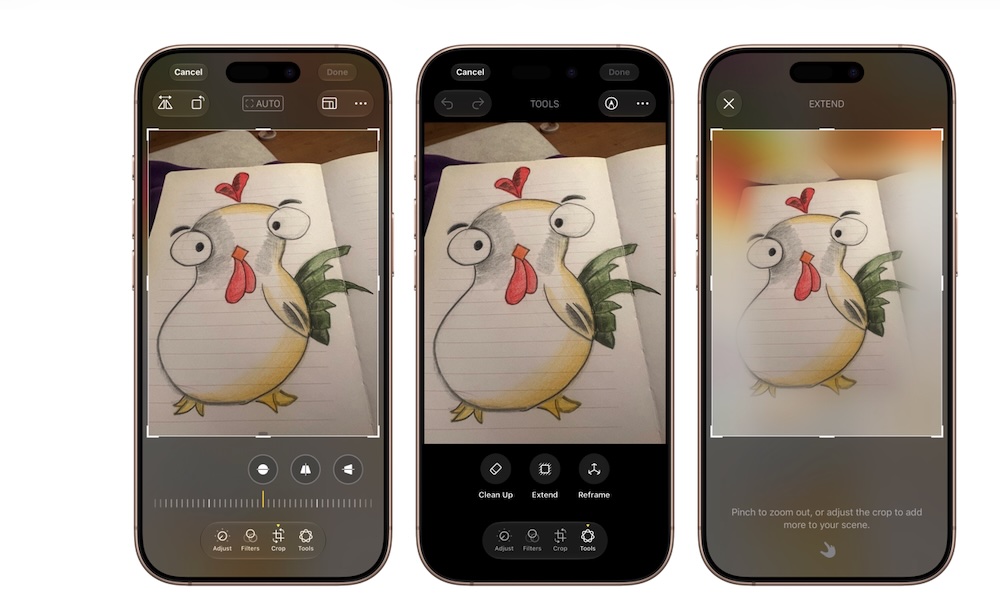
Two years ago, Apple introduced a Clean Up tool as part of its first Apple Intelligence rollout in iOS 18, letting you remove distracting objects from a photograph. Now, iOS 27 expands AI photo editing by improving how well Clean Up works and adding more powerful tools for changing an image after you capture it.
The Extend tool can generate additional space around the edges of a photograph. This could help if the original shot was cropped too tightly or if you need a different size for your next post. For the most part, the generated area is filled pretty well by Apple Intelligence, so you shouldn’t have any issues with weird stuff in your background.
There’s also the Reframe tool that gives you another way to change your photos in a cool and interesting way. This tool lets you move the perspective after taking the picture, which could improve a group shot or place the subject in a better position. So if you take a picture looking straight at the camera, you can reframe it so it seems like the picture was taken from your left or right. This tool still works pretty well, but you can clearly tell that Apple still has some work to do.
Of course, Clean Up also got an improvement. It’s now better at handling any object you want to remove from a photo. Here’s how to use these tools:
- Open the Photos app.
- Choose a photo.
- Tap on the Edit button at the bottom of your screen.
- Select Tools at the bottom of your screen.
- Choose Extend, Reframe, or Clean Up.
- Adjust the image however you want by following the instructions at the bottom.
- Wait for Apple Intelligence to create the result.
- Review the image.
- Tap on the checkmark in the top right corner to apply the new changes to the picture.
Generated edits won’t always look perfect. Be sure to check faces and detailed areas closely before replacing the original version, but don’t worry as these work like any other edits, so you can always revert to the original photo if you change your mind later.