
Three Lesser-Known iMessage Features That’ll Change the Way You Text
 DenPhotos / Shutterstock
Toggle Dark Mode
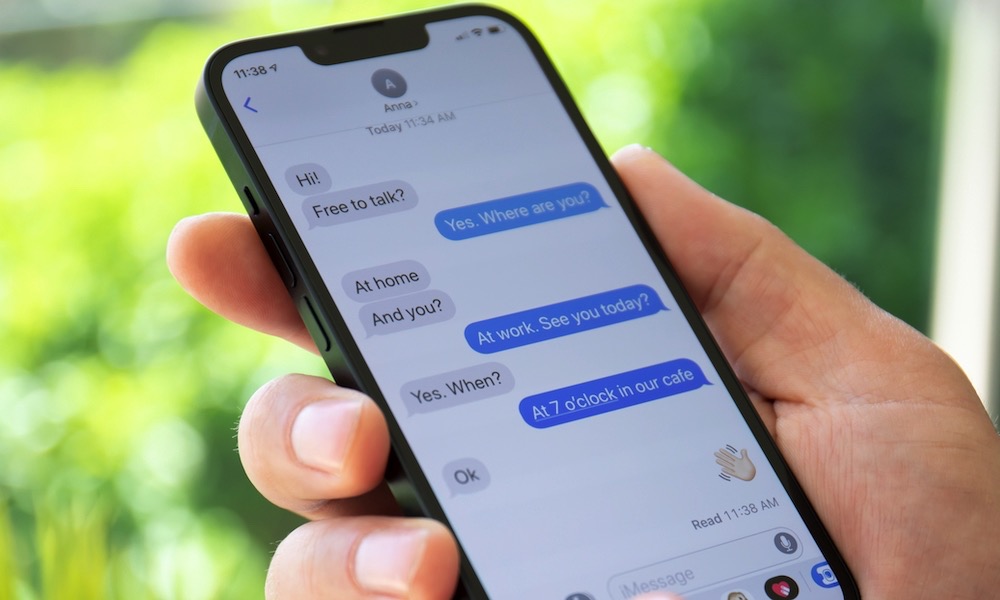
If you text with Apple’s Messages app, it’s likely one of your most frequently used apps. While there are popular alternative apps that may be better suited for particular situations, iMessage is the go-to for most folks — at least in the US.
Even so, many of us are guilty of failing to evolve with the newly available features of our most commonly used apps. Here’s a refresher on three lesser-known and underutilized iMessage features that will add some utility, fun, and flair to your texting. Not all of these are even new — some were released back in 2024 with iOS 18, while others feel like they’ve been there since nearly the beginning of iPhone time — but they’re all easy to miss.

1. Send Later
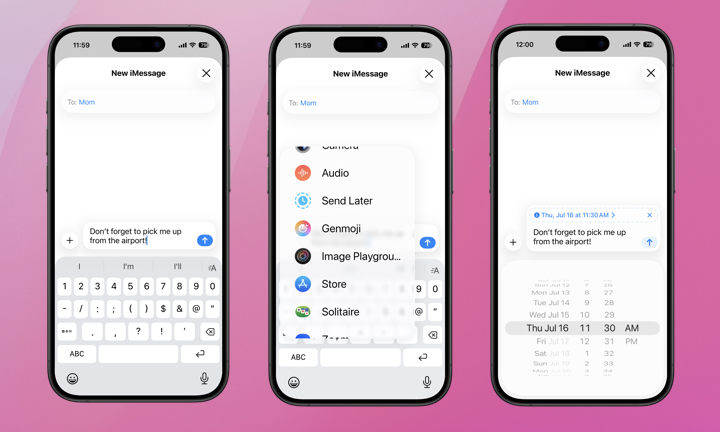
In iOS 18, iPhone users gained the ability to schedule an iMessage to send at a specific time in the future. The scheduled message is stored on Apple’s servers for sending at the specified time, which means the message will be delivered even if your iPhone is powered off, offline, or in Airplane Mode when it’s scheduled to send.
Here’s how to schedule an iMessage to be sent later:
- Go to any existing iMessage conversation or start a new one.
- Type your message.
- Tap the + icon next to the text field.
- Scroll down and tap Send Later.
- Select the specific date and time for the message to be sent.
- Tap the Send button.
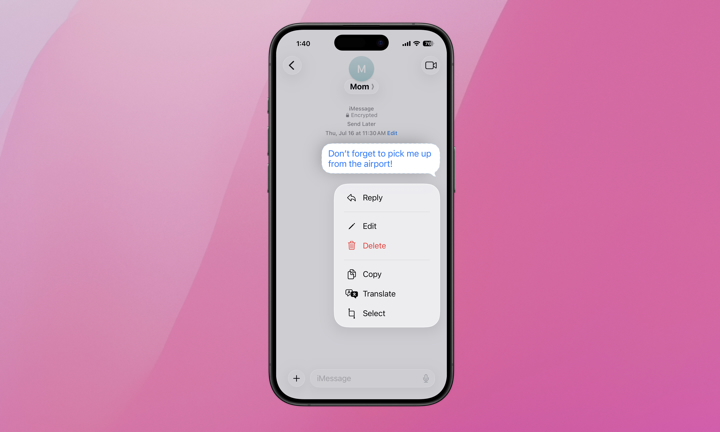
Don’t worry if you change your mind; scheduled iMessages can be deleted prior to the delivery time. Simply return to the thread and scroll to the bottom to find the scheduled message, appearing in blue text. Long-press on the message until the menu pops up and tap Delete.
2. iMessage Scribble
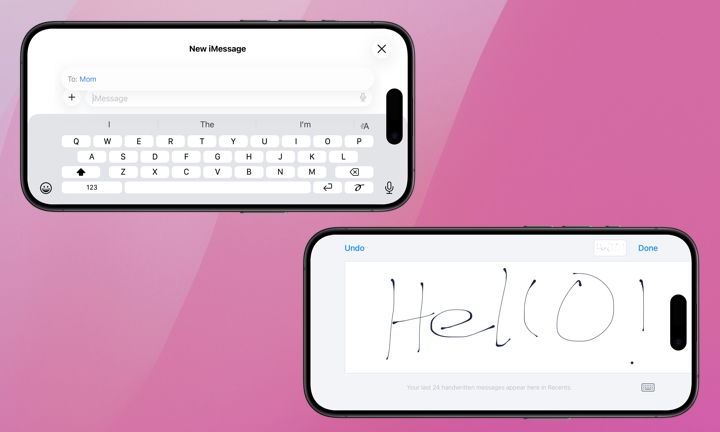
Every once in a while, you might want to send a handwritten note or doodle via iMessage. It adds a bit of personal warmth a regular text can’t. These can feel more like notes passed in class behind a teacher’s back.
Whether you’re having a casual back-and-forth with close friends about an inside joke or sending your kid a stick figure drawing of a baseball player before a big game, doodles land differently, especially with youngsters. It’s also a handy feature if you’re trying to quickly describe a layout or diagram. For some situations, like when sending encouragement or word of sympathy, a handwritten scribble could be more impactful.
Using this feature is simple, just open a text field and turn your iPhone sideways in any chat. The keyboard will reveal a scribble button next to the microphone in the bottom-right corner. Tap it, scribble away, and send.
While this feature has been around since iOS 10 was released in 2016, it seems that Apple will be quietly retiring it in iOS 27 later this year in favor of a full-featured Drawing app. While Apple hasn’t said anything official, it’s nowhere to be found in the current betas, so enjoy it while you can.
3. Add a Background to an iMessage Conversation
This feature requires iOS 26 (or iPadOS 26) to use. iPhone users can add a dynamic background from a selection provided by Apple with various levels of customization or a photo from their Photos library. Here’s a how-to video from Apple.
To add a background to an iMessage conversation:
- Select the conversation to which you want to add a background.
- Tap the contact or group name at the top of the conversation.
- Tap Backgrounds.
- Select the background to use and tap the checkmark to add it to the conversation.
- Alternatively, select Photos and select a photo to use as the background.
Note, others in the conversation will also be able to change the background for the group as well. This allows each person to add a theme to the chat for any given moment. If you want to remove your selected background just open the conversation, tap the group icon at the top, tap Backgrounds, and then tap None.
Now you have three new iMessage tricks up your sleeve that took only a couple minutes to learn. Keep them in mind as you’re texting over the next few days. Maybe you’ll find exactly the right occasion to use one. Good luck!






