You Can Finally Dust Your HomePod Without Blasting Random Music
 Hadrian / Shutterstock
Toggle Dark Mode
As usual, last month’s release of iOS 27.2 was accompanied by updates to the rest of Apple’s operating systems, both the big ones like iPadOS and macOS and the more embedded ones like the HomePod software (aka “audioOS”).
While Apple’s HomePod software updates don’t always bring much to the table, this one was particularly notable for the addition of Sound Glow, a feature advertised for the HomePod mini 2 that surprisingly came to most older HomePod models.
In fact, the only one of Apple’s smart speakers that was left out was the original 2018 HomePod. While Apple hasn’t shared any reasons for that omission, the consensus seems to be that either the aging A8 chip or the older LED display simply can’t handle the feature. Neither would be particularly surprising, and with the first-generation HomePod having been discontinued in early 2021, it undoubtedly won’t be long before it arrives on Apple’s list of vintage and obsolete products for good (although it briefly showed up on the list in July 2024, it was removed a few weeks later).
Still, Apple hasn’t entirely abandoned the HomePod that started it all. The latest HomePod software update runs on all four models of Apple’s smart speaker, and while Sound Glow only comes to three of them, there’s one extremely useful quality-of-life feature that’s available across the board.
Locking Down the HomePod
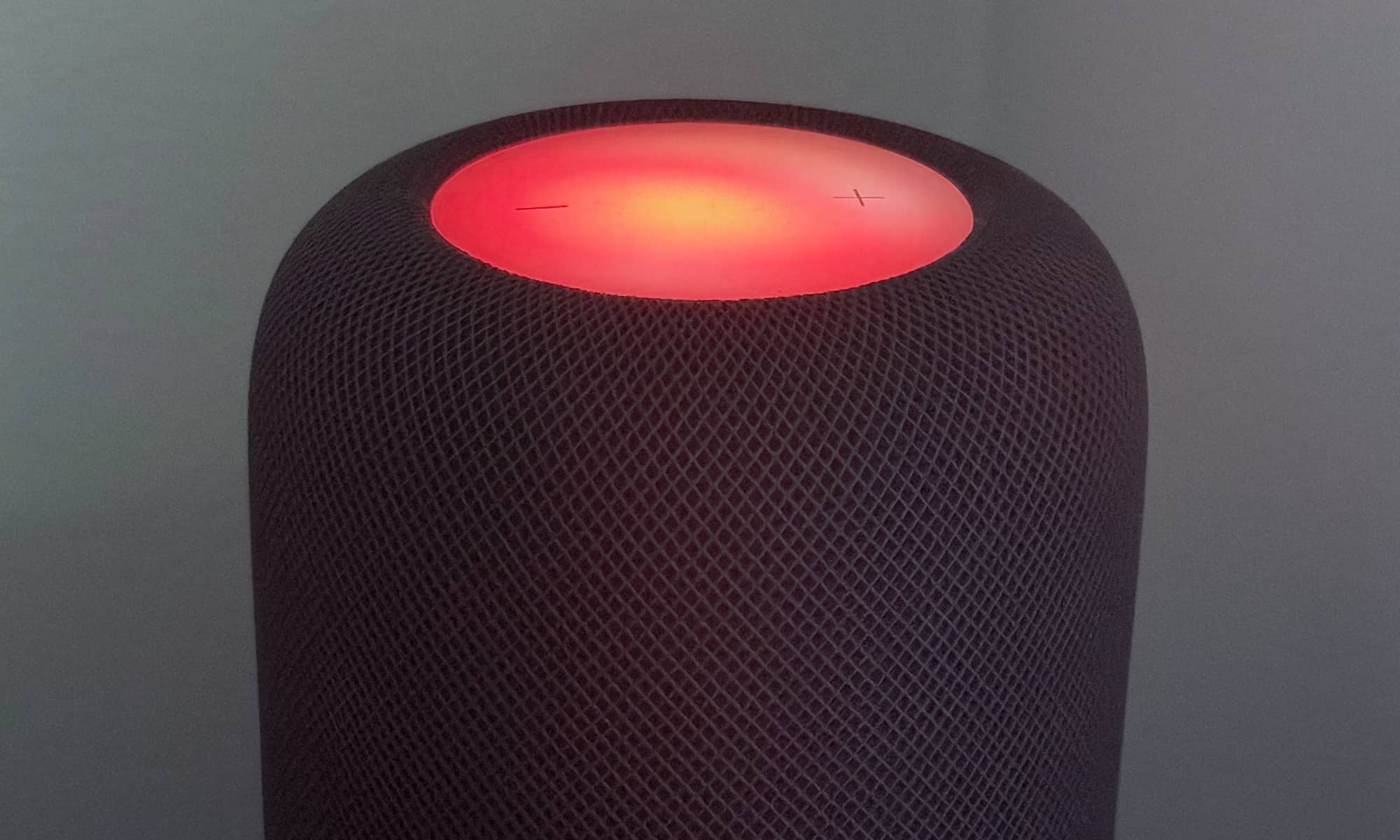
Anyone who keeps a clean house and has owned a HomePod for more than a few days has undoubtedly already encountered one of the single most frustrating “features” of Apple’s smart speaker: its tendency to immediately start playing random music at even the faintest touch.
I’ve been using HomePods since the day they launched eight years ago, and it’s virtually impossible to dust them properly without either listening to them or unplugging them. I eventually figured out a kludgy workaround via the Touch Accommodations accessibility feature, which lets you set a hold duration, but that was an imperfect solution at best.
Thankfully, even though it’s taken the better part of a decade for Apple to figure this one out, HomePod software 27.2 finally solves the problem with a simple toggle: Lock Controls. It’s such an obvious feature that I can’t believe it took this long to show up, but I’ll chalk it up to better late than never.
This toggle can be found by opening the Home app on your iPhone, iPad, or Mac, touching and holding (or right-clicking) on a HomePod tile, and choosing Accessory Settings. It appears below the new Sound Glow setting on modern HomePods, or in roughly the same place by itself for the original HomePod.
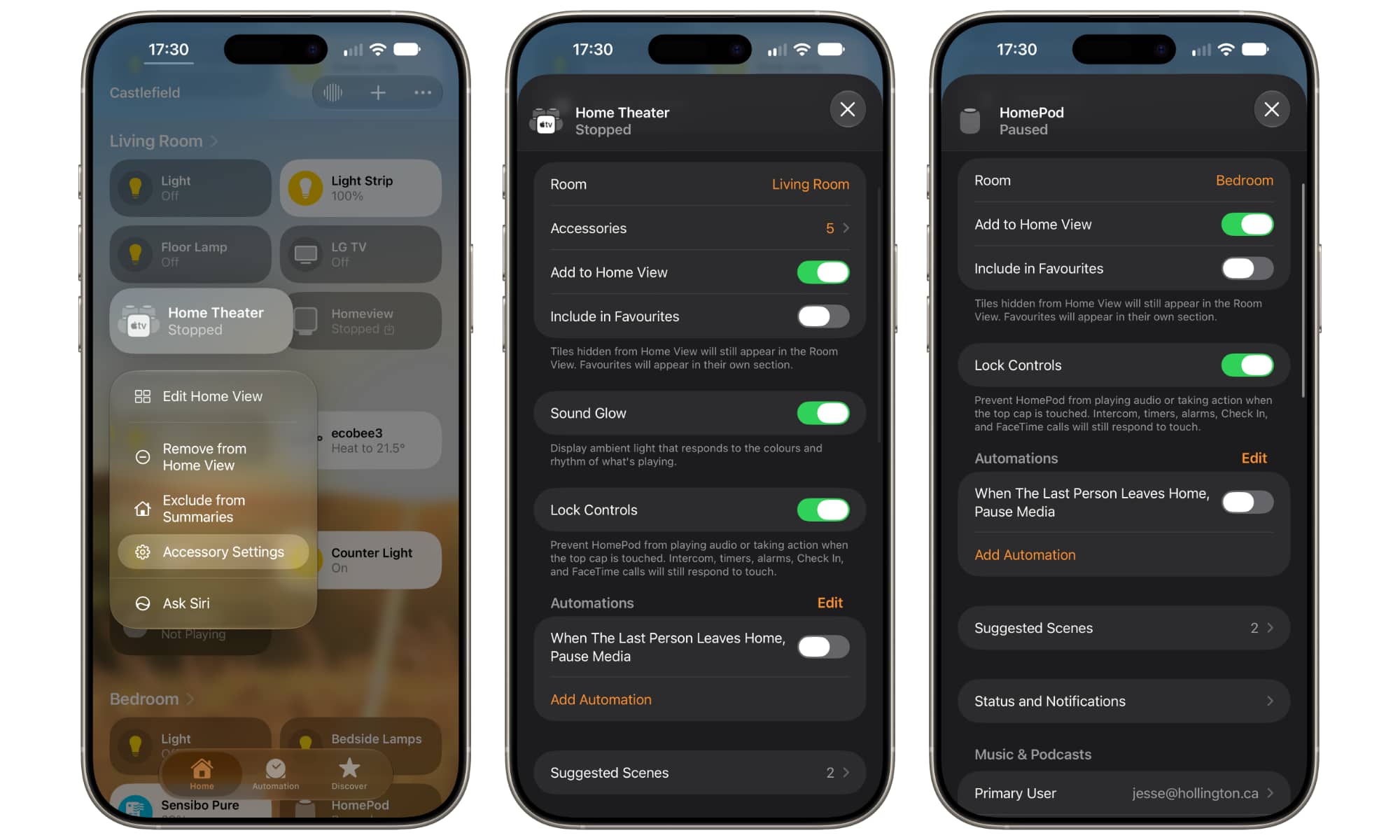
If you have multiple HomePods, you’ll have to turn this on individually for each one, although stereo and quad-speaker groups share a single control for both Sound Glow and Lock Controls.
It works mostly like you’d expect, preventing the HomePod from playing audio or initiating other actions when you touch the top, whether that’s a tap or a touch-and-hold gesture. The HomePod will still visually respond with a glowing red spot that shifts left to right to acknowledge the touch and its locked status, but that’s all it does.
However, the good news is that it doesn’t lock out the top panel entirely. Reactive touch gestures are still supported, so you can enable Lock Controls without worrying about losing your ability to answer calls or dismiss timers or alarms. Apple calls out these exceptions once you toggle the switch on:
Prevent HomePod from playing audio or taking action when the top cap is touched. Intercom, timers, alarms, Check In, and FaceTime calls will still respond to touch.
That said, turning on Lock Controls will remove the ability to stop music playback or even adjust volume, but that might be a small price to pay for relief from the fear of putting your hand anywhere near the top of your speaker.