
The Sasquatch Can Wait: Check Out These Two iOS 26.4 Settings First
Toggle Dark Mode
Apple finally released iOS 26.4 to the public last week, and as we expected, it’s one of the most substantial mid-cycle updates we’ve seen in a while.
The reason this update is so good is because of all the new features that Apple managed to pack in. Now, you can create entire playlists with a single sentence in Apple Music, or have the ability to get the name of a song even if you’re not connected to the internet. And who can’t be delighted by the new Sasquatch emoji?

The list of new features goes on and on, but there are a couple of new settings that might be overlooked by people who are having fun with all the cooler features. That doesn’t mean they aren’t important. In fact, this might even change how well you use your iPhone and how quickly you can control your settings.
Here are two new iOS 26.4 features that are worth a second look.
The Camera App Lets You Disable Audio Zoom
If you like recording videos with your iPhone, this feature will be a game-changer. Have you noticed that, when you zoom in with your iPhone while recording a video, it seems like the iPhone’s microphone starts focusing on the specific subject you zoomed in on?
Well, that’s by design, and it’s been that way since 2019. With this feature, the audio “zooms in” at the same time as you zoom in on a subject you’re focusing on. Apple assumes that’s what’s important for the video, and while it’s clever, it’s not always what you want.
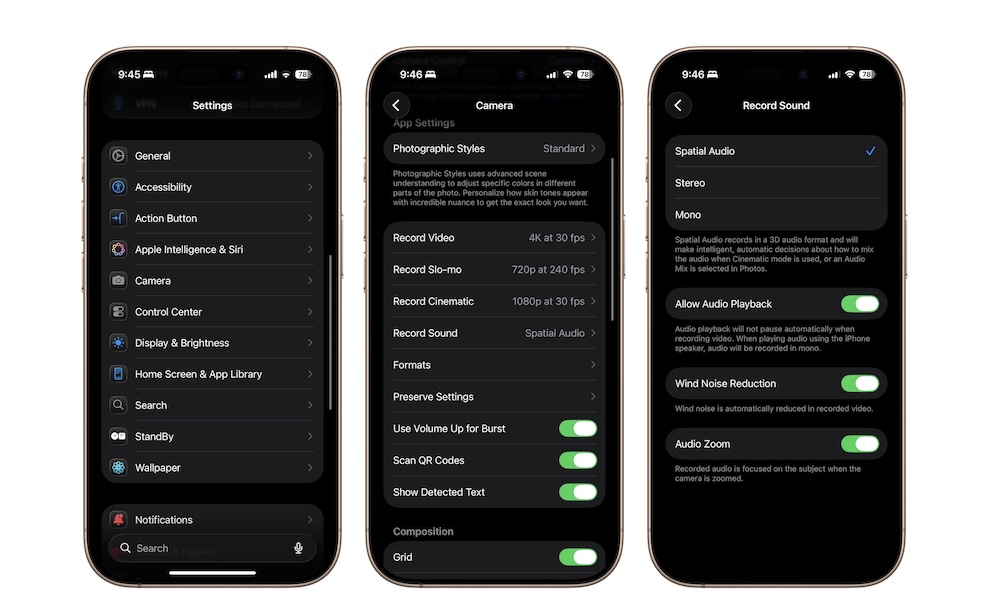
Luckily, after over five years, Apple has finally let you customize this experience; you can now disable Audio Zoom from your camera, so you can still record all your surroundings, even when you’re zooming in on a specific object.
All you need to do is go to Settings > Camera > Record Sound and turn off Audio Zoom. Afterward, try it for yourself and see the difference.
Stolen Device Protection Is Turned on By Default
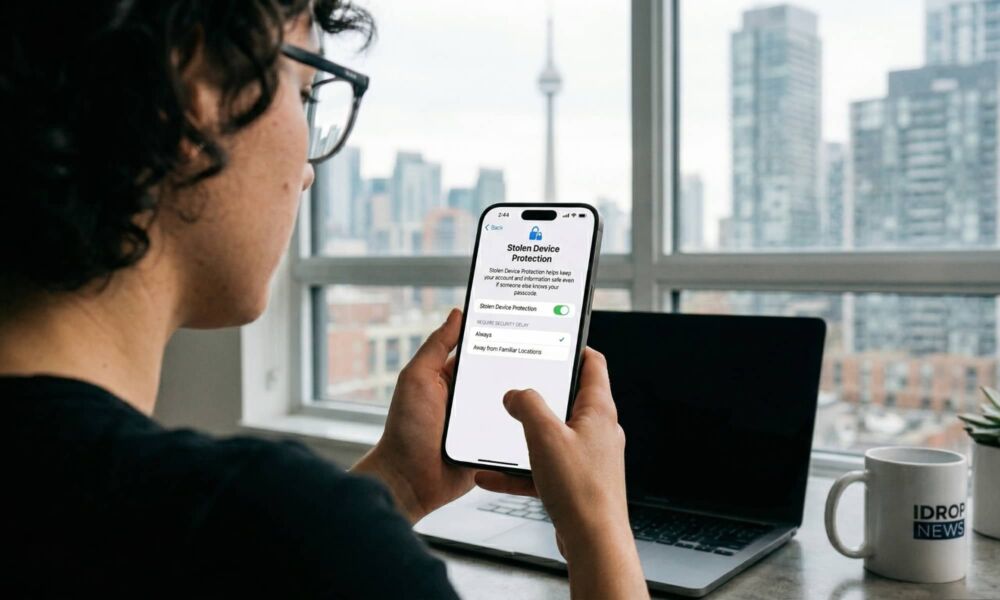
Stolen Device Protection is a great security feature that’s been around since early 2024, but now Apple is changing how it’s used. Until now, you’ve needed to turn this feature on manually, but with iOS 26.4, Stolen Device Protection will be on by default. That’s good, although it can be mildly annoying at times, especially if you don’t understand how it works.
You see, Stolen Device Protection is meant to help you if someone who knows your passcode steals your iPhone. Before this feature, if someone who knew your passcode grabbed your iPhone, they could start changing settings to give them access to your private information.
To give you an example, with your passcode, someone can change your Apple Account password, reset your Face ID, unlock your iPhone with their own face or even use the Wallet app to pay for anything they wanted with Apple Pay.
By the time you get the chance to remotely erase your iPhone from your Apple Account, the attacker might already have even gotten access to your own Apple Account and locked you out. Yes, it sounds wild, but it’s happened more than once. In December, 2023, the Wall Street Journal’s Joanna Stern (Apple News+) even interviewed a convicted criminal who explained exactly how he exploited this loophole to not only steal iPhones but clean out people’s bank accounts.
That’s where Stolen Device Protection comes in. When this feature is on, your iPhone will require biometric authentication — Face ID or Touch ID — before anyone can touch your most sensitive settings. That covers everything from changing your Apple Account password or buying things with Apple Pay to accessing apps you’ve locked or hidden from your home screen. Basically, many things that frequently fall back to asking for a passcode when Face ID fails will no longer do when Stolen Device Protection is active.
For an additional layer of security, Stolen Device Protection also adds a one-hour delay before anyone can make changes to any critical settings, such as changing your passwords or passcodes or turning off Find My or Stolen Device Protection. You’ll need to authenticate with Face ID two times, at least an hour apart, before you’ll be able to make those changes. This prevents someone from trying to trick you into looking at your iPhone to inadvertently authorize their attempt to hack into your iPhone or Apple Account.
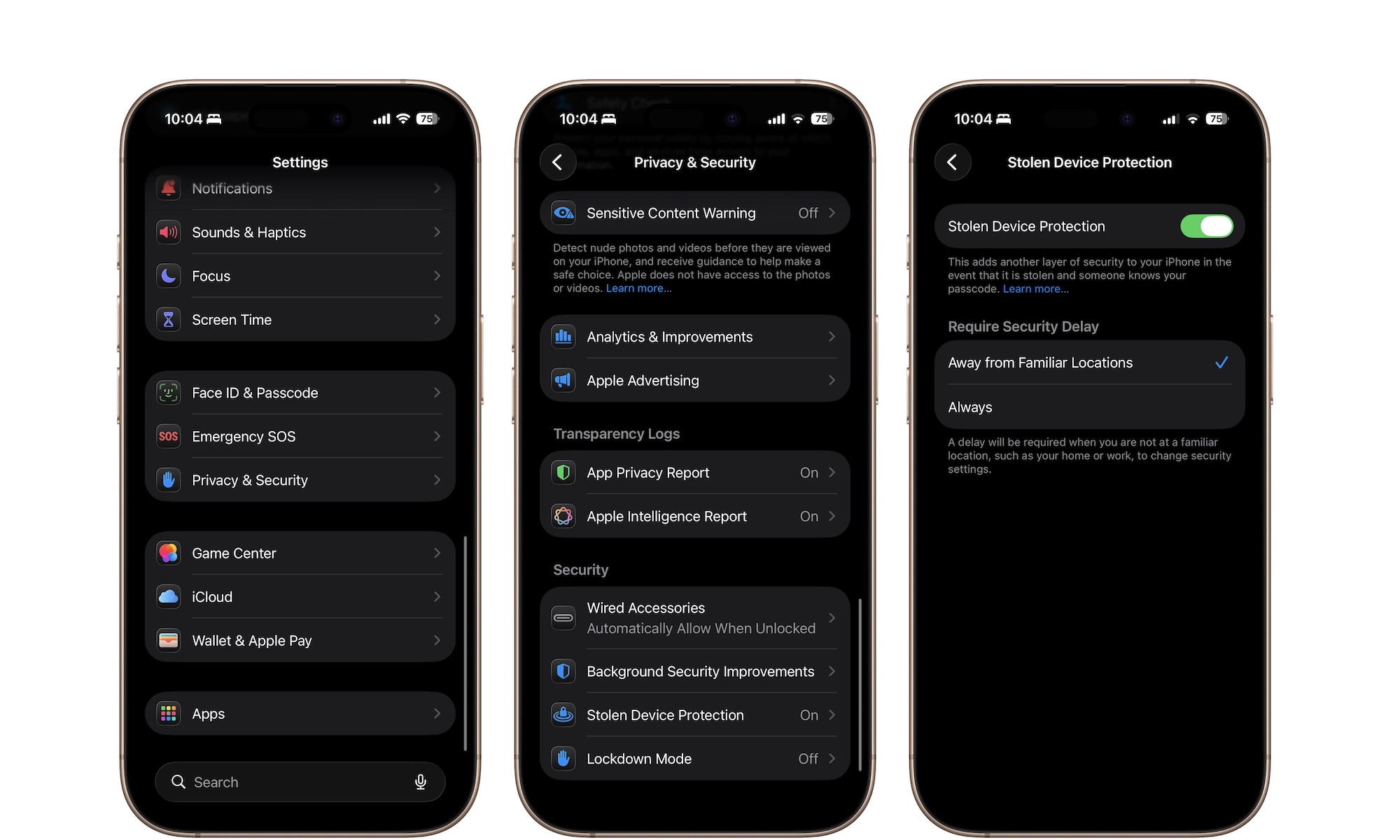
This is a great security feature, and it’s fantastic that it’s now automatically activated. By default, the restrictions are also only enforced when you’re aware from familiar locations like home or work, but it might be annoying if you’re someone who moves around a lot and regularly changes security settings or has problems with Face ID and needs to enter their passcode more often. The good news is that you can still easily turn it off if you find it’s getting in the way. You can also adjust it to make it even more secure. Here’s where to find those settings:
- Open the Settings app on your iPhone.
- Scroll down and go to Privacy & Security.
- Scroll down to the bottom and tap on Stolen Device Protection.
- Toggle Stolen Device Protection off if you want to disable the feature completely; or
- Select Always under “Require Security Delay” if you’d like Stolen Device Protection to be active — requiring Face ID and enforcing the one-hour delay — even when you’re at home or other familiar locations.
Update Your iPhone ASAP
Both of these new setting changes are great, and you’ll probably want to customize them as soon as possible. However, there’s more to iOS 26.4 than just these two changes. There are a ton of new things to try, settings to change, and emojis to use.
So download this new software update as soon as possible. Simply go to Settings > General > Software Update, and tap on Install Now.






