The MacBook Pro’s Glowing Logo Is Back — Here’s How to Take Full Control of It
Toggle Dark Mode
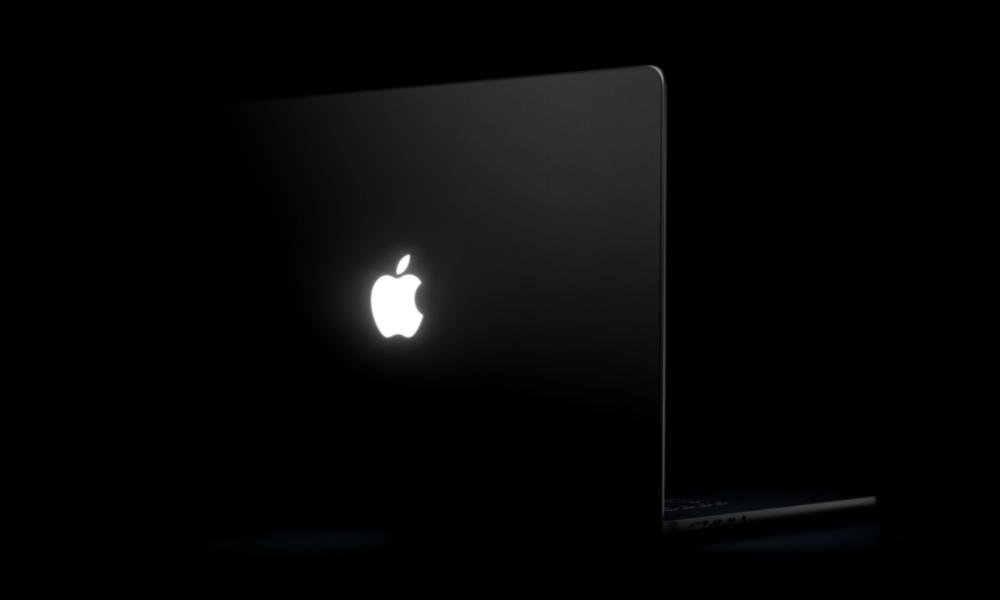
Forget the OLED touchscreen. The best thing about Apple’s MacBook Pro with PROLED XDR Display is the return of the glowing Apple logo from yesteryear.
Honestly, that was the first thing I missed when I traded in my old 2013 Retina MacBook Pro for a shiny new M1 version six years ago, and while I’ve adapted, the plain glossy logo has always felt a bit bland.
That all changes with the new MacBook Pro, and the best part is that this wasn’t just an incidental change. While the original glowing Apple logo was simply a byproduct of the backlit LED screen — someone reportedly just suggested they cut out the Apple logo at the back and let it glow through — an OLED screen doesn’t use a backlight.

That means Apple made a very deliberate and very specific choice to bring the illumination back, and it did it for no other reason than pure whimsy — and the company didn’t even pretend otherwise, as John Gruber shared from comments during Apple’s launch event:
Someone else in my briefing group asked why Apple would bother doing that. “Because it’s awesome,” was the answer, which I’m quoting exactly and fully. That was the entire answer. Because it’s awesome.
John Gruber
Similarly, when newly minted Apple CEO John Ternus took the stage, he simply said, “The logo is back,” implying that it was basically nonexistent during the dark decade that began when Apple removed it from the Pro lineup in 2016.
However, the real bonus behind Apple’s decision to deliberately bring back the glow is that it’s now configurable in a way that it never was before.
Since the original glowing logo of the early MacBook days was simply a cutout, it illuminated with the same intensity as the LED backlight. Dim the screen, dim the logo. But there was no way to adjust it separately, or even turn it off. (I’m not sure why anyone would want to do such a thing for its own sake, but I suppose I can see the value if you’re working in a dark room.)
There’s a Terminal command that could be used to toggle the logo illumination off entirely, but it didn’t take much time before an enterprising developer created an app that lets you do even more.
Those who simply want to turn it off can enter “sudo defaults write com.apple.CoreBrightness LEBacklightMode -int 0” in the Terminal app (and “sudo defaults delete com.apple.CoreBrightness LEBacklightMode” to turn it back on), but Juan Buis’ app, Backglow, not only makes that much simpler, but also lets you set the brightness level — and that’s just the start.
The free version of Backglow will also let you set two additional modes: Breathe, which pulses the glow at whatever speed you set, and Battery, which automatically dims the light as your battery runs down. There’s also a “Keep Glowing” mode to let the light stay on when the lid is closed.
Backglow can’t change the logo’s colors, but that’s on Apple, not Buis, as the logo is a purely white LED.
However, if I were shelling out nearly three thousand bucks for a MacBook Pro, I’d almost certainly drop an extra $9 for the Pro version, which lets the Apple logo turn into a music visualizer that follows the beat of whatever you’re playing on your MacBook, complete with an intensity slider and an optional strobe. There’s also an Agents mode that can be used to monitor what Claude Code is up to, pulsing slowly while the bot is working or flashing rapidly when it needs your attention.
Without Backglow, the Apple logo on the new MacBook Pro with PROLED XDR Display lights up only when the MacBook is awake and the lid is open and simply brightens or dims based on the screen and the ambient lighting.