Why I Traded My M2 Mac mini for an M6 — And How to Tell if You Need More RAM
 PixelArt_25 / Adobe Stock
Toggle Dark Mode
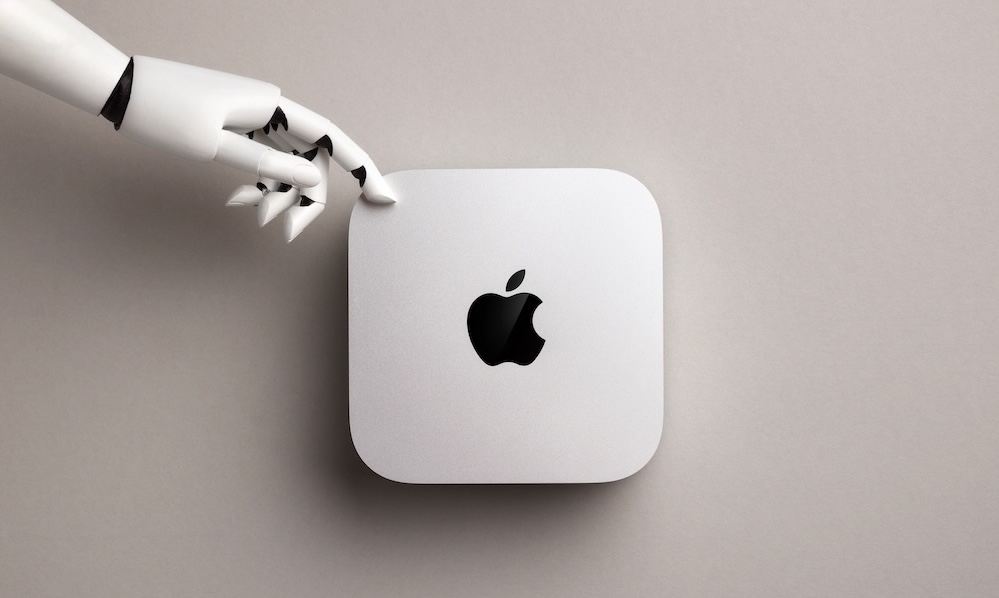
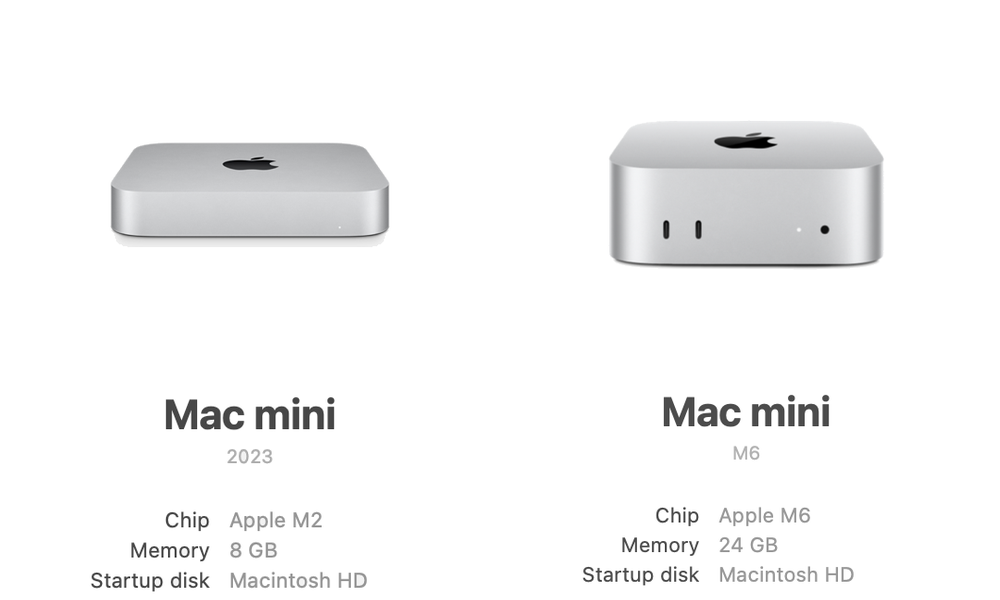
I made the expensive leap this week from a 2023 Mac mini with an M2 chip to the new M6 Mac mini. The M2 Mac mini had the base 8 GB RAM with a step up to the 512 GB SSD. It was $799. I just finished setting up the M6 Mac mini — upgraded to 24 GB RAM and 512 GB storage for $1,299 (16 GB RAM / 256 GB storage is the base at $899). I received $440 towards the purchase trading in the M2 to Apple.
The last few months, I noticed all the signs that it was probably time to upgrade. My day-to-day use doesn’t include heavy workloads like video or photo editing, music production, gaming, 3D design, or software development, yet Safari tabs would reload when I went back to them, there were brief but frustrating pauses when switching between open apps, and the dreaded spinning beachball would occasionally appear during simple tasks. The machine seemed to get slower as the day went on.
My typical day involves a browser with a bunch of open tabs, plus Slack, Spotify, Messages, and Calendar running alongside one AI app or another.
However, it turns out that several of those apps are really browsers in disguise. Slack and Spotify use Electron, which bundles the same open-source Chromium engine that powers Google Chrome — and so do many desktop AI apps.
My Mac mini is also connected to two monitors. On Apple silicon, the graphics share the same 8 GB of memory as everything else. Keeping two screens’ worth of images ready to display uses the same memory apps need.
I started to realize my daily workload isn’t that light anymore — and that’s exactly what Activity Monitor was telling me.
How to Check if Your Mac Needs More RAM
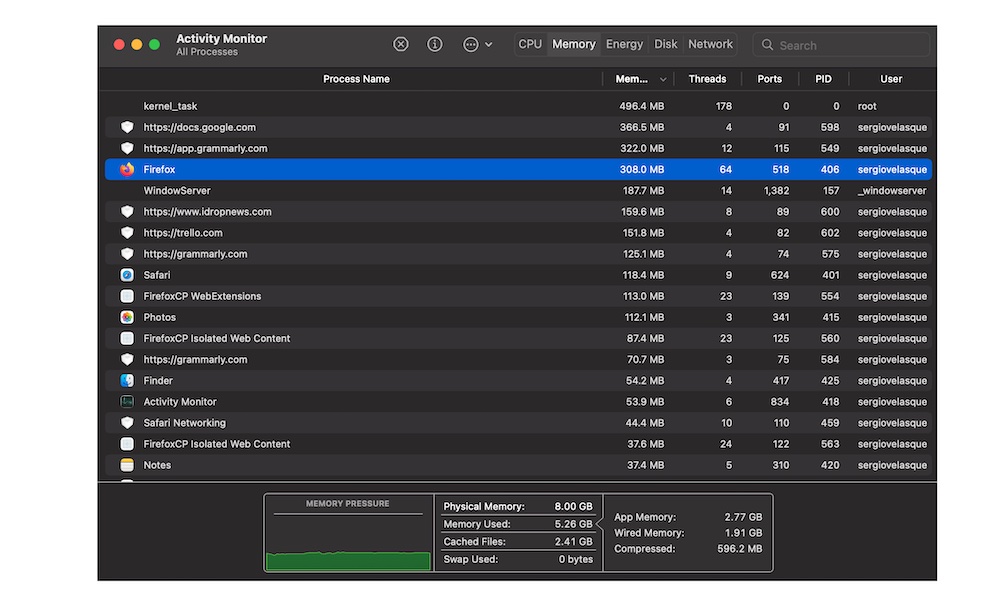
Every Mac has a free tool called Activity Monitor that shows your memory use. Here’s how to find it:
- Open your Applications folder in Finder and then go into Utilities to find Activity Monitor. Alternatively, you can press Command-Space to open Spotlight, type Activity Monitor, and press Return.
- Click the Memory tab at the top of the window.
- Look at the box along the bottom. That’s the part in the image below.
- Leave it open while you use your Mac normally for a while, with your usual apps and browser tabs.
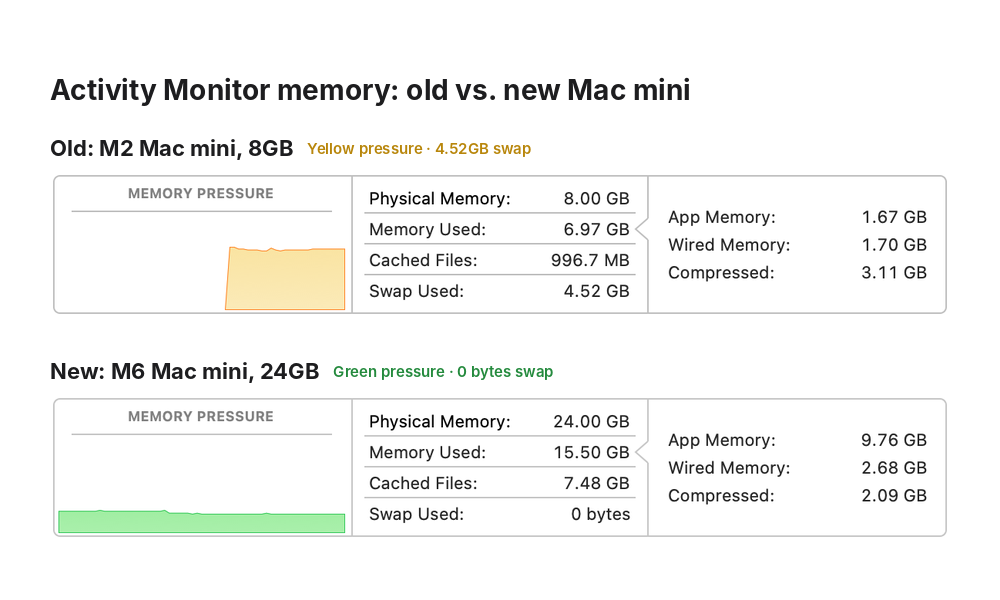
Here’s what the image shows, in plain English.
- Memory Pressure (the graph): This is the most important part. Green means your Mac is comfortable. Yellow means it’s working hard to make room. Red means it’s out of room. That’s when you’ll really notice it.
- Physical Memory: How much unified memory (RAM) your Mac has.
- Memory Used: How much is in use right now. A high number is okay, because macOS puts free memory to use.
- Cached Files: Recently used files kept in memory so they open faster.
- Swap Used: Data moved onto your storage drive because memory ran out. A little every now and then is normal, but several gigabytes during everyday use means you need more memory.
- Compressed: Data that macOS has squeezed to save room. A large number here is another sign the Mac is short on memory.
The image shows the apps on the M2 were using just 1.67 GB, but macOS had to compress 3.11 GB and still had to push 4.52 GB onto the SSD. So, more of my work was squeezed or sitting on the drive than was actually in memory. The yellow graph was telling me it’s working hard to keep up.
On the M6, apps are using 9.76 GB with zero swap and a green graph. It also keeps 7.48 GB of recently used files in memory, so things I open often come back right away.
These graph measurements weren’t taken with the exact same apps open, so they aren’t as accurate as a lab test. Nonetheless, they were pretty close, and the point is still strong: the M6 is handling a similar workload without breaking a sweat.
Why a 256 GB SSD Isn’t Enough Anymore
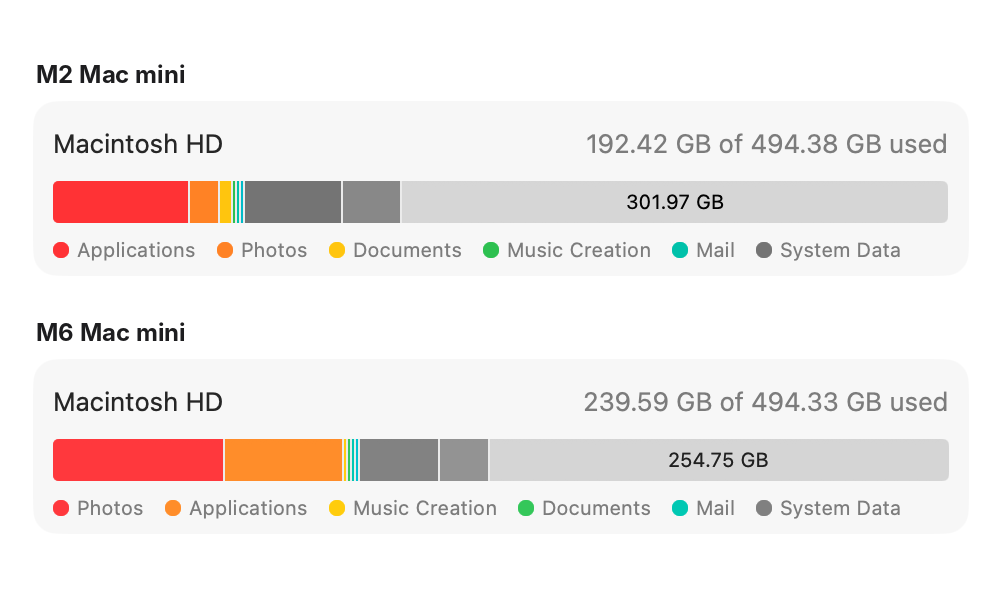
The $899 base M6 Mac mini still comes with 16 GB of RAM but only 256 GB of storage. A few things eat into that space before you even add your own apps, docs, or photos.
First off, Apple Intelligence takes a big bite, and there’s not much you can do about that — at least not easily. Apple says it takes up 14 GB on newer Macs.
On top of that, macOS and system files also grow over time (updates, caches, and backup files). Photos, videos, backups, and a few big files and apps can fill 256 GB quickly. It’s also a sensible rule of thumb to leave 10% to 20% of your storage unused.
As discussed above, the swap file also lives on your storage drive. When memory runs out, the overflow goes to storage. My M2 had 4.52 GB sitting there. A nearly full storage drive leaves macOS less room to work with, which makes a memory crunch worse.
Here’s another catch: the 256 GB SSD in the M6 Mac mini has gone back to reading data about half as fast as the 512 GB and larger ones. This isn’t something you’ll notice during a simple task like opening an email, but swap runs through this drive. So, if a Mac is low on memory, it gets hit twice. It has to swap, and it’s swapping to a slower drive if it’s 256 GB.
You can’t upgrade the built-in storage later, so the size you pick when you order is the size you keep. Apple storage prices are steep. Upgrading to 1 TB is an additional $500 versus the $200 for 512 GB. That’s why I think 512 GB is the smart minimum for most people. If you need more than that, a plug-in external drive is a much cheaper way to add more storage.
What Mac mini Should You Buy?
Check Activity Monitor before you shop. If your memory graph stays green and swap is near zero, your Mac probably has enough memory for how you use it. In that event, the base 16 GB in a new Mac mini will likely be sufficient.
Remember, unlike storage, you can’t add more memory down the road. If you keep lots of tabs and apps open at once, edit photos or video, or want room to grow and future-proof your Mac for the next five-plus years, go for 24 GB.
You can also go up to 32 GB — the maximum the M6 Mac mini offers — but that’s really only necessary for those playing demanding games, doing heavy video work, or running AI tools on the Mac itself. The new Mac mini is expensive, but it’s also awesome.