
How To Make Your Kid’s iPhone or iPad Instantly Less Addictive
 Svitlana / Adobe Stock
Toggle Dark Mode
Everyone’s guilty of spending too much time on their iPhones and iPads. For adults, they’re essential tools for work, but many still find themselves doomscrolling. It’s difficult enough managing one’s own screen time, and even more challenging doing so for your children and family.
Further, while parental controls offer a variety of ways to manage screen time and access to specific apps and content, understanding and maintaining appropriate parental controls and screen time requires time, consistency, and planning. Even the most diligent and well-intentioned parents know too well how easy it is to offer a screen rather than an alternative.

According to the American Academy of Child & Adolescent Psychiatry (AACAP), children ages 8–18 spend 7.5 hours a day on a screen. Despite the AACAP’s recommendation of a maximum 1 hour per day of quality content for kids 2–5 years, the actual daily average for this age group is 2 to 3.5 hours. In fact, 40% of two-year-olds already have their own tablet.
More screen time for children and adolescents increases the likelihood of exposure to mature or unsafe content and could lead to sleep, weight, mood, and self-image problems.
We know most parents are overworked and stressed. Everything is getting more expensive, let alone childcare or daycare. The screen often becomes the default babysitter. Sometimes it’s necessary. Adding the task of learning and actively managing Apple’s parental controls may not be the priority.
While the good news is they’ll get much easier to use in iOS 27, that’s still months away. So, if you’re struggling to manage your child’s relationship with their iPhone or iPad, here’s a quick tip to try in the meantime that shouldn’t take more than 30 seconds.
Grayscale
There’s a reason slot machines are full of bright flashing lights. They trigger dopamine responses in the brain. App and game designers deliberately engineer their products to keep users engaged. Color is one of the primary sensory rewards the brain anticipates and receives when one reaches for and activates an iPhone or iPad.
Removing some of these bright, vivid colors from your child’s screen could be a low-effort intervention with real impact. It’s worth a shot.
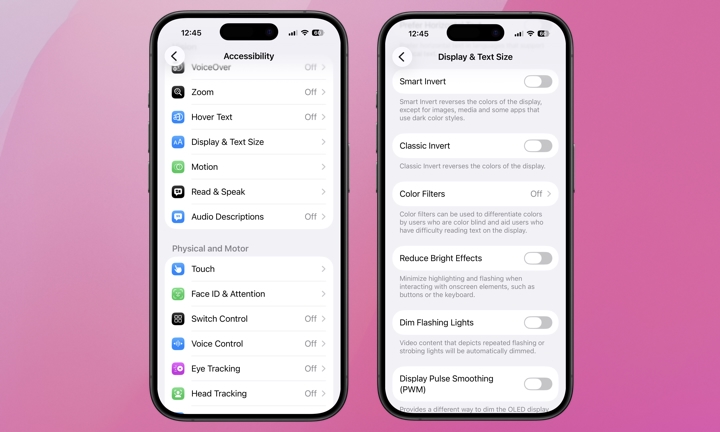
Here’s how to manage Grayscale on the iPad or iPhone:
- Go to Settings.
- Scroll down to Accessibility and tap it.
- Tap Display & Text Size.
- Tap Color Filters.
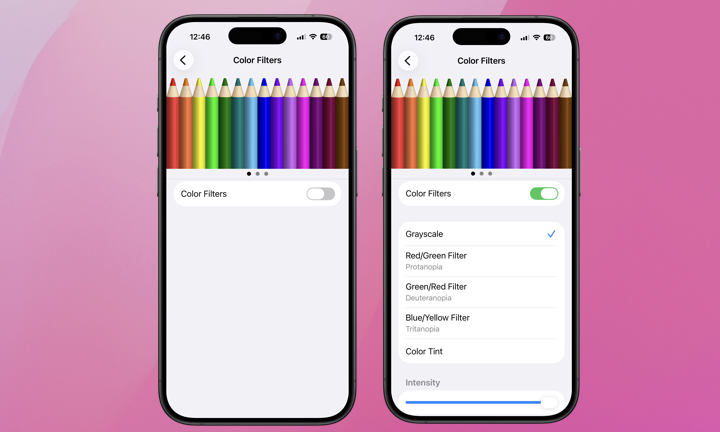
- Toggle the Color Filters slider on.
- Tap Grayscale.
- Use the Intensity slider on the bottom of the screen to remove color entirely or dull it to your preferred level.
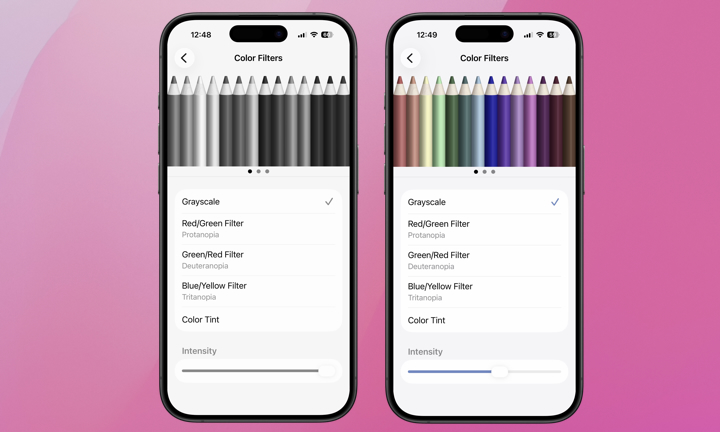
We can’t promise there won’t be tantrums if you give this grayscale feature a try. Maybe there’s an intensity level compromise that works for everyone. Over time, this simple trick could make a kid’s screen time slightly less appealing.
Still, Grayscale is more of a trick. It won’t impact the content your child can access, and while we recommend giving it a shot, don’t overlook Apple’s parental controls and child safety features.






