Three Hidden Notes Settings That Make the App Way More Powerful
 sdx15 / Adobe Stock
Toggle Dark Mode
Apple’s Notes app may be one of the most underrated tools on your iPhone. Notes isn’t flashy and doesn’t get a major redesign every year, so it often flies under the radar and is easy to take for granted. If you use Notes at all, chances are it’s where you keep track of your grocery list or jot down ideas.
Notes is extremely powerful, versatile, and full of features many never bother exploring, from scanning documents to collaborating in real time. If you’ve only dabbled in the Notes app, you may be surprised by all the functionality packed inside. Here are three quick and easy Notes settings that can streamline your experience and may even encourage you to use the app more often.

1. Per-Note Locking with Face ID
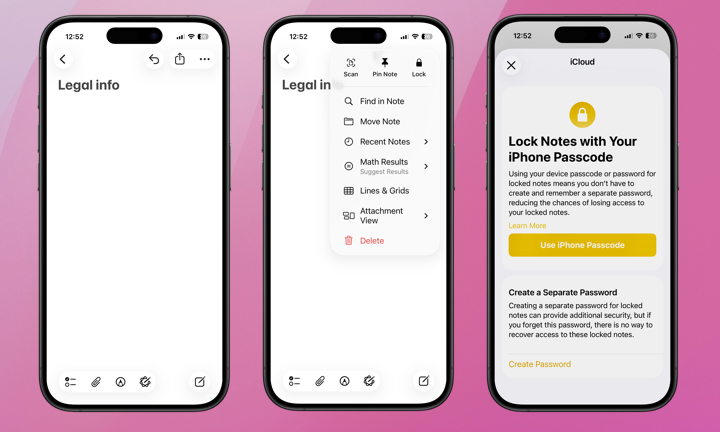
Most folks have at least a few notes that contain sensitive information. That may be legal or financial details, items related to work, or even just personal musings. The good news is that the Notes app lets you lock individual notes behind a passcode or Face ID — an extra step worth taking to add another layer of security to the most critical information on your iPhone.
Notes can be secured with either your iPhone passcode or a separate password that covers all of your protected notes. Using your device’s passcode is a simple and secure method, as you’ll still need to enter it separately or authenticate with Face ID or Touch ID to unlock any protected notes. A separate password offers extra protection if others know your passcode, but ensure you choose something memorable, as there’s no way to recover your notes if you forget it.
Here’s how to set this up:
- Open a note you want to protect.
- Tap the More button (…) at the top-right of the screen.
- Tap Lock.
- Choose Use iPhone Passcode or Create Password, depending on your preference.
- Type in your iPhone passcode or the separate password you’d like to use.
- If you’re creating a separate password, enter a password hint. Your locked notes cannot be recovered if you forget your password.
- Optionally enable Face ID or Touch ID when prompted. This works with either security option, but keep in mind that if you choose a custom password, you’ll be required to re-enter it manually if you ever alter your biometric settings or want to update your Notes password down the road.
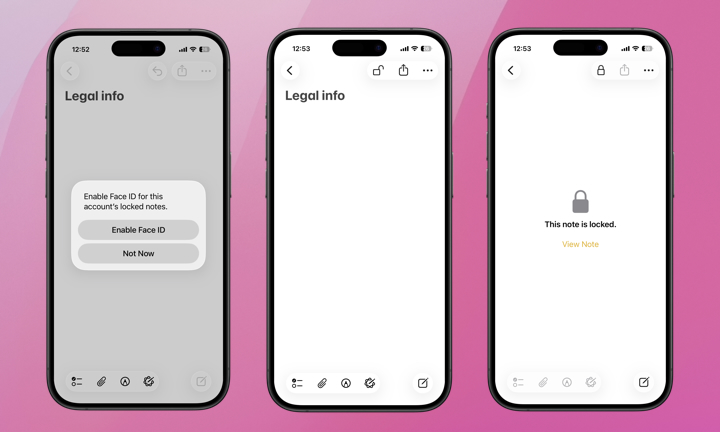
Your note will remain open and unlocked, as shown by the icon at the top-right of your screen. You can lock it after editing by tapping that icon, or by tapping Lock Now at the top of the main Notes list. Your notes will also be locked whenever you put your iPhone to sleep or if you leave the Notes app for more than three minutes.
You can only lock notes that contain text, photos, or links; notes with PDF, video, audio or other attachments can’t be locked, nor can shared notes, Quick Notes, or those that sync with accounts other than iCloud.
2. Linking Multiple Notes
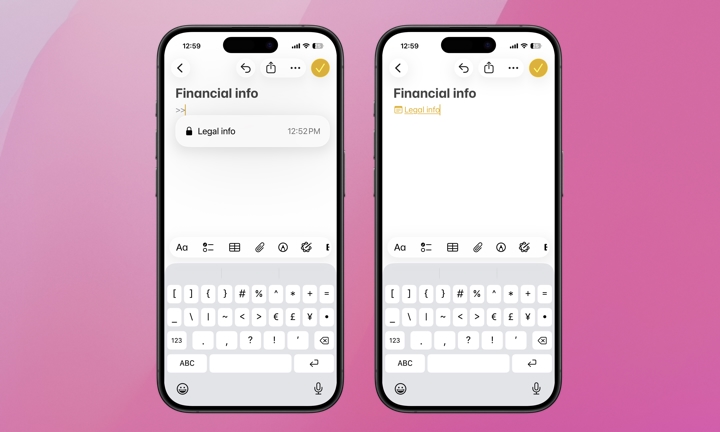
You can link notes directly to each other, making it a breeze to reference multiple documents or jump between them. Here’s how.
- Open an existing or new note.
- Type “>>” anywhere in the note.
- This action will show a list of all existing notes. Pick one.
- You’ve now included a note within a note for easy access and quick referencing.
3. Pinning Notes
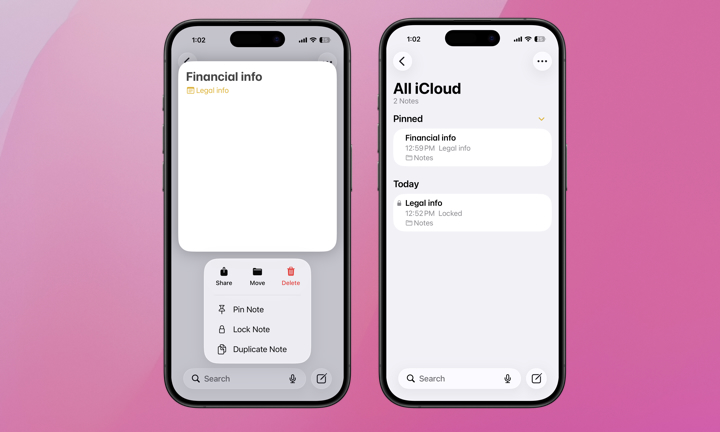
Similar to adding a note within a note, pinning notes ensures your desired note or those you refer to most often are at the top of the pile. This tip is especially helpful for those juggling multiple, if not dozens, of notes. It’s not rocket science, but it makes the otherwise clunky tasks of finding your most often used notes much easier. Here’s how.
- Open the Notes app.
- Touch and hold the note you want to pin.
- Select Pin Note from the menu.
- You’ll now see this note at the top of the pack under Pinned.
- To unpin the note, touch and hold it again and select Unpin Note from the menu.
Pretty painless, right? If you’re not using Notes, perhaps these three tricks will motivate you to try. Notes is an incredible personal organization tool. Sure, it’s not as glamorous as Siri AI, but it definitely helps keep your affairs in order. With these tricks, you can have the peace of mind that you can manage everything from your most personal, financial, and business affairs to the more benign all in the Notes app.