
Filter Spam In Messages
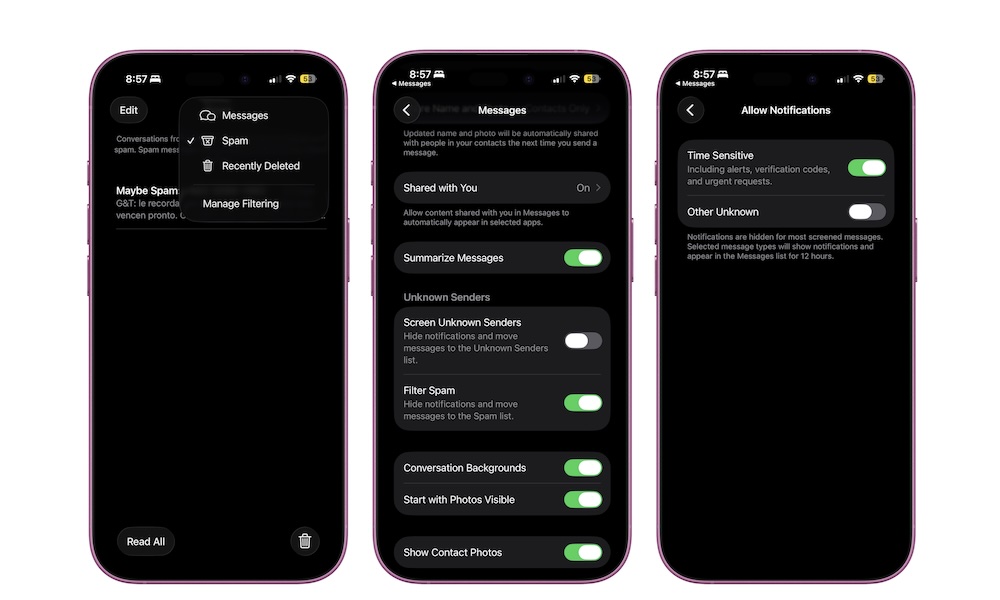
Spam texts are another area where iOS 26 gets more useful than ever. Apple now automatically detects and moves spam texts into a separate Spam folder — and this filtering is on by default. You can still review those messages later if you want, but they’re no longer sitting in your main conversation inbox, and they won’t even send notifications your way.
This is one of those features that Messages should’ve had earlier in its life, but it’s still a welcome change. The downside is that this feature works on pretty much any unknown number that texts you, which means you might miss an important message from someone you don’t have in your contact list yet.
That means that you might want to check your spam inbox before it’s too late. You can do that by going to the Messages app and tapping the Filter button in the top right corner of your screen. From there, select Spam.
Chances are, you won’t find any useful messages in that inbox, but it’s still worth checking every once in a while. You can also tap on Manage Filtering if you want to disable this feature.
If a legitimate message lands there by mistake, you can open it and mark it as Not Spam.