
7 iOS 26 Hidden Features to Master Now
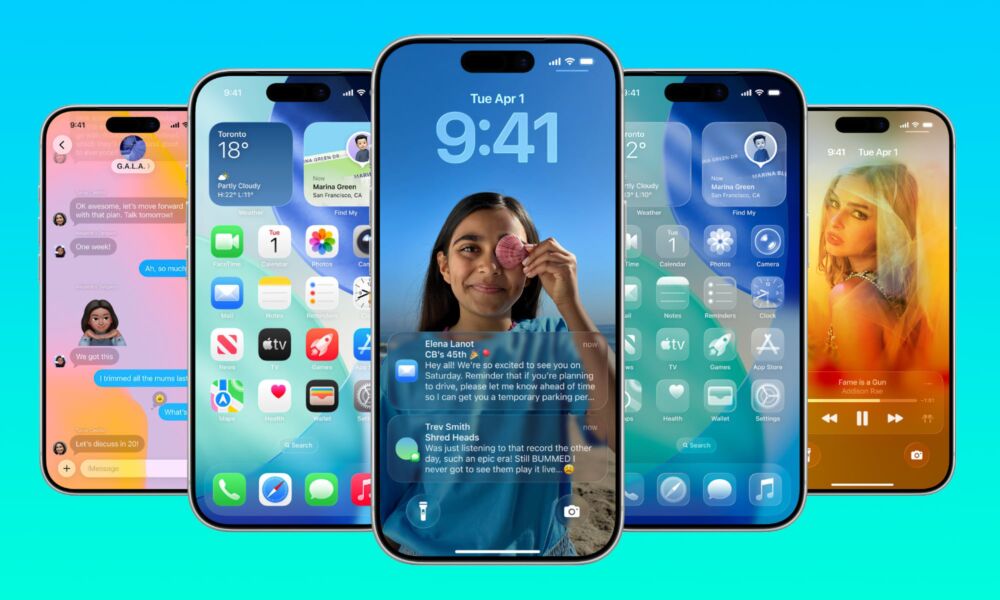
Apple made a much bigger leap than just the number change when it introduced iOS 26 last year — and we're not just talking about the glassy design.
iOS 26 also brought a bunch of new and useful features that make the iPhone faster, smarter, and even just a little easier to use.
Even though iOS 27 is just around the corner, most of us will still be rocking iOS 26 for a few more months, making it a great time to master some of the new features that are actually useful.
Not everything is AI and Liquid Glass; there are a lot more features that you’ll want to learn about right now, so you can be ready for every new thing iOS comes our way.
Whether you want help when calling companies, extra tools when taking a screenshot, or just handling spam calls and messages a little better, read on for 7 of the most useful iOS 26 features.
Hold Assist
Hold Assist is one of the best new features in iOS 26 because it solves a problem almost everyone has — and hates. When you call a business and get stuck listening to elevator music, your iPhone can now wait for you and let you know when a real person comes back on the line. Apple built this into the Phone app, and it even works with FaceTime audio calls in supported regions.
This is the kind of small feature that improves a lot of things. It doesn’t change the world, but it does make one of the most frustrating parts of customer service calls much less annoying. You don’t have to keep your full attention on the call the whole time, and that alone makes it a feature a lot of people will actually use.
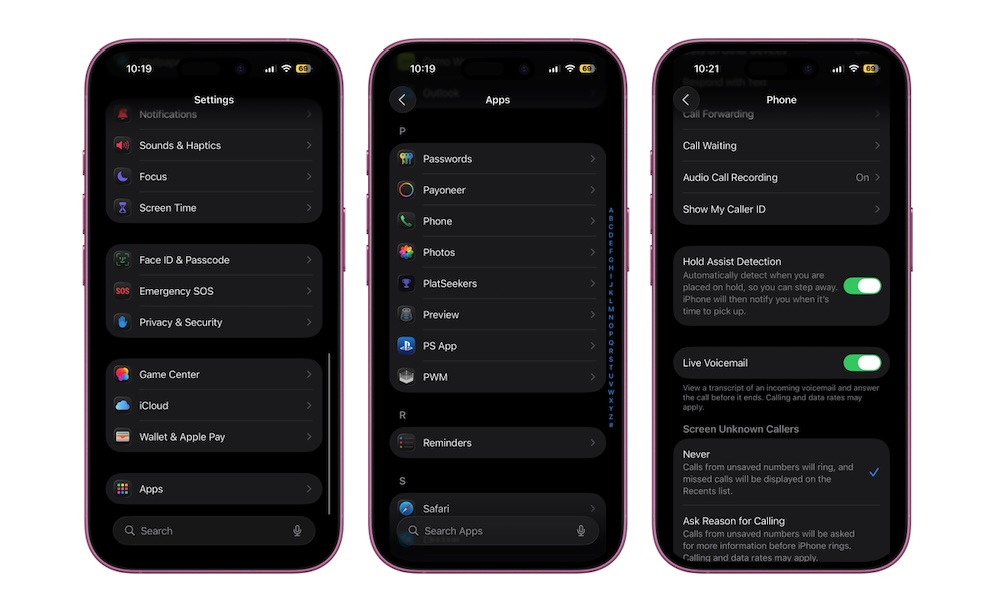
You can manually turn on Hold Assist when someone puts you on hold. Just tap the More button and then tap the option to turn it on. Or you can go to Settings > Apps > Phone and turn on Hold Assist Detection, so your iPhone automatically detects that annoying music and asks you if you want to put it on hold, too.
Call Screening
Calls from unknown numbers are one of the biggest annoyances of modern times, especially if you’re trying to avoid spam calls without missing something important.
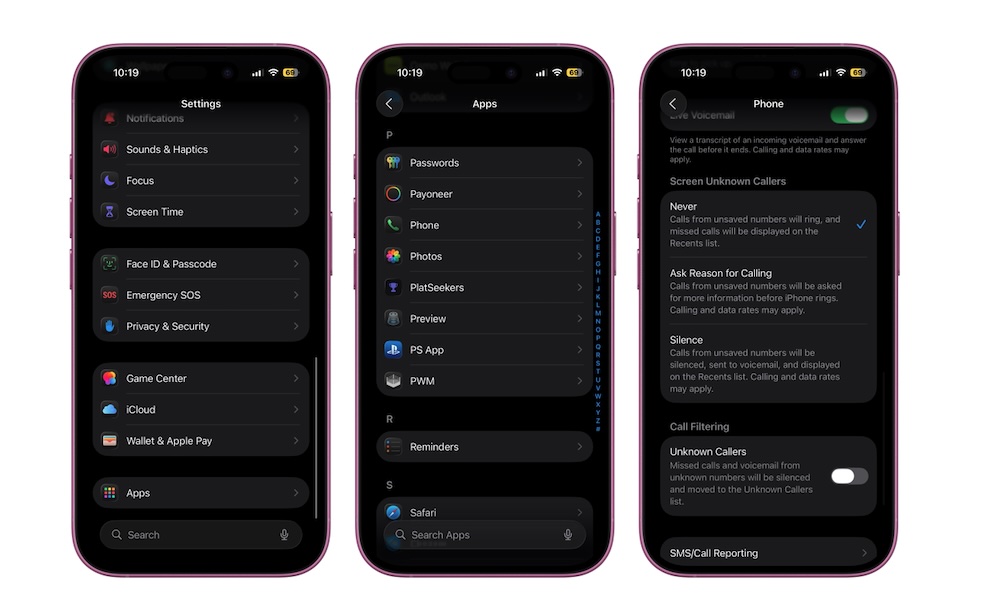
Fortunately, iOS 26 improves this with better Call Screening. Now, you can set up additional filters, like including an Ask Reason for Calling option. When this is turned on, your iPhone asks unknown callers to explain their reason for calling before ringing it through.
This way, instead of constantly seeing a random number and having to guess whether it’s worth answering, you get a little bit of context, which is great if you’re waiting for a call from work, or a doctor’s appointment you can’t miss. Plus, robocalls, telemarketers, and other spam callers aren't likely to respond to the prompt at all, saving you from pointless interruptions.
To turn on call screening, go to Settings > Apps > Phone and then tap on Ask Reason for Calling under the Screen Unknown Callers section.
Filter Spam In Messages
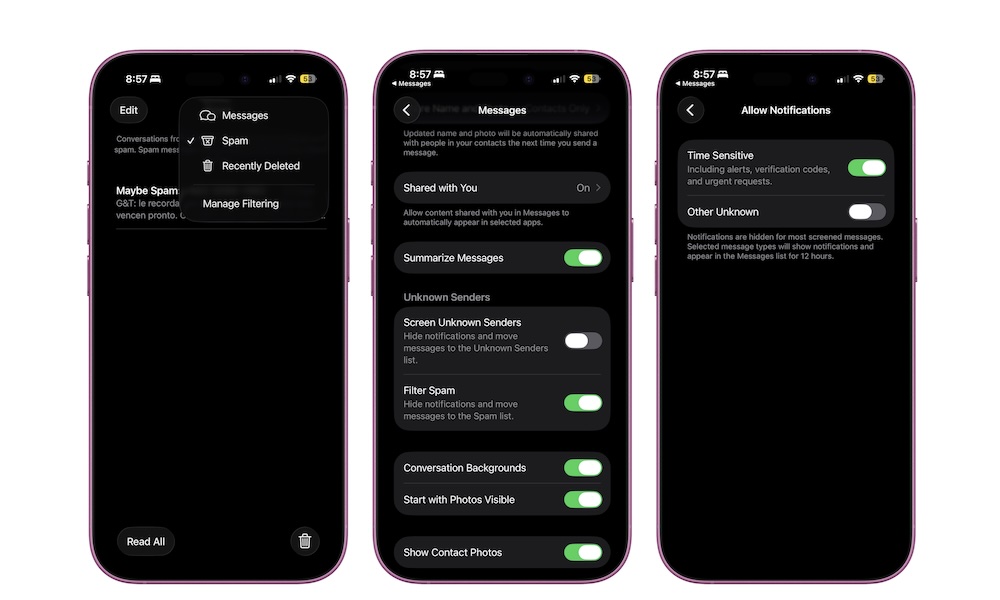
Spam texts are another area where iOS 26 gets more useful than ever. Apple now automatically detects and moves spam texts into a separate Spam folder — and this filtering is on by default. You can still review those messages later if you want, but they’re no longer sitting in your main conversation inbox, and they won’t even send notifications your way.
This is one of those features that Messages should’ve had earlier in its life, but it’s still a welcome change. The downside is that this feature works on pretty much any unknown number that texts you, which means you might miss an important message from someone you don’t have in your contact list yet.
That means that you might want to check your spam inbox before it’s too late. You can do that by going to the Messages app and tapping the Filter button in the top right corner of your screen. From there, select Spam.
Chances are, you won’t find any useful messages in that inbox, but it’s still worth checking every once in a while. You can also tap on Manage Filtering if you want to disable this feature.
If a legitimate message lands there by mistake, you can open it and mark it as Not Spam.
Better Background Sounds
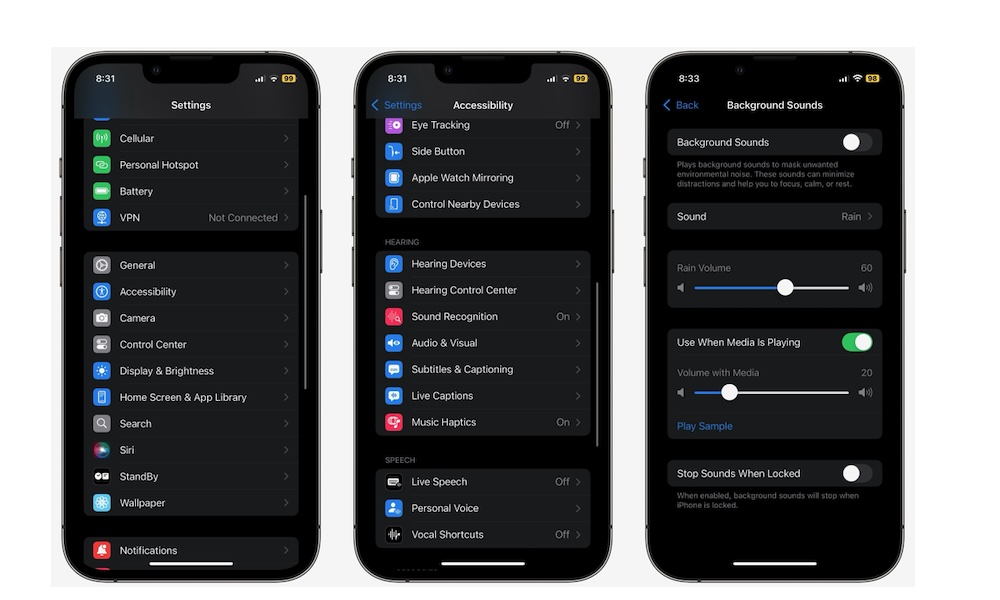
Background Sounds is already one of the more underrated iPhone features, but iOS 26 just improved it even more. Now your iPhone comes with newer sounds and better customization, which makes the feature feel more complete and easier to use as an alternative, instead of treating it as a nice feature that people don’t use because they prefer a white noise app.
After all, if your iPhone can now do a better job without installing anything extra, you don't have to download another app just to play something calming in the background. All you need to do is go to Settings > Accessibility > Audio & Visual > Background Sounds, and start using this feature.
Or, if you plan to use it a lot, you can add the Background Sounds control to your Control Center. It’s faster to access, and it gives you more control over it (no pun intended).
Use Your AirPods as a Camera Remote
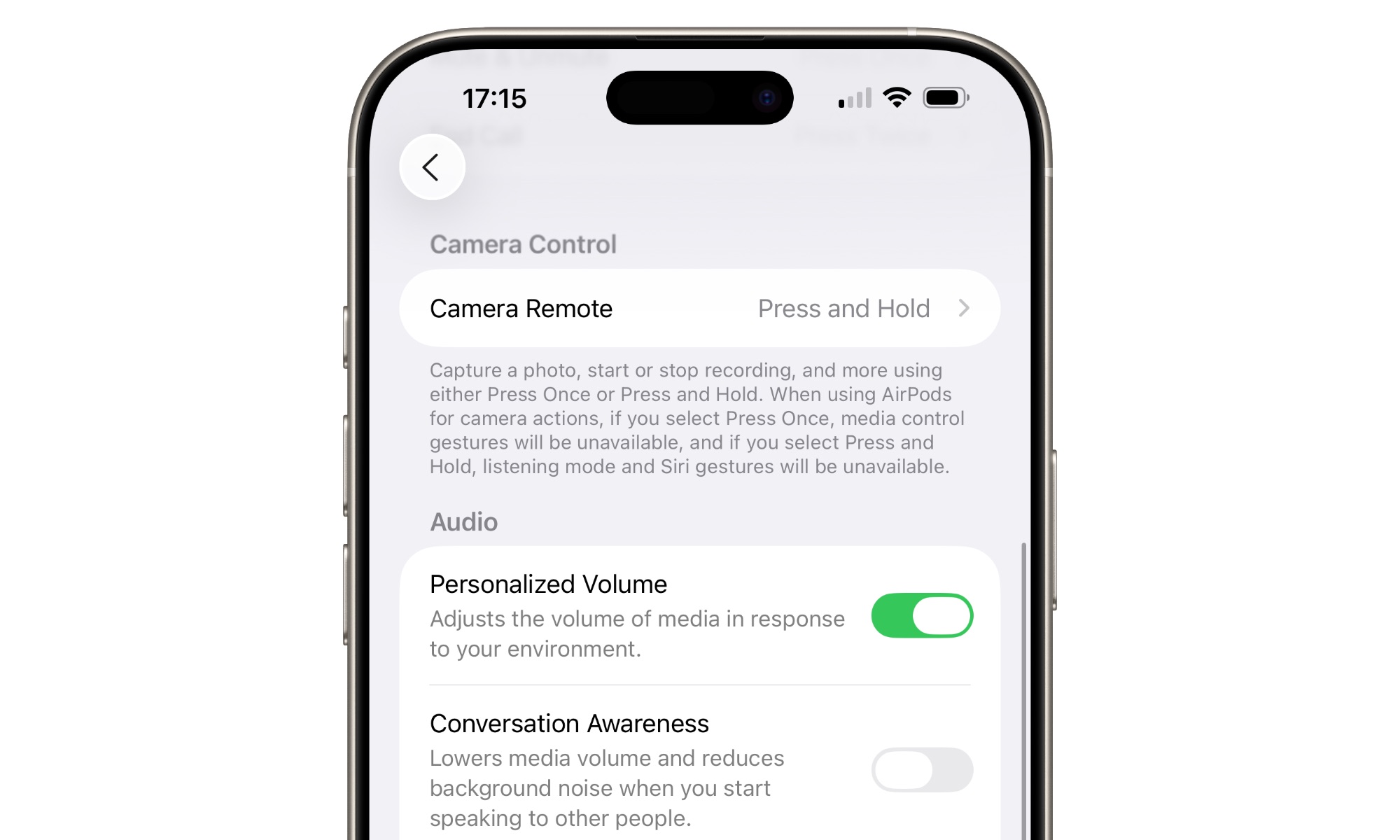
This is one of those iOS 26 features you didn’t know you needed, especially if you love taking selfies. Modern AirPods can now work as a camera remote for supported camera apps , so you can trigger a photo or video action without touching your iPhone directly.
That opens your iPhone up to many different situations. Group photos and selfies get easier, and recording yourself from a short distance won’t ever be difficult again.
To use this feature, you’ll need the AirPods 4, AirPods Pro 2, AirPods Pro 3, or AirPods Max 2. Connect or pair them to your iPhone, go to the Settings app, tap your AirPods’ name and then go to Camera Remote, and choose Press Once or Press and Hold.
Now open the Camera app (or other third-party apps that support this feature), choose to take a video or photo, and then press once or press and hold your AirPods (depending on what you chose).
Lens Cleaning Hints
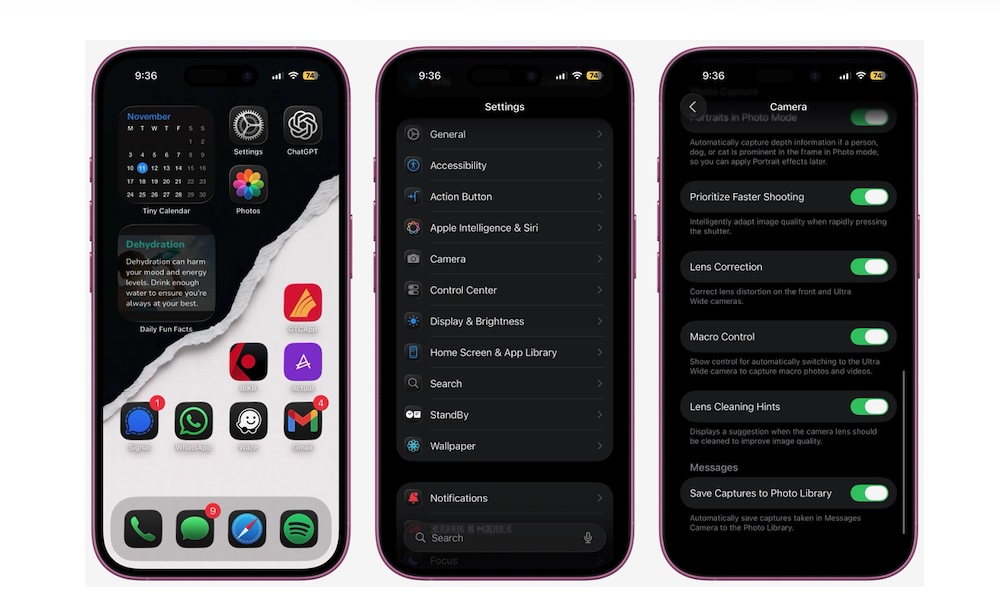
Another clever feature Apple added in iOS 26 is Lens Cleaning Hints. This sounds minor until you think about how often people ruin perfectly good photos with a smudged camera lens. It happens all the time and to all of us. You take a shot, it looks a little soft or hazy, and only afterward do you realize your lens was dirty. On supported models, iOS 26 can now detect that and suggest cleaning the lens.
Most people don’t regularly inspect their camera lens before taking pictures. So having your iPhone step in before you take another fuzzy photo is the kind of tiny improvement that can save a lot of frustration over time. To turn on this feature, simply go to Settings > Camera and then turn on Lens Cleaning Hints.
Now, if the Camera app detects a smudge, your iPhone will alert you so you can do something about it before it ruins more shots.
Visual Intelligence
Apple Intelligence is far from the best AI system out there, but Apple did add one feature that’s actually useful in many everyday situations.
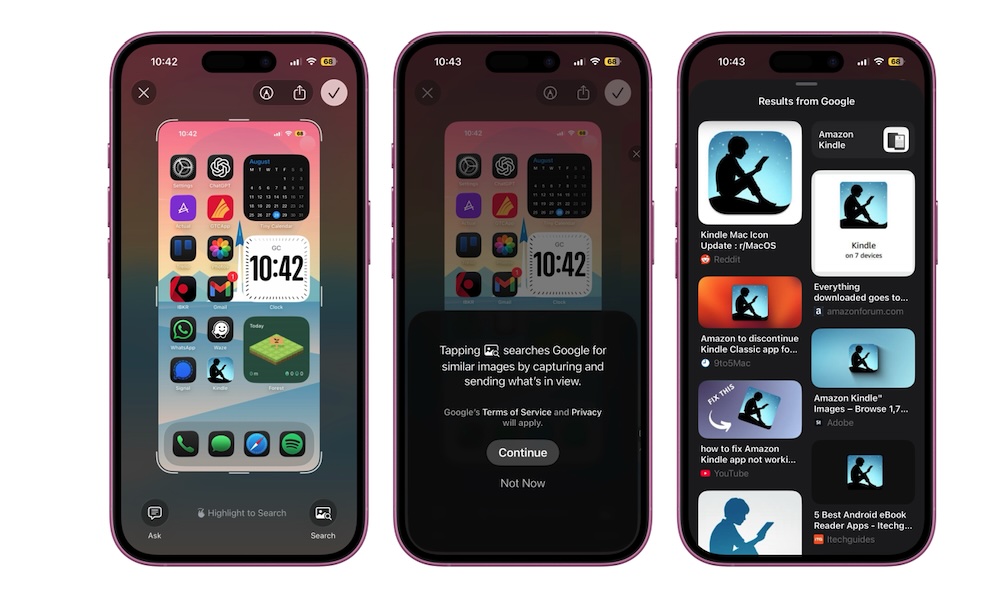
A lot of people take screenshots just to quickly pull information from them, not because they want to keep a growing album of random images in the Photos app. With iOS 26, you can start making screenshots more useful right away. Instead of saving everything first and searching for something manually later, you can interact with it from the screenshot preview itself.
That’s thanks to expanded visual intelligence support. While Apple brought this to the camera in iOS 18.2, it's been extended to screenshots in iOS 26. After you capture your screen, you can now go to the preview, highlight any relevant subject in the image and Google it, search for it in a shopping app to see how much it costs, or talk to ChatGPT to get more information right then and there.
This feature works extremely well, and it can save you time and storage from the get-go. Of course, the downside is that not every iPhone that supports iOS 26 can use this feature; your iPhone has to support Apple Intelligence, which means you'll need an iPhone 15 Pro or later model.
Master These Features Before iOS 27
With iOS 27, Apple will surely bring a ton of new features that we can’t wait to try. However, if you don’t even know the ones we already have available, it might be a bit overwhelming once the software update is available to the public.
Luckily, you can start with these features, which are some of the most useful ones, and master iOS 26 before it’s too late. A few of them may sound minor on paper, but once they’re part of your routine, they’re exactly the sort of additions that make the update feel worthwhile.