
Turn On AssistiveTouch for Easier Control
Let’s face it: if you’re not used to having an iPhone — or a smartphone for that matter — it might be hard at first to control. You probably don’t know where things are or how to do specific actions like taking screenshots.
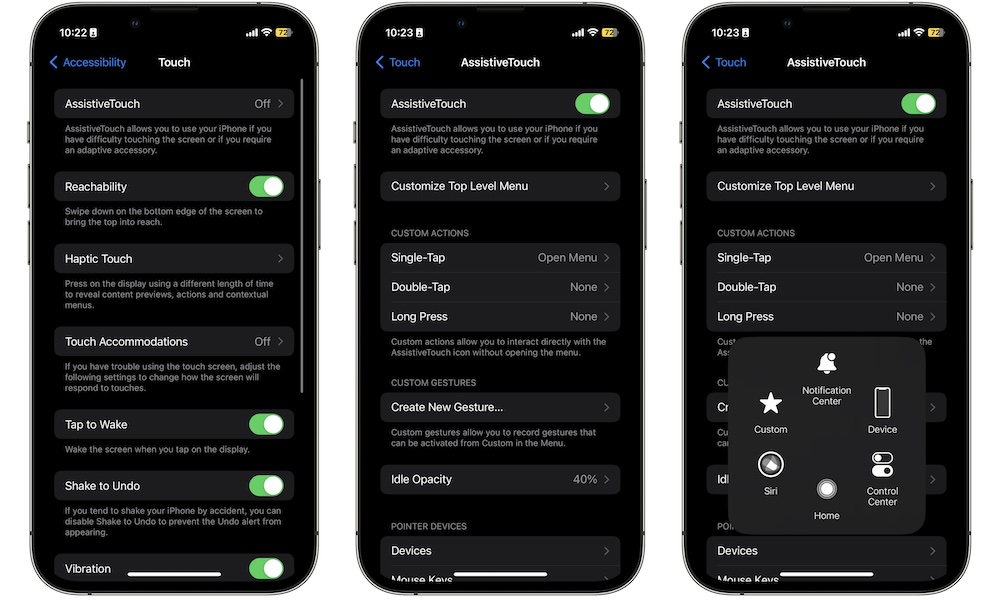
Luckily, Apple added an even easier way to navigate and control your iPhone. AssistiveTouch adds a floating onscreen button that can help you control your device more easily. That button can open a menu with shortcuts for actions you use often, and it can be especially useful if certain gestures, button presses, or repeated swipes feel awkward or tiring.
This is a great option if you struggle to locate certain features or if you simply want an easier way to access common controls. Either way, AssistiveTouch can make the iPhone feel less demanding on your hands. Here’s how to use it:
- Open the Settings app.
- Scroll down and tap on Accessibility.
- Tap on Touch.
- Tap AssistiveTouch.
- Turn AssistiveTouch on.
- Customize the menu if you need to.
You’ll notice a small greyish button has popped up near the bottom right corner of your screen. By default, if you touch it once, you’ll open a bunch of useful features that you can customize to make it even better for you. Likewise, you can customize a double-tap or a long press to do specific actions more easily.