
Have Your iPhone Read Text Out Loud
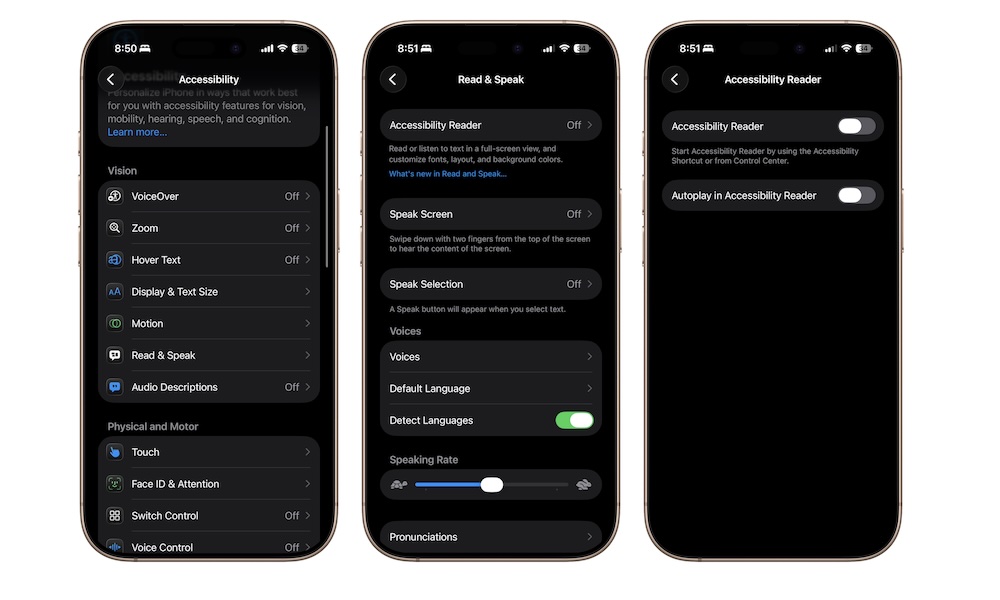
Reading on a phone can get tiring, especially with long emails, articles, notes, or instructions. That’s where the iPhone’s spoken text features can be incredibly useful. Apple gives you options that can read selected text, or even read all the text that’s on the screen at once. Granted, it won’t replace an audiobook read by James Earl Jones, but it’s still a good (and free) alternative.
It’s also helpful if you want to follow along visually while hearing the words at the same time, which can make information easier to absorb. To get started with this feature, you’ll need to follow these steps:
- Open the Settings app.
- Scroll down and tap on Accessibility.
- Tap Read & Speak.
- Tap on Accessibility Reader.
- Turn on Accessibility Reader.
- Go back and change all the reading options you want.
Now, you need to do the next step, which is to add the Accessibility Reader control to your Control Center. To do this, swipe down from the top right corner of your screen to access your Control Center. Tap the plus icon in the top left corner of your screen, and then tap on Add a Control at the bottom.
Use the search bar to search for Accessibility Reader. Next, tap the control to add it to your Control Center. Now you can test this feature. Open a note, webpage, or email, and then go to your Control Center and tap the Accessibility Reader control (the icon that looks like a page).
You’ll be redirected to a new app with all the text from the webpage or email you had on your screen. Tap on play and start hearing the text.