
Make the Text Bigger
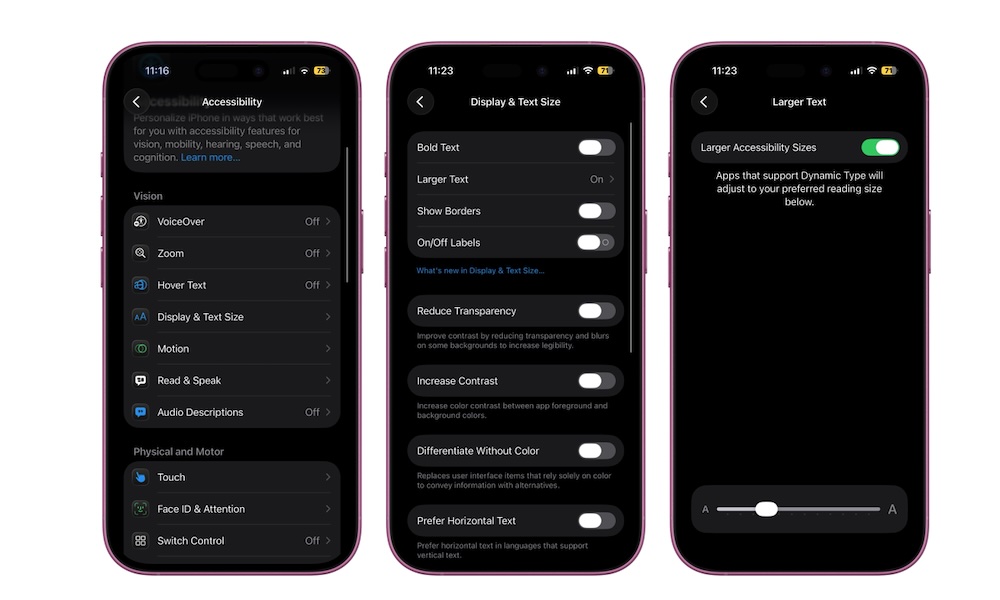
One of the most helpful changes you can make on an iPhone is also one of the simplest: make the text larger. If you find yourself constantly holding the phone closer to your face, squinting at menus, or misreading app names, bigger text can make an immediate difference. Messages, settings, mail, notes, and many third-party apps all become easier to read once you give yourself more breathing room on the screen.
This is especially helpful because eye strain can build up over time. Even if you can technically read smaller text, that doesn’t mean it’s comfortable. A phone should feel easy to use, not like something you have to fight with every time you pick it up. Making the text larger can make your iPhone experience almost instantly feel more comfortable.
Here’s how to adjust the text size:
- Open the Settings app.
- Scroll down and tap Display & Brightness.
- Tap on Text Size.
- Drag the slider to the right to make the text bigger.
And that’s it. This should give you text that’s big enough to read without your glasses. If you need even larger or easier-to-read text, you can find more size options under Settings > Accessibility > Display & Text Size. From there, you can go to Larger Text and turn on Bold Text to make words pop out a bit more.