
Use Zoom to Magnify the Screen
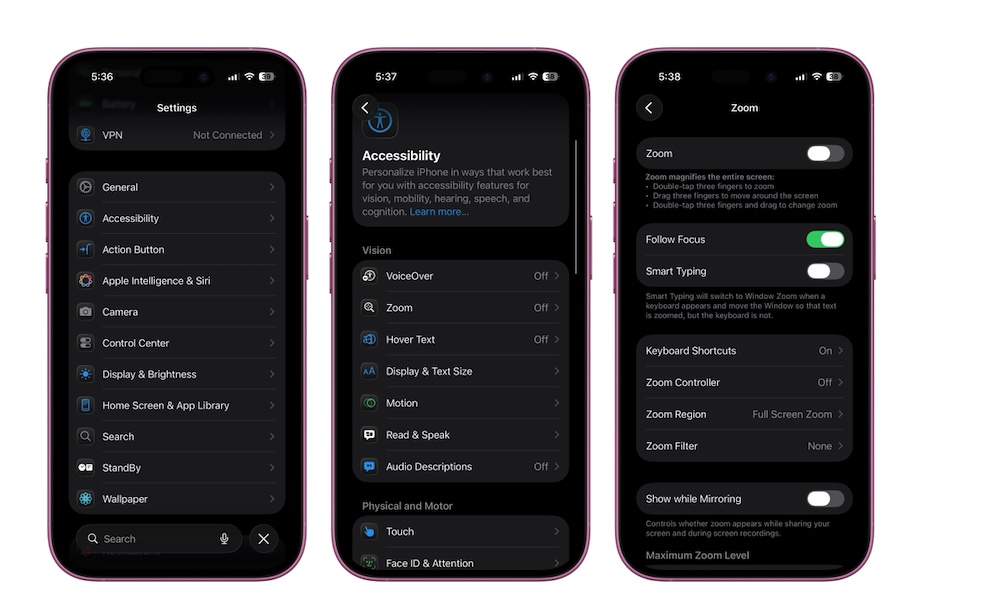
If standard text size changes still aren’t enough, the iPhone’s built-in Zoom feature can help by magnifying the screen itself, which is different and more useful than just making text bigger.
Zoom can enlarge the entire display or part of it, which is especially useful when you run into tiny letters in a banking app, medical website, or when you get a message from friends or family.
Even if making the text larger worked for you, this can still be a great safety net because not every app is designed equally well. Some apps don’t support Apple’s text sizes, or still use small menus or cramped layouts. Zoom lets you deal with those without straining your eyes.
Here’s how to turn your iPhone’s zoom on:
- Open the Settings app.
- Scroll down and tap on Accessibility.
- Tap on Zoom.
- Turn on Zoom.
- Adjust the zoom style and settings if you want a different experience.
Once it’s turned on, you might not notice anything at first, but you can enable Zoom instantly by double-tapping your screen with three fingers. This will zoom in on the specific spot where you double-tapped. You can then drag three fingers on your screen to move around.