
Record Audio and Get a Transcript in the Same Note
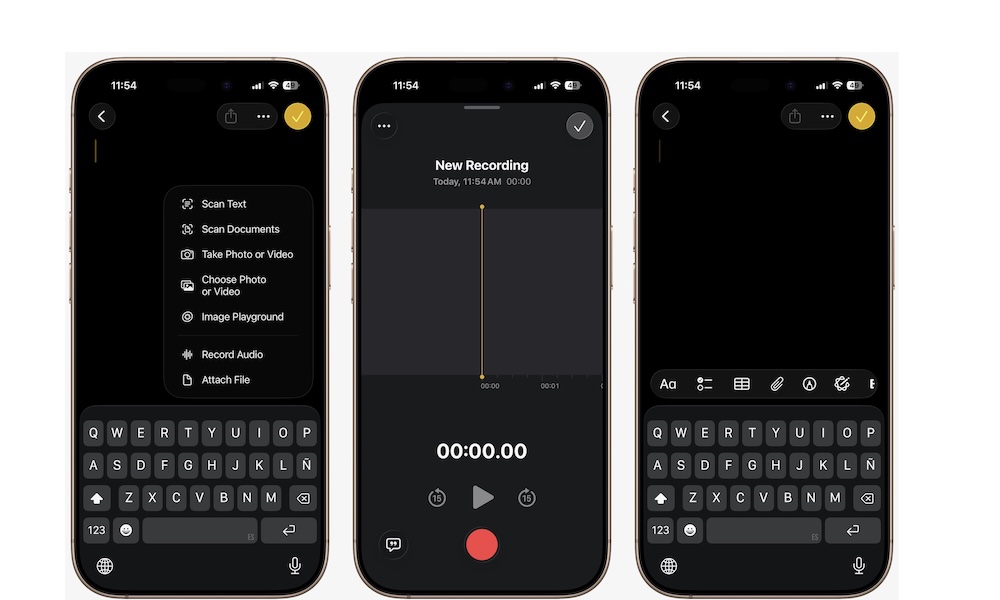
One of the biggest upgrades Apple Notes has gained in recent years is the ability to record live audio directly inside a note and get a transcript in the same place. This makes Notes incredibly useful for lectures, meetings, interviews, brainstorming, and quick voice-based reminders.
The best part is that you get both the full original source recording and a transcript that makes it easier to review what was said without replaying everything from the beginning. That combination makes the app feel much more capable than a simple note app usually does. Here’s how to start recording from the Notes app:
- Open Notes and create a new note or open an existing one.
- Tap the Attachments button (the paper clip icon near the bottom of your screen).
- Tap Record Audio.
- Tap on Record to begin.
- Tap the Stop button when you’re done.
Your note will have the new recording attached. You can tap it to listen to the recording, or tap the transcript button in the bottom left corner to read what the recording captured.
Pro Tip: If you have an iPhone 15 Pro or newer, you can also tap Summary to have Apple Intelligence summarize the recording, which is especially useful if you’re using it to capture long meetings or lectures.