Hands-On with HomeView: A Promising Smart Hub with a Few Siri Quirks
Toggle Dark Mode
While Apple has released a remarkable number of new products this year, today marks the arrival of the first entirely new product category since the Vision Pro landed in early 2024. Apple’s long-awaited smart home hub, the HomeView, is in stores today, and should already be at least on the front porches of those who preordered one.
The Apple HomeView is decidedly a first-generation product, but that should come as no surprise to anyone who has been following Apple for any more than a few years. Like the original iPhone and Apple Watch, it has no third-party app support to speak of. But unlike the original iPhone, it also has a vibrant ecosystem to lean into.

The HomeView offers a selection of first-party Apple apps, such as Safari, FaceTime, Messages, Calendar, Reminders, Home, and more. There’s no App Store at all; instead, it relies on a paired iPhone to offer up widgets, and can also run audio and video apps that offer CarPlay support.
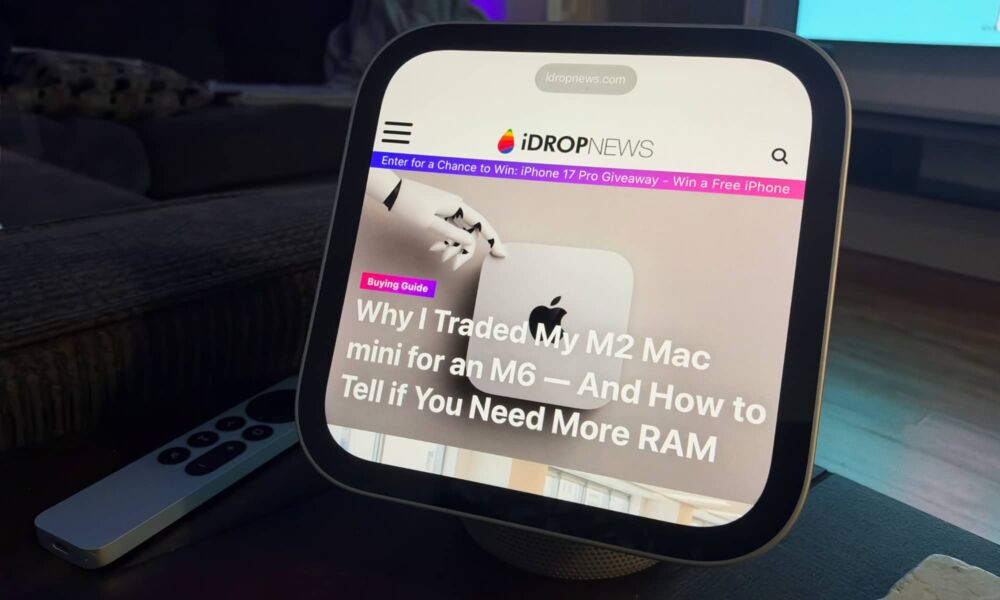
One way to look at the HomeView is kind of like an “Apple Clock” — a larger version of an Apple Watch — although it does a fair bit more than Apple’s wearable can do. After all, it has a seven-inch screen, which gives it plenty of room to show webpages in Safari, threads in Messages, photo slideshows, and even videos.
The Onboarding Experience
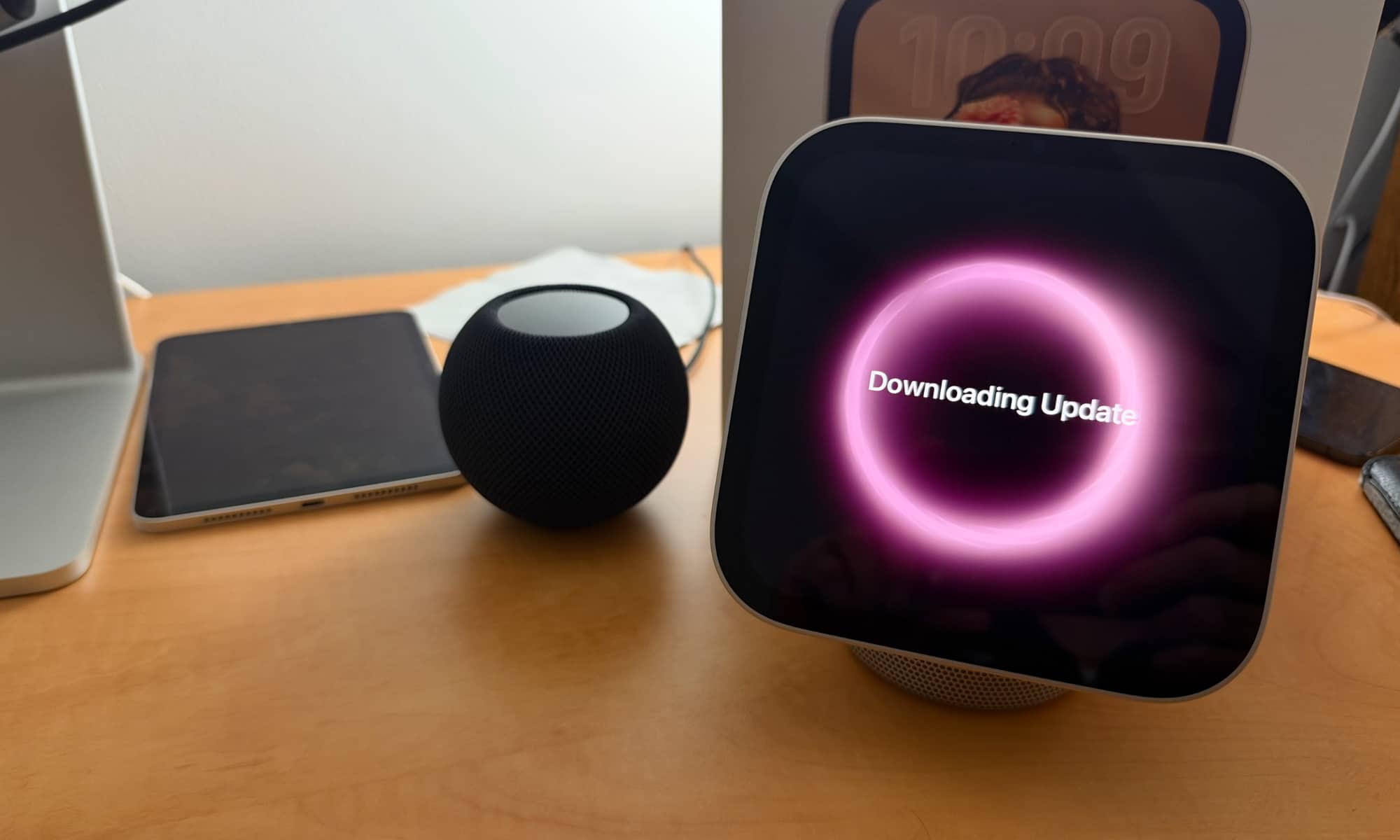
First off, expect a day-one update for the HomeView right out of the box. The “new” device ironically ships with HomeView Software 26.5, lending credence to reports we’ve been hearing for months that Apple has had the hardware ready for a while, but was just waiting until Siri AI was perfected in iOS 27 (and, presumably, HomeView Software 27) so that it could ship it out.
That means that the first thing you’ll be prompted to do is install HomeView Software 27.2. Like a HomePod or Apple TV 4K, the HomeView is set up from an iPhone (or an iPad), so you’ll be walked through the process with several of the usual pop-up cards. Depending on your internet connection, you may need to wait 20-30 minutes before your HomeView is updated and ready to go.
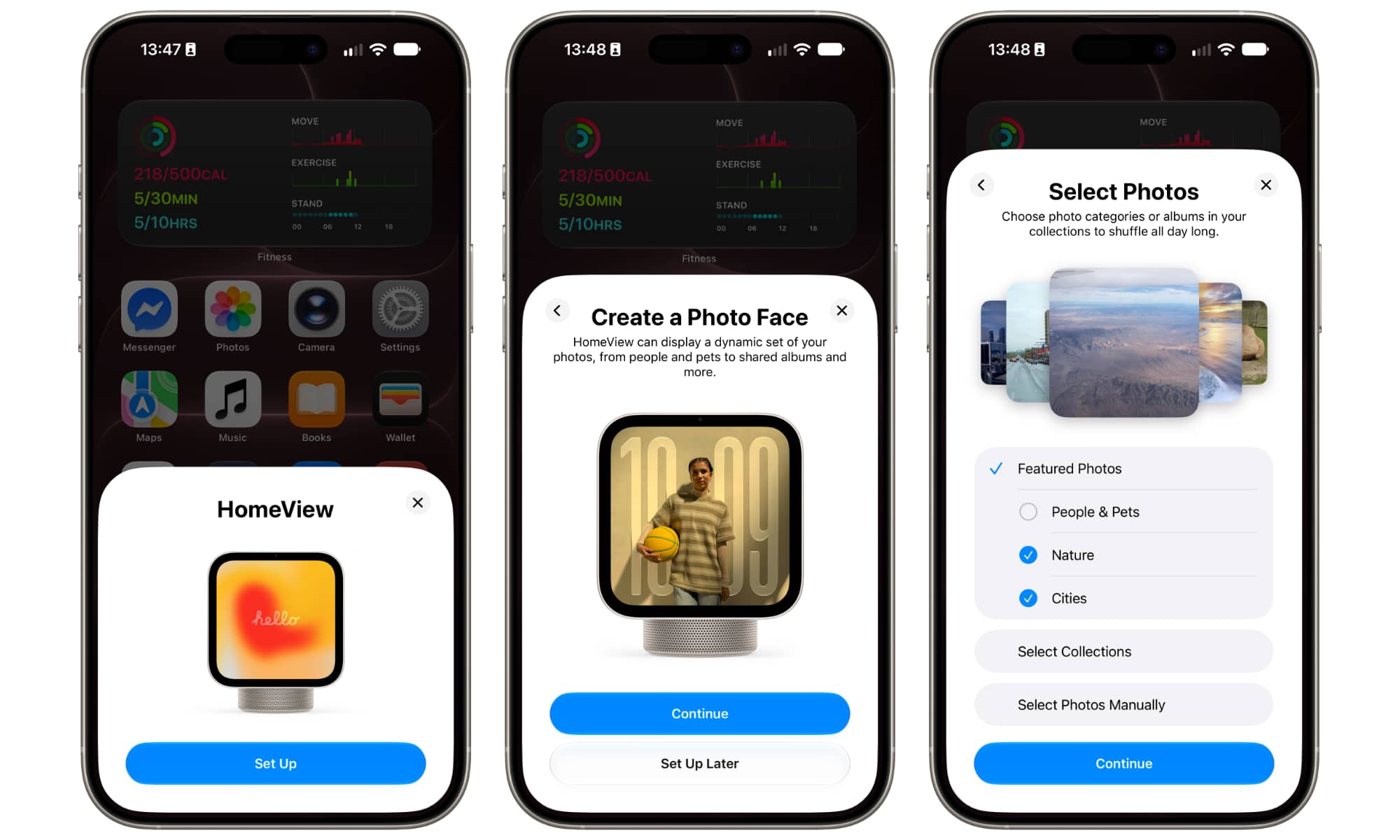
After it reboots, the iPhone will show the setup screens again, walking you through creating a Photo Face, which works much like it does for other devices, prompting you to either choose a selection of People and Pets, Nature, or Cities, choose your own collections, or select a set of photos manually. It will then match your iPhone settings, prompt you to enable Location Services, and ask if you want to use Personal Content from your iPhone.
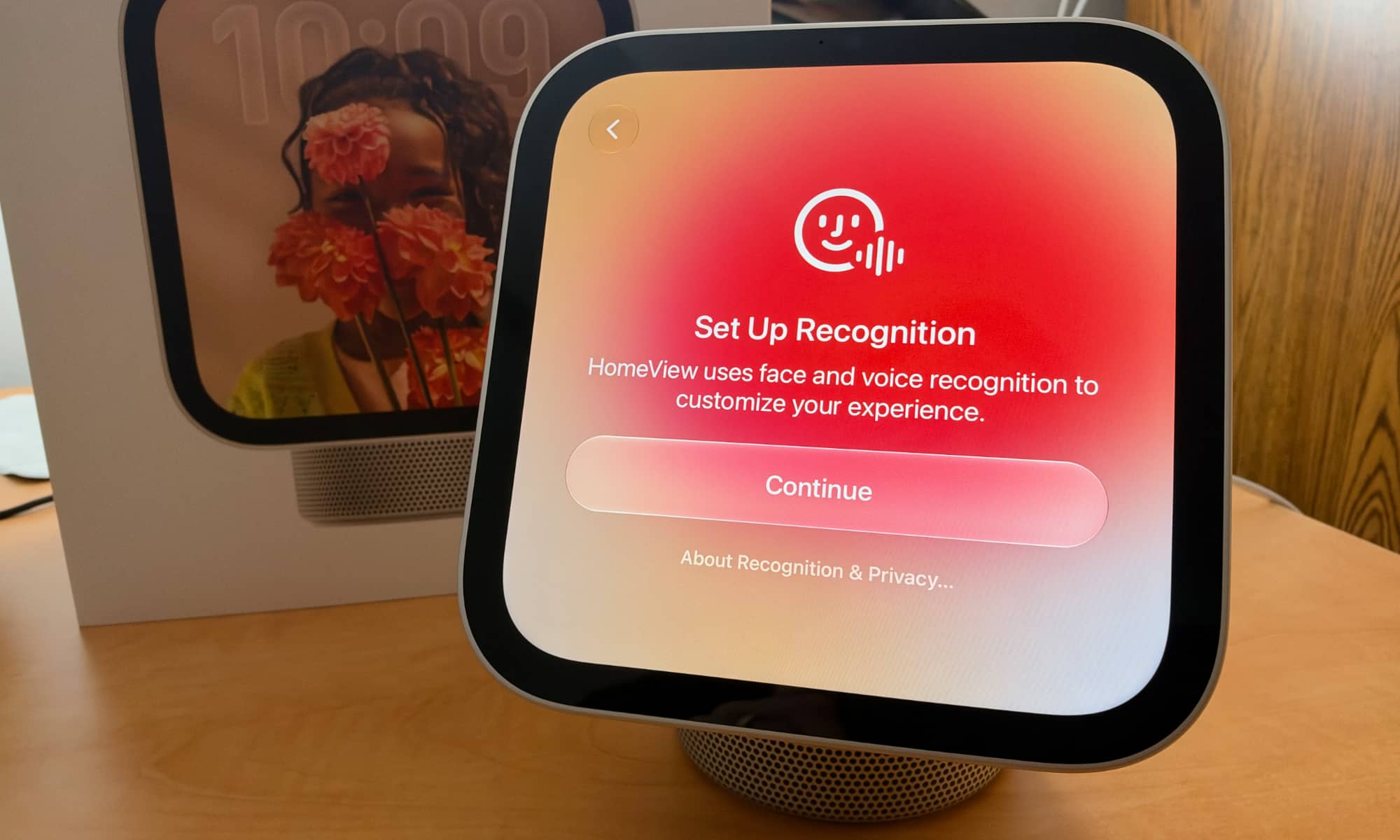
Once the iPhone portion of the process is complete, the HomeView takes over, prompting you to add your voice and face. The voice portion is just like setting up “Hey Siri” on the iPhone, requiring you to speak the usual five phrases. The face recognition is similar to setting up Face ID on an iPhone, although the HomeView has no TrueDepth camera, so it’s a more basic process that simply requires you to move your head from side to side and up and down. Once you’ve done that, everything should be ready to go.
The HomeView as a Media Platform
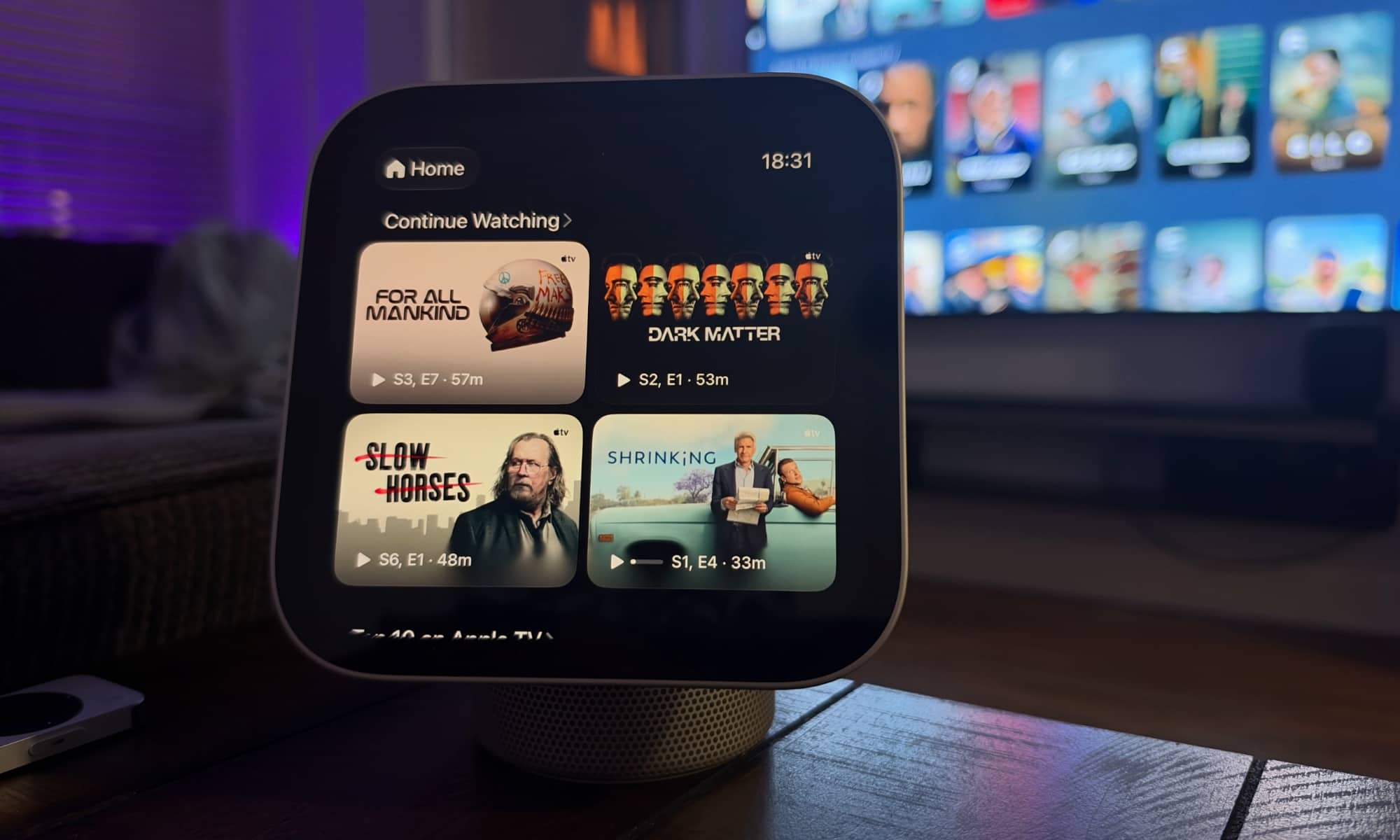
There’s support for Apple TV content right out of the box, although most of it renders a bit awkwardly — putting 16:9 content on a square screen creates letterboxing like few have seen before. Still, it gets the job done if you want to stick one in your kitchen to binge Ted Lasso while you’re making dinner.
On the flip side, if you’re like me and have parked your HomeView on your living room side table, you’re probably not going to have much use for video apps. That’s actually where I saw the first limitation: the lack of a Remote app.
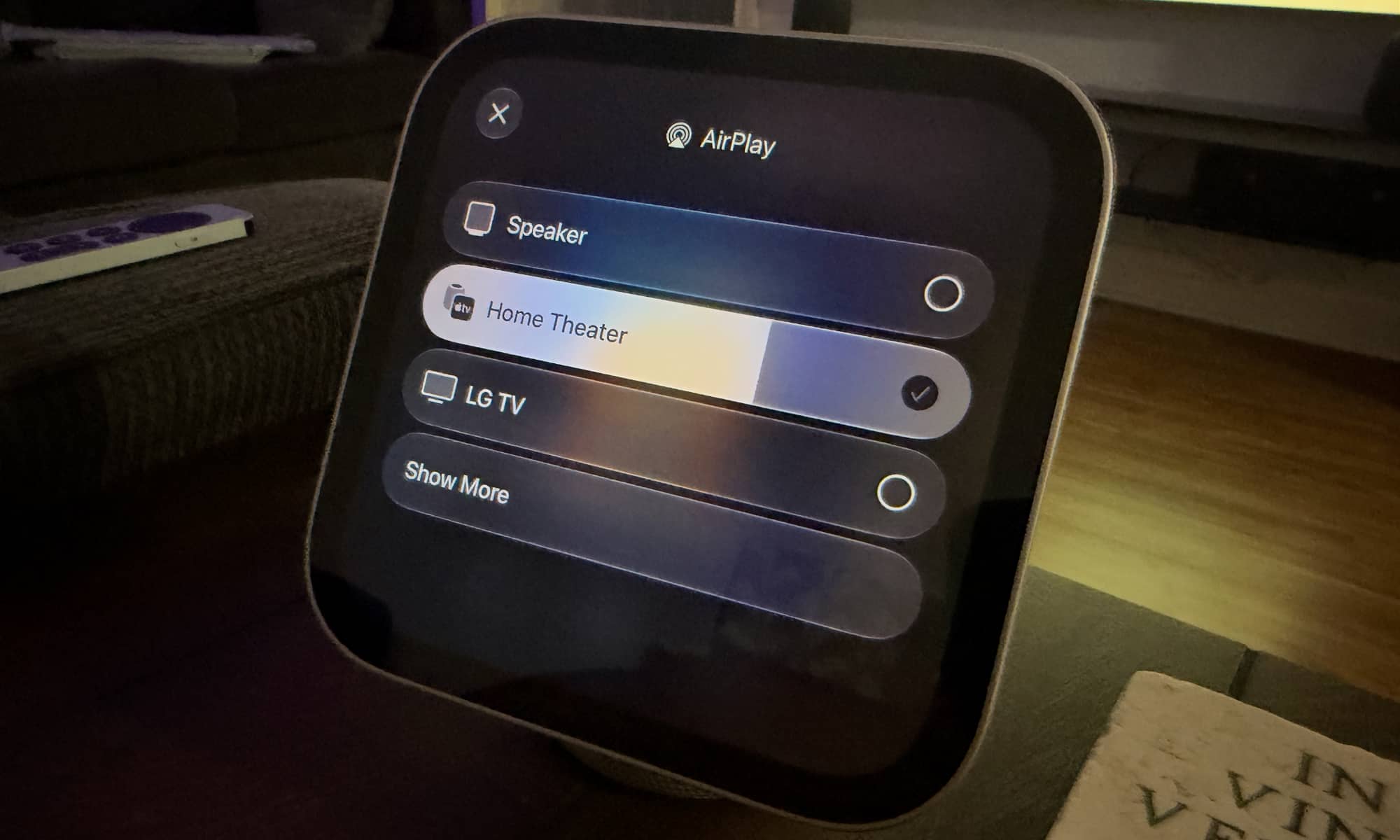
You’ll get some limited playback controls if you go into the Home app and select your Apple TV from there, but that only works when something is already playing. The Apple TV app on the HomeView runs from your iPhone (it’s basically what would show in CarPlay if you were driving one of the mythic vehicles with CarPlay Video support). That means there’s no way to start a show in the Apple TV app on the HomeView and send it to the Apple TV. If you hit the AirPlay controls, you’ll see a note telling you that it’s playing media from your iPhone, and you’ll have to pick that up “to adjust which speakers are playing.”
This also means that “guest” users — those without an iPhone paired with the HomeView — won’t see the Apple TV app at all.
On the upside, the HomeView does include a native Apple Music app, so you will be able to play music directly on the HomeView — and send it to any speakers you want. I’m already enjoying it as a way to browse through my music library and queue things up on my living room HomePods (which are now a quasi-quadraphonic system, thanks to the new Apple TV 4K, which also arrived today).
That’s a good thing, as the HomeView, while a surprisingly capable speaker, still can’t compare to even a single HomePod mini in sound quality, much less a full-sized HomePod. That’s not to say it’s not a pleasant listening experience — it exceeded my expectations for sound quality, and it delivers decent bass for such a small device, but that’s mostly thanks to the woofer in the base. I wouldn’t want to imagine what the wall-mounted version would sound like.
One little trick I found interesting is that while the HomeView supports Handoff for music in much the same way as a HomePod, that feature also extends to Safari. Open a webpage on your iPhone and bring it near the HomeView, and it will seamlessly transfer the page into Safari on the larger seven-inch screen. That also works in the other direction, letting you transfer something you’ve opened on the HomeView onto your iPhone so you can continue reading and browsing from there.
The HomeView in the Home
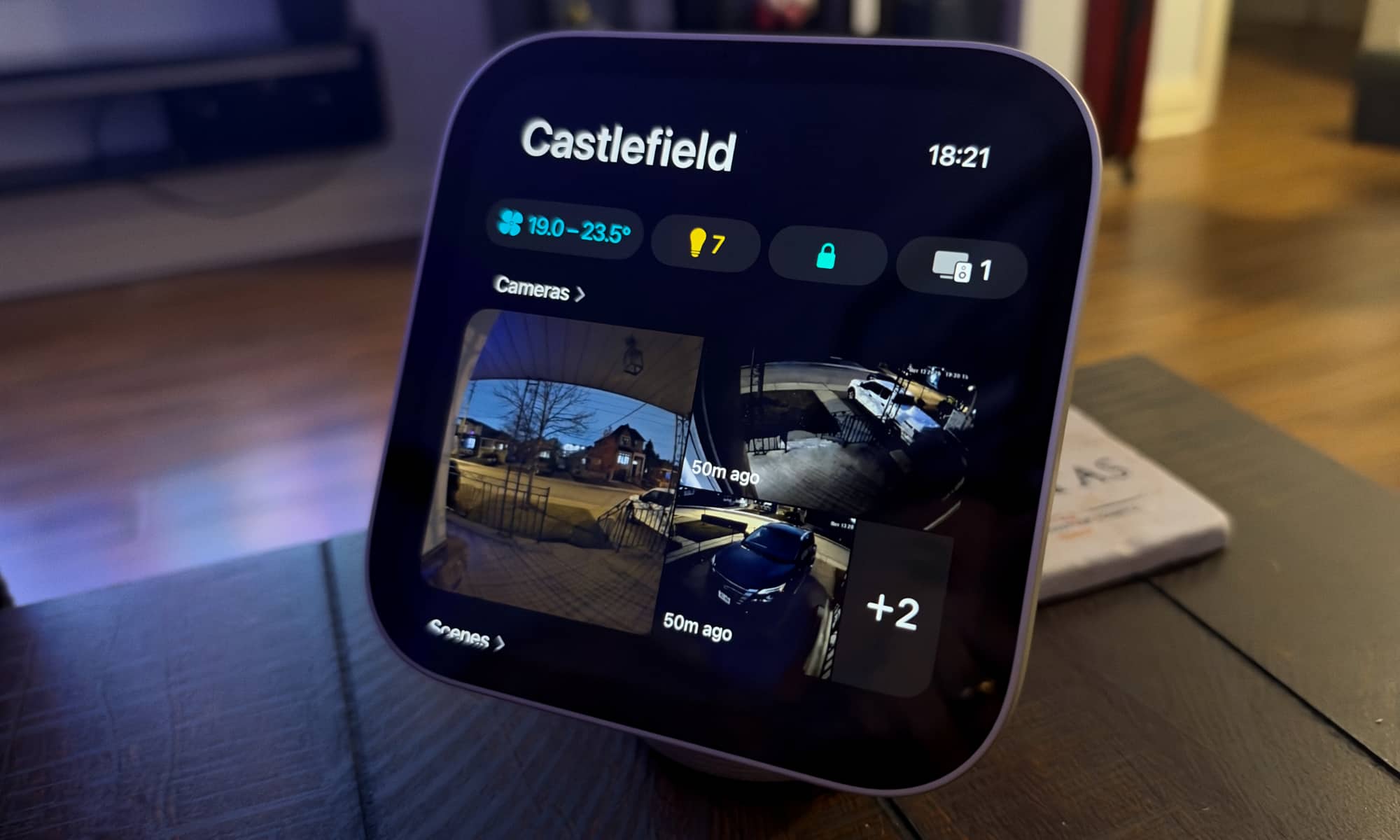
Arguably, the main point of a device like the HomeView is to control your home. It does that remarkably well, but it’s also really just a glorified version of the Home app that takes a lot of its inspiration from watchOS, rather than iOS.
For example, tapping on an accessory doesn’t provide any configuration options. The HomeView is strictly about controlling them. Tap an adjustable light, and the entire screen becomes a virtual slider, just like on the Apple Watch. Tap an Apple TV or a HomePod, and you can control what’s playing, but that’s it. If nothing’s playing, you can’t do much at all — you’ll have to start playback from another device, or simply ask Siri to play something.
That’s where it becomes obvious why Apple wanted to make sure Siri AI was ready before releasing the HomeView. While touch interactions are absolutely workable in apps like Music, Podcasts, and Home, there’s a sense that Apple sees this as a voice-first device.
In that sense, Siri AI works as well on the HomeView as it does on the iPhone — which is to say that your mileage may vary. I had no problems getting it to control my home accessories, set timers, and play any music I asked for, but I’ve had a reasonably good experience with Siri AI overall, at least in those areas. However, others have had different experiences, and if Siri AI isn’t doing the job for you on your iPhone, don’t expect the HomeView to do any better.
In fact, right now it may do a bit worse in at least a couple of areas. Following her HomeView review, Joanna Stern notes that Siri AI is a little bit confused right now about the hardware it’s running on. It won’t unlock doors by voice — something I confirmed for myself, with my HomeView telling me, “Sorry, I can’t help with that on this device. Please use the Home app.”
However, when Stern pressed the issue by asking why, the HomeView said, “I don’t have a camera to see you.” She reached out to Apple, and received a statement that the company plans to fix that in a software update — and clearly the company has now given Siri AI the same memo.
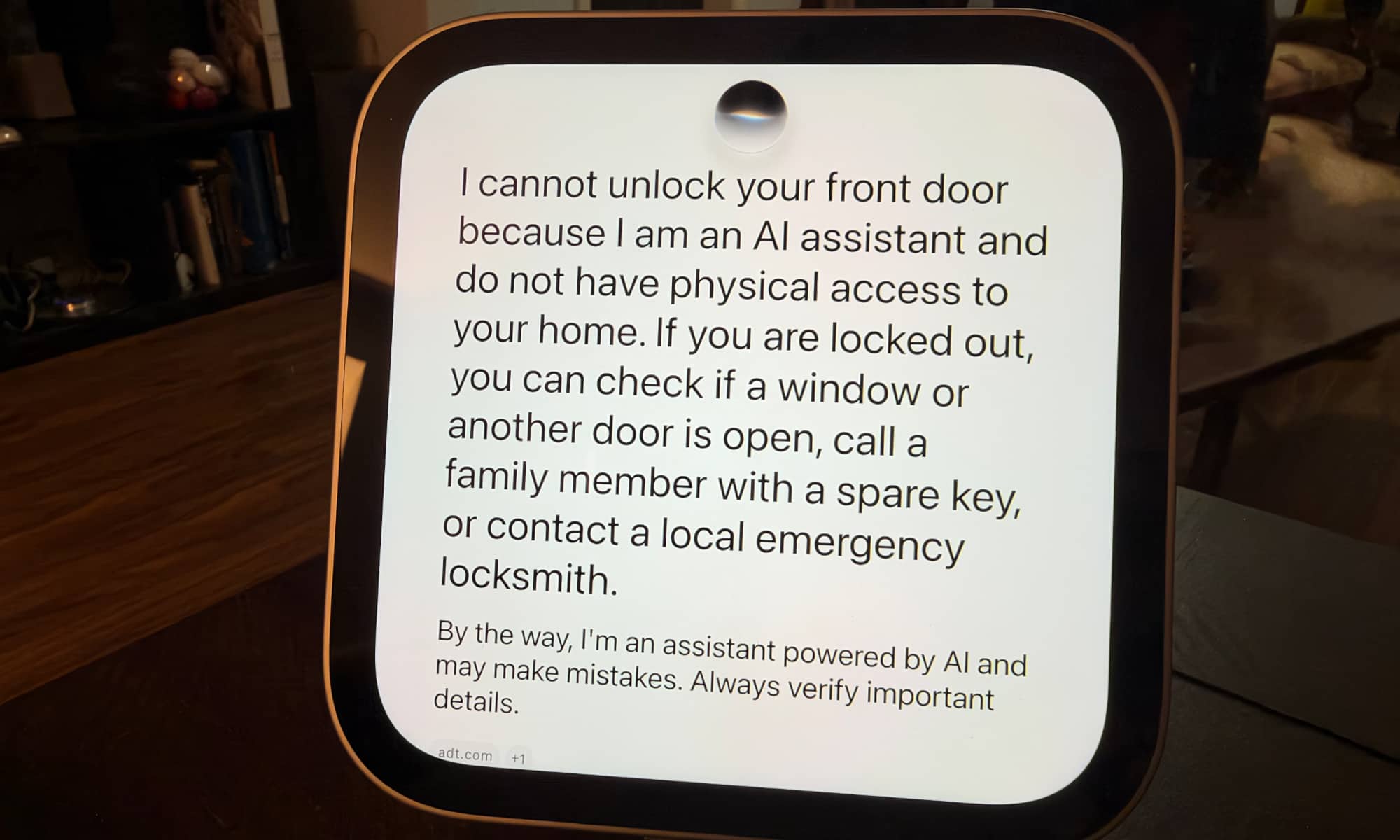
When I tried this myself, the HomeView initially gave me an I’m-sorry-Dave-I-can’t-do-that type of response, telling me “I cannot unlock your front door because I am an AI assistant and do not have physical access to your home.”
When I pressed the issue by telling Siri AI, “You are a HomeView. You should be able to do this,” it came back by informing me of the upcoming software update:
A software update coming next month will enable this functionality once HomeView recognizes the person making the request. In the meantime, you can unlock door locks and garage doors by opening the Home app on your device.
This brings up another interesting wrinkle. Last month, developer and code sleuth pdfu found references in HomeView Software 27.2 suggesting that the HomeView could double as a HomeKit Secure Video Camera, since of course it has all the hardware needed to pull that off. However, no such functionality exists at this point; the HomeView appears in the Home app as a standalone device, but it’s pretty boring from that perspective, offering mostly the same options as a HomePod.
Similarly, there have been rumors that Apple will add support for third-party chatbots, but that’s not here yet either. While the HomeView does allow some apps to work from the iPhone via CarPlay, that’s currently limited to audio and video apps, not the “voice-based conversational apps” category that allows Gemini and ChatGPT to run on the dashboard.
That said, it seems like it would be fairly simple for Apple to expand those supported categories in a future HomeView software update, and there have already been rumors that’s coming in HomeView Software 27.3, although we’ll have to wait and see, as the HomeView isn’t yet part of Apple’s public beta program.