This Sneaky iOS 27 Setting Could Drain Your iPhone’s Battery (and Your Data)
 Kris Shved / Unsplash+
Toggle Dark Mode
If your iPhone battery has been draining faster since you installed iOS 27, you’re not alone. It’s normal for battery complaints to follow major iOS releases. Apple typically says some extra drain is normal for a few days as your iPhone optimizes in the background.
If it’s been a couple of weeks and you’re still experiencing noticeably shorter battery life, this one setting is worth a closer look. It’s called Connectivity Assist. For most people, it’s switched on by default if the previous Wi-Fi Assist feature was enabled at the time of the update. Wi-Fi Assist was also linked to excessive battery drain.

What Is Connectivity Assist?
Connectivity Assist isn’t entirely new. It’s the iOS 27 replacement for Wi-Fi Assist, a feature that’s been around since iOS 9. When your Wi-Fi connection is slow or stops responding, your iPhone automatically leans on cellular data to keep things loading, then switches back to Wi-Fi once that signal strength recovers.
Apple describes it as a way to use cellular data in addition to Wi-Fi for a more reliable connection. It’s meant for spots like the far corner of your backyard, a crowded airport, or a coffee shop with overloaded Wi-Fi.
What’s changed from the previous Wi-Fi Assist is where it lives in your iPhone, and by many accounts, how often it kicks in. Wi-Fi Assist used to sit at the bottom of the Cellular Settings. Connectivity Assist is now at the bottom of the Wi-Fi settings screen. If you had Wi-Fi Assist turned on before updating, which was the default, Connectivity Assist is on too.
If you never touched Wi-Fi Assist, Connectivity Assist is probably running on your iPhone right now.
Why Connectivity Assist Could Be Draining Your Battery
Apple hasn’t directly acknowledged any battery problem tied to Connectivity Assist. However, a growing number of iOS 27 users report that turning it off noticeably improved their battery life. Some say it made a bigger difference than any other fix they tried.
There’s a plausible technical reason. When Connectivity Assist is active, your iPhone keeps its cellular radio working alongside Wi-Fi instead of letting it idle. Running two radios uses more power than running one. The cellular modem works especially hard when your signal is weak — which is often exactly where your Wi-Fi is spotty, too.
Early reports also suggest the feature is far more aggressive than Wi-Fi Assist ever was. One tester at AnotherApple found it burned through more than 800 MB of cellular data in two days, even while connected to Wi-Fi most of the time. A reviewer at Pocket-lint saw 174 MB used on day one in a hotel with poor Wi-Fi. All that background data activity takes power, too.
It isn’t just battery and data, either. Users and security vendors have found that Connectivity Assist can route around DNS-based ad blockers, some VPN protections, and parental-control filters, because a blocked request can look like a failed Wi-Fi connection and get retried over cellular. Apple’s own support page suggests turning it off for networks where you rely on an ad blocker.
How to Turn Off Connectivity Assist
You can switch Connectivity Assist off everywhere, or only for specific Wi-Fi networks.
To turn it off everywhere:
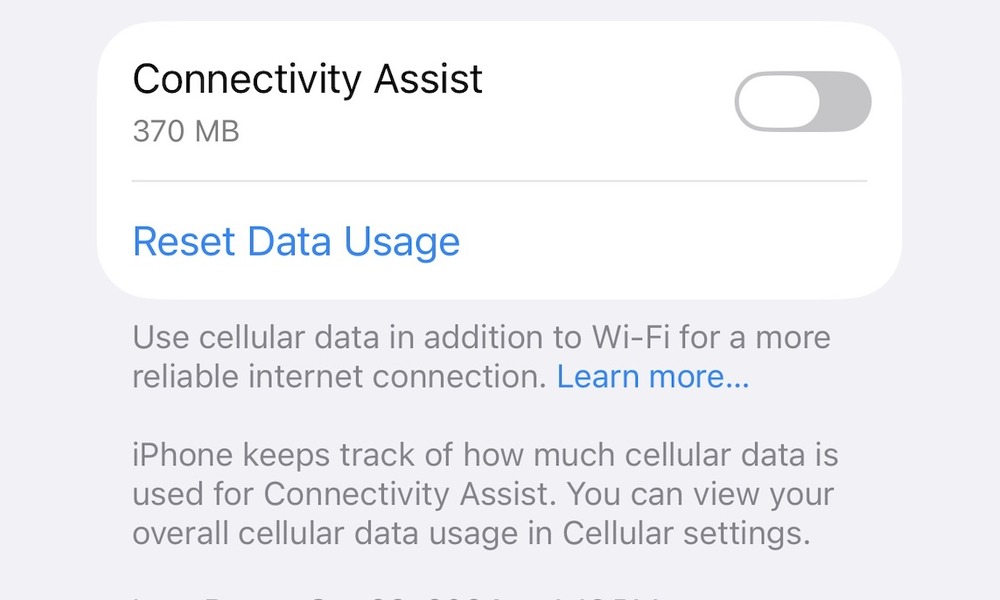
- Open the Settings app.
- Tap Wi-Fi and make sure Wi-Fi is turned on.
- Scroll to the bottom of the screen. Turn off the Connectivity Assist toggle.
While you’re there, you’ll also see how much cellular data the feature has used. That number is a quick way to tell whether it’s been working overtime on your iPhone.
To turn it off for one network only:
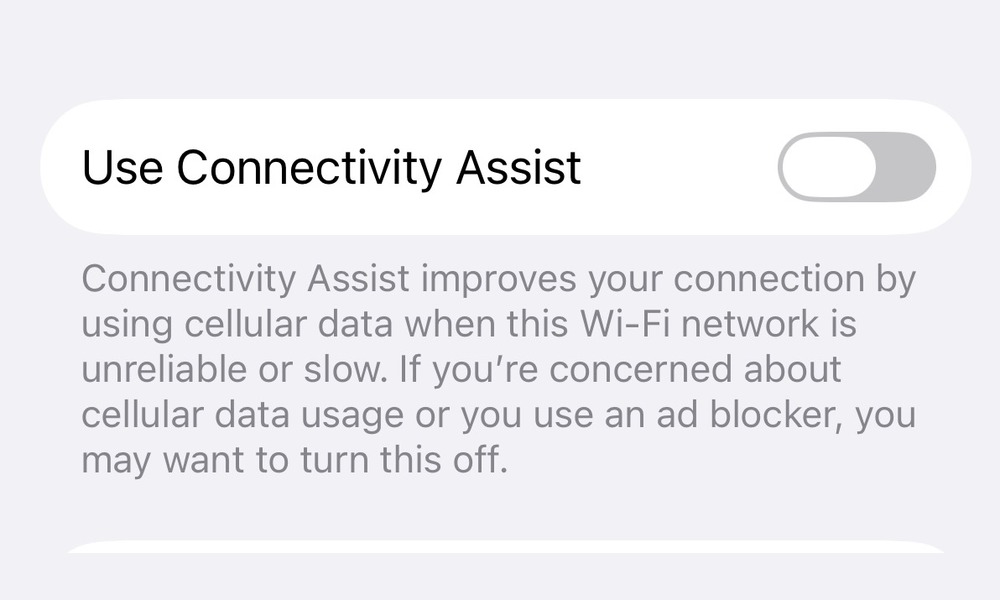
- Open Settings and tap Wi-Fi.
- Tap the (i) button next to the network you want to change, such as your home Wi-Fi.
- Turn off the Use Connectivity Assist option for that network.
We think this per-network approach is a solid middle ground. You can keep Connectivity Assist off at home, where your Wi-Fi is reliable and any battery drain is pure waste, while leaving it on for places like coffee shops or airports where the backup connection is likely useful.
Another tip: Some users reported they had to turn it off both globally and for their home network before the drain eased, so check both spots for consistency.
Should You Turn It Off?
It depends on your plan and your Wi-Fi. If you have unlimited data and often deal with flaky Wi-Fi, Connectivity Assist does its job well. You may decide the convenience is worth some battery.
If you’re on a limited data plan, mostly use reliable Wi-Fi, rely on a DNS ad blocker or VPN, or simply want every bit of battery life, turning it off is an easy call. You won’t lose anything except a fallback for slow Wi-Fi, and you can always switch it back on later.
Apple doesn’t use Connectivity Assist when you’re roaming internationally or have Low Data Mode turned on for cellular, so those settings also limit it. If your battery still isn’t recovering after turning it off, check Settings > Battery to see which apps are using the most power.