How to Cut Your watchOS 27 Download Time to Just a Few Minutes
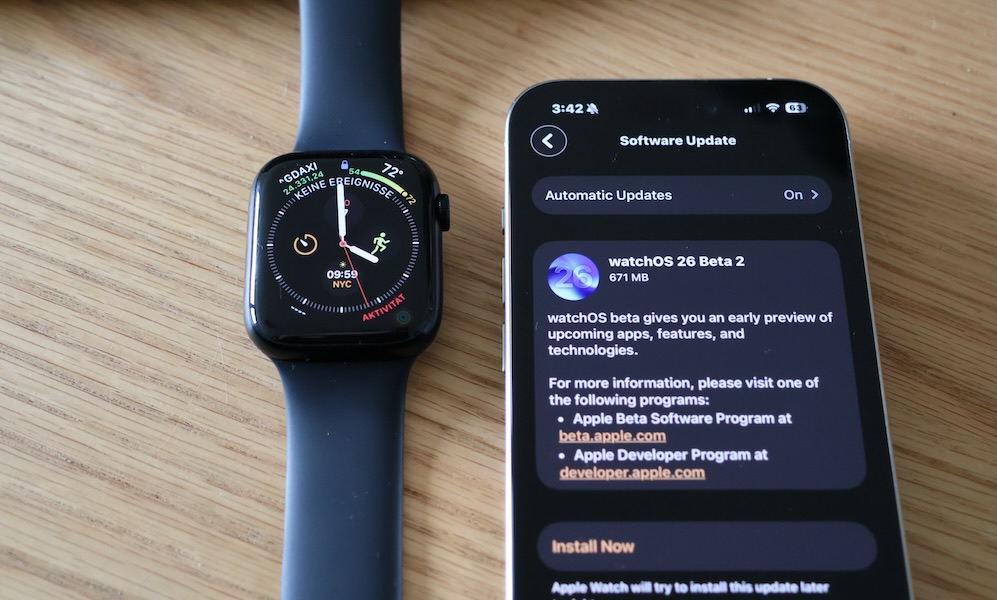 Bendix / Adobe Stock
Toggle Dark Mode
It’s been an exciting month for Apple lovers. Last Wednesday, the iPhone Duo and iPhone 18 Pro were revealed and are now available for pre-order. Siri AI is finally here, expanding artificial intelligence across Apple devices, and the Apple Watch Series 12 and Ultra 4 were announced with Apple’s new Health Sensing System.
Beyond new products, September Apple events also mark the time to update the operating systems on all of your favorite Apple products. These highly anticipated updates are all ready to go — macOS 27 Golden Gate, iOS 27, iPadOS 27, watchOS 27, and visionOS 27 (if you’re lucky enough to own a Vision Pro).

Download times vary by device and internet speed. Sometimes it’s inconvenient, but it’s always worth it. Apple Watch updates typically take longer than other Apple devices, like an iPhone or iPad — sometimes anywhere from 30 minutes to over an hour, and major updates can take even longer.
These watchOS updates can be bottlenecked by hardware limitations and slow data transfer from your paired iPhone. Before you start the update to watchOS 27, there’s a trick to speed things up.
Apple Watch is connected to your iPhone over Bluetooth. This is by design. Bluetooth uses less battery than Wi-Fi, so it makes sense for everyday syncing. By default, Apple Watch grabs updates through Bluetooth. The fix is to trick your Apple Watch to use Wi-Fi instead. Here’s how.
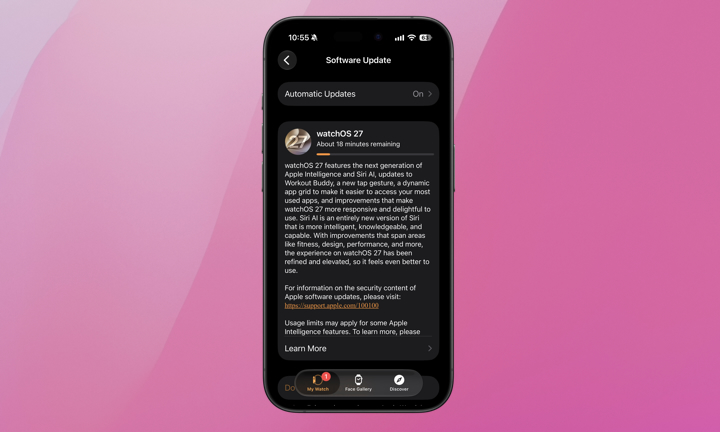
- Make sure your Apple Watch and iPhone are connected to the same Wi-Fi network. Keep the devices close to each other. Your Apple Watch must be connected to its charger and charged to at least 50%.
- Start the updates as usual by opening the Watch app on your iPhone.
- In the iPhone Watch app, go to General > Software Update, and tap Download & Install
- Allow the update to begin downloading
- Once you see something like “About X minutes remaining,” you’ll know the transfer is underway, over Bluetooth.
- On your Apple Watch, go to Settings > Bluetooth and turn it off. You’ll likely receive another prompt to turn Bluetooth back on. Tap Cancel. This will allow the update to continue over Wi-Fi.
You’ll find similar guides telling you to disable Bluetooth on the iPhone instead. That can definitely work, but we’ve found it to be less reliable than doing so from the Apple Watch itself. Disabling Bluetooth on the iPhone only can cause the watch to continue to search for the Bluetooth signal without cleanly switching over to Wi-Fi.
Finally, there’s another workaround. Rather than use your iPhone for the update, you can initiate an update directly from the Apple Watch. Turn off Bluetooth in your iPhone’s Settings app (not Control Center, which only disconnects active accessories temporarily — and won’t disable connections from the Apple Watch). Then, on your Apple Watch, go to Settings > General > Software Update. This method is also faster, as Apple Watch pulls the update over its own Wi-Fi connection instead of Bluetooth. Good luck and don’t forget to update all of your Apple devices.