5 Essential Steps Before Installing the iOS 27 Public Beta
Toggle Dark Mode
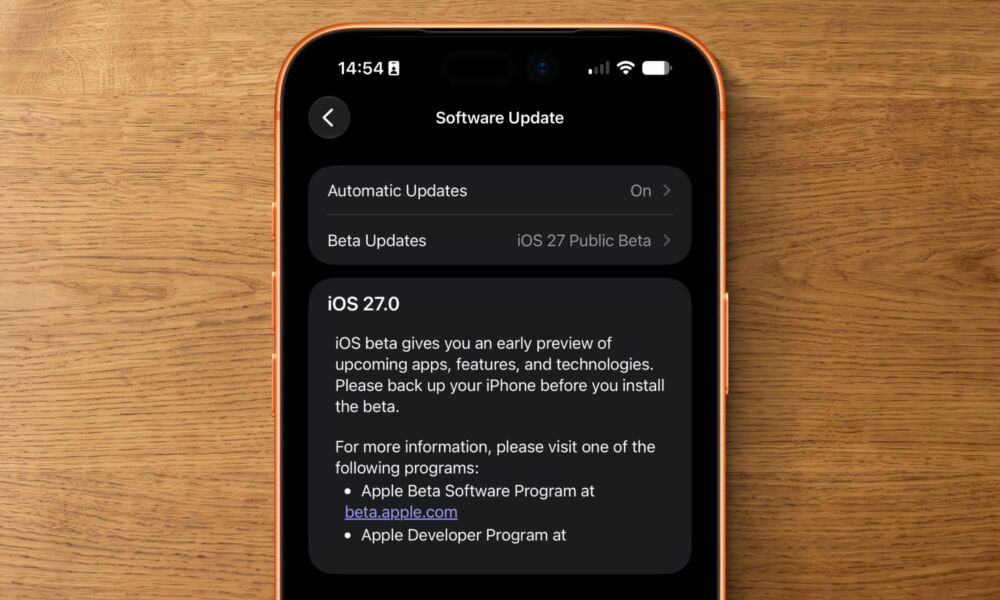
The iOS 27 public beta is out now, and it finally gives you a chance to try Apple’s next major update before its official release this fall. It includes early versions of the new interface changes, performance improvements, Apple Intelligence features, and updates to many of the apps already installed on your iPhone.
You can join the Apple Beta Software Program for free, and the process is almost instant. Once your Apple Account is enrolled, the public beta appears in the Software Update section of the Settings app like a regular iOS update.

Still, you shouldn’t treat a beta like any other update; the software is unfinished, and Apple is making it available so users can test features and report problems before the public release. Apps can crash, your iPhone may run warmer than usual, and battery life can change from one beta version to the next.
Although it might not happen, things could go badly, which is why it’s important to prepare your iPhone. Before you install the iOS 27 public beta, work through these steps and make sure you’re comfortable with the risks involved.
Update Your iPhone to the Latest Public Version First
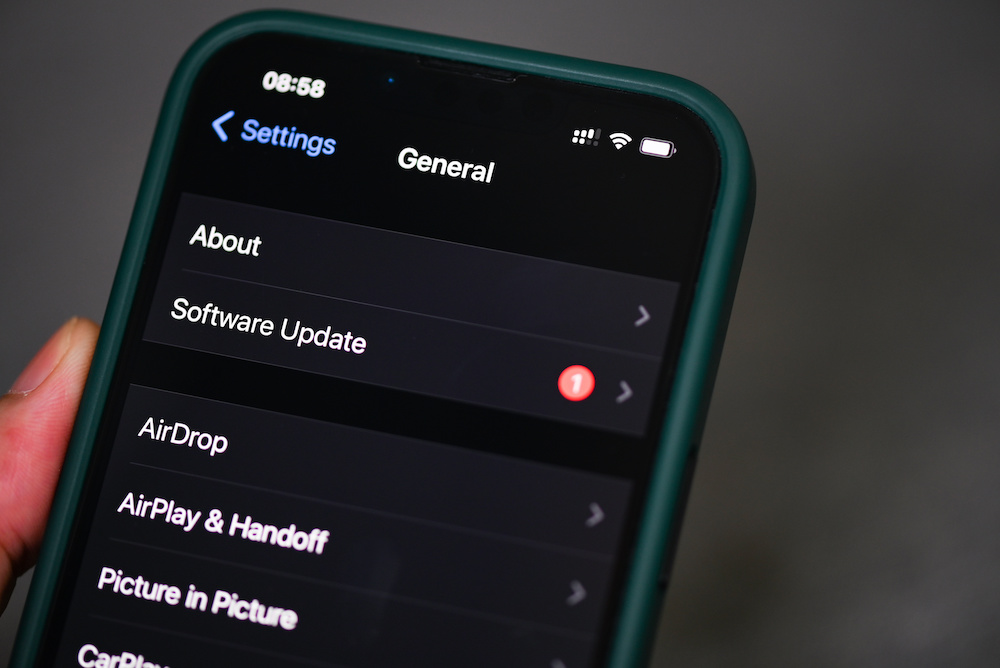
Before switching to the iOS 27 beta, install the newest public version of iOS 26 that’s available for your iPhone. This gives you the latest security updates and bug fixes before you create your pre-beta backup.
Starting from the newest public release also keeps the update process as straightforward as possible. You won’t be carrying unresolved problems from an older version of iOS into the beta. If something goes wrong afterward, you’ll have a clearer idea of whether the beta caused it or not.
To update your iPhone to the latest iOS 26 version available:
- Open the Settings app.
- Scroll down and tap General.
- Go to Software Update.
- Download any available iOS 26 update.
- Tap Install Now.
Wait for your iPhone to install the latest update, and after it restarts, you can continue with the other steps on the list.
Update Your Apps
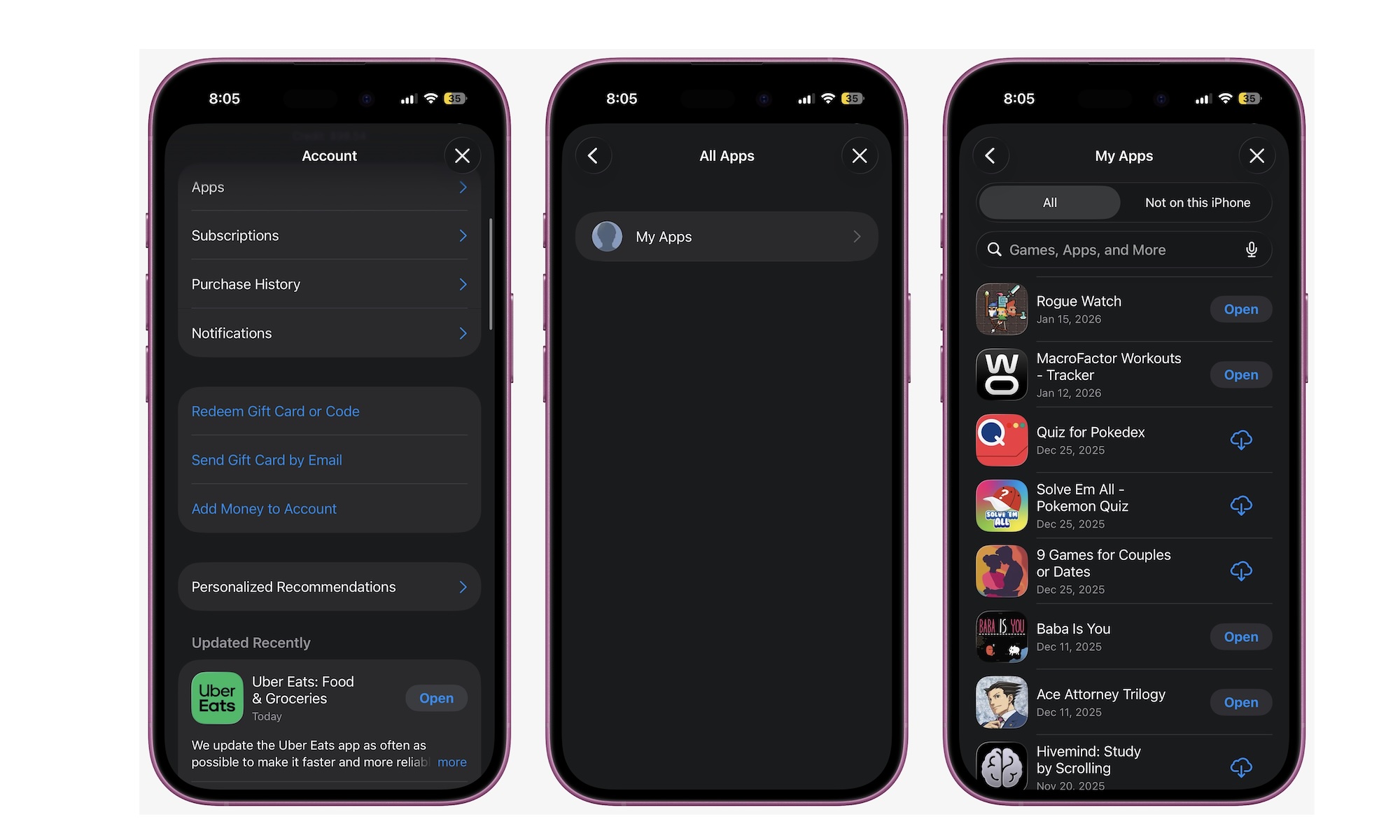
The operating system isn’t the only software you should update before installing the beta. Open the App Store and install every available update first.
Developers often release updates with compatibility improvements as Apple prepares a new version of iOS, since they’ve already had time to optimize their apps for iOS 27 with the developer beta. Of course, an update won’t guarantee that an app works perfectly with iOS 27, especially if the app is made by a smaller dev team. Also, don’t expect third-party apps to include any new iOS 27 features yet, as Apple doesn’t allow these on the App Store until after the public release.
Still, there’s no reason to test the beta with an outdated version of an app.
Start by making sure that your most used or important apps are up to date. Afterward, you can update the rest of the apps that you kind of use but aren’t as important.
To update your apps:
- Open the App Store.
- Tap your profile picture in the upper-right corner.
- Go to App Updates.
- From there, you can update any app manually or tap Update All and let your iPhone take care of it.
Create a Fresh iCloud Backup
This is probably the most important step, and if you’re only going to do one thing from this list, let it be this.
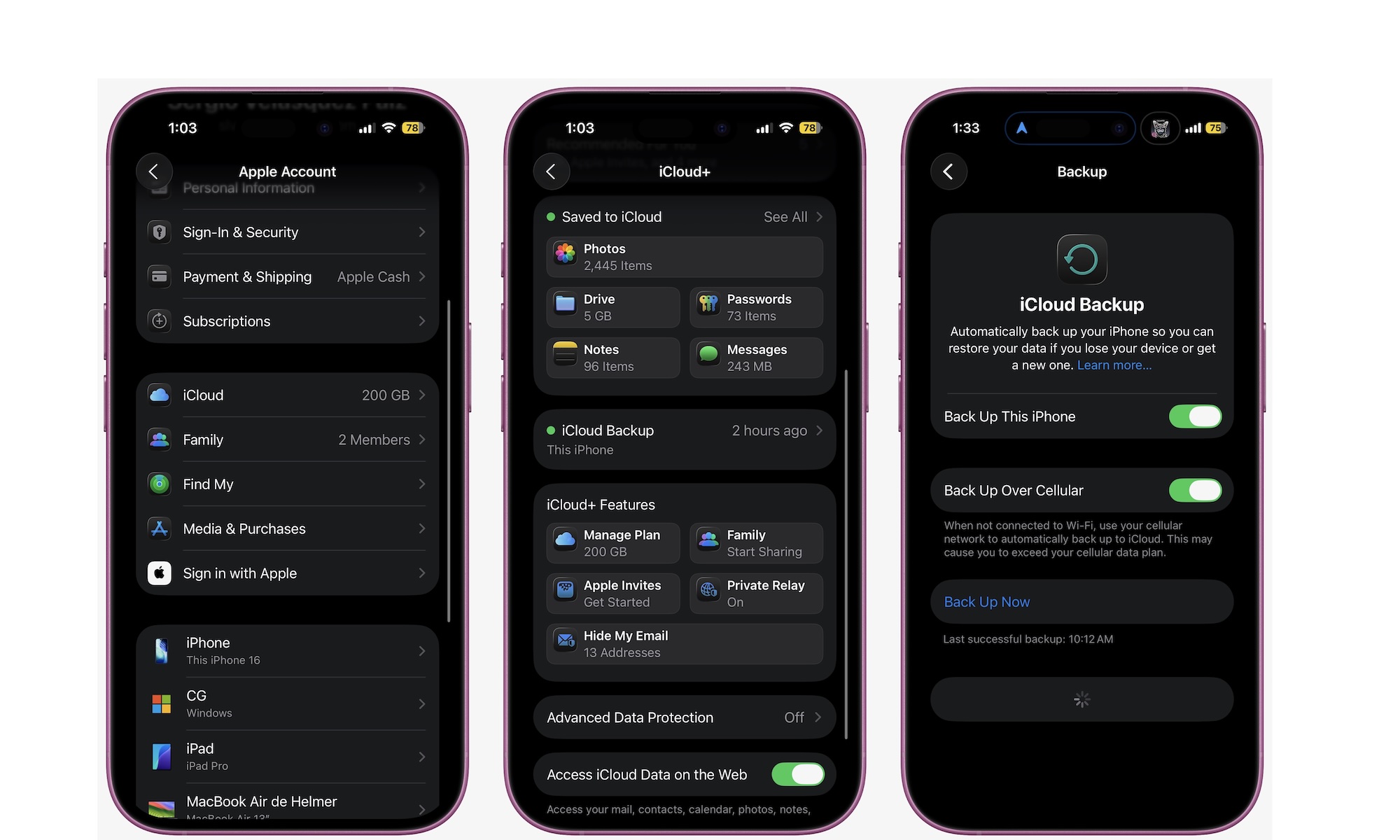
You should create a fresh iCloud backup before installing iOS 27. This gives you a recent copy of your device settings and app information in case the update causes a serious problem.
Granted, betas are pretty safe nowadays, but that doesn’t mean you should trust them blindly. Apple releases these updates because the company wants people to help test the product, not because they’re perfect from the get-go — and sometimes public software updates even have issues.
So make a backup, and don’t just assume that an automatic backup completed recently. Your iPhone may have skipped one because it wasn’t connected to Wi-Fi or charging, or maybe you didn’t have enough storage to make the backup.
Check the date and time of the latest successful backup yourself. If the backup is several days old, start a new one manually. Or, you can create your own backup manually like this:
- Open the Settings app.
- Tap your name at the top of the screen.
- Tap iCloud.
- Go to iCloud Backup.
- Turn on Back Up This iPhone if it isn’t already enabled.
- Tap Back Up Now.
- Keep the iPhone connected to Wi-Fi.
Once that’s done, you’ll have a copy of your iPhone’s current data in case something goes wrong, or you want to downgrade back to iOS 26.
Free Enough Storage for the Update
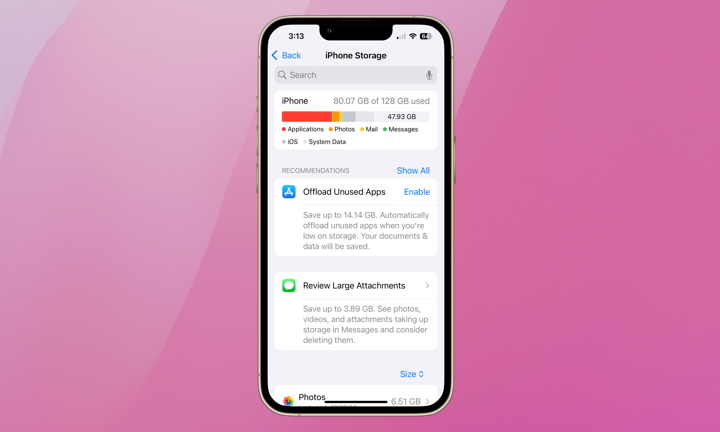
Your iPhone needs free local storage to download and install the iOS 27 public beta. The update file itself is only part of the space required. iOS also needs room to prepare the installation and manage temporary files.
If your storage is nearly full, the beta may not even download at all. Even if the installation succeeds, leaving almost no free space can cause poor performance afterward. Apps still need room for caches and updates.
Moreover, even if you’re not installing any software update, it’s always best to give your iPhone some breathing room for any files it needs to store. So first, check your storage like this:
- Open the Settings app.
- Scroll down and tap General.
- Tap iPhone Storage.
- Wait for the storage chart to load.
- Check where your storage is being consumed the most, and review your iPhone recommendations.
From there, it’s time to delete as much as you can. Get rid of downloaded movies, songs, or podcasts you don’t care for anymore. Move on to files you aren’t using and even apps you haven’t opened in a while. The more you delete, the better.
Apple doesn’t publish one universal amount of free space that’s required for every beta installation. The required space can change depending on the software version and even your device. Giving iOS several gigabytes of breathing room is far safer than trying to install it while the storage warning is already visible.
Now, It’s Time to Install the iOS 27 Public Beta
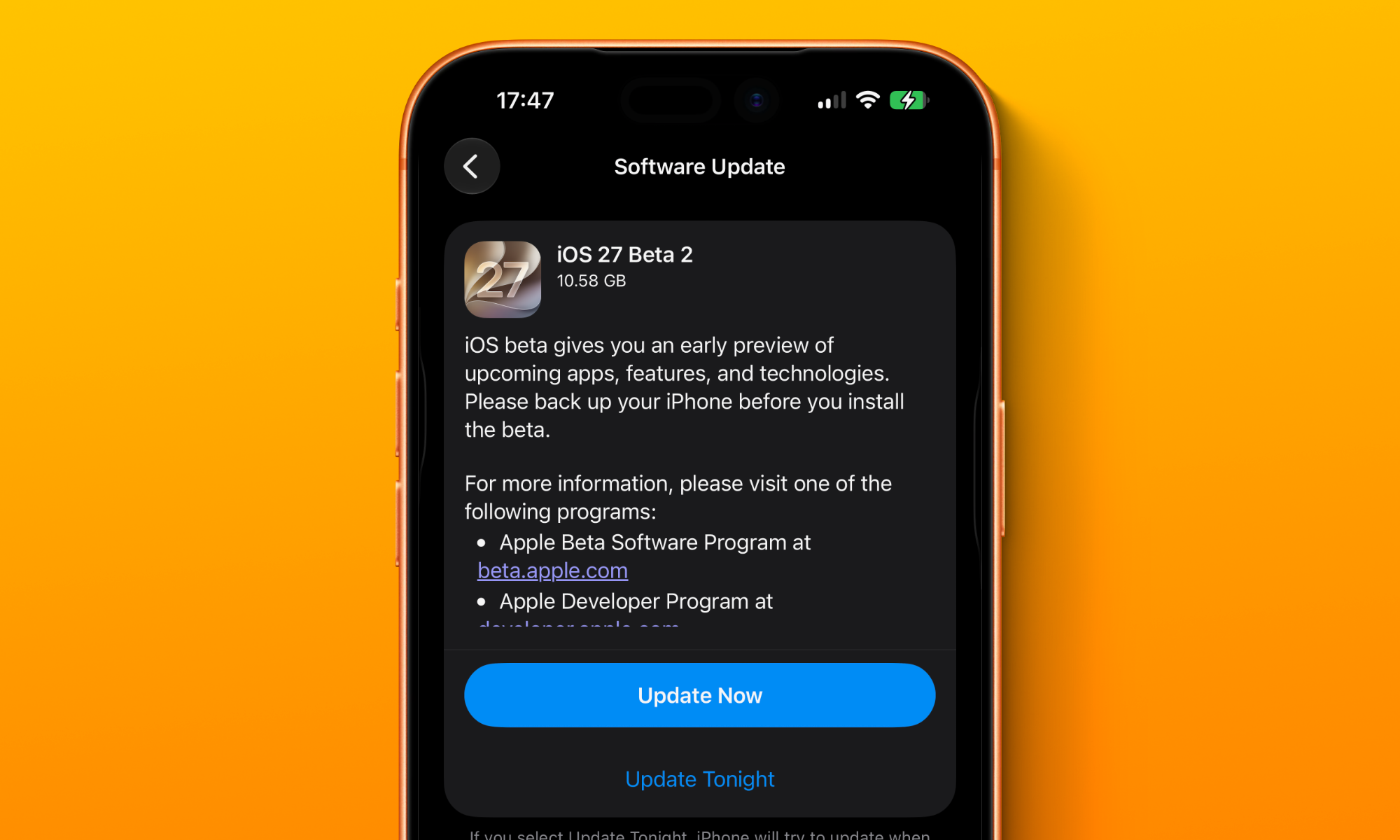
Once you’ve finished with these basic steps, you can enroll through the Apple Beta Software Program. Use the same Apple Account that’s signed in on the iPhone you want to update.
After enrollment, iOS 27 Public Beta should appear under Beta Updates in the Settings app. You no longer need to download a separate configuration profile on current versions of iOS.
So simply go to Settings > General > Software Update > Beta Updates and select iOS 27 Public Beta. Now, tap the back button and let your iPhone search for the latest software update. Finally, tap Install Now.
After it’s done installing, you can use iOS 27 however you want and try everything new you can find. If you want, you can use the Feedback Assistant app that automatically appears on your iPhone and report all the issues you encounter.
Be Prepared Before You Install iOS 27
Installing the iOS 27 public beta gives you early access to Apple’s latest iPhone features, but it also means accepting the problems that come with unfinished software. Even a relatively stable public beta can affect the apps you use every day.
That’s why testing a beta on a spare iPhone is ideal — but if you’re using your main device, proper preparation is essential before you hit update.
By following the tips on this list, you’ll make sure to have the least amount of trouble if something goes bad with the beta. Again, that’s pretty unlikely, but not impossible. Overall, it’s best to be safe rather than sorry.