How to Juggle Two iPhones With One Number Using iOS 27
Toggle Dark Mode
If you have two iPhones, you’ve probably had to decide which one gets your main phone number. You could move your eSIM whenever you wanted to switch devices, but that’s hardly convenient if you regularly go back and forth between them.
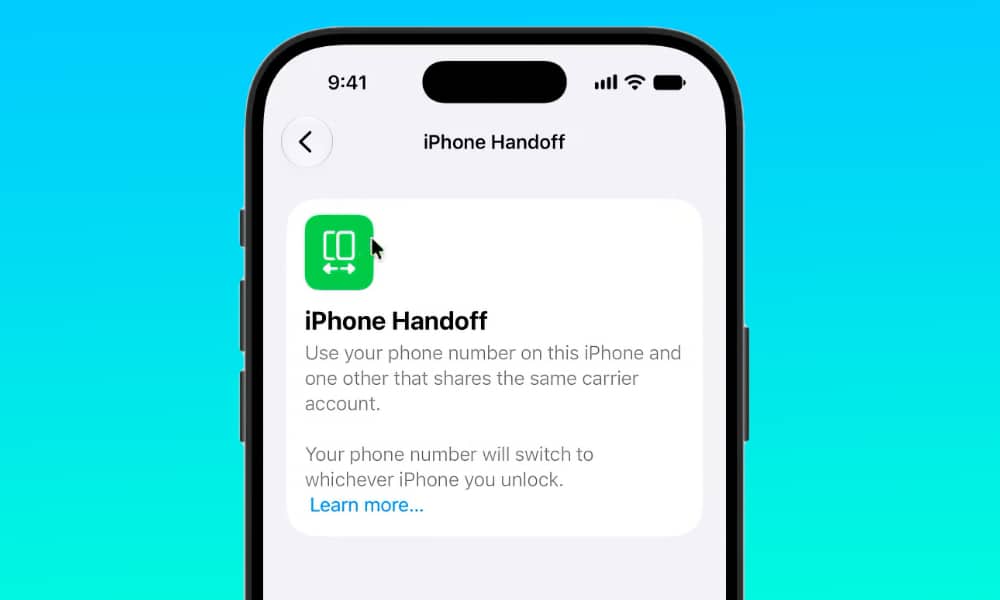
Fortunately, iOS 27 finally gives you another option. Apple has introduced a new feature called iPhone Handoff that lets you use the same phone number across two separate iPhones.

For instance, you might keep an expensive iPhone Duo as your everyday device but take an older model when you go hiking or to the beach. It’s also great if you want to have a “dumber” iPhone for those days when you want to stay off social media but still want to be able to access the web and get in touch with your friends or family.
There are a lot of positives with this new feature, but there are also a couple of limitations. Still, if you have two iPhones lying around, here’s how you can use both at the same time.
What Is iPhone Handoff?
First, don’t confuse iPhone Handoff with the Handoff feature that’s been available on Apple devices for years.
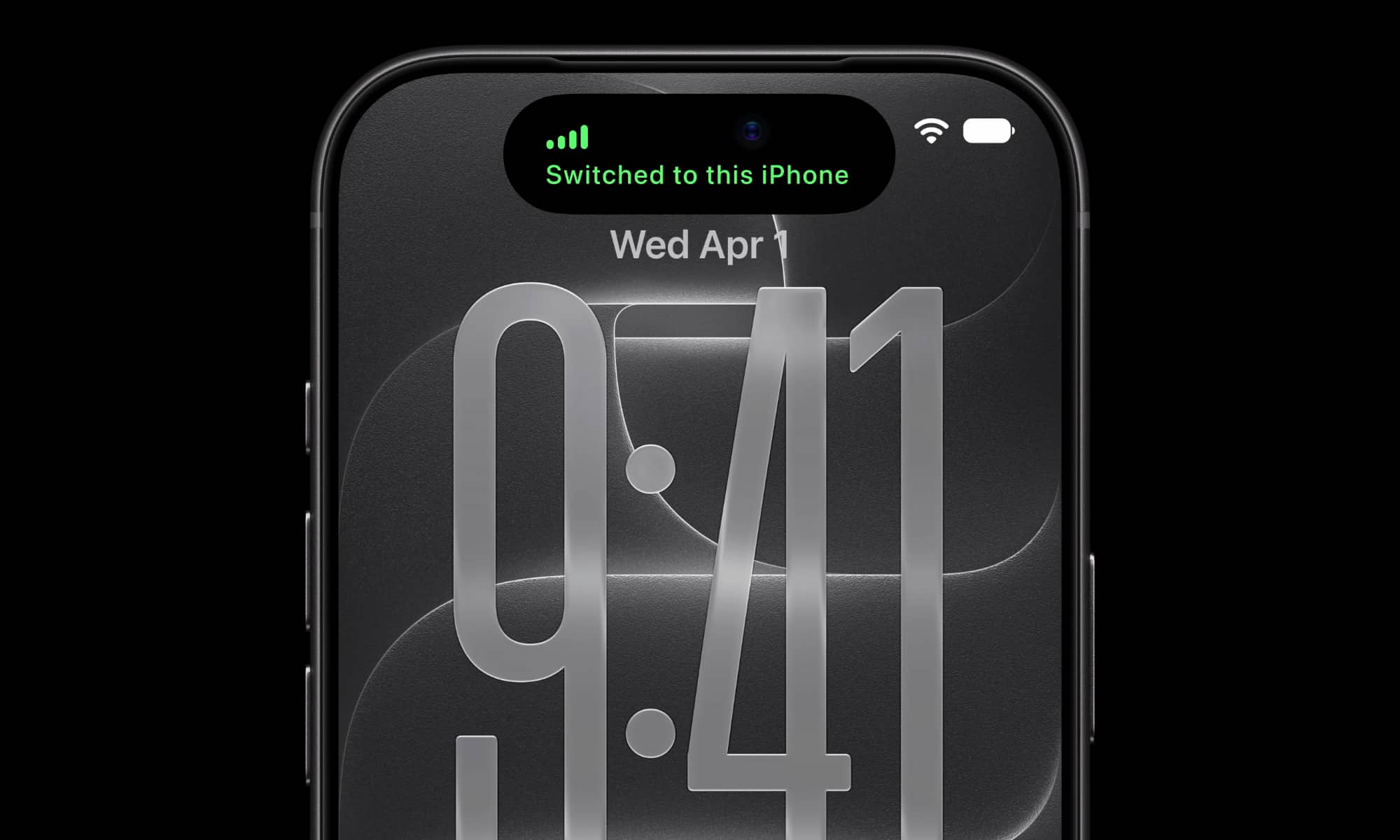
The iPhone Handoff feature in iOS 27 lets two iPhones seamlessly share the same phone number.
One device becomes your main iPhone, while the other becomes your secondary iPhone. Your main eSIM remains on your primary device, and your carrier adds a companion eSIM to the second one.
Your phone number can then move between them automatically. When you unlock the iPhone you want to use, that device becomes active on the cellular network.
However, your phone number isn’t simultaneously active on both devices. Only one iPhone can be active at a time, so you aren’t creating a perfect duplicate of your cellular service.
Still, switching between them is considerably easier than transferring an eSIM manually every time.
What Do You Need to Use iPhone Handoff?

Having two iPhones is one of the biggest things, but it’s not quite enough. Apple has a few requirements both devices must meet before you can share your number.
First, both iPhones need to run iOS 27 or later. They also need to be connected to Wi-Fi when you configure the feature.
You’ll need to sign in to the same Apple Account on both iPhones. FaceTime and iMessage must also use that same Apple Account, and Messages in iCloud must be enabled so your conversations stay synchronized.
Most importantly, you’ll need an eSIM from a carrier that supports iPhone Handoff. This is currently the biggest limitation since the feature is only available through one carrier in the US and another one in Germany. Of course, this will probably change in the future, but for now, you can only use iPhone Handoff if you’re part of T-Mobile.
You Also Have to Pay to Use iPhone Handoff
Unfortunately, iPhone Handoff isn’t necessarily going to be free.
The feature depends on your carrier, and Apple warns that carrier fees may apply when you enroll. Your carrier ultimately decides whether iPhone Handoff is available and how much you’ll pay for it.
As we mentioned, T-Mobile is one of the first carriers in the United States to support iPhone Handoff, and it charges an additional $5 per month. Telekom is the first carrier to support it in Germany.
Apple has also confirmed that Verizon in the United States and EE in the United Kingdom will support iPhone Handoff later this year. However, we don’t know how much either of them will charge for these services.
How to Set Up iPhone Handoff
Once you have everything ready, here’s how you start using iPhone Handoff from both your iPhones.
- Open the Settings app on your secondary iPhone.
- Tap on Cellular.
- Select Set Up Cellular or Add eSIM.
- Tap Use Number on This iPhone and Another.
- Tap Continue.
- Follow the instructions on your screen to finish adding your number.
When you start doing this, you’ll designate one device as your main iPhone. Apple recommends choosing whichever one you expect to use most frequently.
This is a really important step, as some features might only be accessible on your main iPhone. For instance, Apple says services such as Call Forwarding and Caller ID may need to be controlled from your primary device.
What Happens After You Set Up iPhone Handoff?
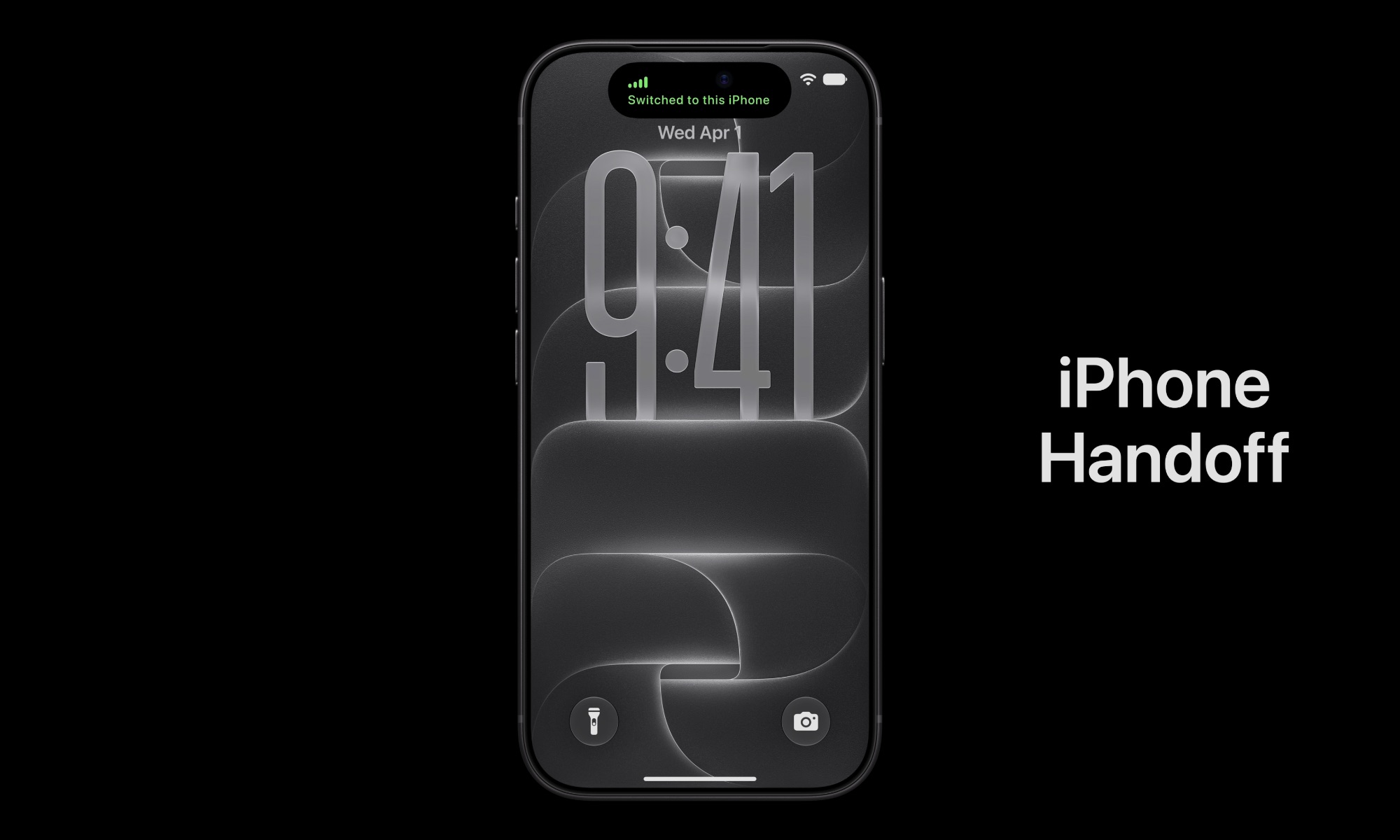
This is where iPhone Handoff becomes pretty impressive. You don’t need to dig through Settings whenever you want to change devices. Simply unlock the iPhone you want to use, and your phone number automatically becomes active on it. You’ll see a message at the top of the display confirming that you’ve switched to that iPhone.
Your calls and voicemail follow you to the active device. Your messages do too, including iMessage and regular texts.
Find My changes automatically as well. The location associated with you follows whichever iPhone is currently active, rather than staying on your main device.
With all of that said, there are a few things that won’t switch between iPhones. For instance, your Apple Watch will stay paired with your main iPhone. Your Wallet also has a few limitations. You can add payment cards to both devices, and Apple says you can share a car key across them. However, certain things like transit passes or IDs may only work on one iPhone at a time.
Of course, now you’ll have to be extra careful with two devices. Since simply unlocking a device transfers your active number, you’ll want to ensure both phones have strong passcodes to keep your messages and cellular access secure.
Your Second iPhone Just Became a Lot More Useful
Most people probably don’t need to carry two iPhones. However, iPhone Handoff opens up some interesting possibilities if you already have another device.
Whether you actively use this feature or not, you can’t deny that it’s pretty impressive and practical. Unfortunately, not everyone will be able to use it for now, but that will change in the future.
Just remember to be more careful, as anyone with access to your passcode could “borrow” your iPhone and your phone number without you even realizing it.