
Google’s Gemini App Hits the Mac | Here’s Why It’s Better Than the Browser
Toggle Dark Mode
Less than a month after Bloomberg’s Mark Gurman revealed that Google was working on a native Gemini experience for Mac users, the search giant has now officially released Gemini for Mac.
While the first public version of the app is a bit less ambitious than what Gurman predicted, it’s likely only the first step. Even ChatGPT had pretty humble beginnings on the Mac before expanding to hook deeper into native Mac apps and operating system features.
In Google’s typical fashion, today’s public release of Gemini is actually version 1.45.6.217 under the hood. Google has reportedly been running a private beta of the app for several weeks, so it’s likely those accounted for all the other numbers between version 1.0 and what we see today.
Introducing Gemini on Mac.
It’s the first time we’re bringing the @Geminiapp to desktop. The team built this initial release with @Antigravity, and it went from an idea to a native Swift app prototype in a few days.
More features on the way! pic.twitter.com/YRy0Pqq6zo— Sundar Pichai (@sundarpichai) April 15, 2026
Beta testers were also told that the “early version” they were testing would have “only critical features from the other clients,” but it wasn’t entirely clear at that time if this was only for the testing phase or Google planned to release a basic version and improve on it later. Well, now we have the answer.

What Can I Do With Gemini for Mac?
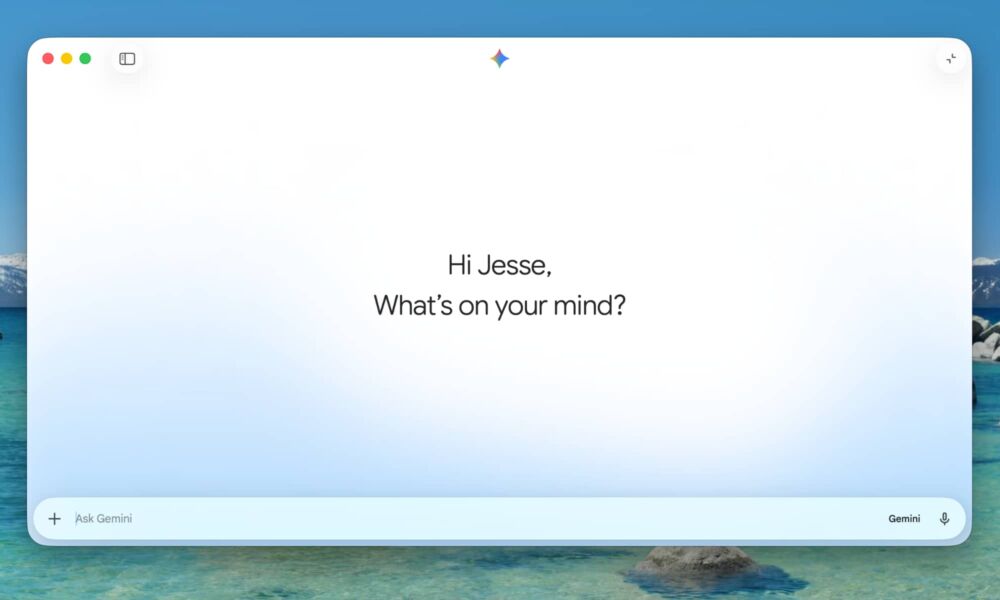
In its simplest form, Gemini for Mac merely provides a native macOS user interface for Google’s AI chatbot, saving you the trouble of opening it in a browser. That’s a nice perk by itself for any frequent Gemini user, but it also does a much better job of feeling at home on your Mac.
In addition to opening in its own window with its own dock icon, Gemini for Mac can live in your menu bar for quick access, and also supports keyboard shortcuts for calling it up quickly.
However, perhaps the most useful feature is the “mini chat” window — a Spotlight-style pop-over that brings up a text entry box where you can type in a question or prompt to get started. It’s even triggered by a similar default keystroke: Option + Space, although you can customize that to anything else that makes sense for you.
This expands into a larger dialog to show Gemini’s answer, which can persist for a few minutes even after you close the mini chat window so you can always easily come back to it. By default, that’s 10 minutes, but you can configure this in the Gemini app’s settings to either clear the current chat as soon as you exit the mini chat window or leave it there for up to 30 minutes.

The mini chat window floats on top of other windows and provides all the same controls as the main app, with buttons on the right side of the text entry box that allow you to choose your preferred model (e.g., Fast, Thinking, or Pro), or enable voice interactions (after granting microphone permission, of course).
A plus button at the left lets you upload photos or other files or select specific tasks such as creating images, videos, or music or accessing Canvas, Deep Research, or Guided learning.
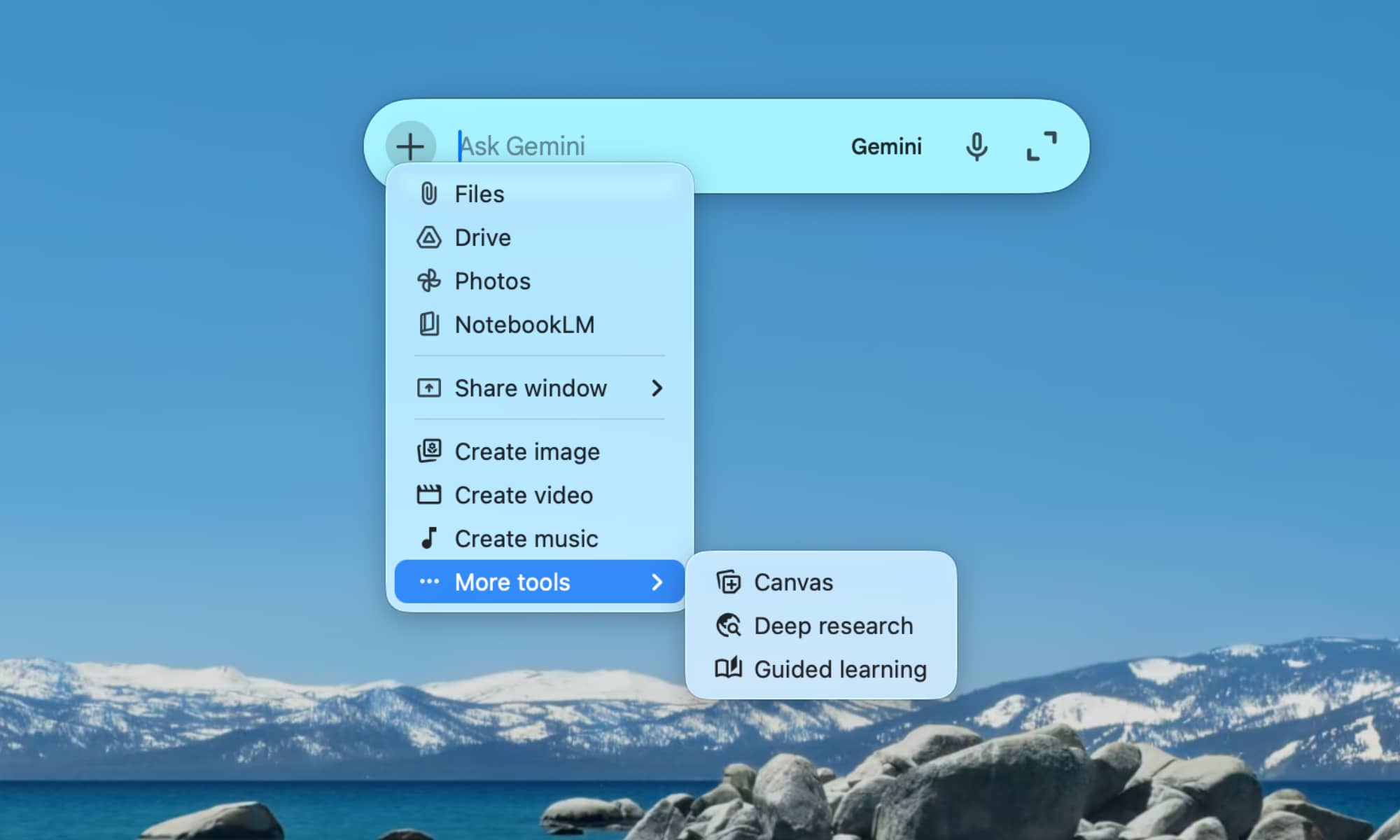
Those are essentially the same set of tools you’ll find in the web app, but there’s also one handy extra menu option here: Share window. This is where Gemini for Mac sets itself apart from the browser experience, as you can link it up to any open app window on your Mac, whether that’s an image in Pixelmator Pro or an article draft in Ulysses, saving you the trouble of cutting and pasting text or images that you want Gemini to analyze or comment on.
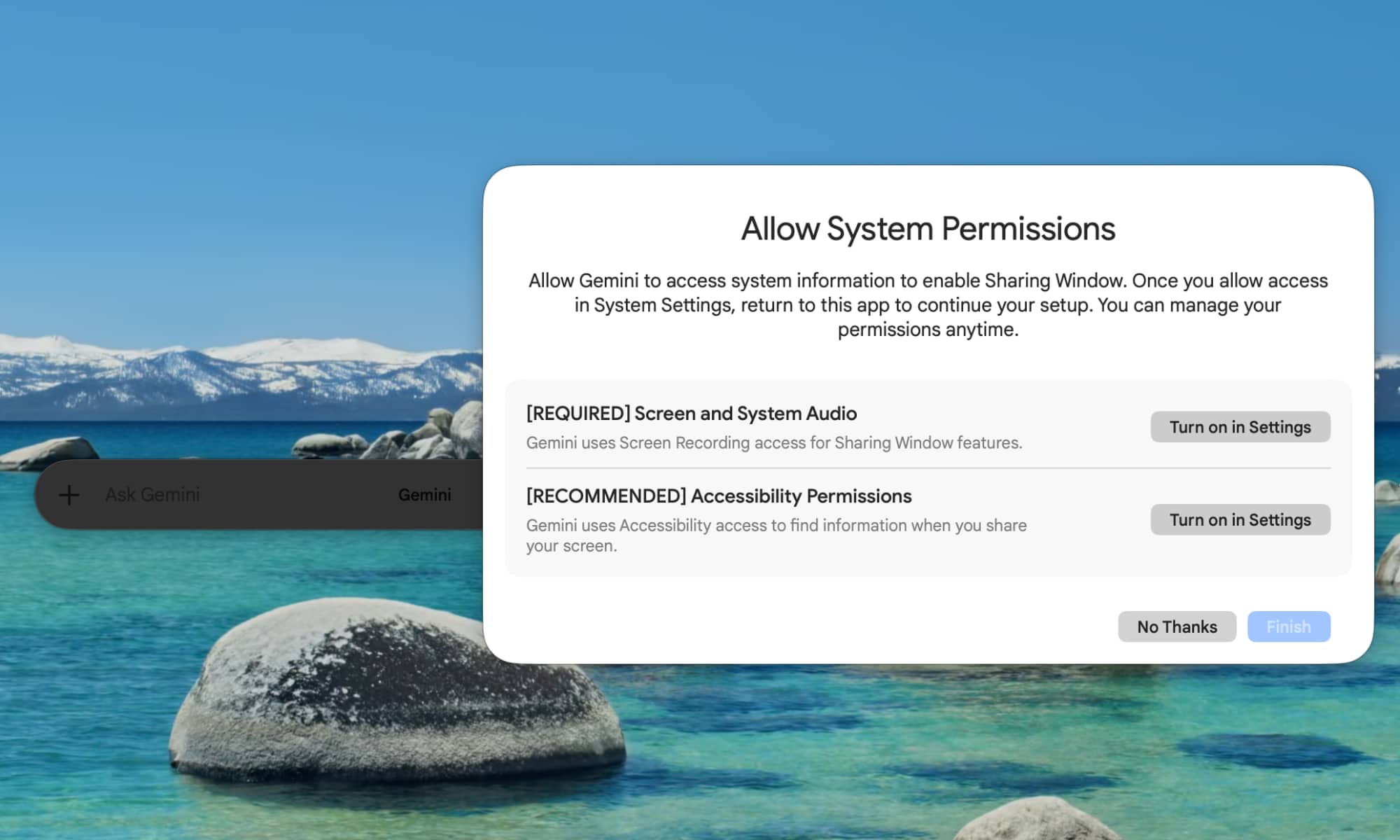
Naturally, you’ll need to grant the Gemini app the necessary permissions to do this, and you’re completely free to skip that step if you’d rather not share anything live with Google’s chatbot. Technically, Gemini should only be able to view the windows you give it access to, and it’s worth noting it can’t manipulate those windows, but only read what’s visible at the moment you interact with the app.
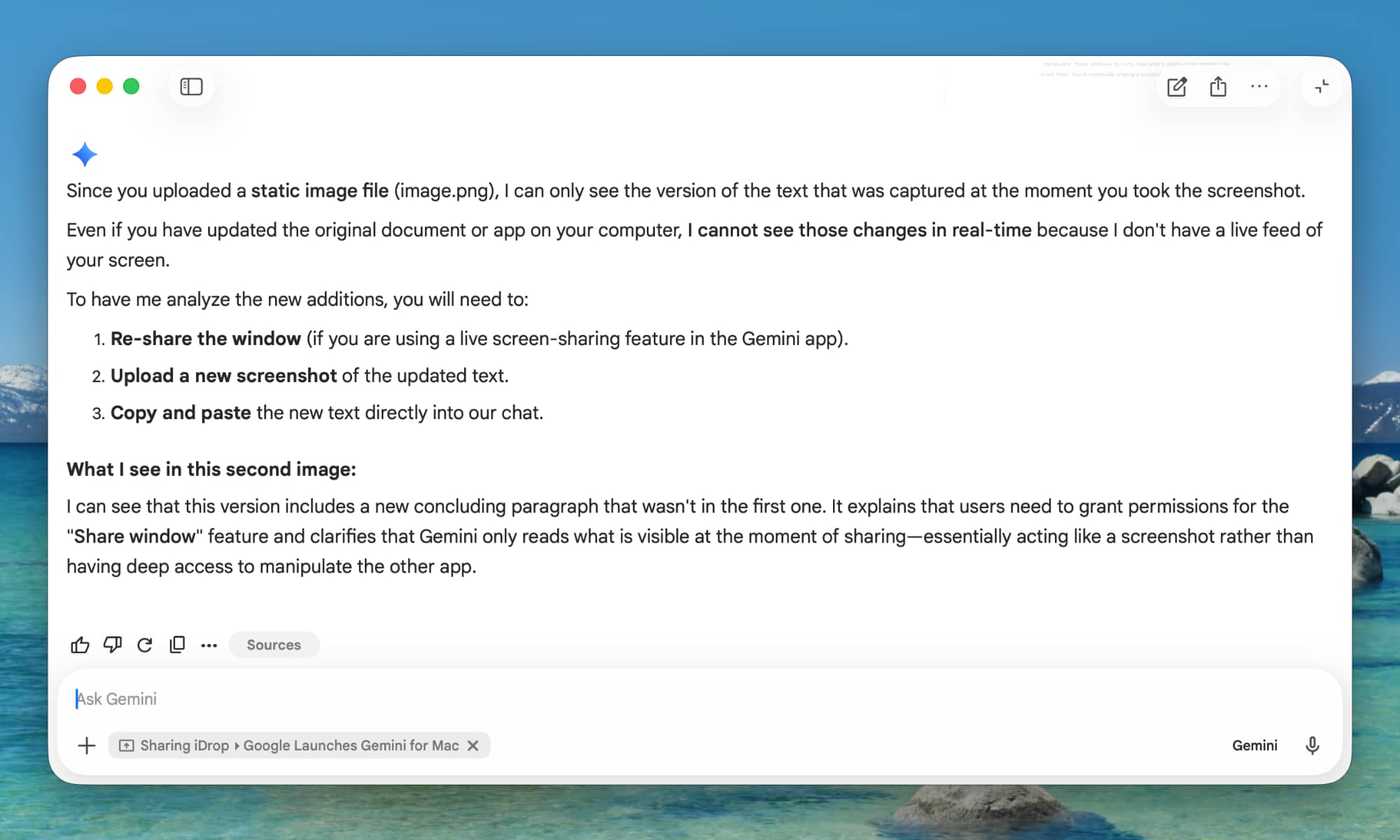
In other words, you’re essentially sharing a screenshot, although it will remain attached to the prompt for follow-up questions, allowing Gemini to grab an updated version as you continue the conversation unless you specifically remove it by clicking the small “x” beside the window name at the bottom of the text area.
Sadly, one thing that appears to be missing in Gemini for Mac at this stage is access to Gems — customized versions of the AI assistant that can handle specific tasks like brainstorming, editing, and coding. Those will probably come in a future update, but for now, you’ll need to switch back to your web browser — or use the iPhone or iPad apps — to access these.
Gemini for Mac will also fully sync with the web and iPhone versions, provided you’re logged into the same account on all of your devices. You’ll also naturally be able to take full advantage of whatever Gemini plan you’re on, whether that’s Pro, Workspace Extended, or even Ultra. You can download Gemini for Mac from Google’s website free of charge. It’s available in all languages and countries where Gemini is supported, and requires macOS Sequoia 15.0 or later — a welcome move for those who are still reluctant to take the plunge into macOS 26 Tahoe’s Liquid Glass design.






