
iOS 26.2 Is Here to Stop AirDrop Spam
Toggle Dark Mode
In an unusual turn of events for a Friday, Apple has just released an entire set of OS 26.2 updates for the iPhone, iPad, Mac, Apple Watch, Apple TV, HomePod, and Vision Pro.
While a weeks-long beta cycle means there aren’t too many surprises in today’s releases, it’s highly unusual for Apple to push out any new software updates this late in the week. These typically land on a Monday or Tuesday. We’ve been anticipating iOS 26.2 and the rest of the gang for a while, so when Thursday passed without a peep, we figured we’d be kept waiting until next week.

It’s possible Apple planned to release these sooner, as it seeded out the first Release Candidate (RC) build to developers and public beta testers early last week. However, Monday brought a rare second RC build of iOS 26.2, suggesting Apple’s software engineers found some show-stopping bugs they wanted to address before unleashing the new build on the public.
That’s a good thing, of course. “Stable” beats “early” every time. Either way, the 26.2 updates are now here, along with a full set of release notes that confirm what we saw during the beta cycle with a few smaller enhancements that nobody found before now. Here’s what’s new across all of Apple’s platforms.
AirDrop Codes to Stop Unwanted Sharing
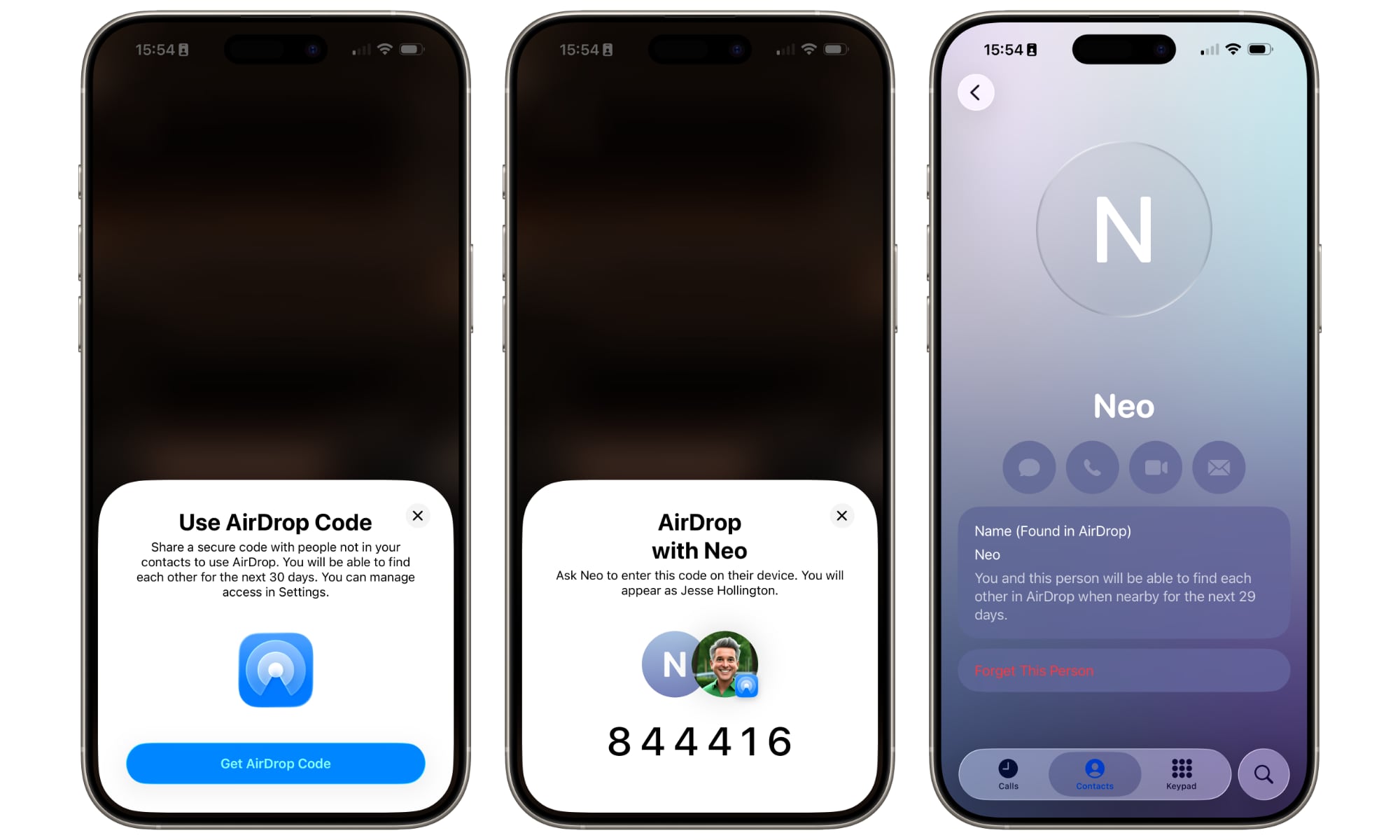
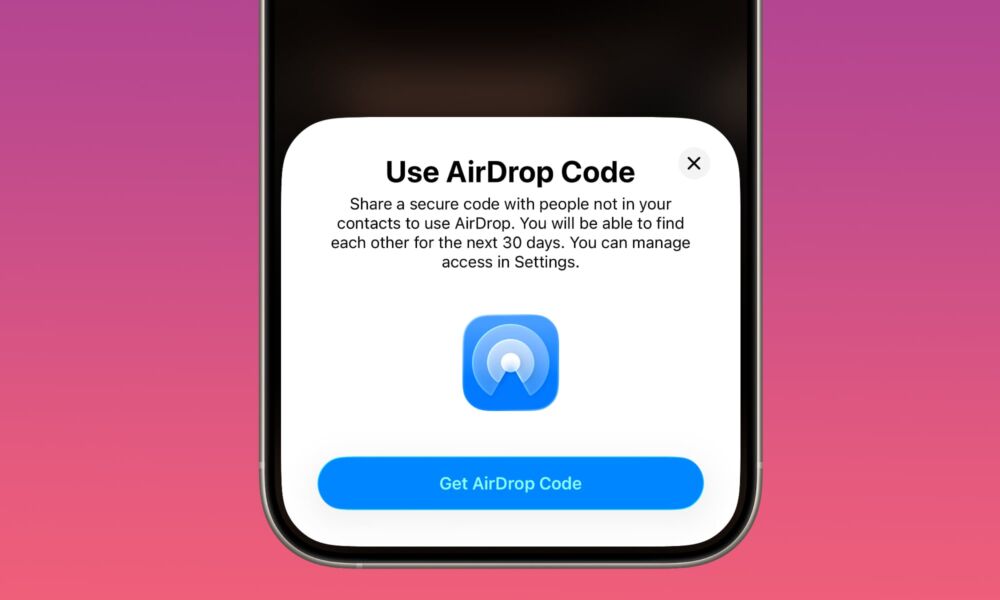
We saw hints of temporary AirDrop sharing codes during the beta cycle, but it wasn’t clear exactly how this would work or even if it was coming in the final release. However, it turns out it’s actually more of a new security feature than we expected.
Initial speculation on the feature suggested that it would be purely a way to pair up devices between two people for one-time AirDrop sharing without needing to leave your iPhone or iPad open to receiving links and photos from everyone around you. However, it turns out it’s actually a new hard requirement to prevent AirDrop spam.
With iOS 26.2 and later, nobody will be able to send you anything via AirDrop unless they’re in your contacts or you specifically authorize the transfer by giving them the code.
Here’s how Apple describes it in the release notes:
AirDrop codes offer an additional layer of verification when using AirDrop with unknown contacts by providing a code on the receiver’s device that the sender must enter to complete the transfer
In other words, these codes aren’t for “temporary” sharing, per se. Rather, they act as a gatekeeper to ensure that you don’t have AirDrop requests from random people popping up on your iPhone, even when you’ve set AirDrop to receive from “Everyone.” For greater clarity, here’s Apple’s updated iOS 26 user guide:
With iOS 26.2, iPadOS 26.2, macOS 26.2, or later, if someone tries to send you an item with AirDrop and they’re not in your contacts, they must use an AirDrop code.
If you choose to receive the item, select Continue. The AirDrop code appears on your device. After you share the code with the sender and they enter it on their device, the item is shared.
The instructions note that once they’ve entered the code, they can continue to AirDrop items to you for 30 days without the need for a second code. The sender and code will appear in the “Other Known” list in the Contacts app during that 30-day period, but you can remove them from there at any time if you want to cancel their sharing privileges.
You can also manage this via a new Manage Known AirDrop Contacts button under Settings > General > AirDrop. It links to your “Other Known” list, which now combines these AirDrop codes with the senders you’ve previously marked as “Known” in the Messages and Phone apps.
This effectively creates a whitelist that will also presumably let them continue to share with you via AirDrop even if you set your iPhone back to “Contacts Only” since the other person technically is now listed in your known contacts, albeit temporarily.
Reminders Can Now Be Urgent
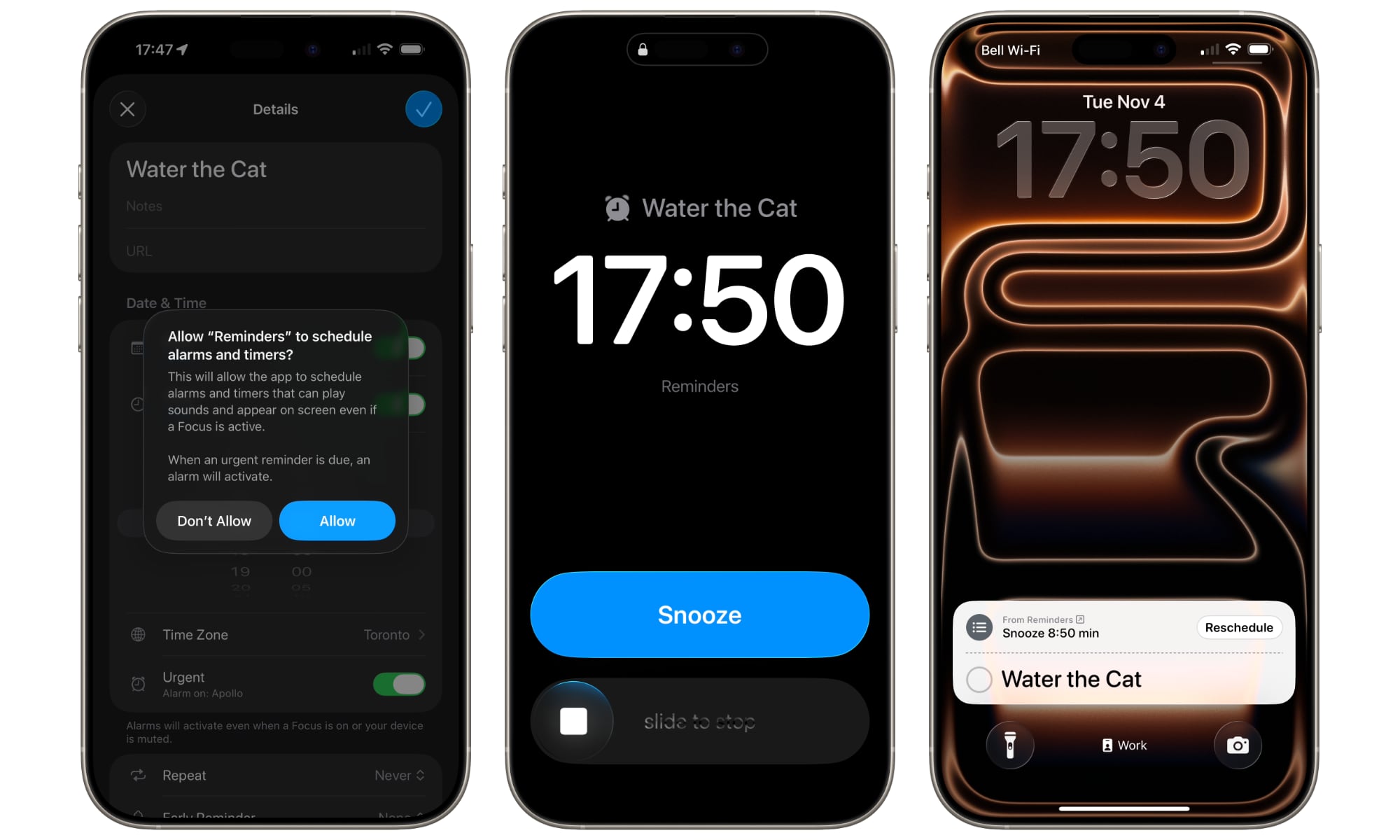
The first beta of iOS 26.2 in early November introduced a new “Urgent” setting for Reminders that can be used to ensure they get your attention. When toggled on, an alert at the appointed time will show up in much the same way as an alarm from the Clock app: Full-screen and impossible to miss.
It’s shown in blue instead of orange to help distinguish it from a Clock alarm, but otherwise works mostly the same, with a prominent Snooze and Slide-to-Stop control, which can be swapped out for a “Complete” button if you want to be able to mark your Reminders as done right from the alarm screen.
This feature takes advantage of a new AlarmKit framework Apple added in iOS 26.0, so it’s something third-party apps can implement also — and hopefully some will now that Reminders has led the way.
Reminders can be marked as Urgent in the Reminders app on macOS 26.2 and iPadOS 26.2, but the alarms will only be triggered on the iPhone or iPad.
Podcasts Get Automatic Chapters
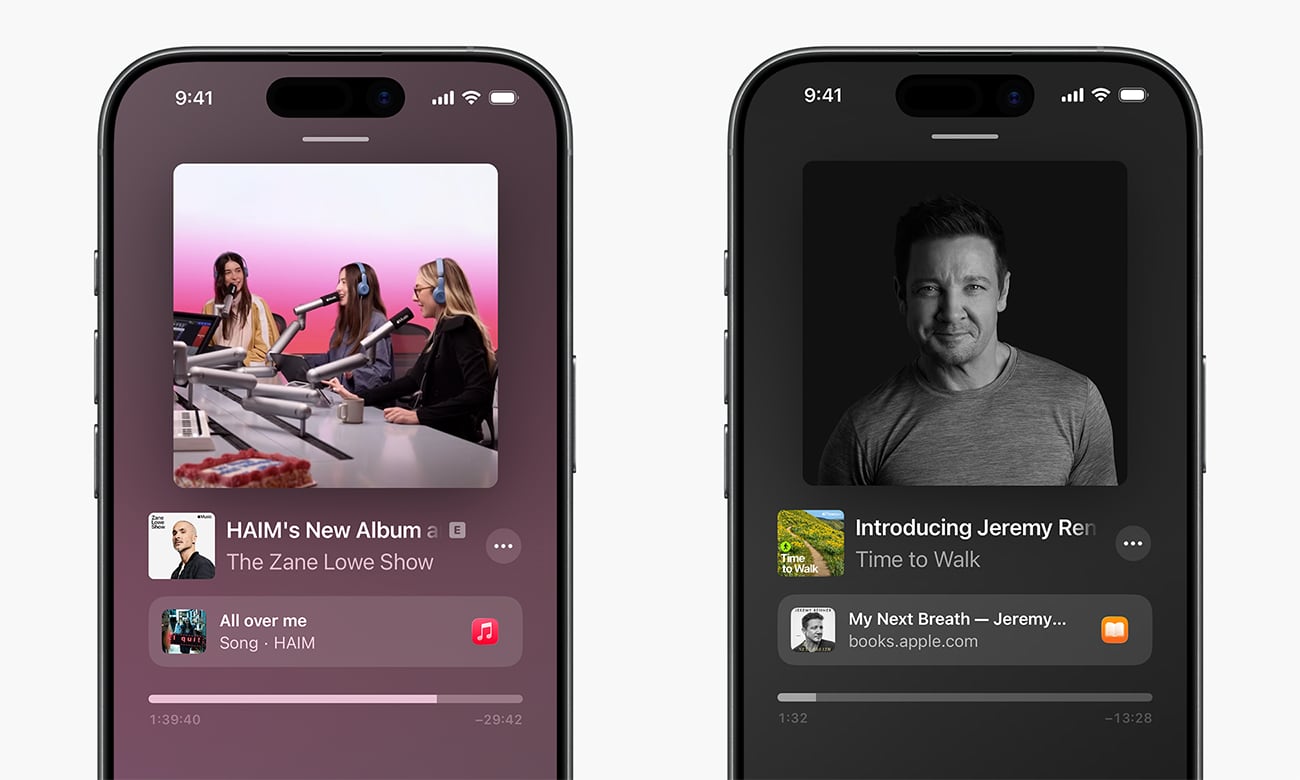
Apple is now automatically generating chapters for Podcasts that don’t already have them, and allowing creators to insert links to content on Apple services they mention in their podcasts, such as other podcasts, Apple TV shows, Apple News articles, and Apple Music songs and albums.
Like Podcast Transcripts in iOS 17.4, this is more of a back-end update on Apple’s part. It’s almost certainly using AI to generate the chapter breaks, and podcasters will need to manually insert the appropriate “Timed Links” into those episodes where they want them to appear. However, the new OS 26.2 Podcasts app is required to see these changes.
Use Your Mac Screen as an Edge Light
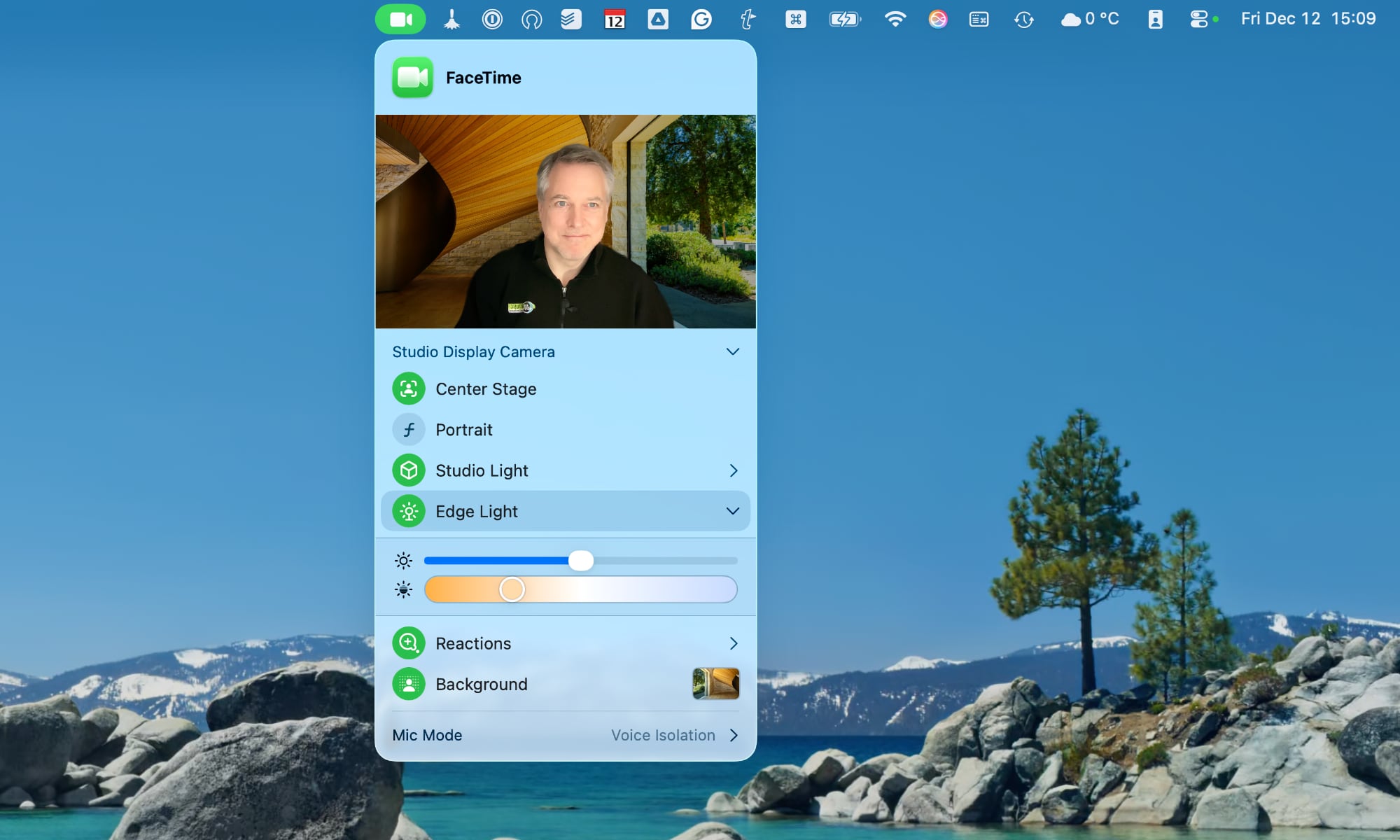
While macOS 26.2 gains many of the new common features such as AirDrop code-based sharing restrictions and the Podcasts enhancements, it also gets a unique feature of its own that will save you from buying external ring lights for your Zoom calls.
Whenever you have a supported camera app open, whether that’s FaceTime, Zoom, or Google Meet, you can now enable an edge light that provides a virtual ring light around the edges of your screen.
This is found on the same Camera menu that’s used for setting backgrounds and toggling features like Center Stage. Once enabled, you can also click the arrow on the right to adjust intensity and color temperature to your liking. It also won’t show up on screenshots or recordings. That’s generally a good thing, but it’s also why you don’t see it in the image above.
Sleep Score Refinements
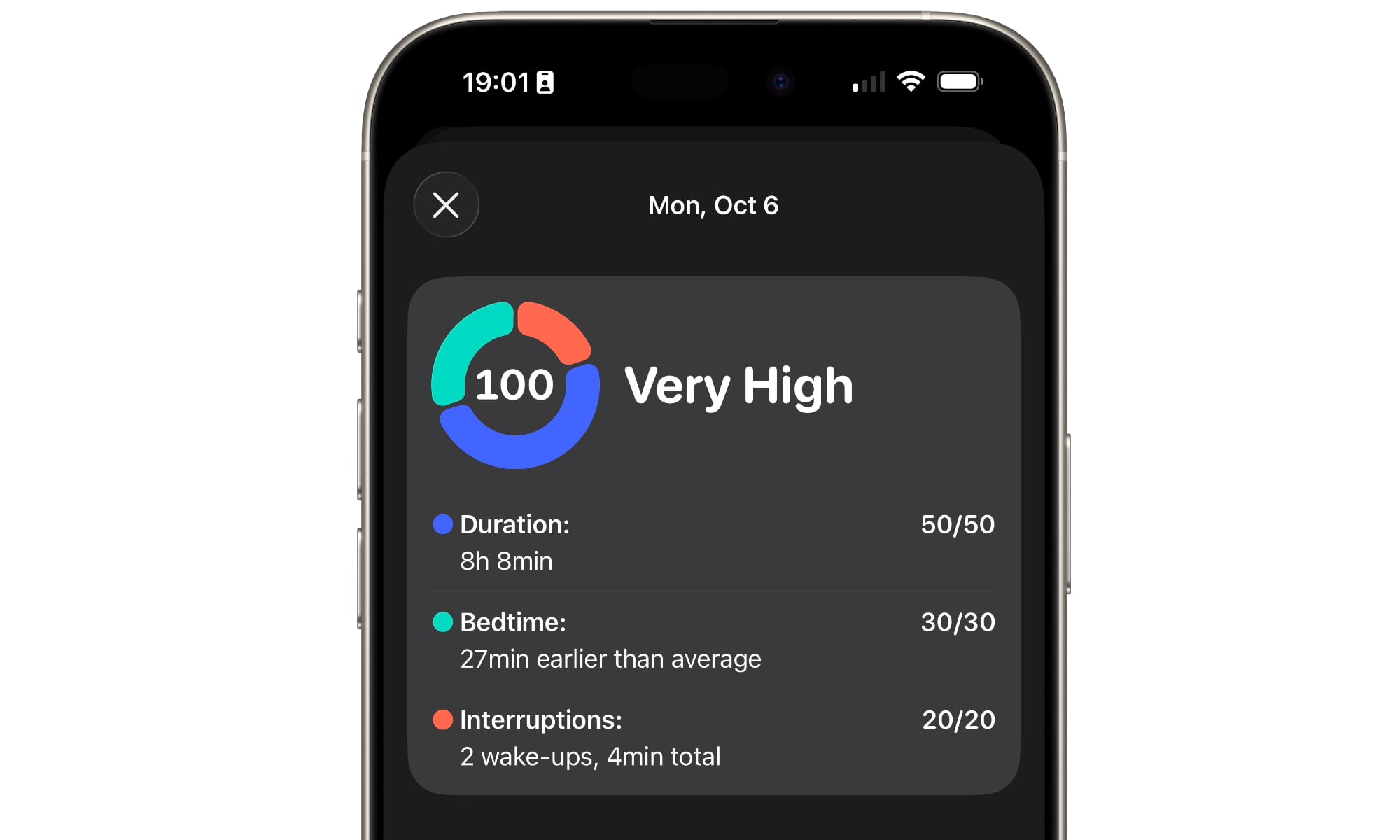
Apple has readjusted its Sleep Score classifications, replacing “Excellent” with “Very High” and adjusting the ranges for each grade. Here are the new numbers compared to the old ones:
Sleep Score was introduced in iOS 26 and watchOS 26 to help get a better idea of how well you’re sleeping to turn the more opaque statistics into a numerical score based on what time you went to bed (30 points), how long you slept (50 points), and how many interruptions you had during your sleep (20 points) to come up with a total out of 100.
Apple only mentioned this in the watchOS 26.2 release notes, but it’s a change that also applies to the Health app on the iPhone and iPad, as it’s not exclusive to the Apple Watch or Apple’s built-in sleep tracking feature; the Health app will take any sleep data that’s been recorded in the Health app, whether it came from a third-party tracker or even if it was entered manually.
Other OS 26.2 Changes
Today’s updates include a slew of other smaller changes as well, some of which we’ve seen in the betas, and others that surprised us. Here’s the rundown:
- As we reported in November, a new Accessibility toggle lets you flash the device screen when receiving alerts in addition to triggering the LED flash.
- More Liquid Glass refinements let you adjust the glass look of the time on your Lock Screen from almost entirely clear to a more frosted look, in addition to the existing “Solid” toggle that disables the Liquid Glass effect entirely.
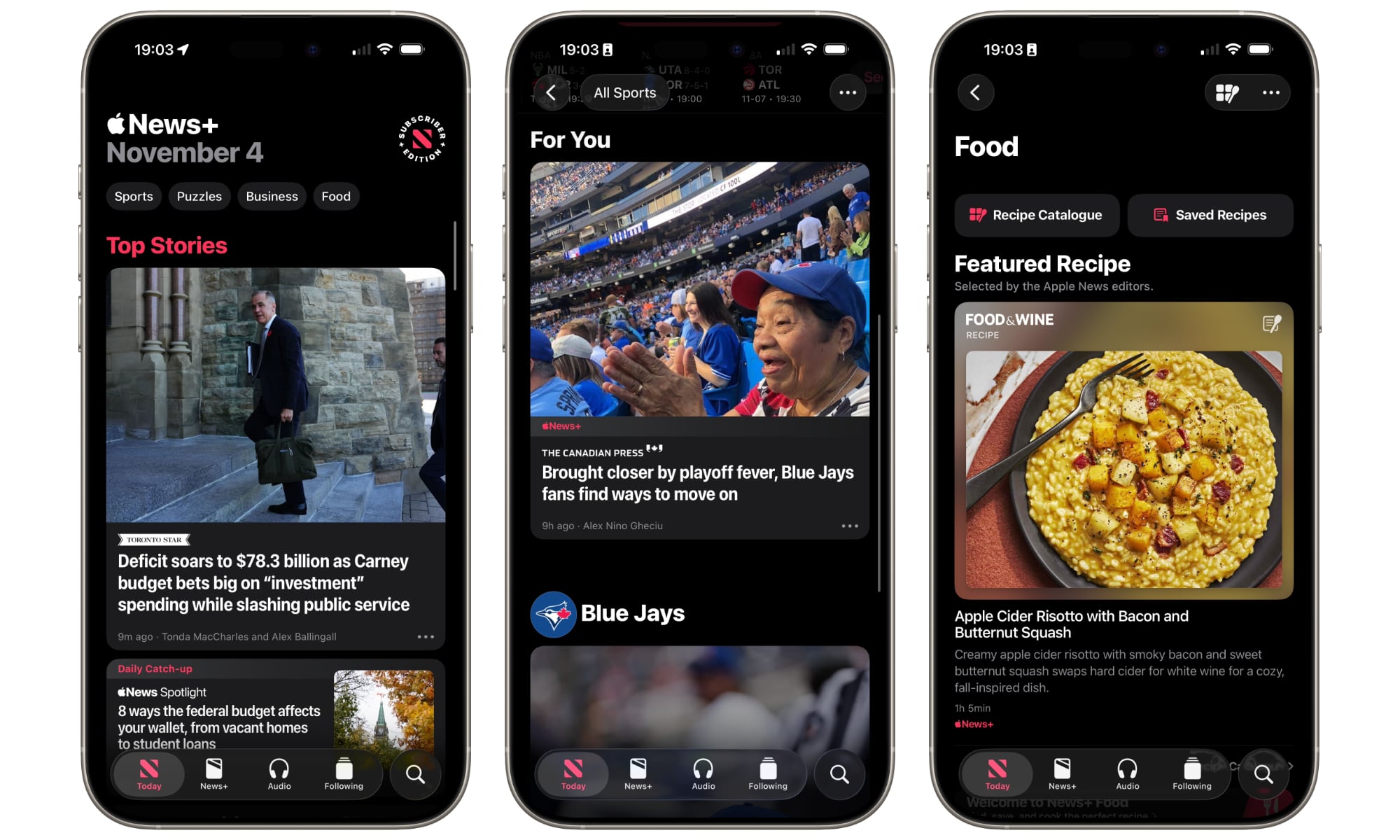
- Apple News gets some design tweaks that put a menu bar at the top for quick access to Sports, Puzzles, Food, and a key news category, such as business or politics. The Sports button at the bottom changes to a Following button, and the Search screen now highlights the key categories, matching the cleaner navigation found in Apple’s Music and TV apps.
- New multitasking gestures in iPadOS 26.2 let you “quickly tile windows or place an app in Slide Over by dragging app icons from the Dock.”
- Apple Music gains support for offline lyrics and adds the Favorite Songs playlist into Top Picks on the home tab.
- Apple’s new Games app gains improved filters to narrow titles down by category, size, and more, plus new in-game challenge score banners. Apple also notes “improved support for connected controllers such as Backbone and Razer.”
- The Home app now allows easier enrolment of accessory kits through “Multipack accessory pairing,” which lets the same setup code be used for multiple accessories that are sold together.
- The Freeform app improves tables to hold text, images, documents, and drawings, along with automatic cell resizing.
Naturally, Apple’s OS 26.2 updates also offer an assortment of bug fixes and performance improvements, with the release notes specifically mentioning an Apple Music problem with pre-release albums not being playable once they were released, and privacy and security settings getting incorrectly flagged as managed by an organization.
Lastly, iOS 26.2 and iPadOS 26.2 contain over 20 security patches, including two for zero-day vulnerabilities that Apple says “may have been exploited in an extremely sophisticated attack against specific targeted individuals on versions of iOS before iOS 26.” While it’s unlikely most iPhone users would have fallen prey to that particular attack, the fact that the entire laundry list of security vulnerabilities has now been published means bad actors will be looking for ways to exploit them for folks who haven’t installed the latest updates to protect themselves. That makes updating not just a matter of getting new features, but of also staying safe. We’d strongly recommend you go hit that Update Now button right away.






