
Three Weather App Settings Every iPhone User Should Switch On
 Tada Images | Shutterstock
Toggle Dark Mode
We recently covered the major tune-up on the way for the iPhone’s Weather app coming soon in iOS 27. In the meantime, there are plenty of other helpful and fun features most users probably overlook.
The Weather app has much more to offer than your current or saved location temperatures and hourly forecasts. Here’s how to put your pocket-weatherman to work for you and your family.

Severe Weather and Next-Hour Precipitation Notifications
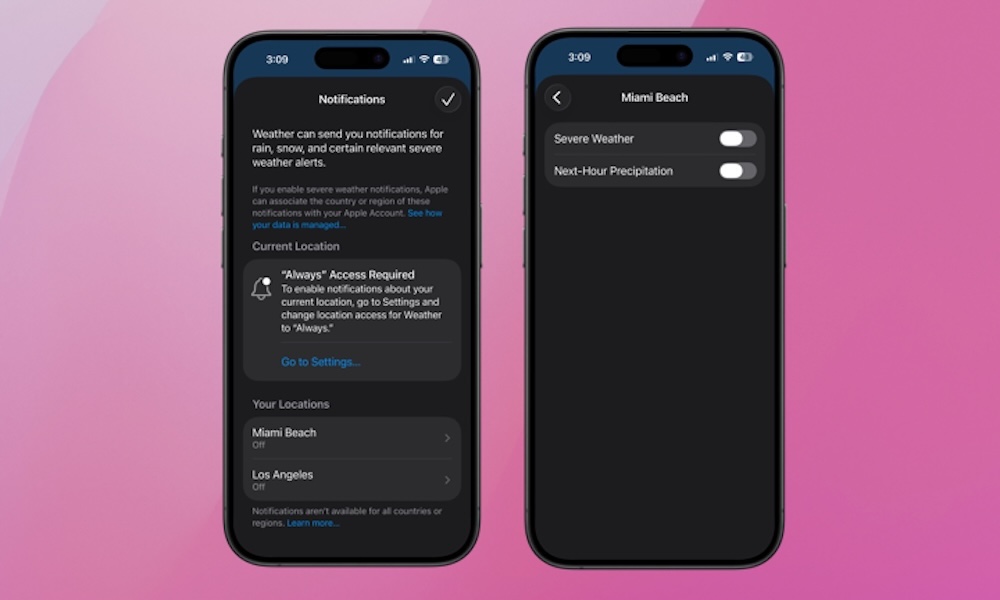
If configured properly, your iPhone’s Weather app can send you location-based alerts of severe weather and anticipated rainfall. This can save you the inconvenience of being unprepared for bad weather, like getting soaked or forgetting an umbrella. It can even protect against the worst outcomes of severe weather so users aren’t stuck in dangerous situations.
Here’s how to dial in Weather alerts:
- Open the Settings app.
- Go to Apps and choose Weather (or type “Weather” in the search bar and tap it).
- Tap Location.
- Set Always under Allow Location Access.
- Tap the back arrow in the top-left corner of the screen.
- Tap Notifications.
- Toggle on the slider next to Allow Notifications.
- Under Always Deliver Immediately, turn on Time Sensitive Notifications.
- Scroll down to the bottom of the screen and tap Weather Notification Settings.
Choosing Weather Notification Settings will open the Weather app. The screen will show options to enable alerts for Severe Weather and Next-Hour Precipitation. You’ll see your other saved locations at the bottom of the same screen. Tap each separately to manage Severe Weather and Next-Hour Precipitation notifications for your saved locations.
Once you’ve got these essential safety settings locked in, your iPhone will stay on weather-watch duty in the background, but there’s a lot more to explore while you’re in the Weather app.
Precipitation, Temperature, Air Quality, and Wind Maps
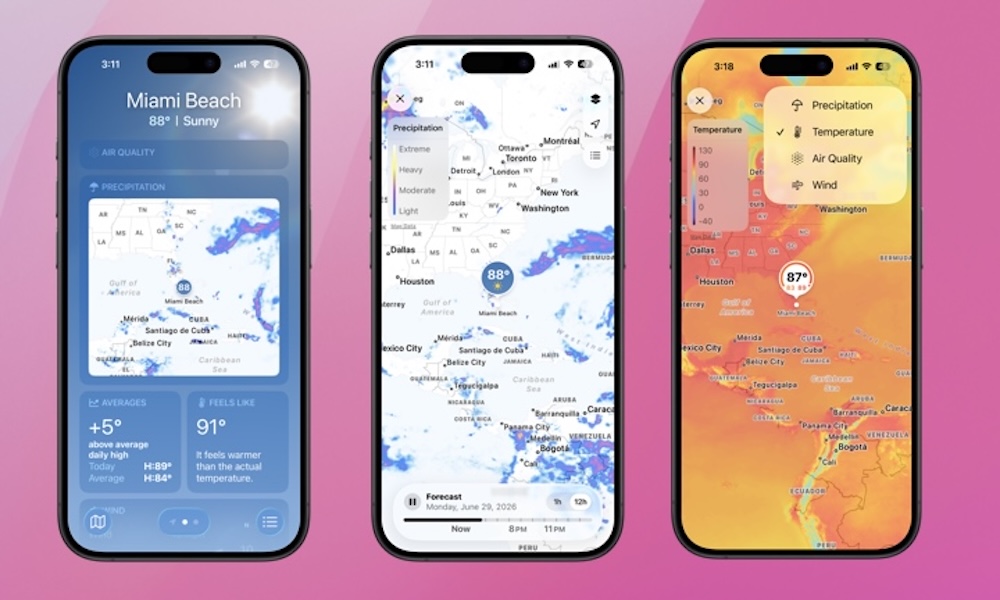
Open the iPhone Weather app and scroll down to the Precipitation map widget. Tap it and the map opens to a full-screen dynamic radar view with a one-hour or 12-hour precipitation forecast for your location.
Tap either to see the anticipated cloud coverage for your area before planning your next adventure.
Tap the layers icon (two black stacked squares) in the top right of your screen to change the map from displaying the precipitation forecast to temperature, air quality, or wind.
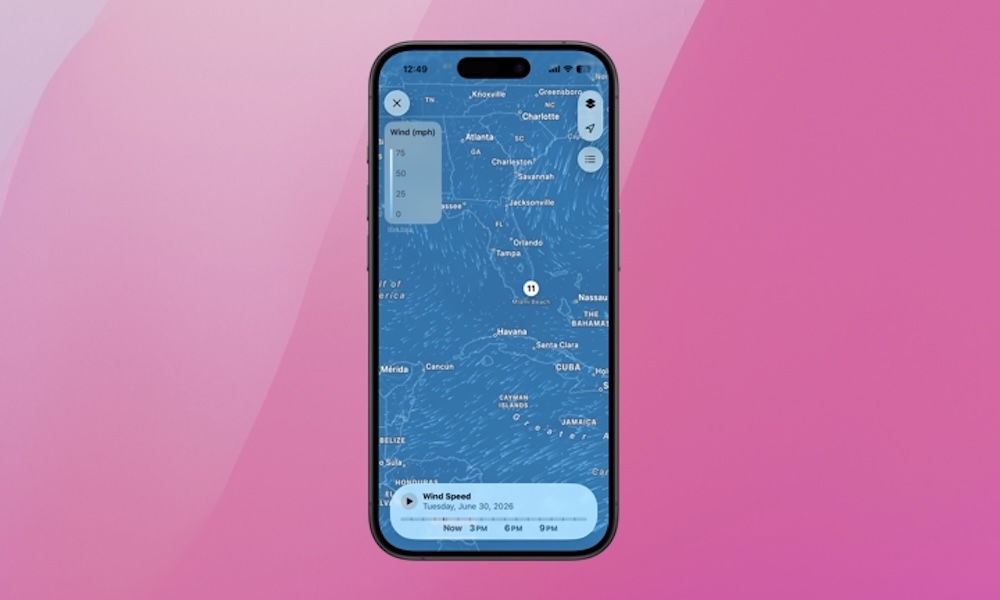
While the temperature and air quality map displays are static, the wind map dynamically shows the current wind speed and direction as well as a projection of both through the end of the day.
Golfers might appreciate this option. Users can pinch to zoom to view wind speed and direction for an exact location from the larger map view. Give it a shot!
Moon Phases
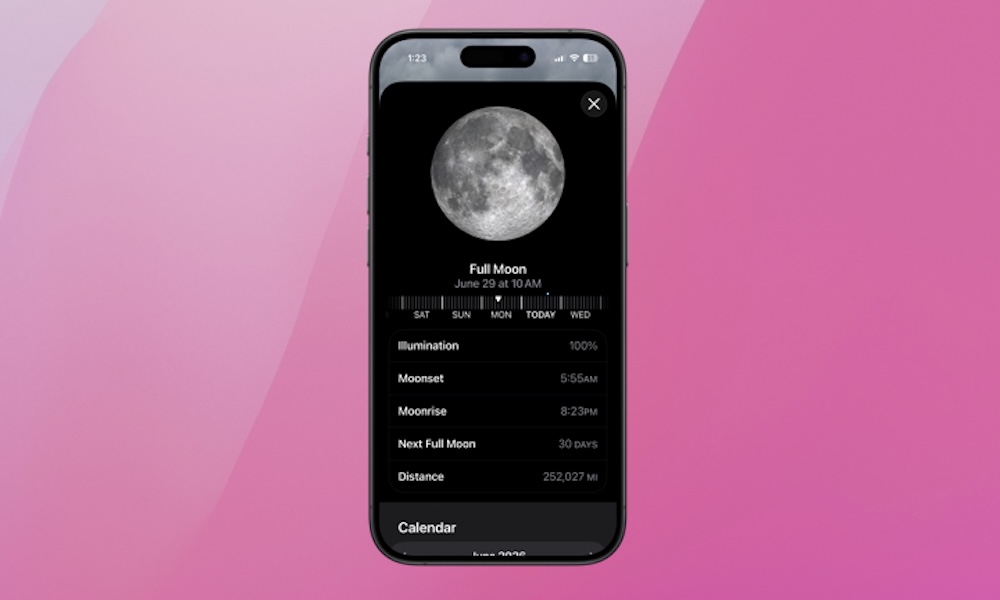
The Weather app also shows information about the Moon that’s particularly fun for kids and grandkids.
The widget itself shows the current Moon phase (e.g., Waning Gibbous), the Moon’s illumination (99%) and the moonrise time.
Tap the widget and the app will display a slider allowing users to track previous and future Moon phases.
Moon phases are also displayed in a calendar format, days until the next full Moon are tracked, as well as the Moon’s elliptical orbit, or distance between the Earth’s core and the Moon’s core (I learned that from the Weather app, too).
If you haven’t taken a tour of the iPhone’s Weather app in a while, start here. There are some fun, helpful, and important safety features if you look beyond the daily temperature and chance of rain.
If you’re using a third-party weather app, make sure you at least check Apple’s Weather app in September after the release of iOS 27. Maybe you’ll come back to the iPhone’s native Weather app.






