
5 Clever Battery-Saving Tips You Need to Try
 bloomicon / Adobe Stock
There’s nothing more frustrating than watching your iPhone battery go into the red when you’re still hours away from a charger. Sometimes it feels like you leave home with plenty of juice in the morning and somehow find yourself searching for an outlet before lunch.
The good news is, poor battery life doesn’t always mean you need a new battery or a new iPhone; your device already includes several features that can reduce unnecessary power consumption, and many of them don’t require you to stop using the features you actually enjoy.
So if you’re struggling lately, read on for 5 tips that will help you increase your iPhone’s battery life without losing any power.
Let Adaptive Power Handle Some Of The Work For You
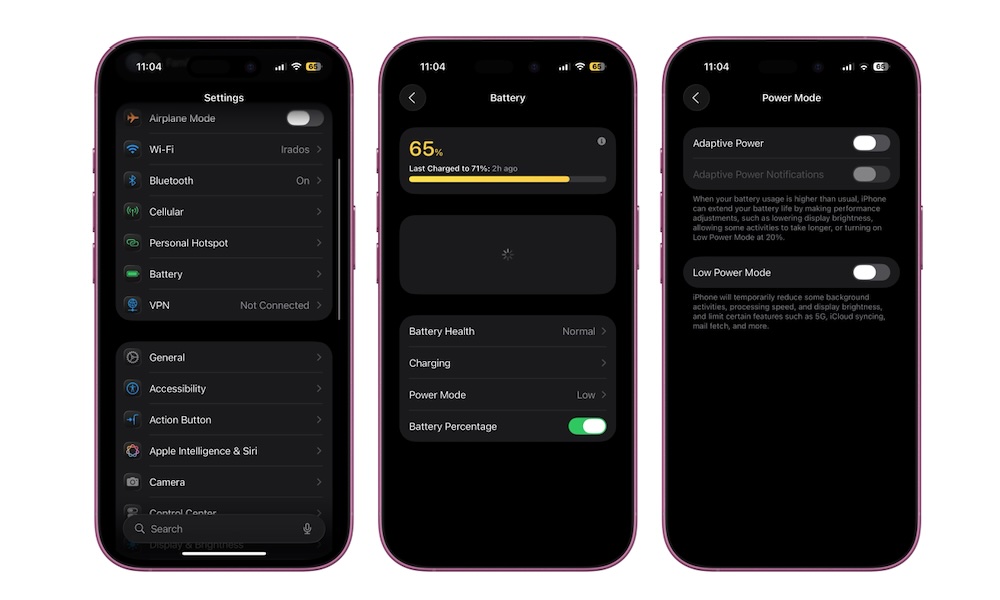
If you have a supported iPhone, Adaptive Power is probably one of the first features you should turn on (if it isn’t already). Instead of waiting until your battery is already low to start managing it manually, Adaptive Power watches how you normally use your iPhone and learns the times of the day when you’re consuming more power than usual.
When iOS predicts that you’ll need your battery to last longer, it can make small changes in the background. For instance, it may slightly lower your display brightness or limit some background activity. It can also make minor performance adjustments without interfering when you’re doing something demanding, such as using the Camera app or playing a game with Game Mode enabled.
Adaptive Power will also automatically turn on Low Power Mode when your battery reaches 20%. Once you turn it on, you can forget about battery management for a while. To start using Adaptive Power:
- Open the Settings app.
- Scroll down and tap Battery.
- Go to Power Mode.
- Turn on Adaptive Power.
Adaptive Power is enabled automatically on the iPhone 17 lineup and iPhone Air. On compatible iPhone 15 Pro and iPhone 16 models, you’ll need to turn it on yourself. Apple also says it takes at least seven days to learn your charging habits, so don’t expect it to begin making adjustments immediately.
Stop Apps From Refreshing When They Don’t Need To
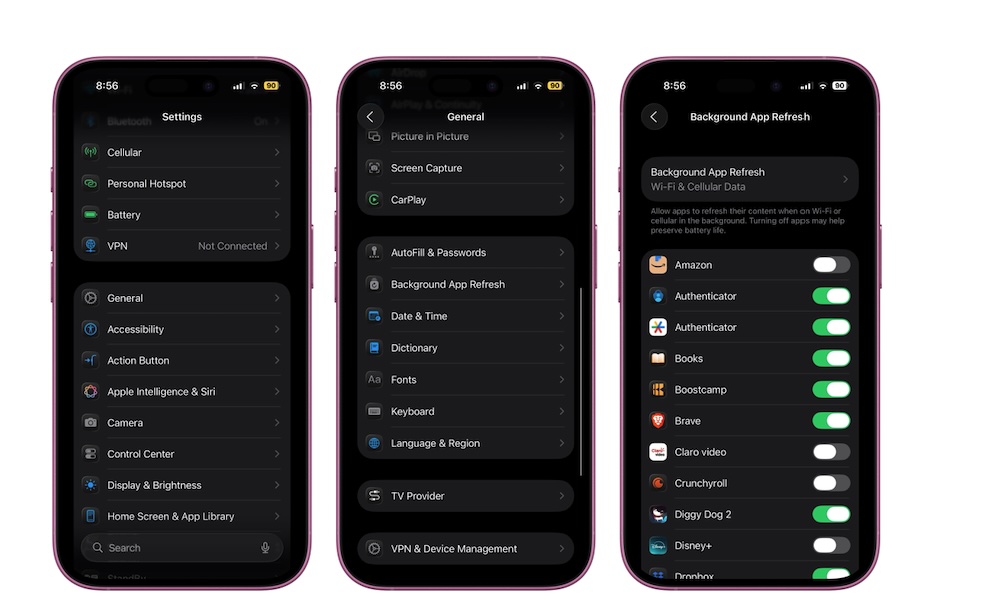
Background App Refresh is an iPhone feature that lets apps update automatically and fetch information, even if you’re not using them. This is extremely useful for apps like Instagram or Facebook, which are constantly updating their content. However, it’s also a feature that makes your iPhone work harder and consume more battery life than needed.
Sure, some apps, like Messages, might actually need to use this feature to work best, but not every app really needs to work 24/7 in the background. So the best thing you can do is manage your Background App Refresh settings by doing the following:
- Open the Settings app.
- Scroll down and go to General.
- Tap on Background App Refresh.
- Scroll through your installed apps and turn off the ones that don’t need to update in the background.
Depending on your situation, you might not need this feature at all. If you think that it’s not necessary on your iPhone, you can just turn off Background App Refresh completely.
Switch Your 5G Mode
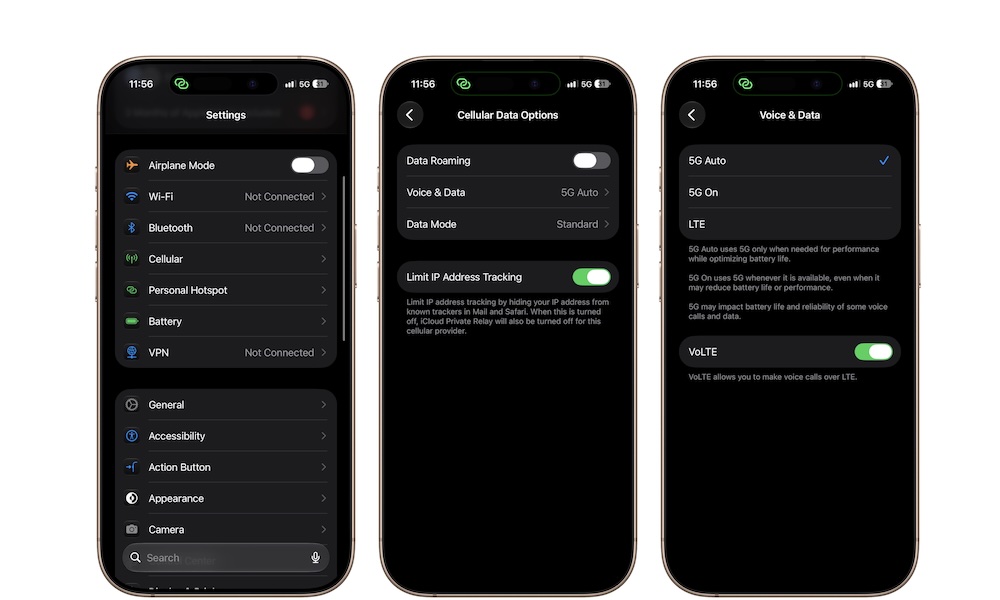
5G can give extremely fast cellular speeds, but you don’t need those speeds for everything you do.
If your iPhone is set to “5G On,” it will try to use 5G whenever the network is available. That can consume more power than necessary, especially when you’re doing something simple that doesn’t benefit much from the additional speed.
Instead, 5G Auto is a better choice for most people, as your iPhone uses 5G when the extra performance is useful, then switches back to LTE when it isn’t. To change it on your iPhone, you need to:
- Open the Settings app.
- Tap on Cellular.
- Go to Cellular Data Options.
- Tap Voice & Data.
- Select 5G Auto.
You can also select LTE when battery life matters more than cellular speed. For everyday use, though, 5G Auto is the best option overall.
Turn Off Always-On Display During Long Days
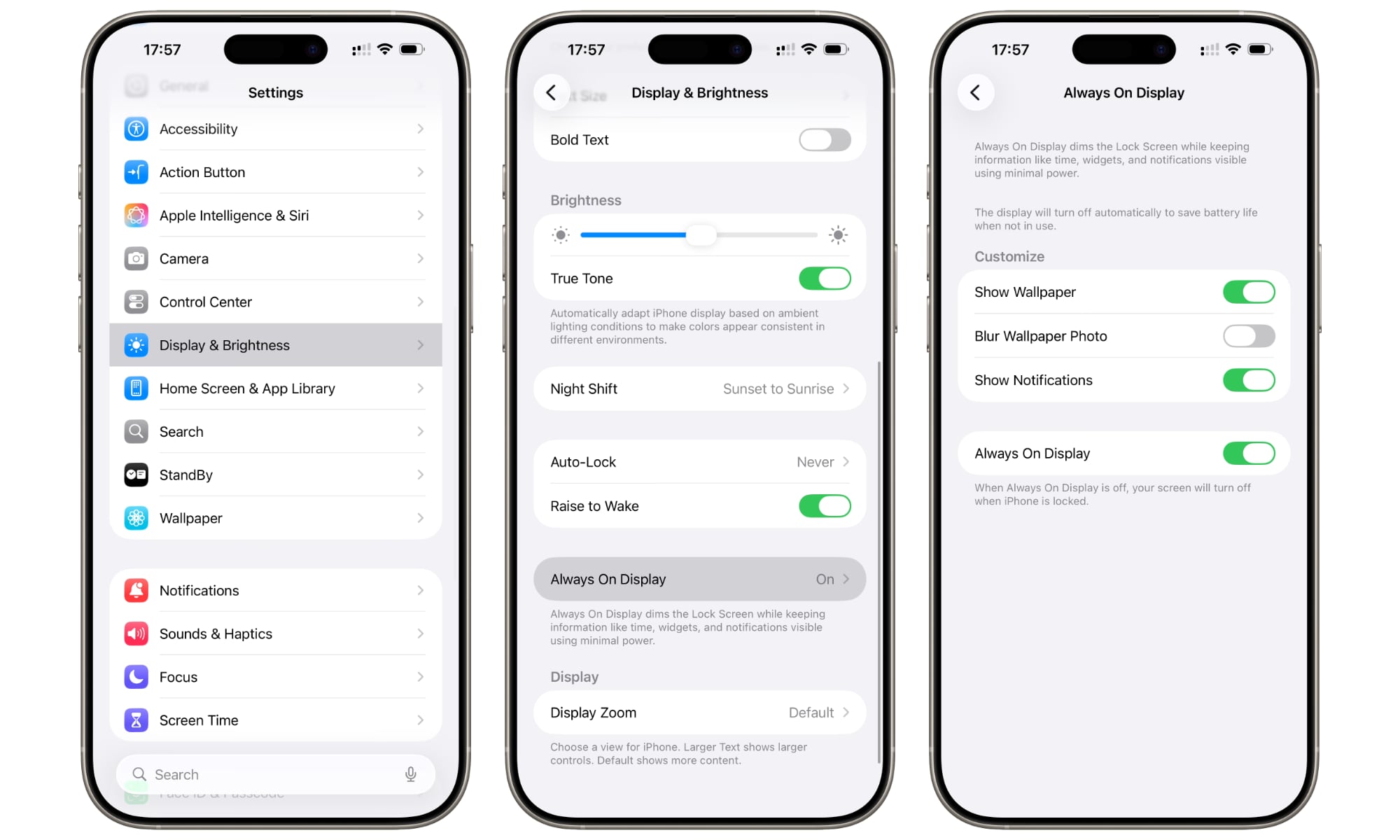
Nearly all current iPhone models and most recent Pro models support Apple’s Always-On display so you can see information at a quick glance. And while this feature doesn’t really consume much battery life, if you’re going to be out for a long time without access to a charger, you might want to turn it off so your battery lasts as long as possible.
There’s a reason why even Low Power Mode turns this feature off. It’s useful, but not as much when your iPhone really needs power. Here’s how you can turn it off manually.
- Open the Settings app.
- Scroll down and tap on Display & Brightness.
- Tap Always On Display.
- Turn off Always On Display.
After you’re back home or can recharge your iPhone, you can follow the same steps and turn the Always On Display back on.
Make Low Power Mode Turn On Automatically at 40%
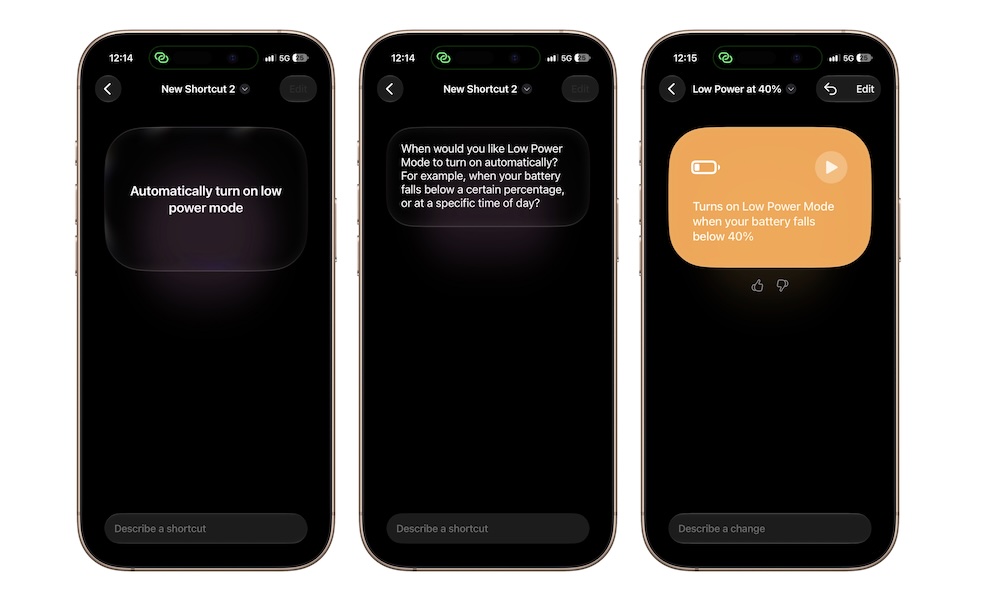
Low Power Mode can be turned on manually whenever you want, but you can use the Shortcuts app if you want your iPhone to turn it on for you.
For instance, you might want your iPhone to turn it on by itself once you reach 40% battery life (you can choose your “warning percentage”). Of course, that means that you’ll need to dabble with the Shortcuts app, which can feel a bit weird if you haven’t used it before.
However, if you already have iOS 27 installed on your iPhone, you can literally just ask Apple Intelligence to create the automation for you. This is how:
- Open the Shortcuts app.
- Tap the plus button at the bottom of the screen.
- Tap the text field and write something like “an automation that automatically turns on Low Power Mode after 40% battery life.”
- Give your iPhone a few moments, and it’ll get the automation ready for you.
You can hit the back button in the top right corner, and your automation will be added to your Shortcuts automatically. And that’s it; now all you need to do is go about your day normally and let your iPhone handle the rest.
This is still doable if you don't have iOS 27, but you'll have to add the steps manually:
- Open Shortcuts.
- Tap the Automation tab at the bottom center of the screen.
- Tap the plus button in the top-right corner to create a new personal automation.
- Scroll down the list and select Battery Level.
- Drag the slider until it says 40%.
- Select Falls Below 40%.
- Toggle on Run Immediately.
- Tap on the blank search bar and search for "Set Low Power Mode" and tap it.
- Ensure the action block reads "Turn on Low Power Mode."
- Tap Done in the top-right corner.
Get More Battery Life Without Losing Performance
Saving battery life doesn’t require turning your iPhone into a dumb phone. Even if you have a really old model, you can still have good battery life and decent performance while still using it just the way you like it.
There are many ways to improve your battery life (even buying a battery pack for when you’re on the go), but by getting started with the tips above, you should see an improvement almost immediately.
Of course, there will be times when upgrading your iPhone or at least changing the battery will be necessary. Until then, though, use these tips and squeeze as much out of your iPhone as possible.