
5 Apps You Don’t Need on Your iPhone Anymore
 Brett Jordan
The App Store is full of apps that promise to add all sorts of new tools to your iPhone. Some may be useful, but many are simply solving problems Apple has already addressed with features built into iOS. You may be keeping an extra app installed without realizing that your iPhone can already handle the same task.
Over the years, Apple has expanded many of its basic apps — and added a few new ones. Your iPhone can now scan documents, manage passwords, and even extract text from photographs. Several of these features are built directly into the apps you likely use every day.
Removing redundant apps can give you a cleaner App Library while also removing clutter from your iPhone’s storage. But more importantly, you won’t have to give another developer access to your camera or personal data just to perform a basic task.
Of course, there are still good reasons to choose a third-party app in some situations. Professional tools often include more control, while cross-platform services can be better for people who switch between different devices. For most everyday uses, though, the built-in options should be more than enough. Read on for 5 types of apps you may want to remove from your iPhone.
QR Code Scanner Apps
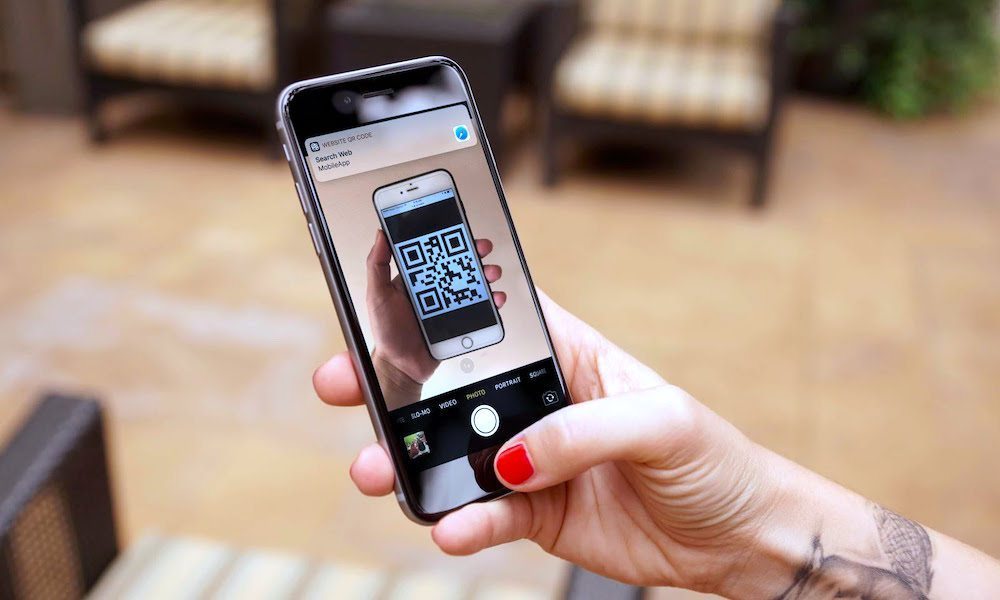
QR code scanner apps were once all the rage. Apple added QR code scanning to the iPhone’s Camera app in 2017 with iOS 11, but in those early days it wasn't always great at recognizing QR codes.
However, that hasn’t been a problem for years. Improved camera hardware and better software algorithms mean the regular Camera app can easily detect nearly any QR code you encounter and display a tappable link right next to it in the viewfinder.
Keeping a separate scanner installed only adds another icon to your iPhone. Some free scanners also display annoying ads before opening the code, or even request access to information that has nothing to do with scanning.
You can even add a dedicated Code Scanner to Control Center if you scan QR codes frequently. This opens a simple camera view that focuses on scanning the code, which can be faster than opening the Camera when you’re checking a restaurant menu or accessing a digital ticket.
So next time you want to scan a QR code, simply open your camera, point it at the code, and wait for your iPhone to recognize it. It’ll only take a couple of seconds before you see the link pop up right below the QR code.
Document Scanner Apps
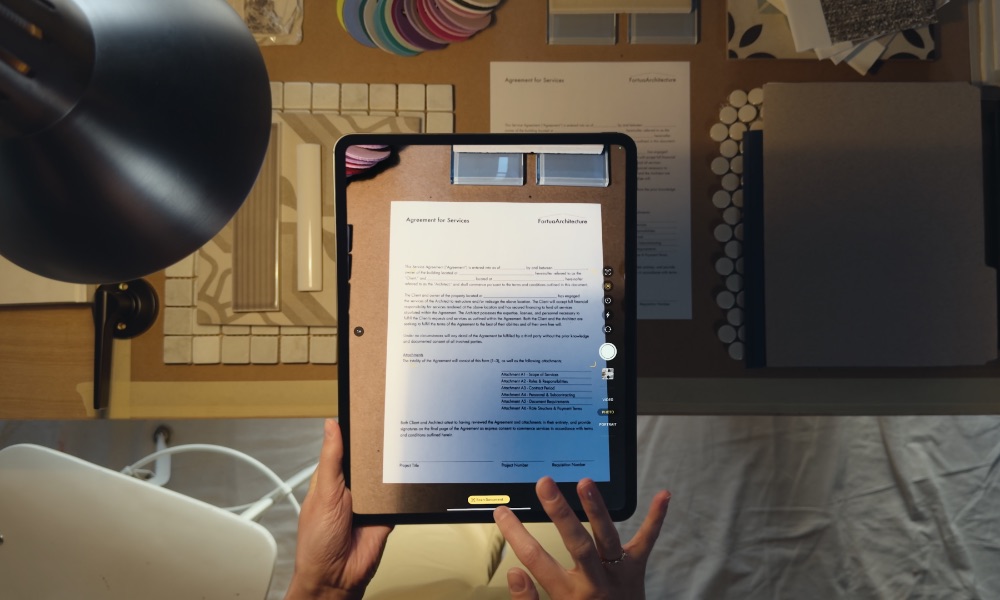
A document scanner uses the iPhone camera to capture all your paperwork and turn it into a clean digital file. These apps can straighten a page and improve its readability, which makes the result look more like a scan than an ordinary photograph.
Of course, there are a ton of apps you can use for this, but the truth is that your iPhone already includes this feature — and you can access it in several places. Notes can attach a scan to an existing note, while Files saves the document directly to a folder. On iOS 26 and later versions, there's even a new Preview app that can also scan documents and turn them into PDFs.
The built-in scanner detects the edges of a page automatically. It can correct the perspective if you hold your iPhone at an angle, and you can even capture several pages inside one document. That should cover receipts or forms without requiring a subscription to yet another app.
How you use the scanning feature on your iPhone will depend on which app you use, but if you want to scan a document in the Files app, simply open the app, and then tap the More button (which looks like three dots) in the top-right corner of your screen. Next, tap Scan Documents and point your camera at the document you want to scan.
From there, it’s almost like using the Camera app, so take a “picture” of your document and then resize it however you want. Finally, tap Keep Scan or Retake, depending on what you want to do.
Dedicated scanning apps can still offer better file naming and advanced optical character recognition. But for occasional paperwork, Apple’s scanner is usually all you need.
Voice Recording Apps
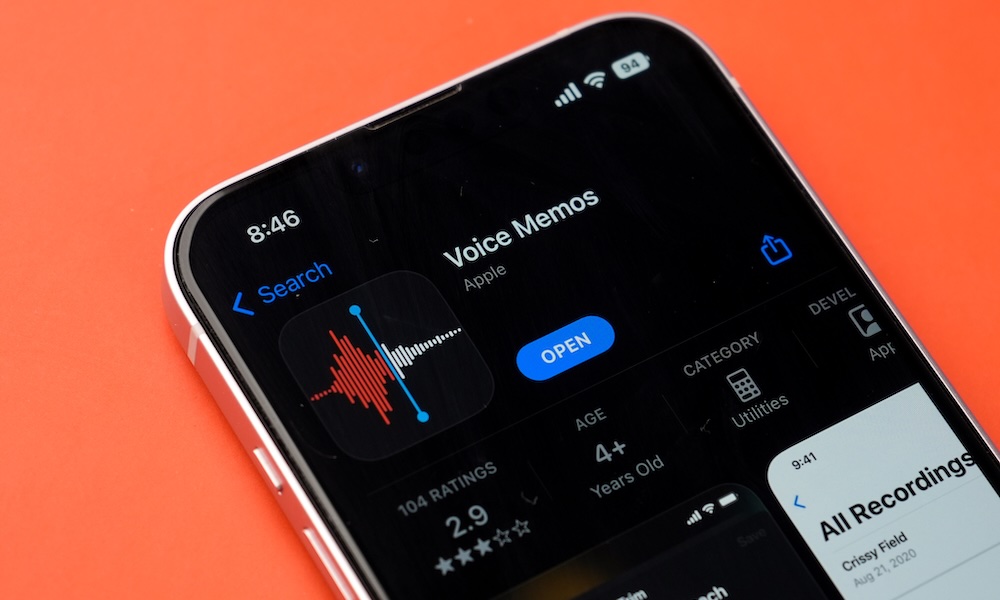
Voice recording apps let you capture anything from interviews and classes to spontaneous ideas you suddenly have. Many of these apps offer paid upgrades that you don’t really need, as Apple already includes a capable recorder called Voice Memos.
Voice Memos can record audio through the built-in microphone or a connected accessory. Afterward, you can trim the beginning and end or replace a section without starting the entire recording again. You can keep all your recordings organized and even create specific folders for all your needs.
What’s more, Voice Memos can also transcribe everything you record. You can just start talking, and your iPhone will turn everything into text, so you can read or copy it whenever you need to. This can help you review a meeting or locate a certain part of a longer recording. Plus, if you have an iPhone 15 Pro or newer, Apple Intelligence can create a summary of those recordings, letting you see the key points of a long lecture at a glance.
So whether you’re a journalist, a podcaster, or simply want to record something, all you need to do is open Apple's Voice Memos app, which should already be on your iPhone (you can redownload it from the App Store if you've deleted it). Once inside, simply tap the red Record button and record to your heart’s content.
Just like other options on the list, third-party recording apps might bring a lot more features to the table, but there is still a lot you can do with the Voice Memos app, especially if you’re only looking for the most basic features.
Basic Calculator and Unit Converter Apps
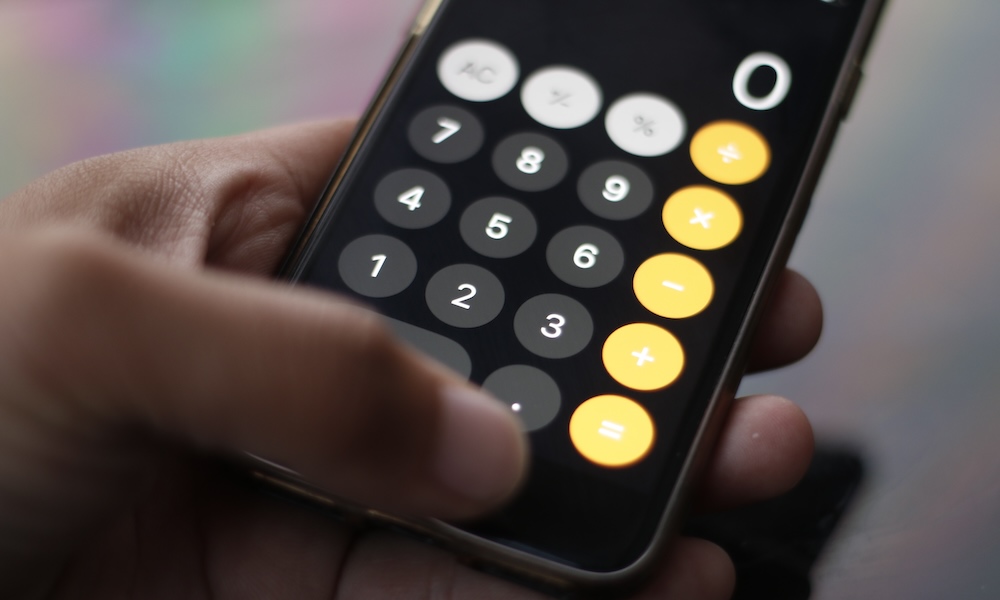
Many calculator apps provide the same buttons you already have in Apple’s Calculator. And thanks to an update a couple of years ago, the Calculator app on your iPhone is now more powerful — and it's even capable of converting measurements or currencies.
Apple’s Calculator app offers two modes: basic and scientific. Both feature enough power to help with complicated math problems or basic calculations. The app also keeps a history of recent calculations, which helps when you need to check a previous result.
Additionally, the Notes app has a useful feature called Math Notes, which can solve equations and math problems automatically after you write them down.
Conversion mode handles common units inside the Calculator app. You can use it for length or temperature without opening a separate converter. Currency conversion is available as well, although exchange results should still be treated as estimates when making a purchase.
Spotlight and Siri can answer many quick questions too. Swipe down on your Home Screen and type a calculation when you don’t want to open Calculator. Overall, your iPhone is more than capable of handling any type of math problem you have. Everything is just a tap or a voice command away.
The ChatGPT App
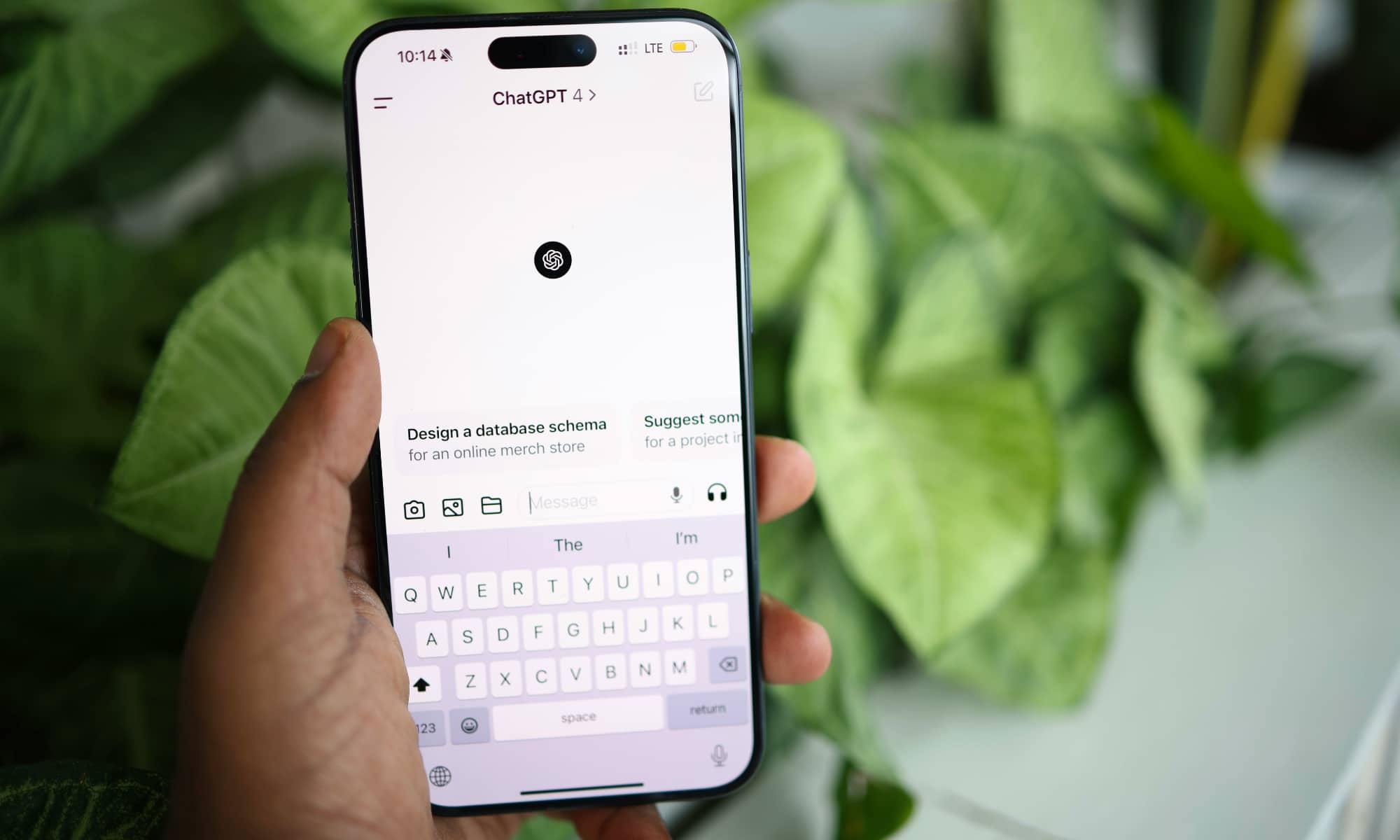
The ChatGPT app gives you direct access to OpenAI’s chatbot on your iPhone. You can use it to ask questions, brainstorm ideas, and even create images. However, you may not need to keep the standalone app installed if you only use ChatGPT for occasional requests.
On iPhones that support Apple Intelligence, Siri can send questions that it can’t answer to ChatGPT for a more detailed response. You can also begin a request by telling Siri to "Ask ChatGPT," which lets you access the service without opening another app. If you’re worried about privacy, it’s worth noting that your iPhone will always ask you if you want to use ChatGPT before sending any type of information. On the other hand, if you find that question a bit annoying, you can always disable it by going to Settings > Apple Intelligence & Siri > ChatGPT and turning off Confirm ChatGPT Requests.
The best part is that you don’t need a ChatGPT account to use the basic Apple Intelligence integration. If you do have an account, you can optionally sign in to get access to extra features, such as saving your chat history or taking advantage of a ChatGPT Plus subscription. However, all of your ChatGPT requests made through Siri will be completely private and anonymous unless you choose to sign in to a ChatGPT account.
Since ChatGPT is available through Siri, you can ask for help while cooking, driving, or working without searching for the app first.
Of course, the dedicated ChatGPT app is still worth keeping if you use the service regularly. It provides direct access to your chat history and other features. But for someone who only asks an occasional question through Siri, the Apple Intelligence extension can save you from installing another app.
Make the Most Out of All Your iPhone Features
Before downloading another app, take a moment to check whether the same feature is already on your iPhone. Apple has gradually added many tools that once required separate apps, and some of them are hidden inside places you may not think to look.
In fact, this happens so often that there’s a term for that: being "Sherlocked." This slang became popular back in 2001 when Apple introduced a desktop search tool called Sherlock — the precursor to what we now know as Spotlight Search on the Mac. However, there was already an app called Watson that did exactly that. Because Sherlock did almost everything Watson did, the third-party app was basically “killed” by Apple.
Since then, Apple has introduced many new features that have made other third-party apps useless.
Now, QR scans or apps that can turn your paperwork into a digital document aren’t as necessary as they once were. That's not exactly good news for developers, but it also means you can declutter your iPhone just by browsing and discovering everything it can do for you.