
No Find My? This Clever iPhone Shortcut Has Your Back
 SDX15 / Shutterstock
Toggle Dark Mode
We all know about Apple’s Find My app. Between the Find My app, AirTags (also tracked via Find My), and the added security layer of Stolen Device Protection, Apple offers a solid solution for tracking your devices, friends and family, and other items, as well as locking down your iPhone if it’s stolen or lost.
If Find My is somehow disabled on your lost, stolen, or misplaced iPhone, there’s another incredible trick you can use to find it — as long as you’ve taken a few steps to prepare in advance. You’ll need to set up a specific shortcut in Apple’s Shortcuts app. This discovery comes thanks to the folks at ZDNET, who spotted this post on X reminding iPhone owners not to underestimate the power of the Shortcuts app.

For this “anti-theft shortcut,” you’ll need a trusted family member or friend who’s in the know and a secret keyword. Then, you can set up a shortcut that’s designed to send the specified contact a message with a picture from the front or rear camera, AND a second message with your iPhone’s location when your iPhone receives a text message (from any or a specified contact) containing the keyword.
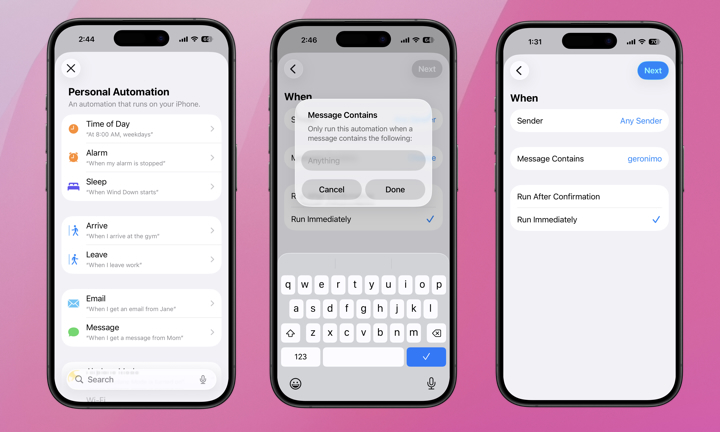
Setting up this shortcut takes just a couple of minutes. Here’s how:
- Open the Shortcuts app.
- Tap Automation at the bottom of the screen (the icon with the checkmark in the circle).
- Tap the plus (+) icon at the top-right of the screen to set up a new Personal Automation.
- Tap Message.
- Tap Sender and select the specific sender whose keyword message will activate the “anti-theft shortcut” or select Any Sender.
- Tap Message Contains and input your keyword. We recommend choosing a unique keyword that’s unlikely to inadvertently trigger the shortcut in everyday conversation — throwing in some special characters, like hashtags, here can also help. A friend or family member is unlikely to casually type “#RecoverMyiPhone” when you’re making lunch plans.
- Select Run Immediately.
- Ensure Notify when Run is toggled off. Otherwise, a thief will likely see a banner when this shortcut runs, tipping them off that something is up.
- Tap Next at the top-right of the screen.
Now, it’s time to assign specific actions to the shortcut once your iPhone receives a message with your secret keyword from a specified contact, or from anyone, depending upon your selection.
- On the next screen, which will say “When I get a Message Containing…” tap Create New Shortcut.
- In the Search Actions bar, type “Take Photo” and you’ll see the Take Photo option appear. Tap it.
- You’ll see the option to select the Front or Back camera for the photo. You can pick either, but Front Camera is probably the most useful here if you want to try and capture a shot of the person looking at your iPhone. You can also repeat steps 2–5 here to capture and send a photo from both cameras.
- Tap the blue arrow inside the circle to expand the box and toggle off Show Camera Preview.
- Go to the Search Actions bar again and type Send Message. Tap it.
- Tap Recipients to choose where the message containing the photo should be sent. The image from the previous step should be preloaded. If it isn’t, tap the Message field and select Photo from the variables list above the keyboard.
Pro-Tip for Stealth: Add a “Set Volume” action to 0% and a “Set Brightness” action to 0% at the start. Ensure these are dragged to the very top of the list, above the Take Photo step. This ensures the phone stays silent and dark while it’s secretly snapping a photo of a thief.
You’re almost done!
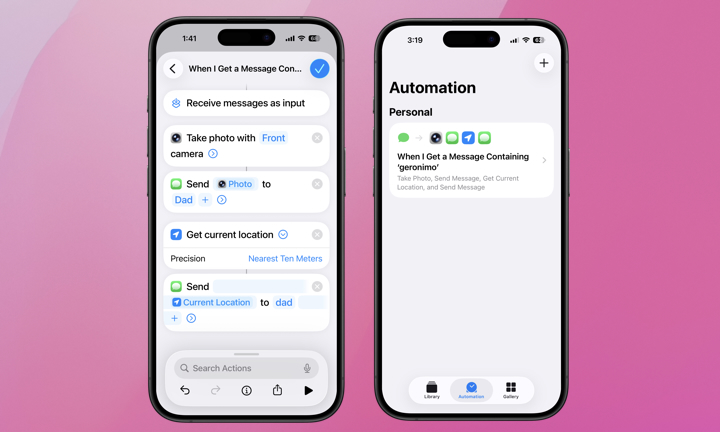
- Go back to the Search Actions bar and type Get Current Location. You’ll see the option appear. Tap it.
- Tap the blue arrow inside the circle next to Get Current Location and you’ll see a drop-down menu. Select Best or Nearest Ten Meters for the most precise location.
- Finally, go back to the Search Actions bar and type Send Message. Tap Send Message.
- The Current Location should be preloaded. Tap Recipients to select the contact you want to receive your iPhone’s location.
- Tap Done or the checkmark at the top-right to save your automation.
You did it! This shouldn’t be a replacement for using the Find My app properly, but it’s a valuable backup. It can also be fun and funny, as your trusted contact can send you a message with the keyword and instantly receive a photo from your front (or back) camera, which may be your face. You can also add actions to the shortcut, like enabling Low Power Mode and even playing a loud sound.
When Will This Shortcut Work?
While it’s never a bad thing to have another option for locating your iPhone, it’s important to understand the limitations of this as an “anti-theft” trick compared to Apple’s built-in Find My tools:
- Locked vs. Unlocked: This shortcut will work while your iPhone is locked, provided it has been unlocked at least once since the last time it was powered on.
- After a Restart: If a thief restarts your phone, the automation will likely fail to run until the passcode is entered. This is due to Apple’s “Before First Unlock” (BFU) encryption.
- Connectivity: Your iPhone must have a cellular or Wi-Fi connection to receive the keyword text and send the photo back out. If the thief removes the SIM card or enables Airplane Mode, the shortcut won’t trigger.
- Find My is still #1: This is a secondary “Hail Mary” play. Unlike Find My, which can track a phone even when it’s powered off (on newer models), this shortcut requires the phone to be powered on and active.
Be sure to test this before relying on it, as it may ask for specific permissions the first time it’s run, such as access to the Camera and Location. It won’t be too useful if a thief has your iPhone and can simply deny those permissions when they pop up.






