
iOS 26 Lets You Add Calendar Events from a Screenshot | Here’s How
 sdx15 / Adobe Stock
Toggle Dark Mode
Apple’s highly anticipated iOS 26 comes packed with new features. From major changes like the new transparent Liquid Glass design and advanced privacy and security protections to handy but less obvious features, there’s plenty to explore. Beyond all this, iOS 26 also brought another small but extremely useful new addition to one of iPhone’s most commonly used apps, Calendar.
If you’ve updated to iOS 26 and have an iPhone 15 Pro or newer, your iPhone is compatible with Apple Intelligence and will let you add events to the Calendar app via a screenshot. This added convenience is a new function of visual intelligence, a component of Apple’s AI suite first introduced in iOS 18.2 last year. This was originally exclusive to real-world images viewed through your iPhone’s camera, but iOS 26 now automatically enables it for your screenshots as well.

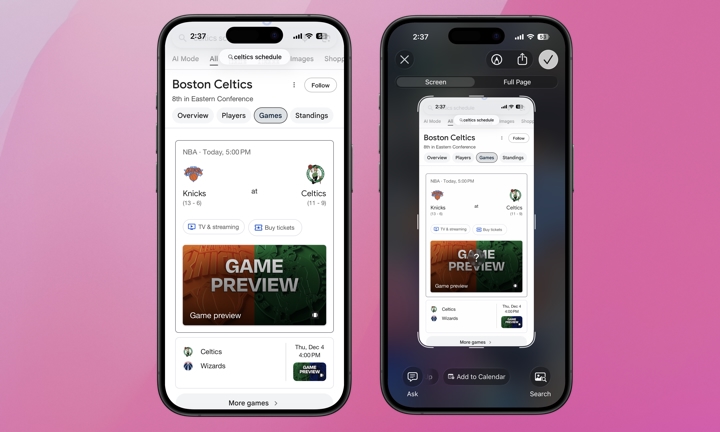
You may have already noticed that iOS 26 changes the default representation of screenshots on your iPhone. Instead of immediately reverting to a thumbnail in the lower-left corner of the screen, they now open in full screen. That’s to ensure you have quick access to visual intelligence, which you can use to ask questions or initiate searches based on what’s in your screenshot.
If you take a screenshot of anything containing event details, visual intelligence will also recognize those and show an Add to Calendar option in the bottom-center of the screen. Tap that, and you’ll see the detected event with an option to add it to your calendar.
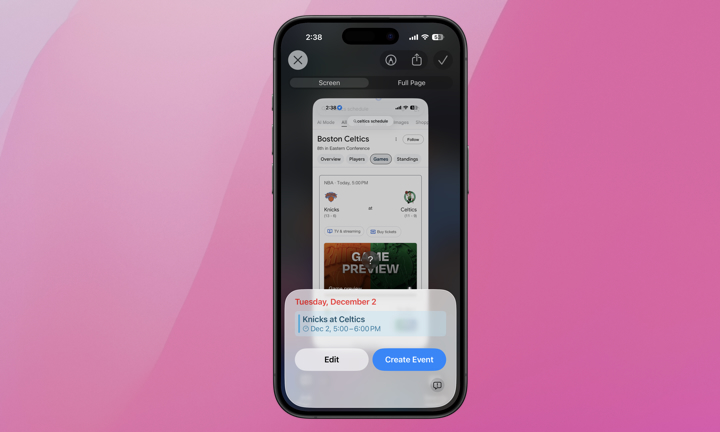
You can add Calendar events from any screenshot, whether it’s an email, a social media post, a text thread with friends, or a website.
Once you tap Add to Calendar you’ll have the option to Edit any details if you want. If the event’s details are already accurate, you can tap Create Event to add it right away.
You can also revert to screenshots appearing as thumbnails in the lower-left corner of the screen, rather than full-screen, by going to Settings > General > Screen Capture and toggling off Full-Screen Previews. This restores the classic thumbnail behavior found in iOS 18. However, it doesn’t disable the new visual intelligence feature — you’ll simply need to tap the thumbnail first to bring up the full-screen view.
Give it a try. Once you get used to it, you’ll see it’s an efficient way to manage your calendar and may become your go-to for adding new events if you already have the details on your iPhone.






