
Is Your iPhone Following You? 5 Ways to Ghost the Trackers
 Apple
Apple
Toggle Dark Mode
One of the biggest problems of 2026 is privacy. Whether it’s scammers or legit companies, it seems everyone out there knows as much about you as possible — and the easiest way to do it is through your iPhone. Whether it’s Apple or a third-party app, you’re always being tracked in some way.
The good news is that Apple also makes it easy to manage how much you share. If you want your iPhone to stop collecting more location data than necessary, you won’t need to know any hidden tricks or complicated setups; you just need to manage a few built-in settings your iPhone already offers.
Once you go through these settings, your iPhone will still work the way you expect, but it won’t quietly track more of your movements than necessary, striking a balance that’s perfect for most of us. To help you out, here are some location settings you need to change if you want your location to be more private.

Review Every App That Can See Your Location
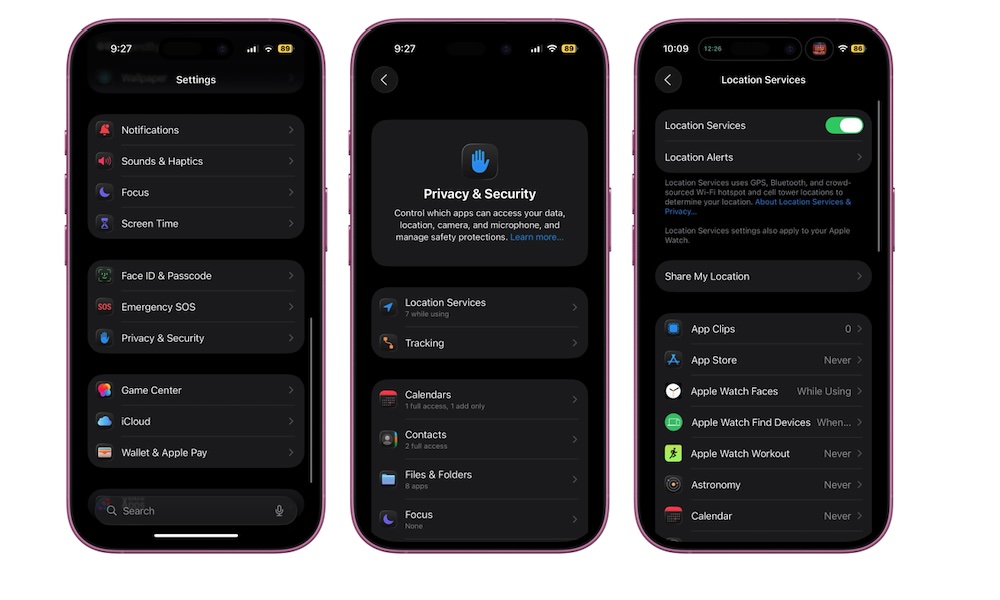
The first thing you should do is audit every app that has access to your location. This is where most unnecessary tracking starts. Over time, it’s easy to grant excessive permissions without thinking too much about them. You install an app, it asks for location access, and you tap “Allow” just to move forward.
The problem is that those permissions stick around long after you’ve forgotten about them. You may end up with apps like shopping tools, games, or random utilities still having access to your location even though they don’t actually need it — and probably never did. Going through this list manually is the most effective way to clean things up. Here’s where to find it:
- Open the Settings app.
- Scroll down and tap on Privacy & Security.
- Go to Location Services.
- Go through each app in the list by tapping on it and choosing the least permissive option that you’re still comfortable with, like Never, Ask Next Time, or While Using the App.
Once you start reviewing apps one by one, you’ll probably find several that don’t need location access at all. That alone can cut down a surprising amount of background tracking.
If you just want to stop dealing with location issues altogether, you can turn off Location Services at the top of the settings page. It might not be the most optimal option, as it will lock down even Apple Maps and Google Maps, but it can save you a lot of trouble.
Turn Off Precise Location For Apps That Don’t Really Need It
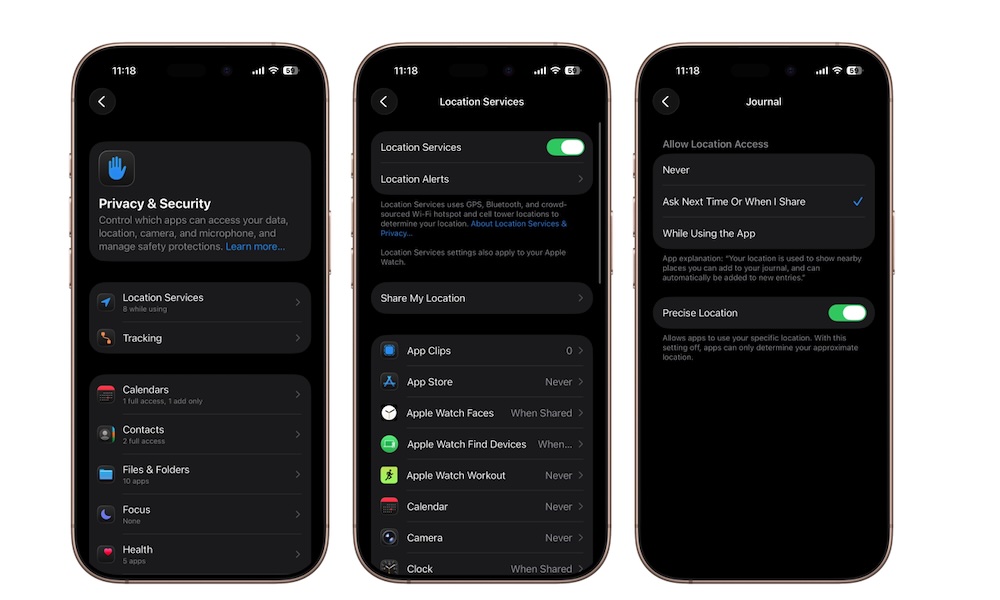
Even when an app needs your location, it doesn’t always need to know exactly where you are. Apple gives you the option to share an approximate location instead of your precise one, and that’s one of the easiest ways to stay private while also sharing your personal data.
A lot of apps work perfectly fine with a general area instead of your exact position. Weather, news, and shopping apps usually just need to know your city or neighborhood; they don’t need to know your exact street location or movement down to a few meters.
Even after going over which apps deserve to see your location, you might want to turn off Precise Location. This is how:
- Open the Settings app.
- Scroll down and tap on Privacy & Security.
- Go to Location Services.
- Scroll down and tap one of the apps that you’ve allowed to have access to your location.
- Turn Precise Location off.
You don’t have to turn this off for everything. Navigation and ride-sharing apps will still need precise location to work properly, and you’ll probably want to keep it on for camera apps if you want to keep track of where you took photos or recorded videos. But for many other apps, turning this off keeps things working while giving away much less detail.
Turn Off Significant Locations & Routes
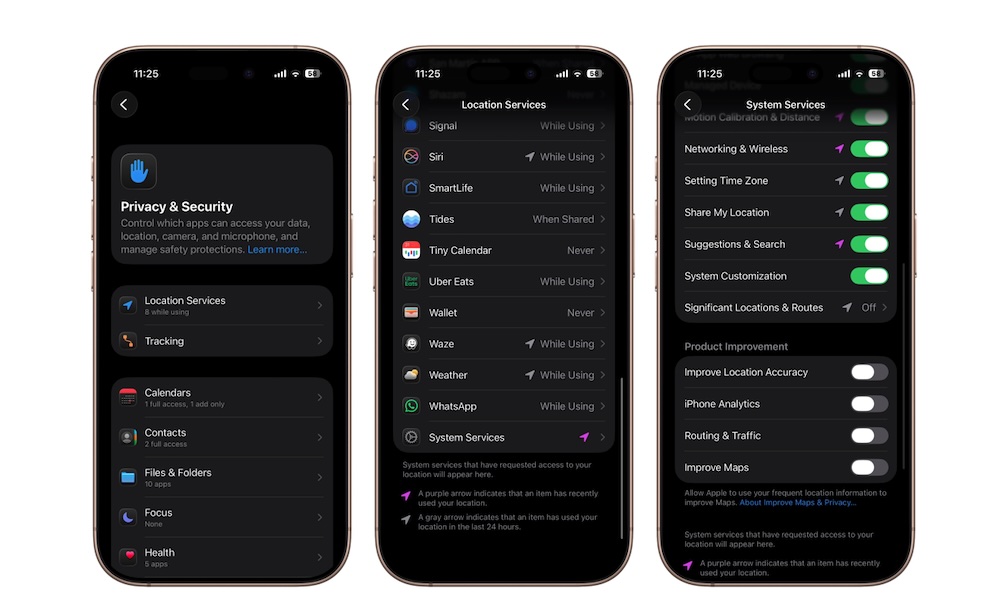
This is one of the most important settings you need to know about if you’re trying to reduce how much your iPhone learns about your daily patterns. Significant Locations allows your device to track places you visit frequently and the routes you take.
Apple uses this information to provide suggestions in apps like Maps, Calendar, and Photos. While it can be convenient, it can also feel creepy. To be fair, Apple promises this data is encrypted and never leaves your iPhone (except in your own iCloud Backups), you may still find it weird to have your iPhone recording your every move. Plus, who’s to say Apple won’t change its mind in the future, or that hackers will never find a way into this data?
While Significant Locations can be useful for things like predicting traffic and guiding you along your preferred routes in Maps, you may feel you’d be better off without this feature. Here’s how to turn it off:
- Open the Settings app.
- Scroll down and tap on Privacy & Security.
- Go to Location Services.
- Scroll down to the bottom and tap System Services.
- Scroll to the bottom again, and go to Significant Locations & Routes.
- Turn off Significant Locations & Routes.
After turning it off, you’ll notice that your recent location is still going to be available in the settings page. That’s because your iPhone will keep it until you delete it yourself. After you turn off this feature, be sure to tap on Clear History.
Stop Websites In Safari From Grabbing Your Location By Default
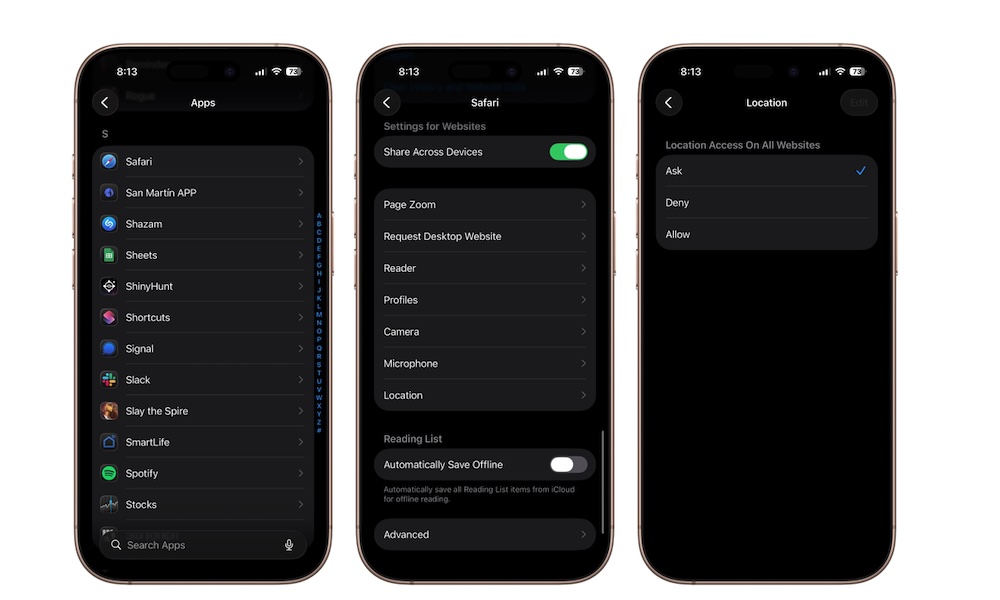
Apps aren’t the only things that can request your location. Websites can ask for it too, and Safari has its own set of location permissions.
Many websites request a location for things like store finders, local news, or delivery services. If you’d rather not give that access automatically, you can change that in Safari’s settings by doing the following:
- Open the Settings app.
- Scroll down and tap on Apps.
- Scroll down again and go to Safari.
- Go down to the bottom and tap on Location.
- Choose Ask or Deny.
You can still allow location for specific websites when needed, but this change makes sure you stay in control instead of giving access without thinking about it.
Manage System Services and Turn Off the Ones You Don’t Want
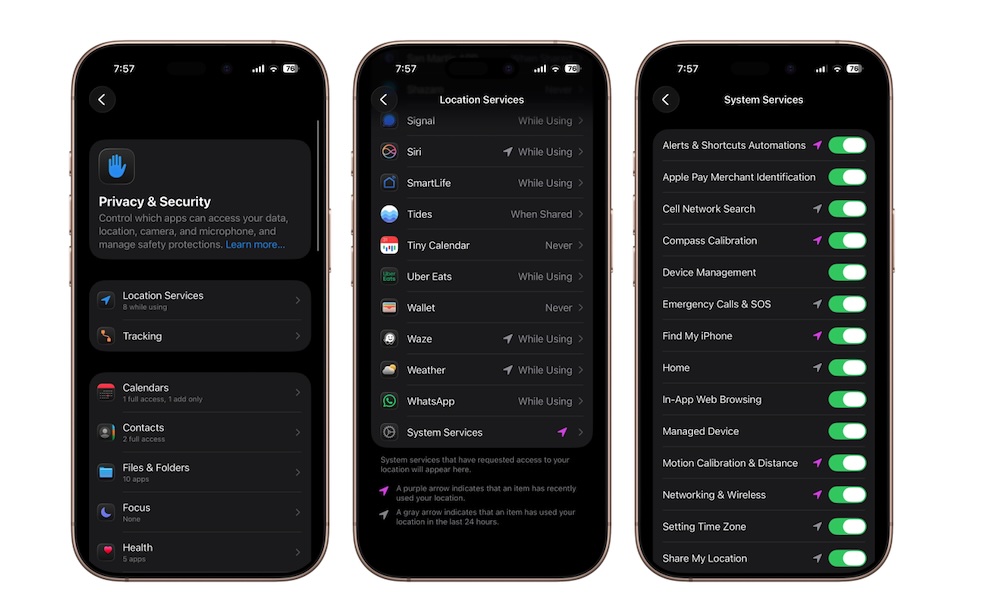
System Services is where Apple’s own location-based features live. These aren’t third-party apps, which is why they require one or two extra steps to find.
Some of these services use your location for suggestions, analytics, or ads. Others are more essential to how your iPhone works. The key here is to review them and decide what you’re comfortable leaving on. To manage the System Services on your iPhone, you need to do the following:
- Open the Settings app.
- Scroll down and tap on Privacy & Security.
- Go to Location Services.
- Scroll down to the bottom and tap System Services.
- Review each option and turn off the ones you don’t care for.
You don’t need to disable everything, as some things might actually be useful to you. The ones with a purple icon next to their name are services that your iPhone has used recently, which means they might be more important to keep turned on.
With all of that said, we still recommend that you turn off everything that’s under the Product Improvement section, as this data goes directly to Apple to improve its products (which it doesn’t need you for). They’re not necessarily location-based services, but it’s still good to turn them off if you don’t like the idea of oversharing with companies.
Bonus: Turn Off App Tracking Requests Too
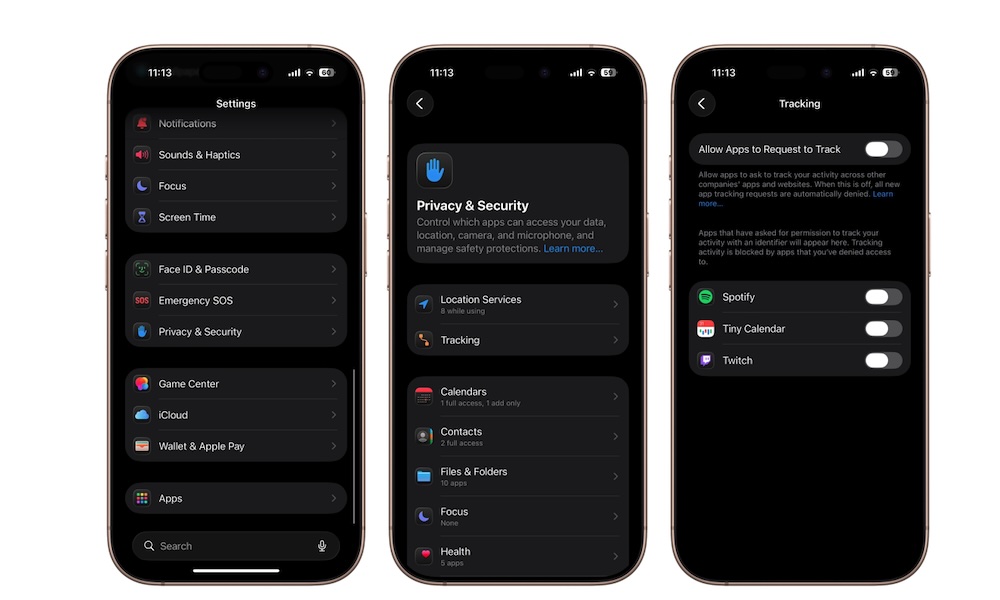
While this isn’t strictly a location setting, it’s still best to disable it. It’s always annoying to get a message asking if an app or site can track you for advertising purposes. While you can say no all the time, Apple gives you a way to turn off these requests entirely. Here’s how:
- Open the Settings app.
- Scroll down and tap on Privacy & Security.
- Go to Tracking.
- Turn off Allow Apps to Request to Track.
When you turn this off, app requests will be automatically denied by your iPhone, so you won’t ever see a message asking to track you ever again.
Keep Your Location Private
If you’ve ever felt like your iPhone knows a little too much about where you go, you’re not imagining it, and you’re definitely not the only one. Between apps, system services, and built-in features, there are several ways your device can collect your data over time.
The good news is that you don’t need to shut everything down to fix that. A few careful changes can go a long way. Reviewing app permissions, turning off precise location where it’s unnecessary, and checking system-level settings can dramatically reduce how much location data your iPhone keeps.
At the end of the day, it comes down to the control of your own personal information. Your iPhone should work for you, not quietly build a record of your movements in the background. After making these changes, you’ll make it a bit harder for apps and companies to track you.






