
Your iPhone Has a Hidden Spam Folder — Here’s How to Find It
Toggle Dark Mode
Every year, Apple updates its operating systems and adds new apps and features to existing ones — many of which we didn’t know we needed until we saw them. Last fall’s iOS 26 release was no exception.
With this new software update, Apple brought many new features and tools that make using your iPhone more frictionless than ever. Not only that, but some of Apple’s oldest apps also brought a couple of really powerful features.

One of iOS 26’s biggest winners was Messages. Sure, at its core, it might look like the same old app, but Apple added a new folder to store all those annoying spam messages that used to clutter your inbox.
You probably haven’t even seen it yet, but it’s already making your iPhone clutter-free by default. Here’s everything you need to know about it.
Does the Messages App Have a New Spam Folder?
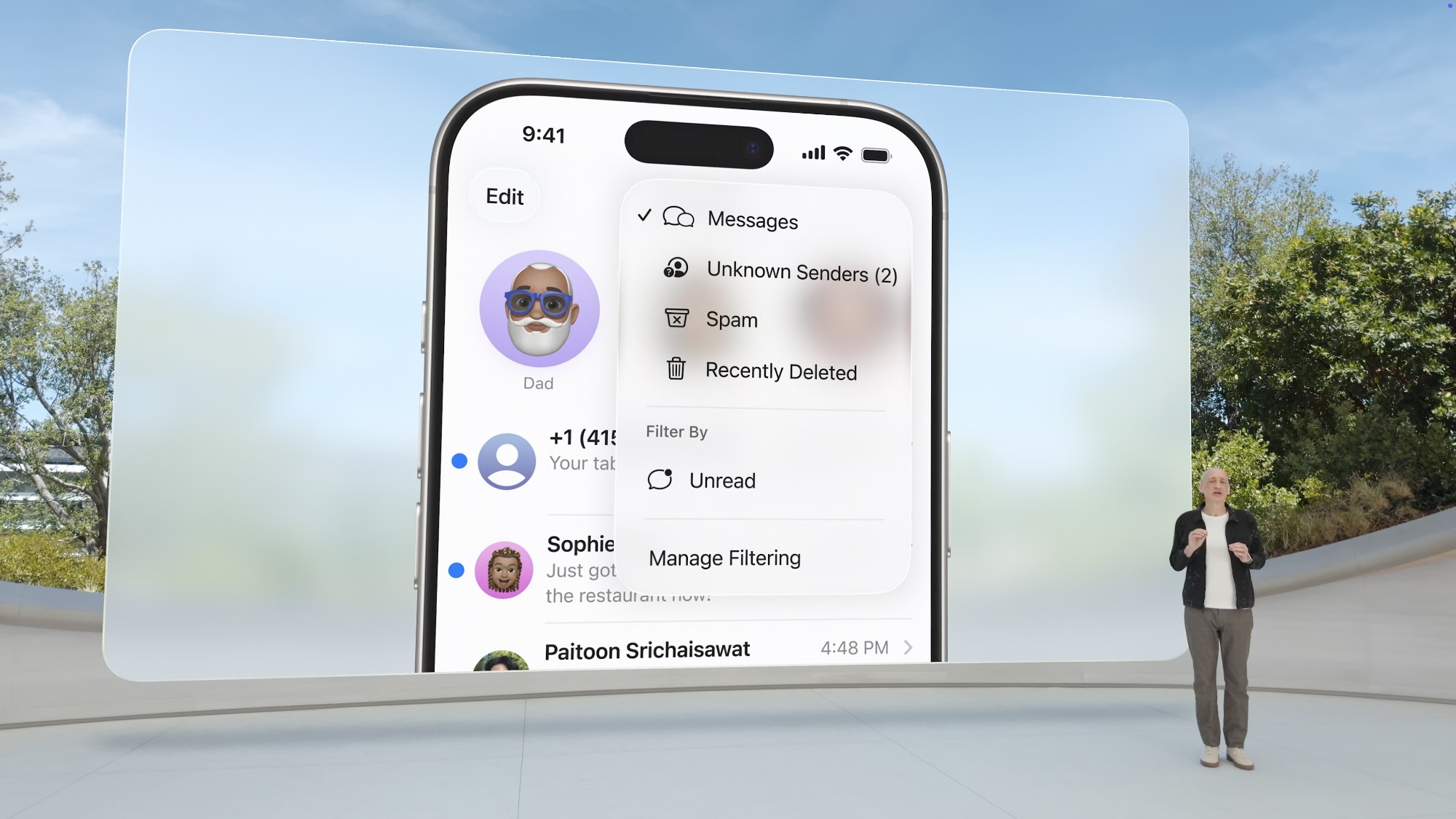
As soon as you install iOS 26 on your iPhone, you’ll see a new folder layout in the Messages app as part of the features that automatically filter your conversations to help you focus on the most important ones:
- Unknown Senders will hold all messages from senders who aren’t in your contacts or with whom you haven’t previously interacted. This works mostly the same as it did in iOS 18, except that you now have to specifically select it to see what’s there; the unified “All Messages” view that shows both known and unknown senders in a single list is gone in iOS 26.
- Spam is a new folder in iOS 26 where junk mail and potentially distracting or harmful messages will end up.
All of these messages will remain hidden, so you don’t see a bunch of spam texts in your inbox. Of course, you can always open these folders to check your messages whenever you like.
Where to Find the New Spam Folder
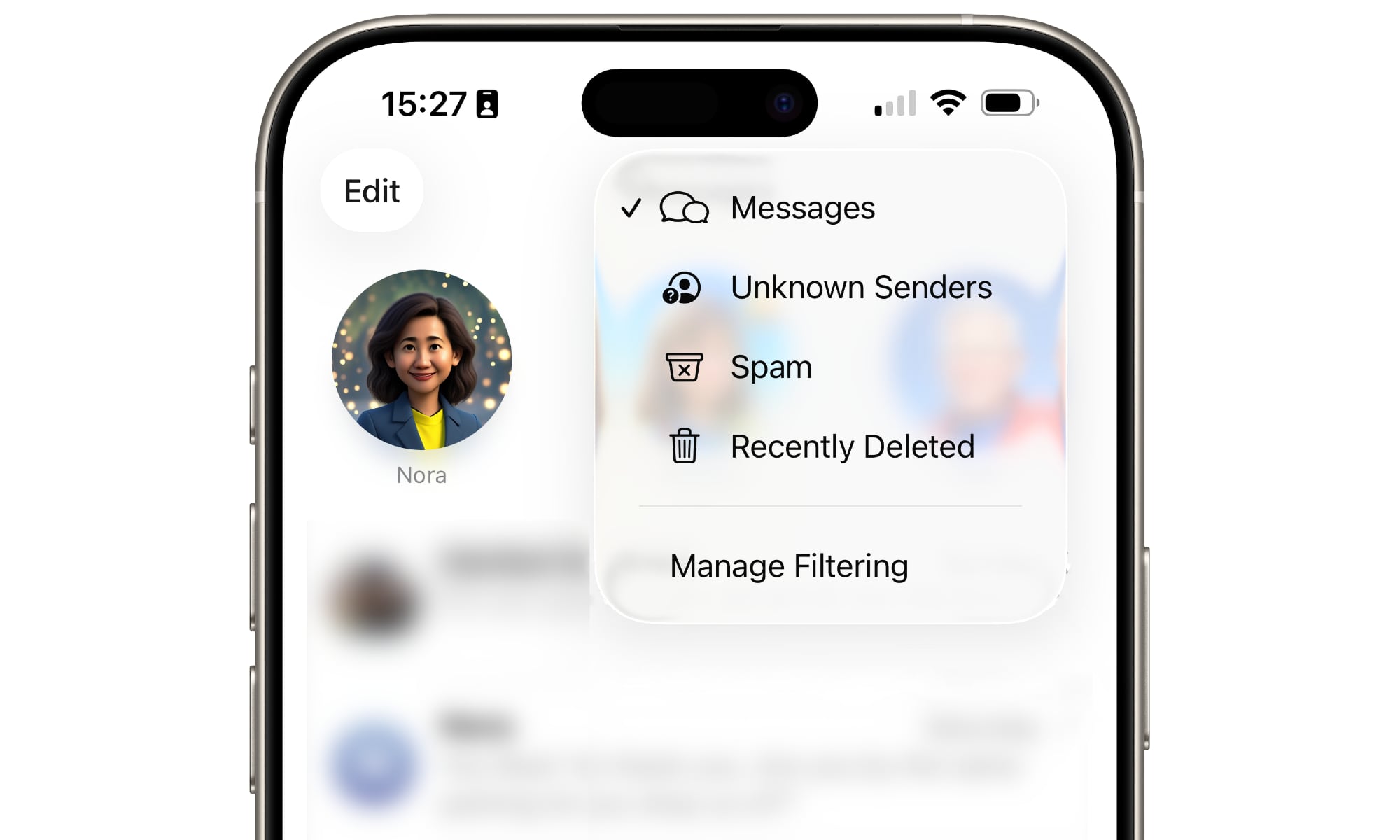
As we mentioned, iOS 26’s spam folder is hidden for your convenience, but it’s really easy to find. All you need to do is open the Messages app. Then tap the Filter Button in the top-right corner of your screen.
From there, tap on Spam, and you’ll be redirected to your spam folder, alongside all of your messages that were considered spam.
Pro Tip: If you’re running a third-party app that offers message filtering extensions, such as Malwarebytes, you may also see folders for Transactions and Promotions. These are used exclusively by those third-party filters to provide additional sorting.
How to Screen Unknown Numbers in the Messages App
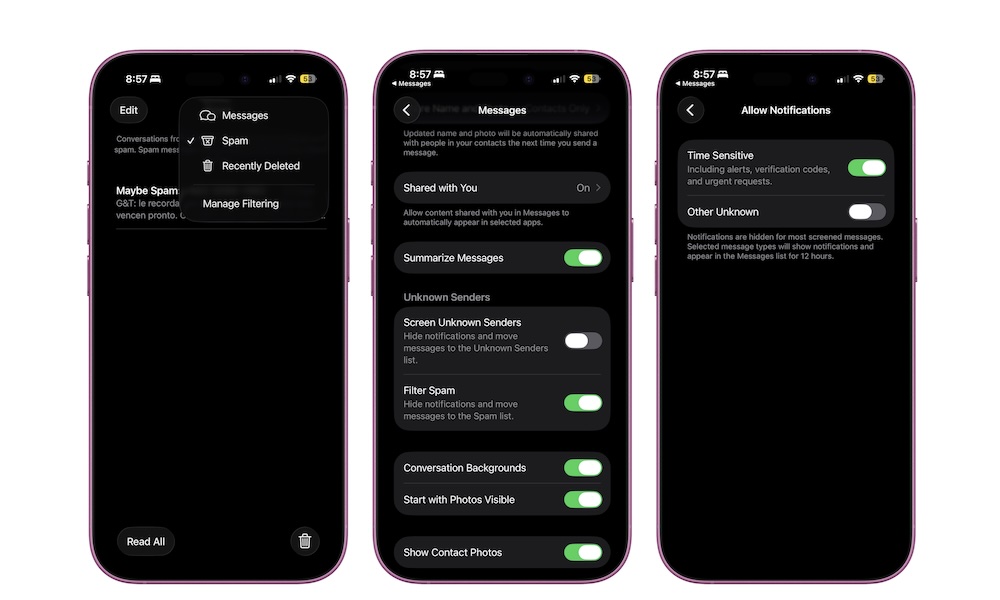
By default, your iPhone filters spam, but it does not mark unknown senders as spam from the start. For that, you’ll need to manage your filtering settings. Here’s how:
- From the Messages app, tap the filter Button in the top right corner of your screen.
- Tap on Manage Filtering.
- This will take you to your iPhone Settings. From there, under Unknown Senders, turn on Screen Unknown Senders.
And that’s it, this will send all messages from unknown senders straight to your Unknown Senders folder. You won’t even receive any notifications anymore.
With that said, you might want to still receive notifications from important senders that you haven’t added to your contacts list. For instance, you’ll probably want to get time-sensitive notifications like verification codes. For that, you can tap on Allow Notifications and enable Time Sensitive and Other Unknown.
How to Receive Messages From Unknown Senders
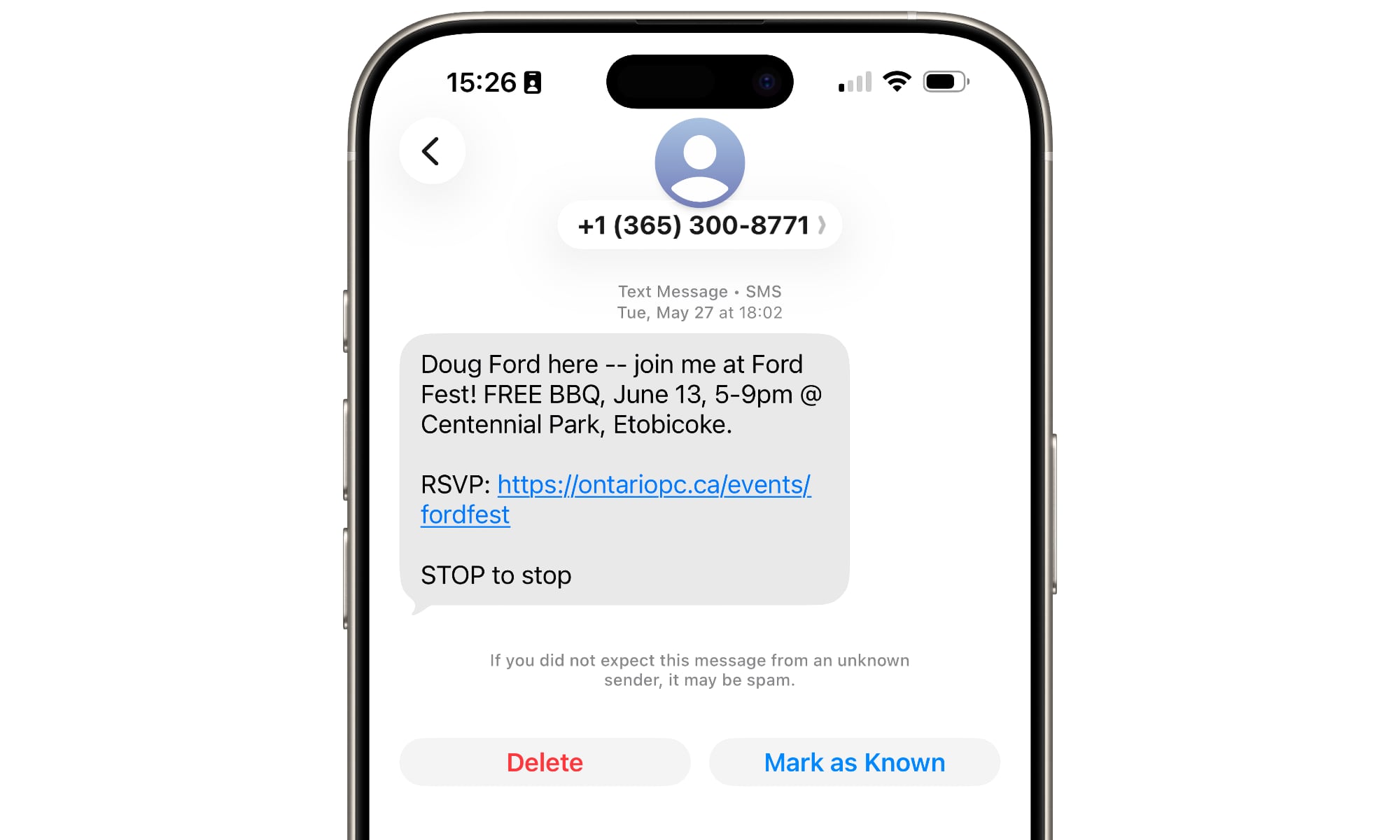
Even if iOS 26’s new screening system is a great new feature, it might work too well for its own good. What we mean is that there might be times when you receive a message from an unknown number that’s actually important to you.
If that happens, you should mark that unknown sender as a known sender to ensure you receive future messages in your main inbox. Replying to a message from an unknown sender will automatically mark them as known, but if these are simply notifications that you want to receive, you’ll need to specifically tag them as known. There are two ways to do this:
- You can add the sender to your contacts list. This will make it easier to identify and find, so be sure to use this with friends, family, and coworkers.
- If you don’t want to add a sender but still want to receive messages from them, you can mark them as known senders. To do this, simply open the message from the person you want and then tap Mark as Known at the bottom of the conversation.
Conversely, you can tap Delete to remove the message, with an option to report it as spam, increasing the likelihood that future messages from the same sender will go straight to your Spam folder instead.
You can do the same with messages that end up in your Spam folder by tapping Not Spam instead. Note that you can’t reply to a spam message; you’ll have to mark it as “Not Spam” first.
Pro Tip: You can manage your list of known senders in the Contacts or Phone app by tapping the arrow in the top-right corner of your contacts list and selecting Other Known. This allows you to effectively whitelist automated services like bank alerts or delivery updates without cluttering up your contacts.
Let Your iPhone Deal With the Spam
Spam messages are a dime a dozen. At best, they’re just annoying, but at worst, they could be the beginning of a phishing scam that tries to steal all your data. Needless to say, no one wants to deal with them.
Luckily, Apple now gives your iPhone the necessary tools so it can deal with it for you. Is it perfect? Probably not, but it’ll help you stay safe and unbothered by annoying notifications from possibly dangerous sources.
If you don’t get messages from people you don’t have in your contacts list very often, the Messages app’s new screening feature is the perfect way to manage the clutter without much effort.






