
5 Red Flags That Can Turn a Used iPhone Bargain Into an Expensive Brick
 Elena / Adobe Stock
Buying a used iPhone is a quick and easy way to save money on Apple’s smartphones. Since iPhones tend to remain useful for years, you can often find a relatively recent model for hundreds of dollars less than its original price.
However, buying secondhand comes with a few risks. An iPhone might look almost brand-new but have a worn-out battery or a replacement screen that doesn’t work properly. In some cases, the device might even have restrictions that prevent you from using it with your carrier.
There’s also the possibility of buying an iPhone that’s still connected to its previous owner’s Apple Account. If that happens, you might end up with a device you can’t even activate at all.
That’s why it’s important to know what to look for before buying an iPhone. Whether you’re buying from a stranger or a refurbished electronics retailer, be sure to double-check these things before you make an expensive mistake.
Make Sure Activation Lock Is Disabled
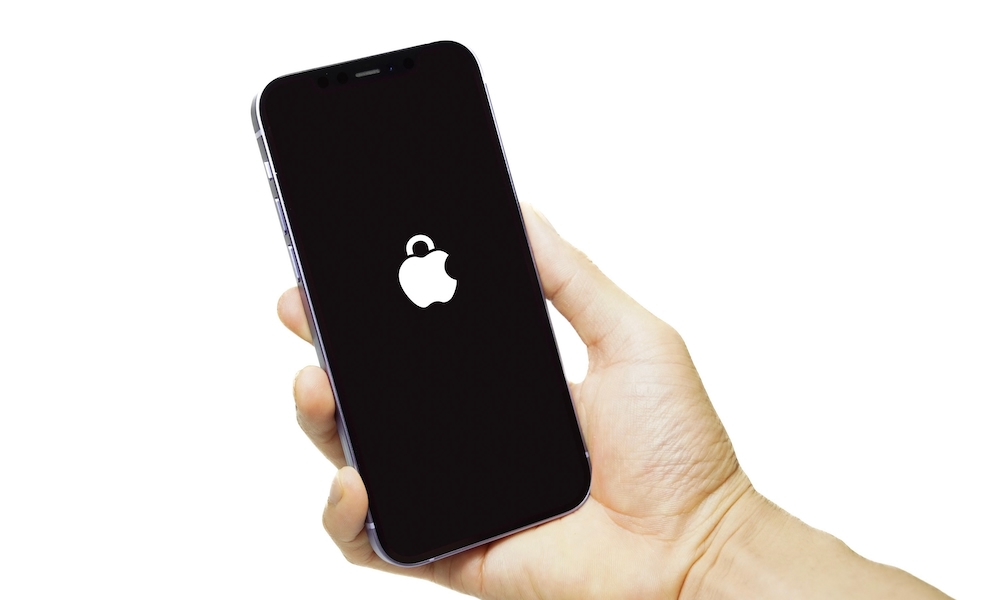
Before worrying about the iPhone’s appearance or battery health, you should make sure it isn’t protected by Activation Lock. This is one of the most important things to check because a locked device is basically useless.
Activation Lock is a security feature that automatically turns on when Find My is enabled. It links the iPhone to the owner’s Apple Account and prevents others from activating the device without the right credentials.
The feature is designed to help you in case your iPhone gets stolen, but it can also create problems when someone sells an iPhone without properly removing it from their account.
Fortunately, checking for Activation Lock is relatively straightforward. In the best-case scenario, ask the seller to erase the iPhone and let you complete the activation process before paying.
Then, turn on the iPhone and start the activation process. Connect it to a Wi-Fi network and check whether the iPhone Locked to Owner screen pops up.
If Activation Lock appears, ask the seller to remove the device from their account. Don’t accept promises that they’ll unlock it after you’ve paid, since there’s no guarantee they’ll actually do it.
Check the Parts and Service History
Not every used iPhone still has all its original components. Some devices have had their batteries replaced, while others may have received new screens or cameras after being damaged.
There's nothing inherently wrong with buying a repaired iPhone. However, you should know which components have been replaced and whether the repairs were completed correctly.
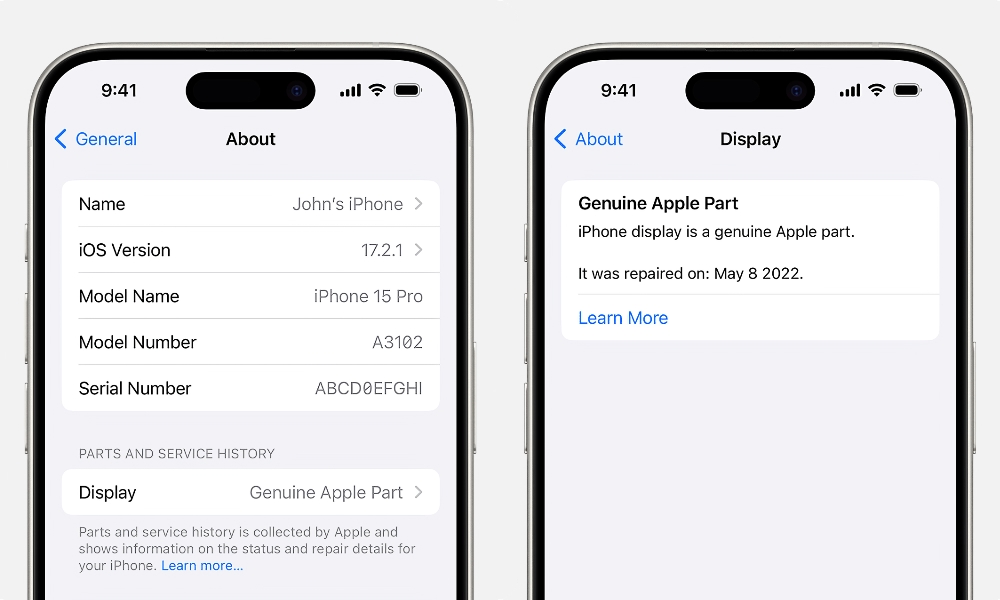
Apple includes a Parts and Service History feature on supported iPhones that can provide information about certain repairs. Here's how to check it:
- Open the Settings app.
- Tap General.
- Select About.
- Look for Parts and Service History.
- Review any components listed in this section.
Depending on the model and software version, you might see labels such as Genuine, Used, Unknown (or Not Verified), or Finish Repair. Be cautious if you see Finish Repair on an iPhone 15 or later model — since Apple now extends Activation Lock to individual components, a replacement part taken from another locked iPhone can't be calibrated without signing in to the Apple Account of the person who "donated" that part.
A Genuine label generally indicates that the component has been verified as a genuine Apple part. A Used label means a genuine component was previously installed in another iPhone.
Keep in mind that the information available depends on the iPhone model and software version. If you don't see Parts and Service History, that doesn't necessarily prove the device has never been repaired.
Check Whether the iPhone Is Carrier Locked
Another important thing to check is whether the iPhone can work with your cellular carrier. Some iPhones are locked to a particular network, meaning you can’t simply use another carrier’s SIM or eSIM.
This can be a problem when buying a used iPhone from another country. For example, a device originally sold through a carrier in the United States might still have restrictions that prevent it from working with your local network.
Fortunately, Apple makes it easy to check whether an iPhone is carrier unlocked.
- Open Settings.
- Tap General.
- Select About.
- Scroll down until you find Carrier Lock.
- Check whether it says No SIM restrictions.
If you see No SIM restrictions, the iPhone is carrier unlocked according to Apple’s status information.
If you see a carrier restriction, you’ll need to contact the original carrier to find out whether unlocking is possible. Even if unlocking is technically possible, it’s rarely worth the hassle.
Check the Battery’s Maximum Capacity
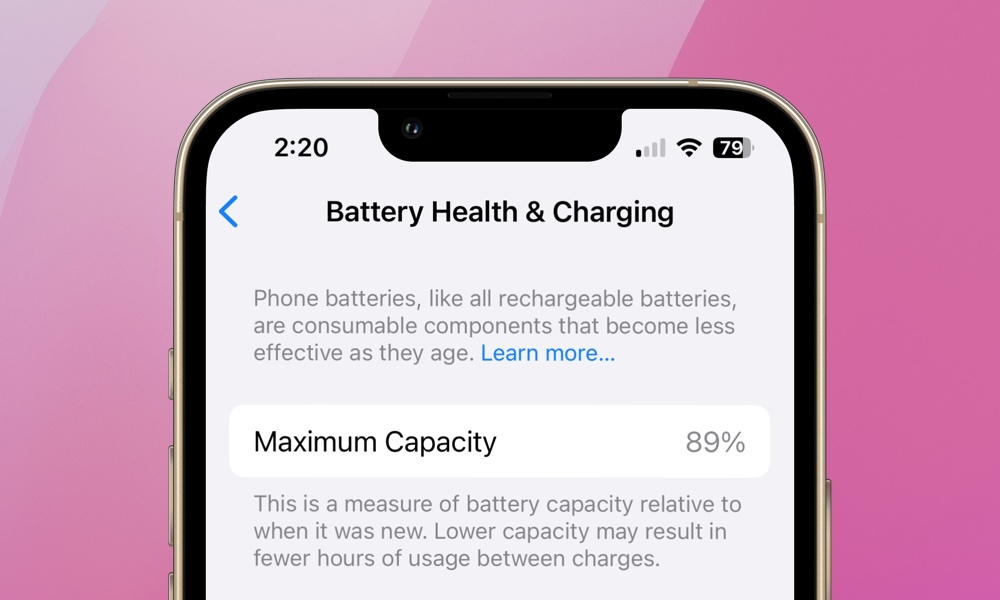
An iPhone’s battery gradually loses its ability to hold a charge as it ages, which is normal. However, that means a used iPhone could look almost perfect on the outside while providing considerably less battery life than it did when it was new.
Again, this is to be expected, but if the original owner didn’t take care of the iPhone’s battery, or if the device is just too old, it might not be worth buying.
Fortunately, Apple includes a battery health feature that lets you check the battery’s condition. This information can help you determine whether you’ll need to spend additional money on a replacement.
To check battery health, follow these steps:
- Open the Settings app.
- Scroll down and tap Battery.
- Select Battery Health or Battery Health & Charging, depending on the model.
- Look at Maximum Capacity, Cycle Count, and any service recommendations.
Maximum Capacity represents the battery’s estimated capacity compared with when it was new. For example, a battery showing 85% maximum capacity can store less energy than it originally could.
Cycle Count shows how many full charge cycles it's been through. This will only show up on the iPhone 15 and newer models, all of which Apple says are "designed to retain 80 percent of their original capacity at 1000 complete charge cycles under ideal conditions."
Ideally, you should look for a used iPhone with a battery above 90% capacity and a lower Cycle Count (on newer models that support this feature).
That doesn’t mean an iPhone with 85% battery health is automatically a bad purchase, but if the battery is approaching 80% capacity or Apple recommends service, you should factor the battery replacement cost into the purchase price. This ranges from $69 to $129 for most iPhone models; you can check the actual cost on Apple's Service and Repair for iPhone Battery page.
Inspect the Hardware for Damage
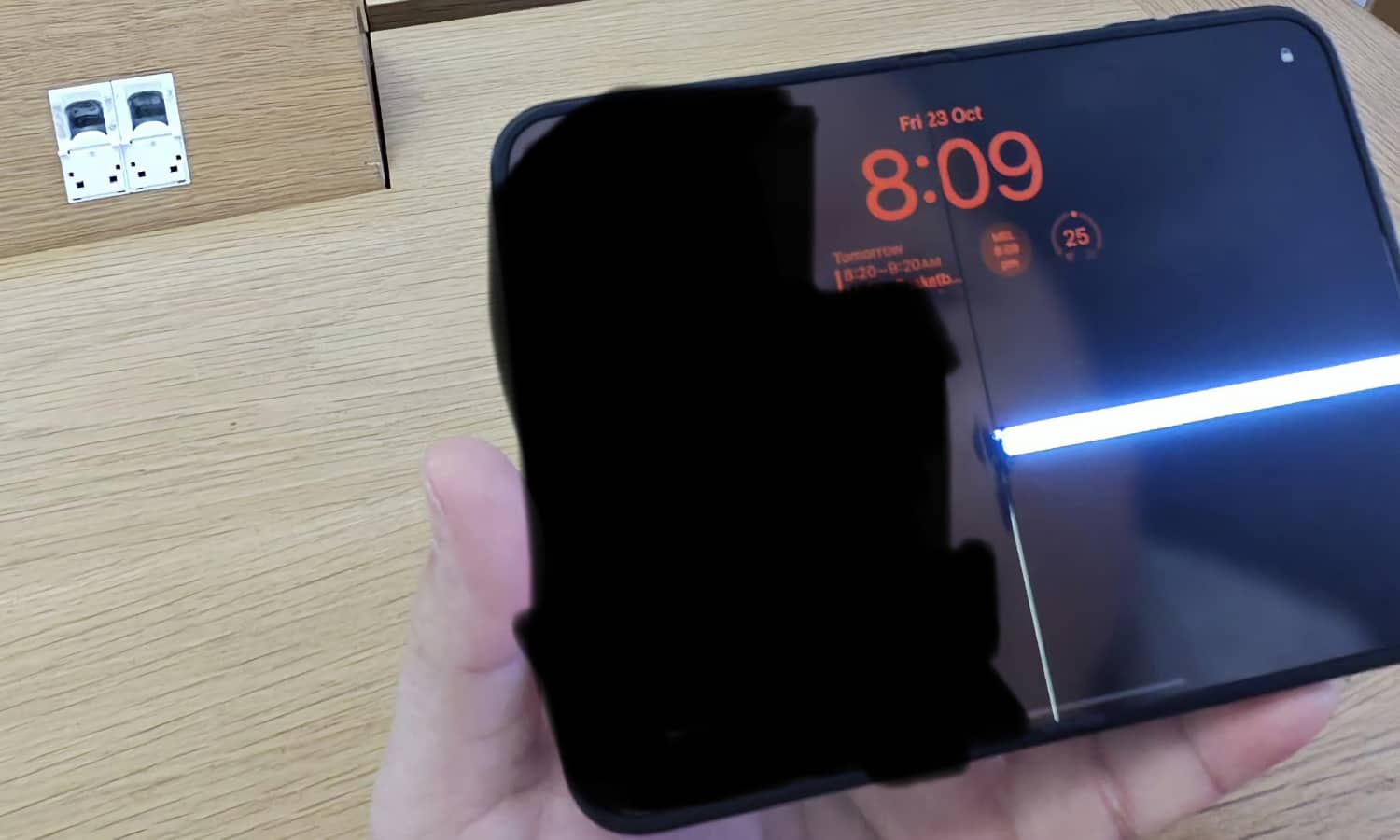
The display is one of the most expensive components to replace on many iPhone models. That’s why you should inspect it carefully before agreeing to purchase a used device.
Start by looking for obvious damage, such as cracks or deep scratches. You should also check for unusual discoloration or areas that appear brighter or darker than the rest of the screen.
However, some display problems aren’t immediately visible when you’re simply looking at the Home Screen.
Try opening a bright image and examining the display for unusual patches. Then switch to a dark image and check whether you notice anything that looks out of place.
You should also test the touchscreen itself. Open an app that allows you to type and use different areas of the keyboard to make sure your taps register correctly.
The same goes for the cameras and the charging port. Use all the cameras to take pictures, and plug in a charging cable to see if the iPhone charges normally.
Other things you need to check are Face ID or Touch ID. And of course, it’s a phone, so don’t forget to check the speakers and microphones. The more hardware you can check before purchasing it, the better.
Don’t Buy a Used iPhone Without Checking These Things First
Buying a used iPhone can save you hundreds of dollars, but it’s important to know exactly what you’re getting before handing over your money.
A few scratches around the frame probably aren’t a big deal, particularly if the price reflects the device’s condition. However, be sure to check for bigger problems that could make the iPhone completely unusable.
If you’re meeting a seller in person, take your time inspecting the device. Test the cameras and speakers, check the physical buttons, and make sure the charging port works properly.
Most importantly, confirm that the previous owner has removed the iPhone from their Apple Account and that you can activate it without encountering unexpected restrictions.
If you’re purchasing online, choose a reputable seller with a clear return policy. Inspect the iPhone as soon as it arrives so you have enough time to report any problems.
With a little patience and the right checks, you can find a used iPhone that performs well and potentially keeps working for many more years.