
5 Everyday Habits That Secretly Slow Down Your iPhone
One of the best parts about the iPhone (or any Apple product) is how snappy it feels from the get-go. Apps open almost instantly, and performance feels like butter.
Over time, however, you might notice that your phone isn’t quite as responsive as it used to be. You might feel some stuttering or lag, or just things that took less than a second before are suddenly much slower.
Unfortunately, this is bound to happen, and it can happen to any device. And while older hardware can certainly contribute to performance problems, other factors can also slow down your iPhone.
If you aren’t careful, you might be making your iPhone slower than it needs to be. Luckily, that means that with a few tweaks, you can make it feel faster again. Here are a few tips to keep your iPhone in tip-top shape.
Keeping Your iPhone’s Storage Completely Full
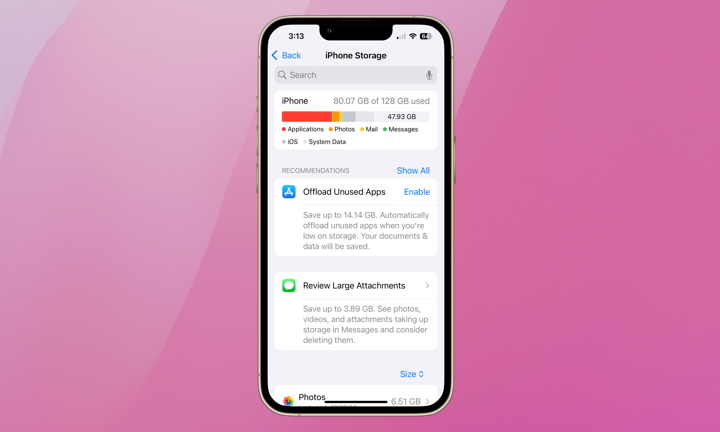
One of the easiest ways to make your iPhone slower is to let its storage fill up until there’s almost no space left. It’s something that can happen without you noticing, especially if you regularly take videos or download Netflix shows to watch offline.
Your iPhone needs some available storage to handle temporary files and other system operations. When there isn’t enough room, some tasks can take longer than usual, and you may have trouble opening apps or saving new files.
Apple recommends keeping at least 1 GB of storage available to avoid slowdowns. However, leaving several gigabytes free is a much better idea, especially if you tend to download large files to your iPhone.
While there are many ways to manage your storage, one of the easiest ways to start is by doing the following:
- Open the Settings app.
- Scroll down and tap General.
- Select iPhone Storage.
- Check how much available storage you have.
Here you’ll see how much free storage you actually have. You’ll also get to review Apple’s recommendations and remove content you no longer need.
Besides checking your storage, you can also enable the Offload Unused Apps setting, which removes apps you rarely open while keeping their data in case you want to use them again.
Constantly Force-Closing All Your Apps
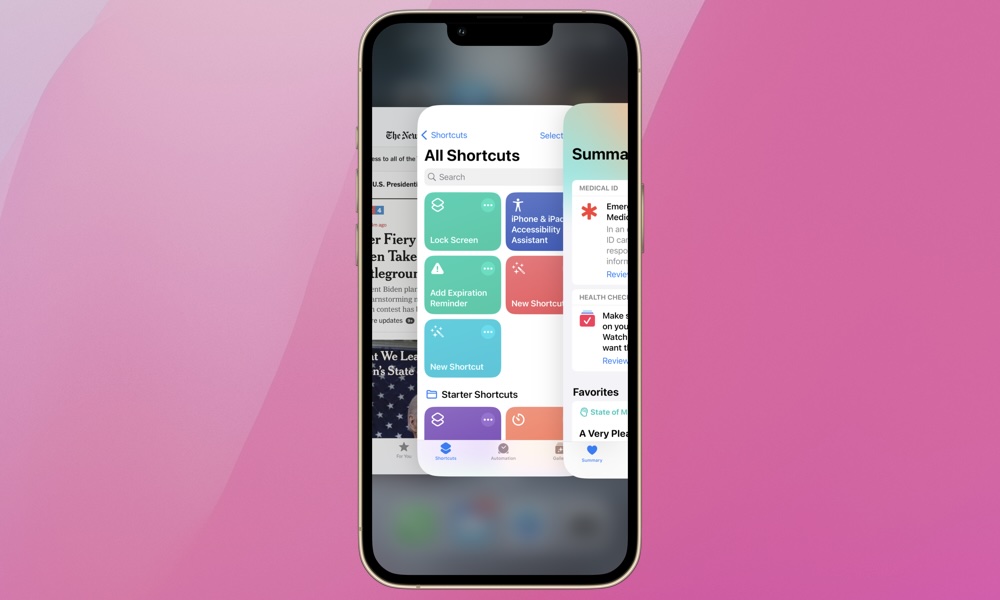
A really old myth you’ve probably heard is that closing apps running in the background can make your iPhone faster. Unfortunately, this can actually have the opposite effect.
When you open the App Switcher, you’ll see previews of apps you’ve recently used. However, that doesn’t mean every app you see is actively running and consuming processing power.
iOS automatically suspends most apps when you’re no longer using them. It also manages memory in the background, so you generally don’t need to worry about closing apps yourself.
When you repeatedly force-close apps, your iPhone may need to reload them the next time you open them. This can make those apps take longer to launch and may increase the amount of power your iPhone needs.
Apple recommends closing an app when it freezes and becomes unresponsive. Otherwise, you’re better off leaving it alone and letting iOS manage everything automatically.
Using Your iPhone When It’s Overheating
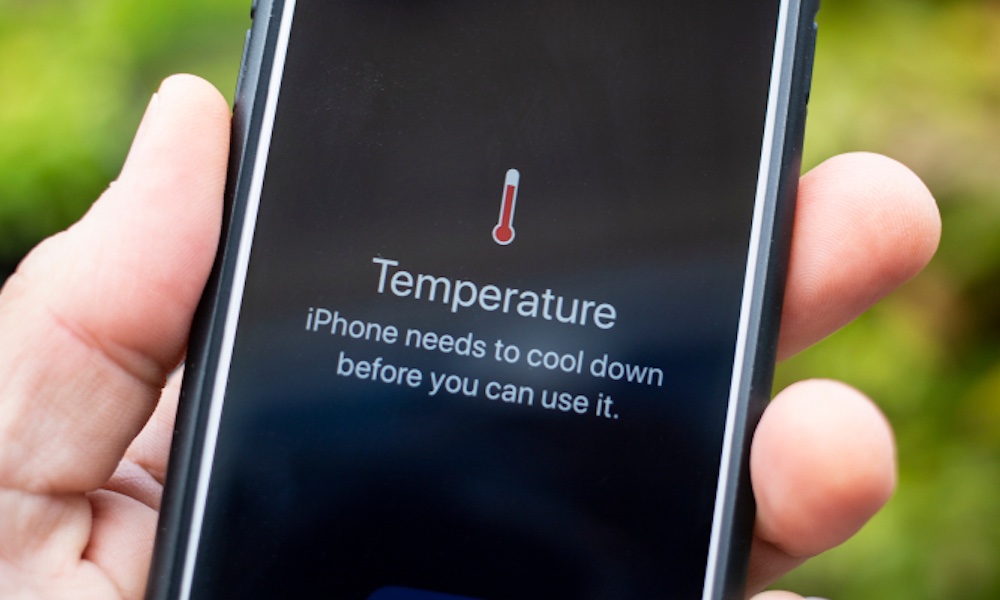
Your iPhone can handle demanding tasks, but that doesn’t mean it can perform at maximum capacity in every temperature.
Playing graphics-intensive games while charging can generate considerable heat. Using navigation in a hot car or leaving your phone exposed to direct sunlight can also cause its temperature to rise.
When your iPhone becomes too hot, iOS automatically takes steps to protect its internal components. These measures can include reducing processing performance or dimming the display.
You might notice that a game suddenly starts dropping frames even though it was running perfectly a few minutes earlier. Charging can also slow down or temporarily stop until your iPhone cools down.
If your phone becomes unusually hot, move it away from direct sunlight and stop demanding activities for a while. Disconnecting the charger may also help, particularly if you’re playing a game while charging.
Remember that using your iPhone under high temperatures will not only slow it down now, but it can also affect its hardware in the long run. So it’s just best to avoid high temperatures altogether.
Ignoring iOS Updates for Months
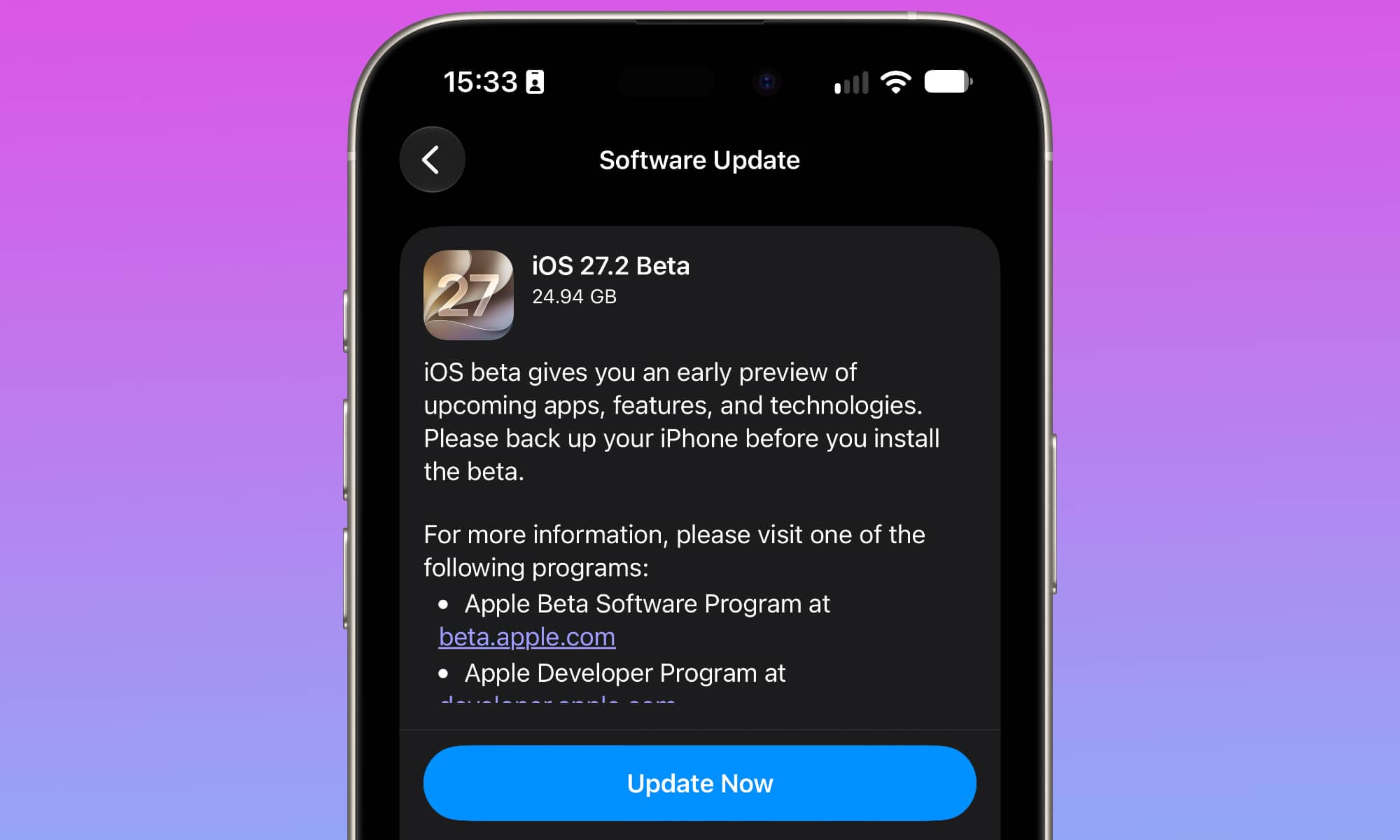
If you’ve been postponing an iOS update for several months, you might be missing important fixes that could improve your iPhone’s performance.
Apple regularly releases updates to address software bugs and security vulnerabilities. Some updates also resolve problems that can affect performance or cause apps to behave incorrectly.
Not only that, but iOS 27 can actually make your iPhone work faster, even if it’s an older model. So there’s literally no reason why you shouldn’t be updating your iPhone regularly. This is how:
- Open the Settings app.
- Scroll down and tap General.
- Select Software Update.
- Check whether an update is available and tap Update Now or Install Now if one is ready.
If your iPhone feels slower immediately after updating, give it some time. iOS may still be completing background tasks, and performance should return to normal once that’s finished.
Never Restarting Your iPhone When Something Goes Wrong
Your iPhone is designed to stay on for long periods without having to restart it manually. However, that doesn’t mean you should ignore restarting it when things start to go wrong.
Sometimes, an app might freeze repeatedly, or your keyboard might start to lag uncontrollably. Whatever the issue is, it usually happens due to temporary software problems.
Restarting your iPhone shuts down running processes and gives iOS an opportunity to start them again from scratch. You don’t have to do this all the time, but it’s good practice to restart your iPhone as the first step to fix any issues.
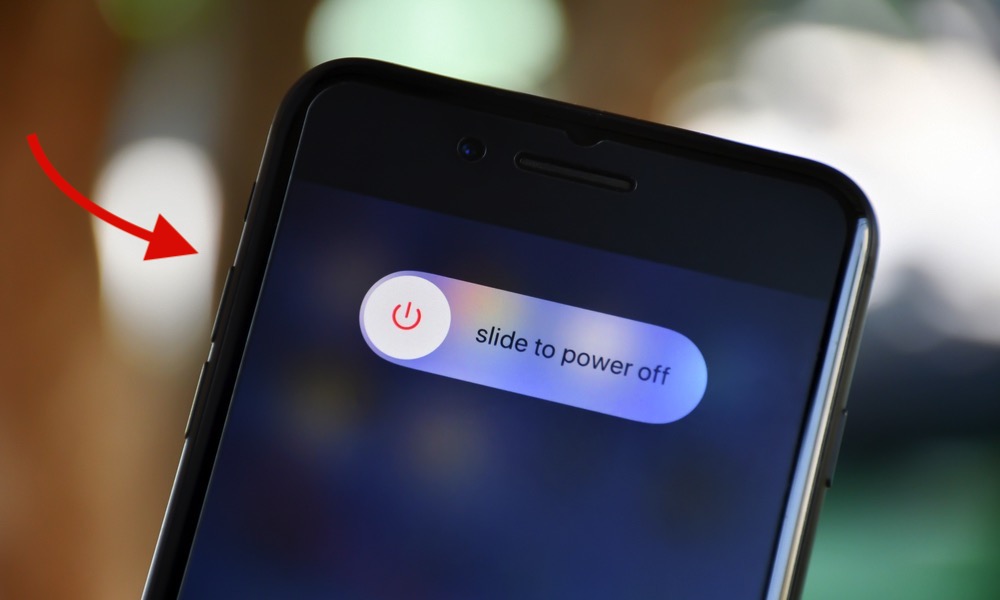
If your iPhone has Face ID, you can restart it by pressing and holding the side button and either volume button. On an iPhone with Touch ID, you can simply press and hold the side button for a couple of seconds.
Drag the Power Off slider to the right, and then wait about 30 seconds. Then press and hold the side button until the Apple logo appears on your screen.
Once your phone restarts, try using the app that was giving you trouble, and see if that fixed the issue.
Make Your iPhone Feel Faster Without Buying a New One
A slow iPhone doesn’t automatically mean you need to replace it. Sometimes, the problem can be resolved by changing a couple of things.
Just by following the tips on the list, you should see an improvement in your iPhone’s performance. Of course, if your device is already old, then chances are its hardware can’t keep up with the software anymore. If that’s the case, you should consider saving up some money and upgrading to a newer iPhone.
The good news is that even older devices can still be pretty snappy, especially with iOS 27, so you might still keep your old iPhone for a few more months or even years.