Here’s What Setting Up Four HomePods Looks Like on the New Apple TV 4K
Toggle Dark Mode
While the Apple TV set-top box has never had the most regular release cycle, Apple’s third-generation Apple TV 4K set a new record a few months ago when it became the longest current model to remain on the market without an update.
That distinction was previously held by the first Apple TV 4K, which was released in September 2017 and remained on the market without a successor until May 2021 — 1,337 days if we measure by when the latter model actually landed in stores.

The 2017 Apple TV 4K was an upgrade for the original fourth-generation Apple TV — the first version of the set-top box to gain an App Store after eight years of it being more of an appliance-style device.
The 2015 model was renamed “Apple TV HD” in 2019 to help set it apart from its 4K sibling and Apple’s streaming service, but it actually remained on the market until 2022 — surviving through the release of the second-generation Apple TV 4K in spring 2021 and only being discontinued when the third-generation Apple TV 4K landed on November 4, 2022.
This marked the first time in over five years that Apple offered only a single model of the set-top box, although it remained available in two storage configurations, with the higher-capacity model including an Ethernet port and Thread support.
That remained the norm for 1,470 days, ending last week when Apple finally released its successor, the fourth-generation Apple TV 4K. Whether the new model was worth the wait is open to debate, but it does deliver at least a couple of exciting new features.
Quad-Surround Sound
While the Apple TV 4K packs in a new A19 chip, I can’t say that’s a compelling enough reason to upgrade on its own. I was already running a third-generation model with an A15 Bionic in my living room, and I can’t think of a single time when I had any concerns about performance (and having been using the new fourth-generation model since Friday, I can’t say I notice much of a difference). It’s also reportedly a binned A19, with one efficiency CPU core disabled — much like the A15 Bionic in the prior model — and I can hardly imagine it matters much.
But what’s a definite game-changer for a HomePod fan like me is that Apple has finally given its set-top box the ability to handle not just two, but four HomePods for a full surround-sound experience.
This works with the second-generation models of HomePods — both big and small — with the ability to mix and match pairs. While you can go all-in with four full-sized HomePods or opt for the budget option with four HomePod mini 2 speakers, I opted for a reasonable balance, placing the larger HomePods at the front of the room by the TV and a pair of HomePod mini 2 speakers taking up the rear.
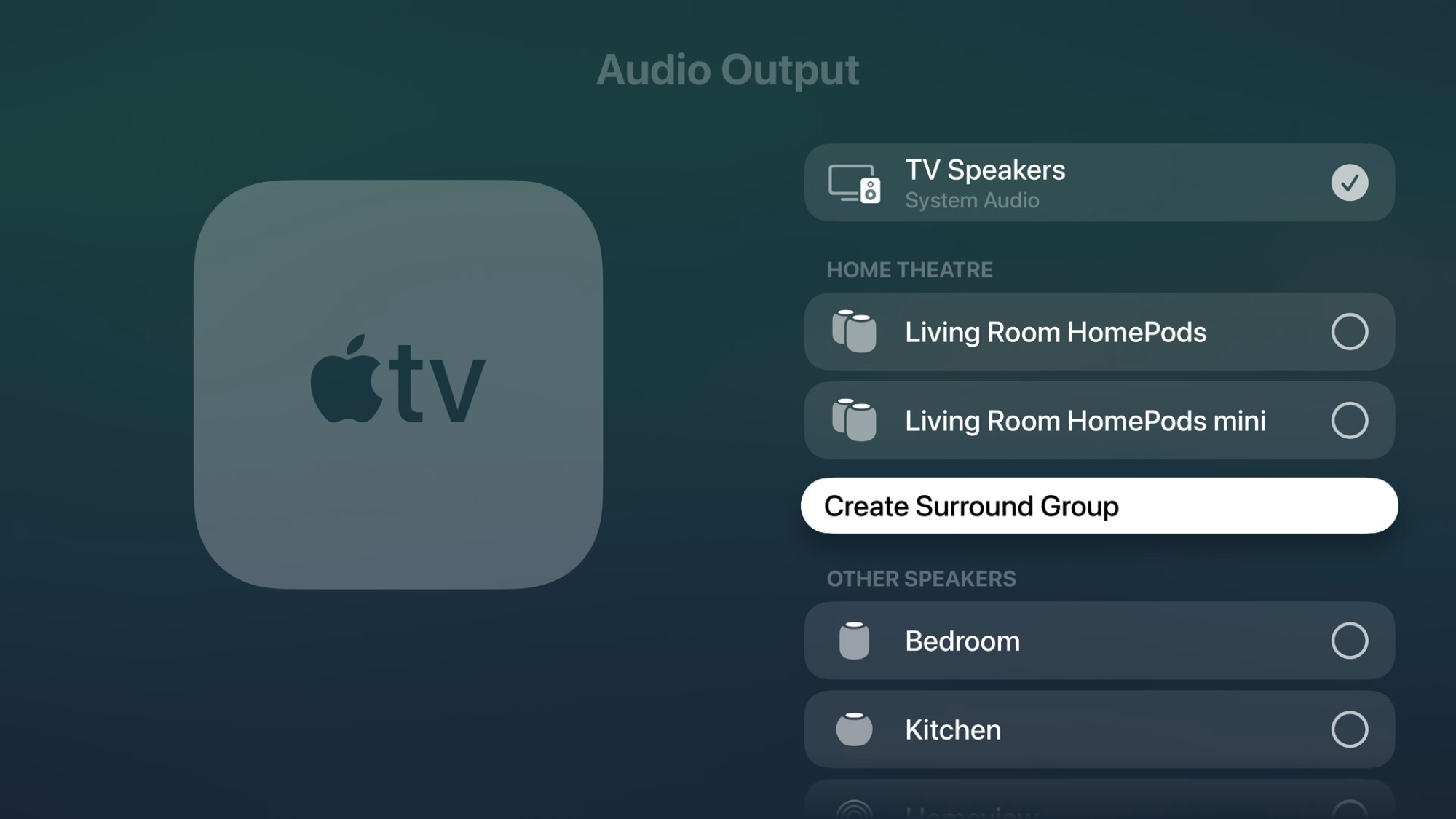
As with the dual-speaker options that Apple added six years ago, the Apple TV 4K should offer to set up any HomePods it finds in the same room, but if that doesn’t happen, you can find a new Create Surround Group option under Settings > Video and Audio > Audio Output.
Either way, the configuration experience was more whimsical than I expected.
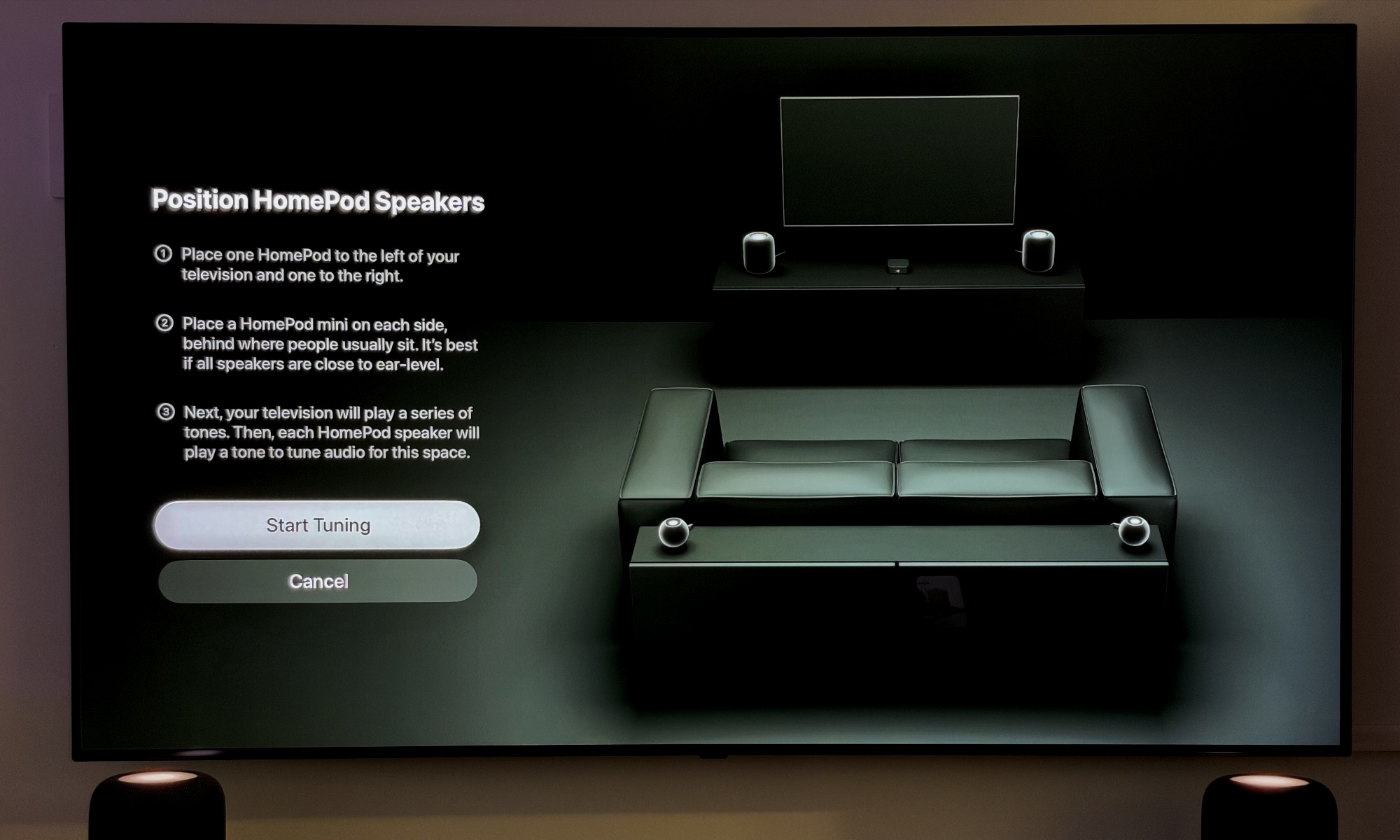
The process starts by prompting you to place the speakers in their proper positions, tailored for the speakers it detects. It then plays a series of tones back and forth between the TV and the speakers to essentially “read the room” for the best audio configuration.
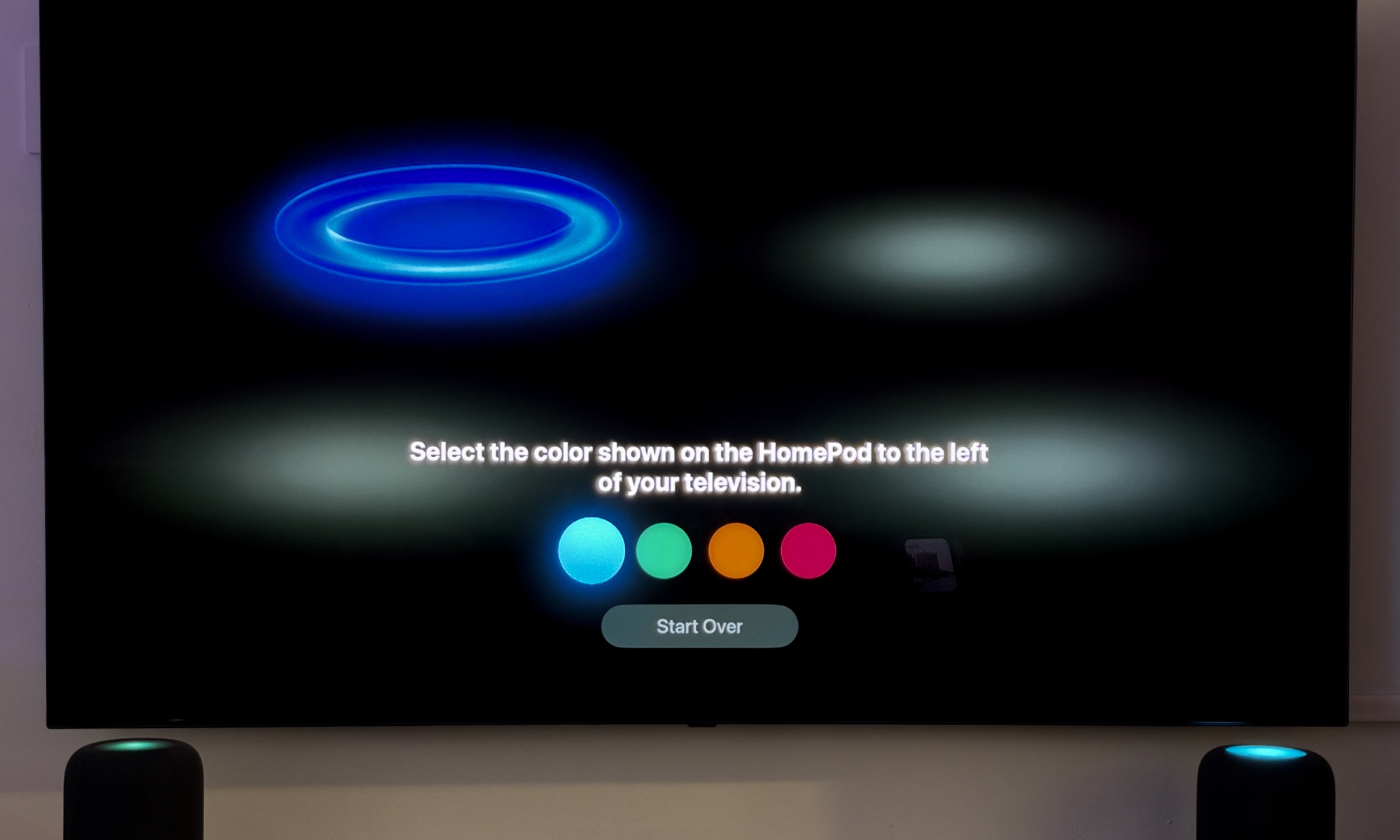
Once it’s done that, it prompts you to identify the speakers by color. Borrowing from the Sound Glow concept, each HomePod shows one of four colors on top, and you simply match the color to the placement by using the Siri Remote to navigate through them on your TV screen.
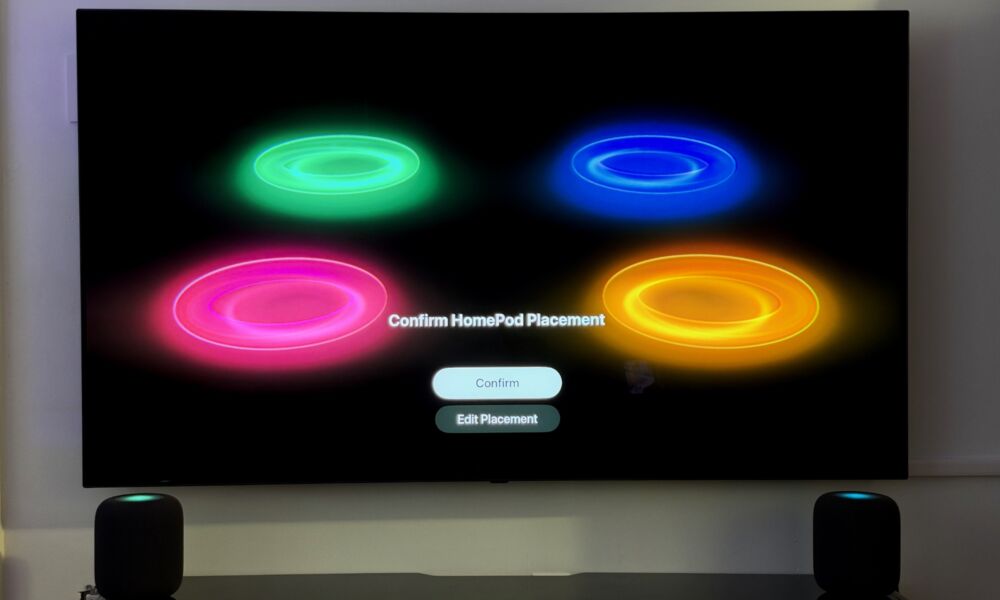
Once you’ve done that, you’re shown all four colors in their relative positions to give you one more chance to check for the correct alignment and either confirm or edit their placement if you got one wrong.
The Listening Experience
After that, it pretty much just works. Audio content encoded with surround streams such as Dolby Atmos or Dolby Digital 5.1 will play naturally, with the Apple TV 4K and HomePods handling any necessary audio adjustments to fit your room. Apple Music content in Dolby Atmos Spatial Audio also sounds great in this configuration.
What’s fascinating is that even though this is a four-speaker system, with no center speaker, the two front HomePods do a very good job of emulating the center channel. The Apple TV 4K offers the ability to switch the Surround Sound off by opting for “Whole Room” audio instead (more on that in a moment), and the difference is noticeable on center-channel content such as spoken dialogue.
The only catch here is that you have to be using an app that passes this through properly. That generally means they have to use the built-in tvOS Core Audio APIs rather than trying to roll their own audio engine. The Apple TV app naturally fits into this category, but the one that’s always been an annoying outlier in this regard is Plex, which was awkward even with a two-channel HomePod system. Thankfully, Infuse offers an excellent replacement.
There’s also the matter of content encoding. Older shows with basic two-channel stereo AAC will generally focus on the front speakers, with the rear doing minimal work. This happens even if you’ve turned on the option to Spatialize Stereo playback (which is on by default). Of course, that also depends on the content. More action-oriented shows will provide a bit of spatialization, but don’t expect anything special from classic three-camera sitcoms unless they’ve been explicitly encoded for surround sound.
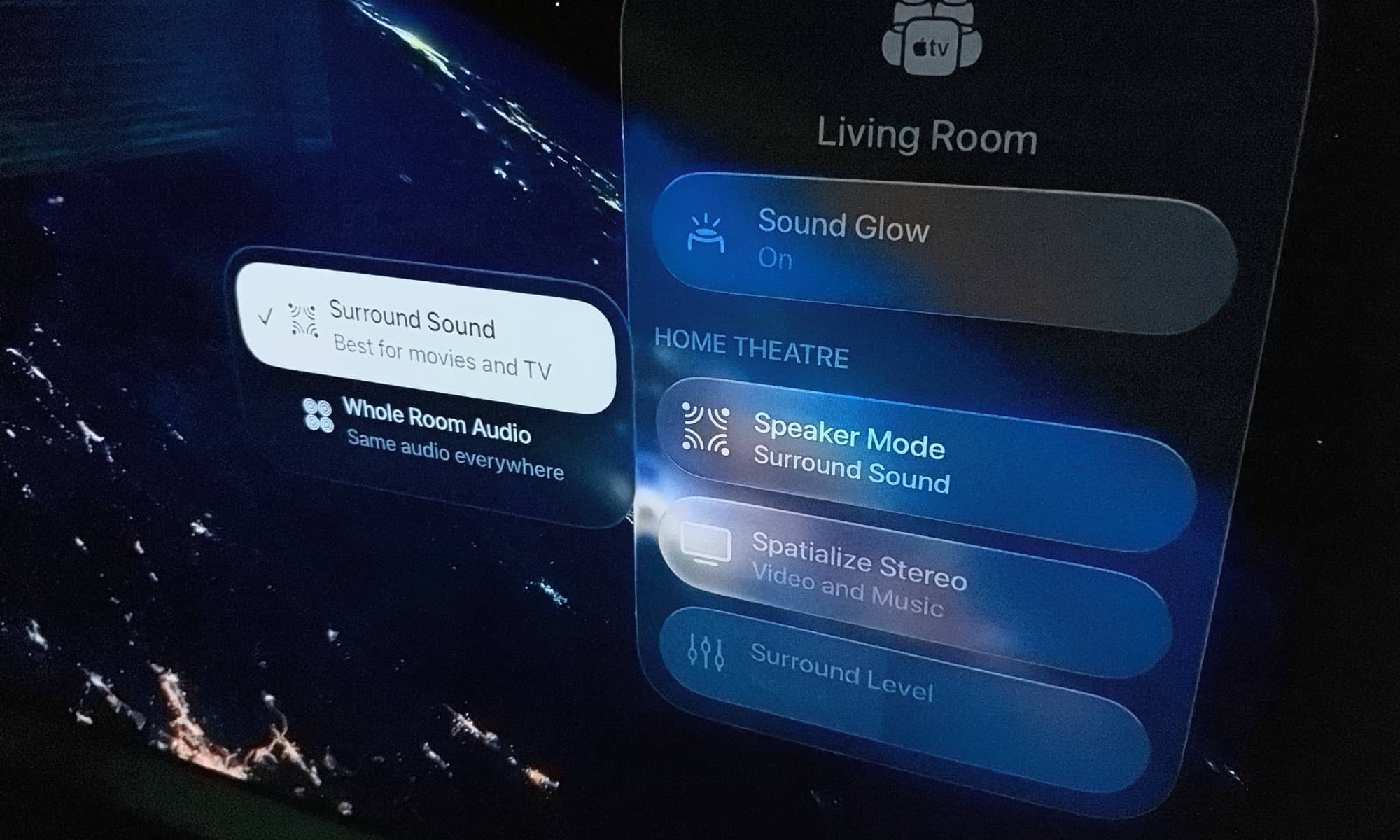
The Whole Room setting is another interesting feature. You can switch to this mode from the tvOS Control Center, where it effectively plays the same audio on all four speakers rather than trying to create a surround soundstage. Technically, it’s not the exact same sound, as it balances the audio across the four speakers and still maintains a stereo soundstage with diagonal pairing. As Apple describes this, it “spreads sound evenly across four HomePod speakers for audio that’s perfect for parties or game day.”
In my own testing, I found Whole Room was best for non-spatial music, while I preferred Surround Sound for Dolby Atmos tracks. But that was also for sitting on the couch facing my TV in a more focused listening setting. It’s not hard to see how Whole Room would apply in a party scenario where everyone is milling around — or even when you just want to listen to some music with the TV off while you’re roaming around the room.
The only drawback right now is that there’s no way to automatically toggle the audio mode based on what you’re watching. It’s easy to switch to Whole Room audio and forget you were using that setting when pulling up an Apple TV movie or episode that very much benefits from Dolby Atmos Surround Sound. In fact, that’s already happened to me a couple of times — I watched half an episode of For All Mankind on Friday night before realizing I was still using Whole Room and switching over to Surround — and the difference almost made me want to start over from the beginning.
In an iPhone world, this is something that would be theoretically solvable with Apple Shortcuts, but tvOS isn’t nearly that flexible. Here’s hoping Apple addresses this in some way in a future update.
What Else Is New?
Besides the fact that I write about Apple technology for a living (which is always a nice rationalization for “investing” in the newest products), the new audio experience is really the only thing that makes the 2026 Apple TV 4K worth the upgrade from the third-generation model — and probably even from the second-generation for many folks.
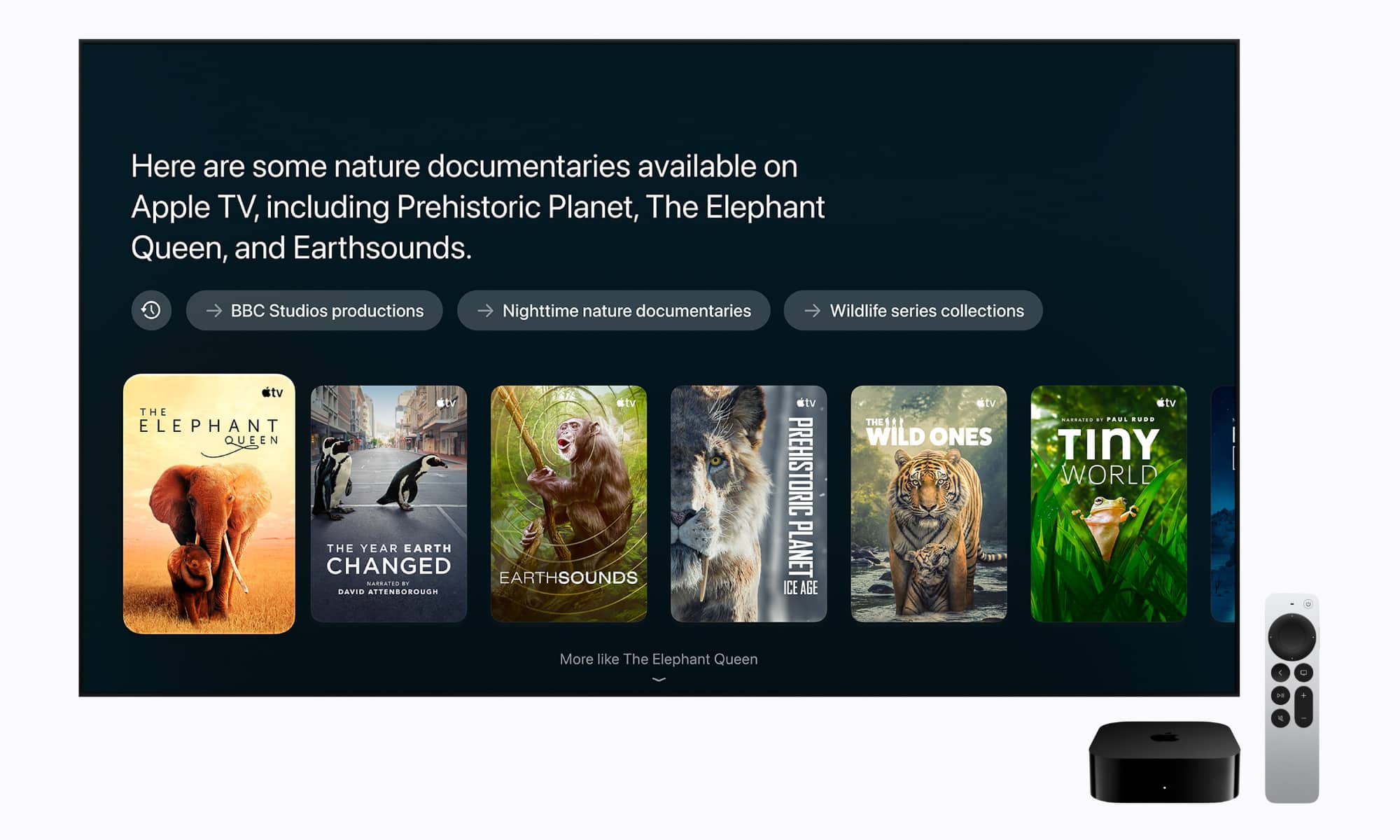
While the new Apple TV 4K boasts Siri AI support, that’s also come to the second- and third-generation models in the tvOS 27.2.1 update. The only unique feature is that it includes built-in microphones to let you call up Siri from anywhere in the room without reaching for the Siri Remote. That can be handy for folks with a simple setup, but it’s redundant if you have even one HomePod nearby — even if it’s in an adjacent room. In my case, I’ve now got six devices in my living room listening simultaneously for “Hey Siri” — the Apple TV 4K, four HomePods, and a HomeView.
The A19 chip can certainly handle more on-device AI tasks — in theory at least — but we’re also talking about a device that has a persistent internet connection, so handing off to Apple’s Private Cloud Compute shouldn’t be too much of a burden. Plus, if the iPhone experience in iOS 27 is any indicator, I’m not convinced that anything more than the most basic requests are processed on-device anyway. Things like asking for viewing recommendations or looking up information on movies and TV shows will undoubtedly be making a trip to the cloud regardless.
The new Apple TV 4K also hasn’t been without its growing pains. While the upgrade process went smoothly for me, a number of folks have reported issues with YouTube presenting a black screen or complaining that the “YouTube app is approved for device testing only.” Ensuring you’ve updated to tvOS 27.2 and reinstalling the YouTube app seems to fix this — although it may also require a force restart after updating. In my case, I did the update right out of the box to get my HomePods set up — my Apple TV 4K shipped with tvOS 27.0.1 — which might explain why I didn’t run into this glitch.