iOS 27 Acting Up? How to Tame Your iPhone’s New Update
Toggle Dark Mode
You update your iPhone to iOS 27 and you’re having some issues. Your iPhone seems to be running slower, it feels warmer than usual, and previously reliable apps have started crashing left and right. You may not even see the update as being available for your device! Is that’s what’s bothering you, Bunky? Well fear not, such problems do have remedies, or you can at least expect them to go away soon.
I Don’t See the iOS 27 Update
You’ve decided to update your iPhone to iOS 27. But there’s a problem. When you go to Settings > General > Software Update, you’re not seeing the option to update your iPhone!
First thing, check to make sure your model iPhone is compatible with iOS 27. While iOS 27 can run on the same iPhones that iOS 26 was made for, maybe you never updated to that release. Check the iPhone compatibility list to make sure your iPhone can handle the new operating system.
If your iPhone is compatible with iOS 27 but you still don’t see the update, try one of the following remedies:
- Scroll further down on the Software Update screen. iOS 26.7 was also released today, and it’s the default update, as Apple doesn’t want to force people into the new release quite yet. iOS 27 will be listed as an optional update at the bottom of the Software Update screen.
- If you’re already running a beta version of iOS 27, check Settings > General > Software Update > Beta Updates and toggle off beta updates. This isn’t usually required, but sometimes it helps to give the update process a kick.
- Make sure you’ve got enough storage. Go to the Settings app and tap General > iPhone Storage. You’ll need at least 5 to 7 GB of space just to download the update. Your iPhone also needs some elbow room to perform the install, so that’s another 10 to 20 GB of space that’s needed. Most sources say a good rule of thumb is to have at least 25 GB free, but the more free space, the merrier.
- Make sure you’ve got a good Wi-Fi connection. Do yourself a favor and don’t try to download and install the update when you’re connected only by 5G cellular service. While 5G is fast nowadays, If you try to install while out and about, you may lose your cell connection, or things may slow to a crawl during busy times on your provider’s network.
- Restart your iPhone. “Have you tried turning it off and back on again” may sound like a punchline, but you’d be surprised at what a good reboot will do for your iPhone.
- Walk away and come back to check for an update a bit later. Go relax a bit and have a cool drink. The Apple update servers are getting hit with a lot of update requests right now. Come back in a few hours, or even a few days to give things a chance to calm down.
My iPhone’s Warm, It’s Slow, and the Battery is Draining Fast
It is normal for your iPhone to run a bit warm and a little slower after installing a major iOS update like this one. You may even notice your iPhone’s battery is draining a bit faster. At least one iPhone 15 Pro Max user reported laggy, “Low Power Mode-like” scrolling right after the install.
Happily, all of this is a short term problem. After an update, your iPhone is indexing content, syncing data, processing photos, and doing other background tasks. Wait and see if the temperature and performance return to normal after a short while.
If your iPhone stays warmer and slower and continues to eat up its battery for a long period of time, go to Settings > Battery and check for apps showing unusually high battery usage or background activity.
Also avoid any intensive tasks on your iPhone, like video editing or gaming, that might put an additional strain on your iPhone’s system. Check to see if there are updates for your installed apps. Update them if one is available.
If you have a case on your iPhone, particularly a thick, super-protective case, remove it temporarily to allow better cooling.
Restart your iPhone. This can put a halt to any runaway tasks causing your iPhone to run hot. However, make sure the update has been installed completely. Never restart your iPhone in the middle of an update. If you do, you might be the proud owner of the world’s most expensive brick.
Check for an iOS 27 update. Yes, I know you just installed the update, but if issues are discovered after an update is made available, Apple will release a fix.
My Third-Party Apps Are Crashing
If your previously reliable third-party apps have begun crashing after your update to iOS 27, they likely need to be updated. While developers do test their apps on new versions of iOS while it is being beta tested, last minute changes could cause problems. Plus, many developers wait until the new version has been released to the public before releasing updated versions of their apps. So, check the App Store for updates.
I’m Having Issues With Wi-Fi, Bluetooth, AirDrop, or CarPlay
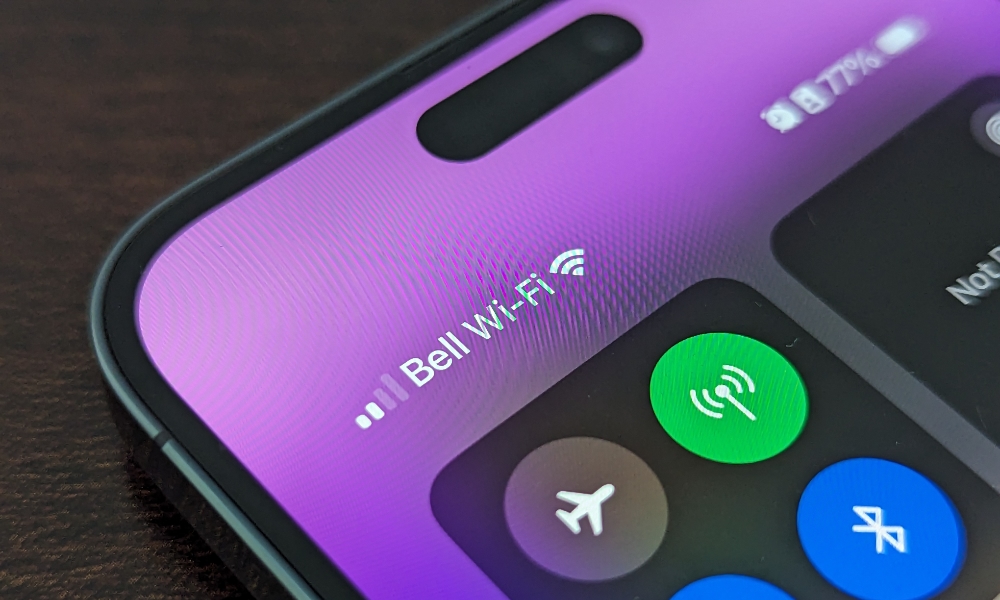
If you’re having issues with your iPhone’s Wi-Fi connections, Bluetooth pairing, or with things like AirDrop, AirPlay, and CarPlay, try one of the following solutions:
- First off, try something simple, like turning on Airplane Mode for 10 to 30 seconds, then turn it back off.
- If that doesn’t work, restart your iPhone. It’s also a good idea to restart any accessory you’re attempting to connect to.
- Forget the Wi-Fi network or Bluetooth device and then pair it again.
- If connectivity issues continue you can try a last ditch effort like resetting your network settings.
Be warned though that this will erase your saved Wi-Fi passwords, VPN settings, and Bluetooth pairings, so you’ll need to reconnect to everything afterward, so make sure you’ve got your Wi-Fi password handy — here’s how to find your Wi-Fi password from your iPhone if you don’t know it.
- Open Settings > General > Transfer or Reset iPhone > Reset.
- Tap Reset Network Settings.
- Enter your passcode if prompted.
Your iPhone will restart, but don’t worry, this won’t erase anything else. It should reconnect to the cellular network right away, but be sure to go back into your Settings app and join your Wi-Fi network again for the best experience.