Three Lesser-Known Mail Settings That Guard Your Attention, Identity, and Trust
 Hadrian / Shutterstock
Toggle Dark Mode
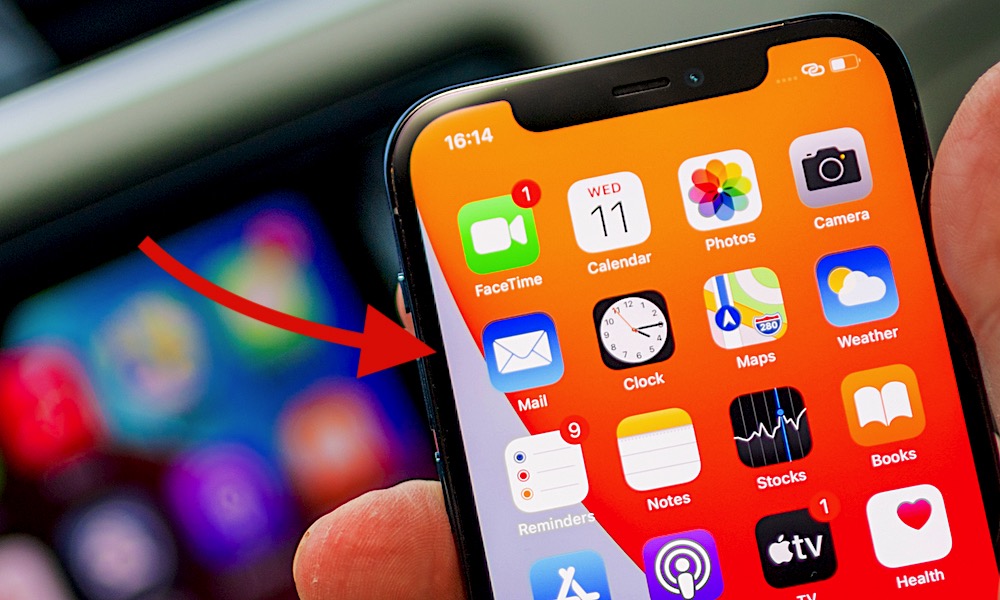
The iPhone’s Mail app packs a ton of settings most users never discover. While these features aren’t exactly buried, they do require digging a few taps deeper into the Settings app. Often, it’s the simplest tips that can make the experience with an app far more intuitive and comfortable.
Here are three iPhone Mail app settings that may not show up in other “Mail Tips” articles. These are less about tidying your inbox and more about controlling who reaches you, who tracks you, and who you can actually trust. Each takes under a minute to turn on.
1. Notify Me
Many of us probably spend more time deleting messages from our inboxes than reading them. However, there are plenty of times you might be anxiously awaiting a response that’s worth the interruption.
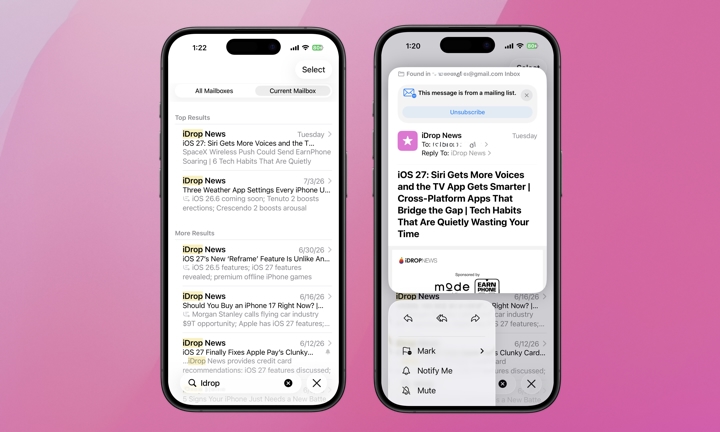
Mail’s Notify Me setting is an incredibly helpful feature that sets a per-conversation flag on a specific email thread. It’s actually been around for years in various forms, but it’s also incredibly easy to miss.
Once the flag is set, you’ll receive a push notification in accordance with your Notifications settings to your lock screen. If you’re eagerly awaiting a response in one particular exchange, Notify Me will ping you when it’s delivered and save you from repeatedly checking your inbox.
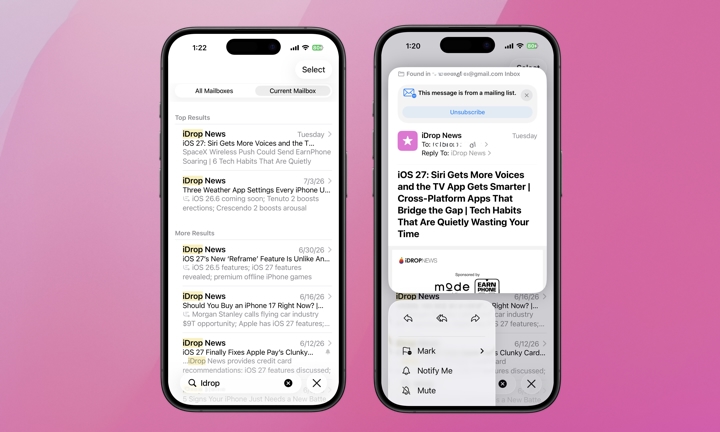
To turn on Notify Me for a specific email thread, follow these steps:
- Open the Mail app.
- Long-press on the email thread you want to receive notifications for.
- Tap Notify Me.
- You’ll see a small alarm bell icon in the top-right of your thread in the inbox like the image below.
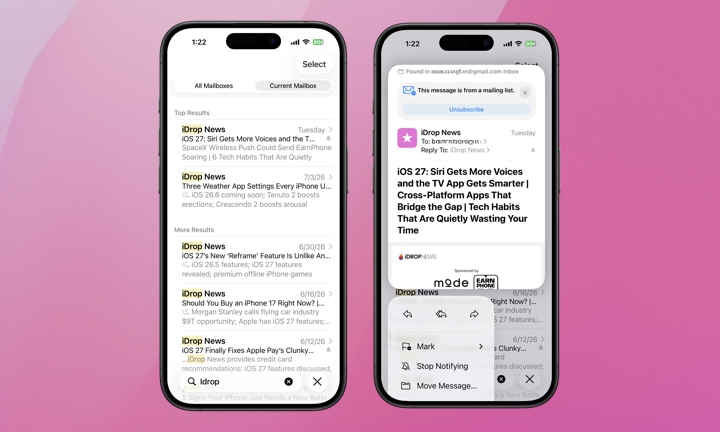
Removing a Notify Me from an email thread is as simple as turning it on. Follow the same steps. Long-press on the thread with the alarm bell and tap Stop Notifying.
2. Mail Privacy Protection
While Apple’s Hide My Email feature is designed to generate a unique email address tied to your personal account for use when filling out forms, Mail Privacy Protection could actually reduce how aggressively you receive emails from unwanted senders over time.
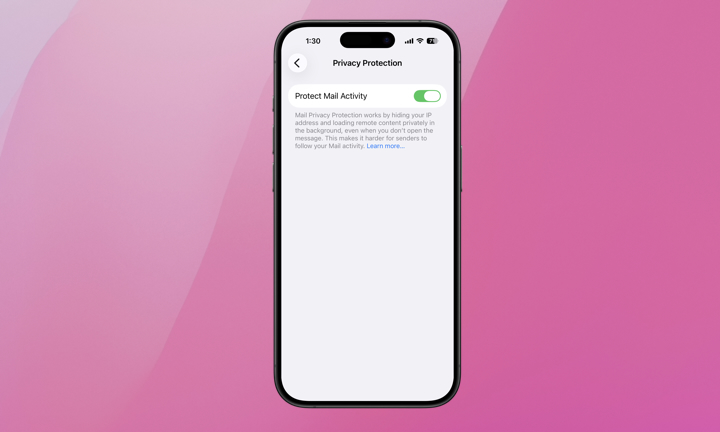
Activating Mail Privacy Protection will load all remote images via Apple’s servers, masking your IP address with a randomized regional address. This prevents senders from linking your email interaction with your other online activity, and obscures your exact location.
Senders also won’t be able to tell if or when you’ve opened the email message. Hiding the opened/read status alone may be enough reason to enable this feature. Here’s how to turn on Mail Privacy Protection
- Open Settings.
- Go to Apps.
- Select the Mail app.
- Scroll down until you see Privacy Protection.
- Toggle Protect Mail Activity on.
Keep in mind this only works with Apple’s Mail app, not third-party email apps like Gmail or Outlook.
3. Mark Addresses
We try to keep you informed about the relentless phishing email and text scams and how to improve your digital security. Mail’s Mark Addresses feature can act as a first line of defense when it comes to shady email messages. Mark Addresses gives you an instant visual flag the moment you read or respond to an email. If the sender’s domain isn’t marked, it will appear in red when you read the message or reply to it.
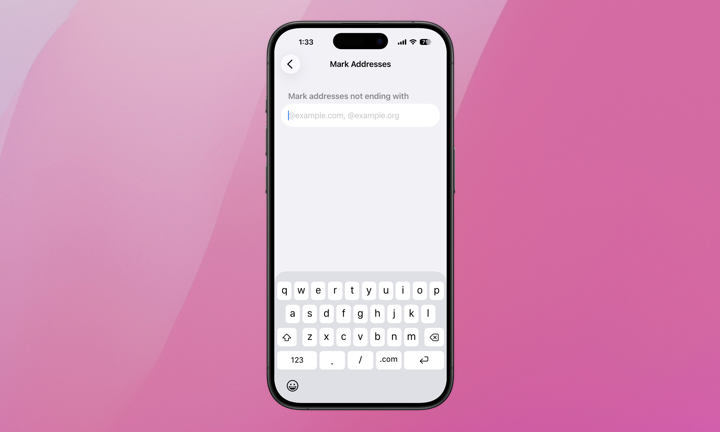
Mark Addresses works for business use or personal use. You’ll want to enter your organization/business domain name or the commonly used domain names by friends and family (for example @idropnews.com, @mactrast.com). If your inbox is for personal use, marking all of your most commonly received emails as safe domains may take a bit of dialing in. When it comes down to it, a list of probably five to ten domains could be enough of a head-start to make you feel comfortable.
Here’s how to input your first marked addresses:
- Go to Settings.
- Tap Apps.
- Tap Mail.
- Tap Mark Addresses under the Composing list.
- Enter the domain names you do not want marked in red (the ones you trust), separated by a comma (@idropnews.com, @mactrast.com)
These simple Mail app settings are worth exploring. They change the terms of who gets access to your attention and make your inbox more trustworthy rather than reorganizing messages into folders or tabs as they arrive. If you want to make yourself harder to trick, track, and interrupt, try them out.