Three FaceTime Settings You Didn’t Know Your iPhone Had
 PixieMe / Adobe Stock
Toggle Dark Mode
FaceTime has been available on the iPhone for more than fifteen years! Chances are many have only used its most basic feature. We FaceTime our friends and family, hang up, and that’s it (yes, “FaceTime” is officially recognized as a verb by Merriam-Webster and Cambridge Dictionary).
However, beyond the video calling magic we’re all familiar with, FaceTime is actually more powerful than most people know. Here are three simple FaceTime features and settings that will make the experience more personal, safe, and versatile.

1. Eye Contact
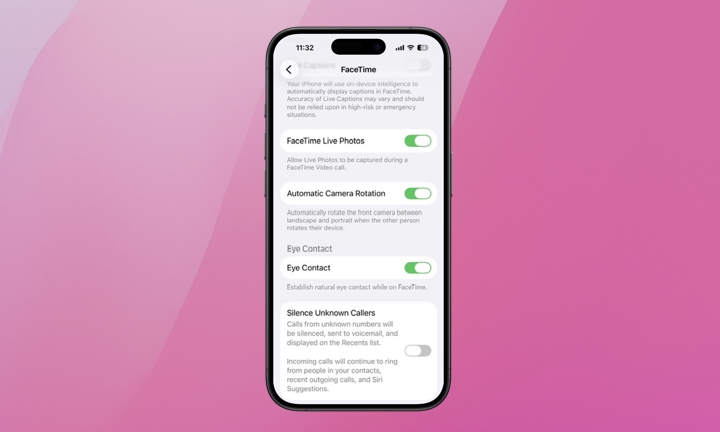
FaceTime actually has a specific Eye Contact setting. It uses on-device AI to subtly adjust your gaze in real-time so it appears to the person on the other end that you’re looking directly at the camera (that is, into their eyes) rather than at their face on your screen. Professionals who often use video calling are aware of how difficult it is to speak while looking into a webcam versus the person on the screen. It’s unnatural, making it a skill that can be tricky to get the hang of. FaceTime’s Eye Contact setting fixes this issue for you.
Eye Contact requires an iPhone XS (released in 2018) or newer model and at least iOS 14 to work. It’s been enabled by default since 2022 when iOS 16 was released. Eye Contact has been hiding in plain sight for years and may just be one ingredient of the secret sauce that makes FaceTime awesome.
Here’s how to confirm Eye Contact is enabled for FaceTime on your iPhone:
- Open the Settings app.
- Scroll to the bottom and tap Apps.
- Find FaceTime and tap it.
- Scroll down to Eye Contact and enable the toggle if it’s not already.
2. Sensitive Content Warning
Not all FaceTime features are about convenience, fun, or productivity. Some exist to protect you (and your kids) from things you’re not expecting.
Sensitive Content Warning also uses on-device machine learning to detect nudity in real time during a video call. The setting will identify inappropriate photos or videos and pause the call the moment they’re detected — regardless of whether you’re the sender or the receiver — giving all participants the option to resume or end the call.
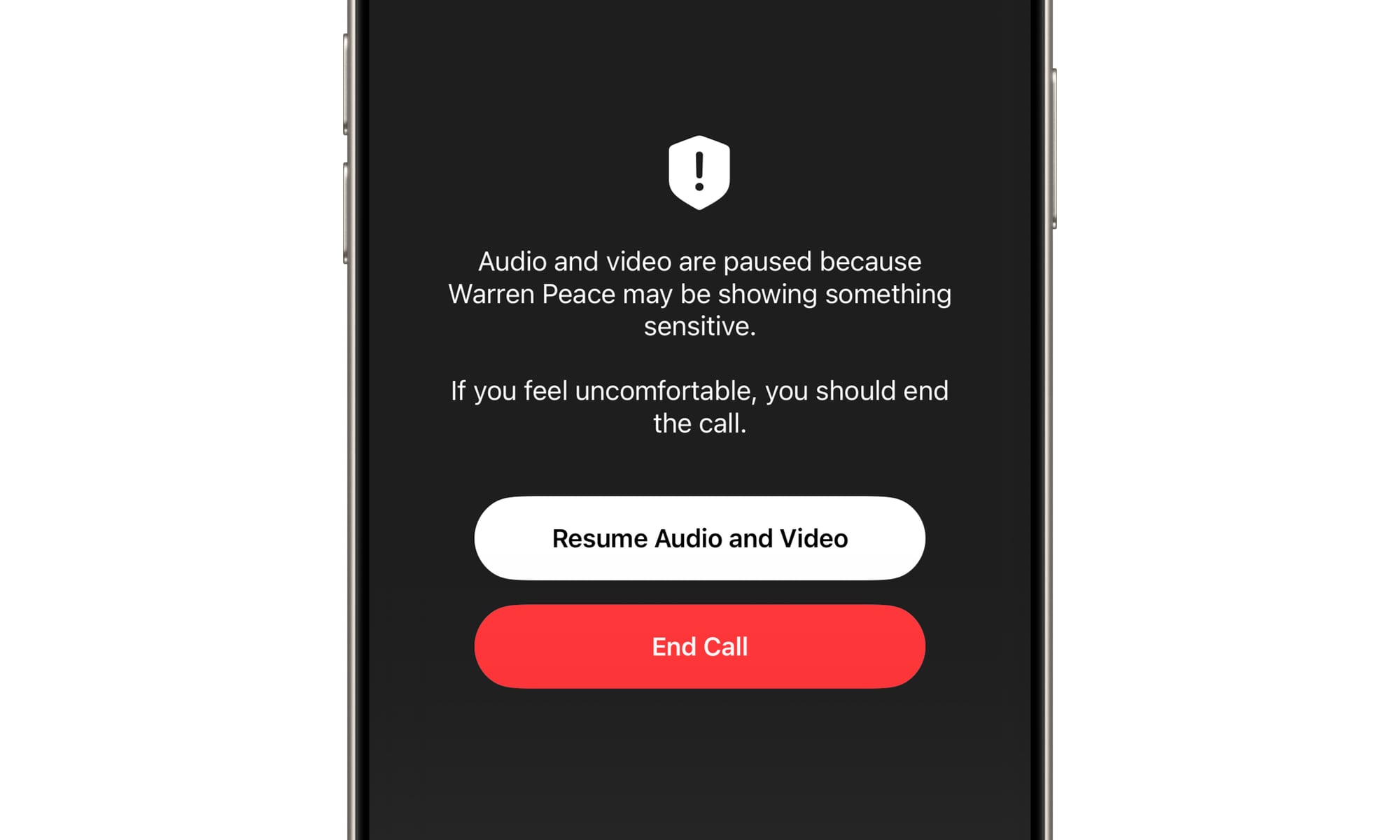
Sensitive Content Warning, along with its companion child safety feature, Communication Safety in Messages, also works in Messages, AirDrop, Contact Posters, and Shared Albums in the Photos app.
For FaceTime, this feature requires iOS 26 or later, and is available on the iPhone 11 and newer models — basically, all the devices that are compatible with iOS 26.
Here’s how to enable Sensitive Content Warning:
- Open the Settings app.
- Privacy & Security.
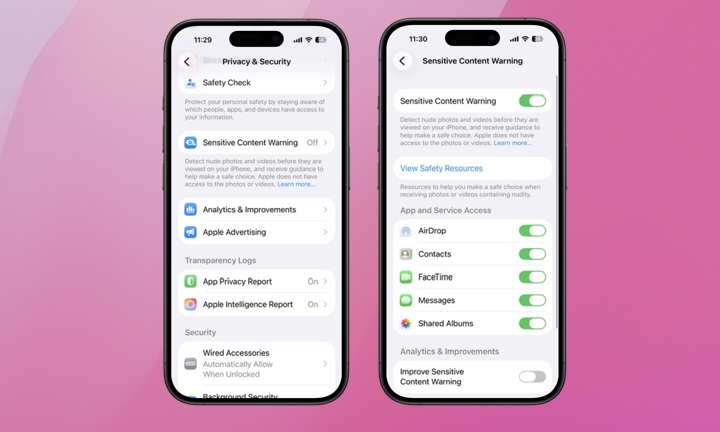
- Scroll to Sensitive Content Warning and toggle it on.
- You’ll then be presented with a list of apps and services for which you can enable the feature.
Alternatively, you can enable Sensitive Content Warning specifically for FaceTime by going to Settings > Apps > FaceTime and toggling on the Sensitive Content Warning Slider.
3. FaceTime Handoff
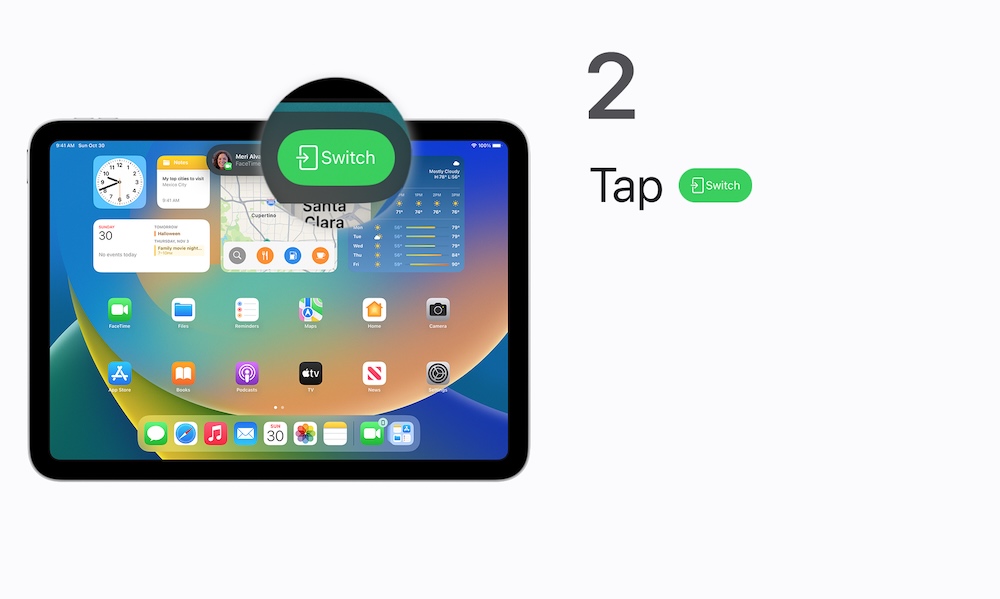
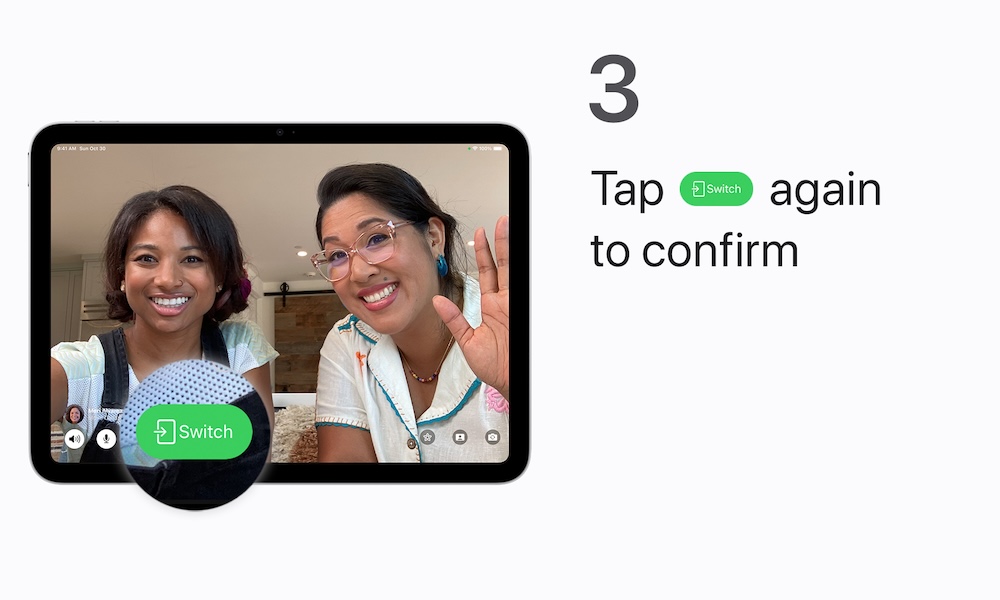
FaceTime now allows you to seamlessly transfer an active call to finish the conversation on your Mac or iPad. There’s no need to hang up or redial — and the conversation won’t skip a beat.
Handoff requires all devices to be near each other and signed in to the same Apple Account, on the same Wi-Fi, and both having Bluetooth turned on.
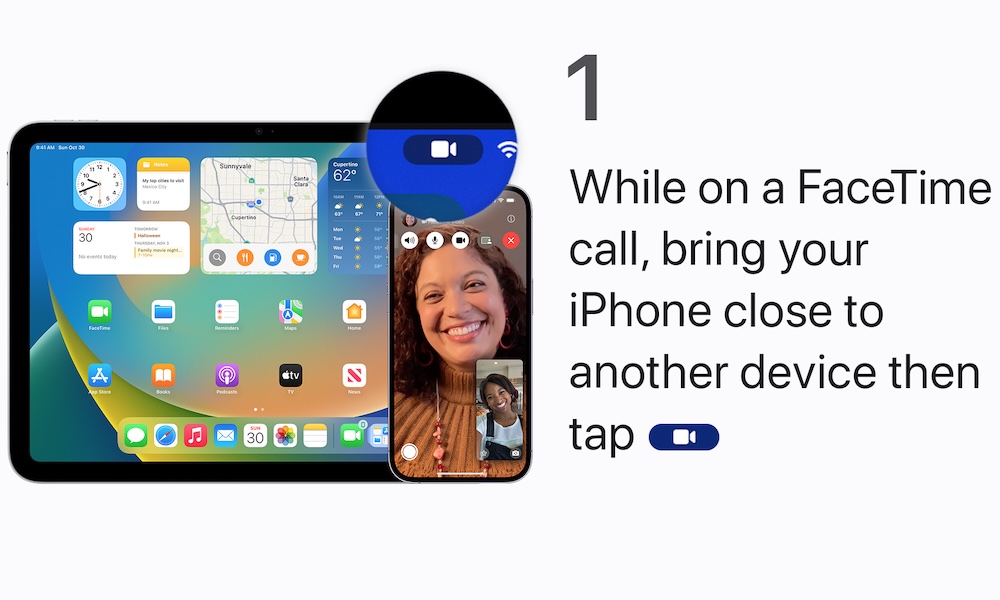
Here are the steps to transfer a FaceTime call to another Apple device, followed by a tutorial from Apple.
- First, confirm this feature is enabled by going to Settings > General > AirPlay & Continuity and toggling on the slider next to Handoff. This should be on by default, but it’s worth a quick check to make sure.
- During an active FaceTime call, make sure you’re in close proximity to the Apple device you wish to transfer the call to.
- On the other device, tap the notification prompting Move call to this [device].
- Tap Switch or Join, then tap Switch or Join to confirm.
FaceTime Handoff requires iOS 16 or later meaning only iPhone 8 and newer models will be able to complete a Handoff. On the other end, you need macOS Ventura 13 or later on a Mac, or iPadOS 16 or later on an iPad. You can even transfer a call to your Apple TV!
These FaceTime features should improve the experience for both participants of the call. All three are worth turning on. If you have younger kids who use FaceTime, the Sensitive Content Warning feature is an absolute must! Hopefully this information helps connecting with friends and family via FaceTime even better.