Three Hidden Reminders Settings That Put Your To-Do List on Autopilot
 prima91 / Adobe Stock
Toggle Dark Mode
Your iPhone’s Reminders app is far more powerful than a simple to-do list. It’s full of features most users likely never touch. We think Reminders is one of the most underrated productivity tools available for iOS users.
Reminders is designed to make your life easier — as long as you know how to take advantage of it. Here are three of its hidden gems worth knowing about.
1. Smart Grocery Lists
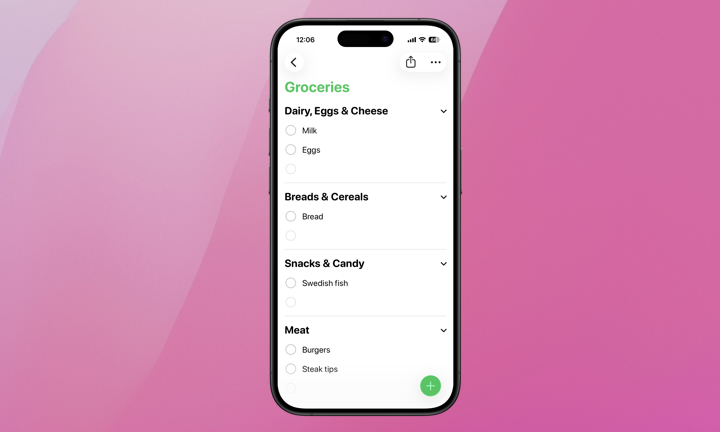
When you tag a list as “Groceries” and start listing items, Reminders automatically categorizes each line item into appropriate sections. There’s no manual organizing needed.
How many times have you checked your list in the grocery store and had to revisit certain aisles as you worked your way down the list? It sounds simple, but this smart grocery list feature solves that problem, every time.
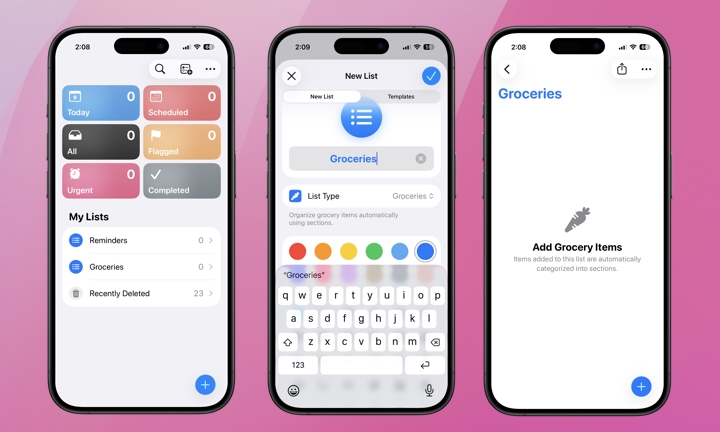
To add a new grocery list to the Reminders app, follow these steps.
- Open the Reminders app.
- Create a new list by tapping the new list icon in the top-right of your screen between the magnifying glass and More button (…).
- Give the list whatever name you like, such as “Groceries” or the name of a specific grocery store.
- Under List Type, select Groceries.
- You’re now ready to add items to your grocery list. You’ll see the prompt informing you that items will be automatically categorized into sections.
2. Notes Field for Each Reminder
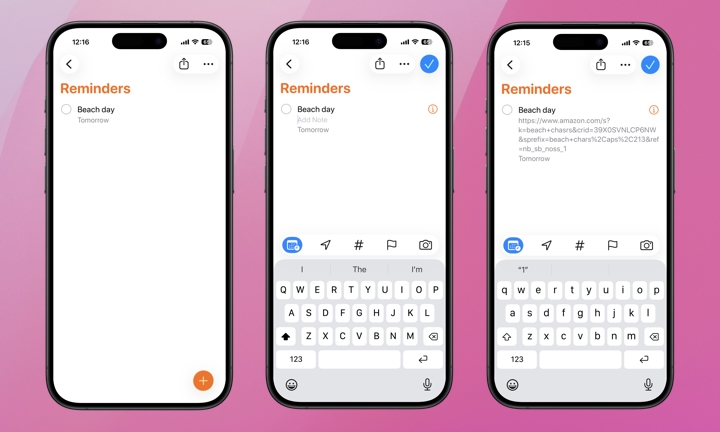
Every reminder has a hidden notes field below the title where you can add further notes, links, or details without cluttering the title. Most people type as much as possible into the reminder title. The result is a busy and hard-to-read list. The notes field is perfect for maintaining a clean list while also storing every detail needed. Here’s how to use it.
- Open Reminders.
- Tap the Info button (the circled “i”) to the right of the title of an existing reminder, or tap the reminder title itself.
- If you tapped the information icon, you’ll see a Notes field. Tap it and type in anything you want and tap Done.
- If you tapped the reminder title, you’ll see the cursor move to the next line with a grey prompt to Add Note. Type your note directly in there.
3. Early and Urgent Reminders
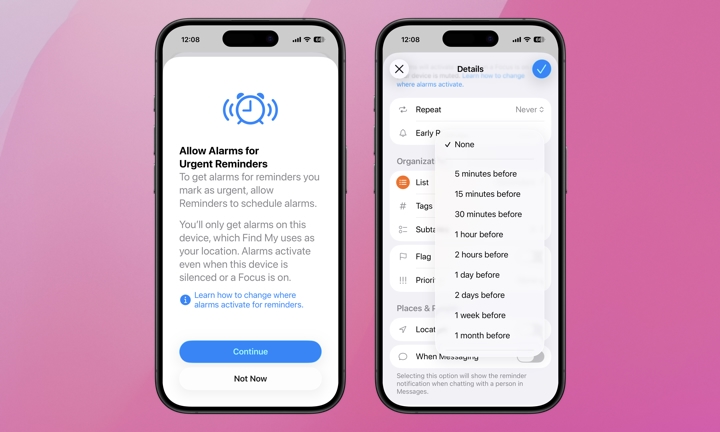
Most people set a reminder for an exact date and time. This doesn’t leave much room to actually act on the reminder or prepare for a specific event. The Reminders app has a built-in early reminder feature to make sure you’re not scrambling at the last second. Here is how to set up an early reminder.
- Open the Reminders app and tap an existing reminder or create a new one.
- Tap the Info button (the circled “i”) to the right of the reminder’s title.
- Toggle on Date and set the reminder’s due date.
- Toggle on Time and set the reminder’s due time.
- Tap Early Reminder which will appear below the date and time once a time is set.
- Choose how far in advance you’d like to be notified.
- Tap Done.
At a minimum, your reminder must have a date for the Early Reminder option to appear. A time is optional, but if you don’t set one, the advance reminder will be triggered based on the default all-day reminder time — that’s 9:00 a.m. by default, although you can change it in the Settings app under Apps > Reminders.
You can also mark a reminder as Urgent by following the same steps. An urgent reminder requires both a date and time to be set. The first time you toggle on the slider next to Urgent you’ll likely be prompted to allow alarms for Urgent Reminders, as these require special permissions to bypass focus modes to play an alarm when the reminder is due.
If you set an early reminder for a reminder that is also marked urgent, an alarm will play for the date and time of the early reminder and the reminder’s due date and time.
The Reminders app isn’t a bare-bones checklist — it’s a built-in assistant ready for your daily routines. Between smart grocery lists that organize themselves, a notes field that keeps your lists clean and detailed, and early and urgent reminders that keep you ahead of important tasks and deadlines, iPhone users are likely leaving a lot on the table when it comes to this app. Take a few minutes to explore these features. You might just discover your new favorite productivity app has been on your iPhone all along.